Adding a VA or User to Your Store Account
Make sure you are in the Store Account you want to add a person to before starting this process.
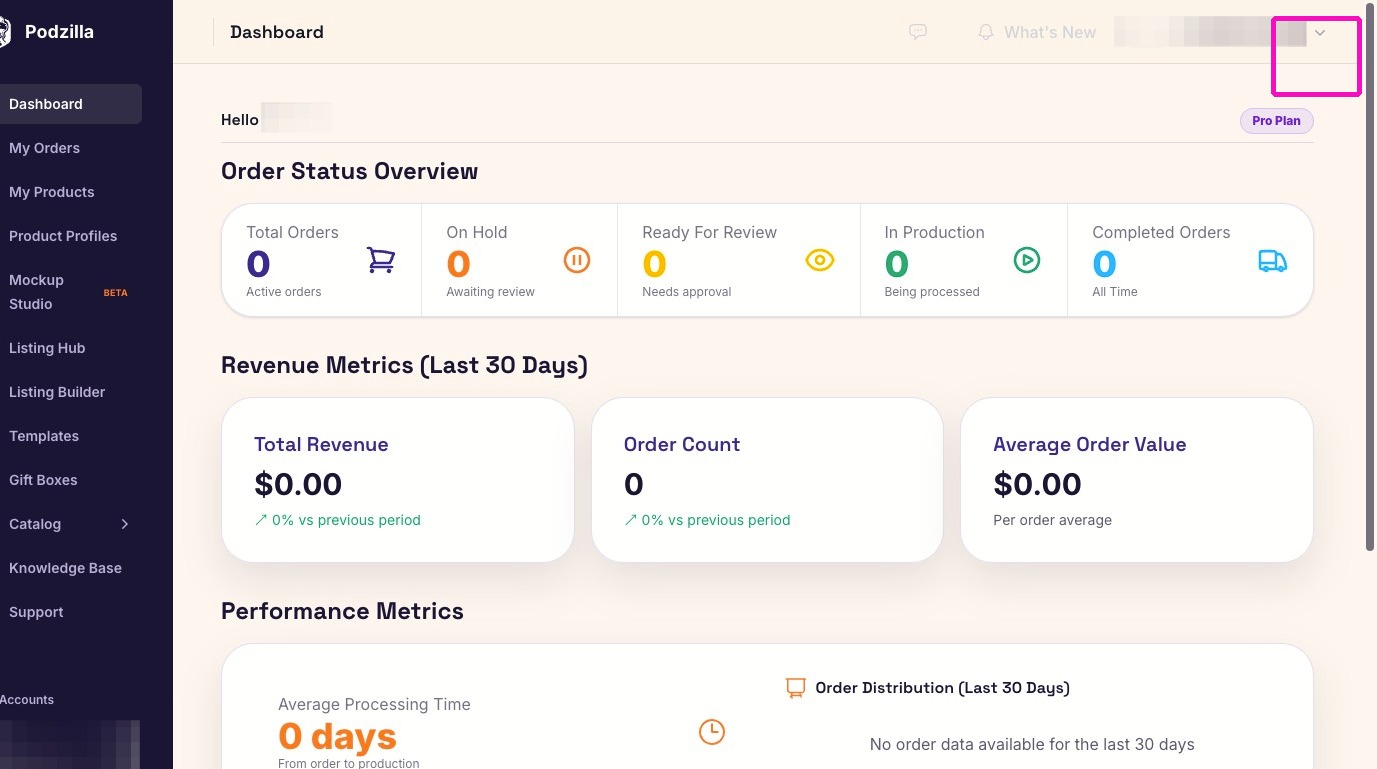
1. From your Store Account, click the dropdown menu next to the store name.
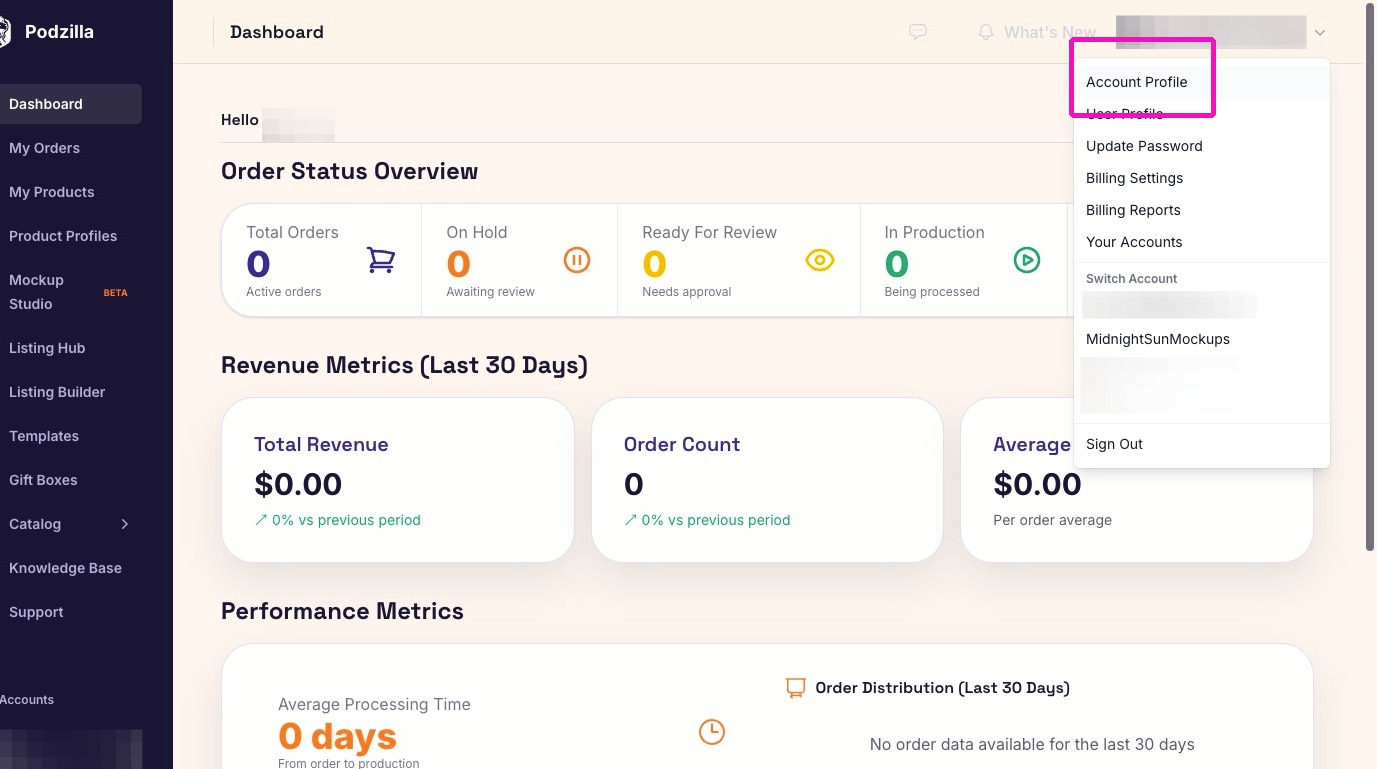
2. Click Account Profile.
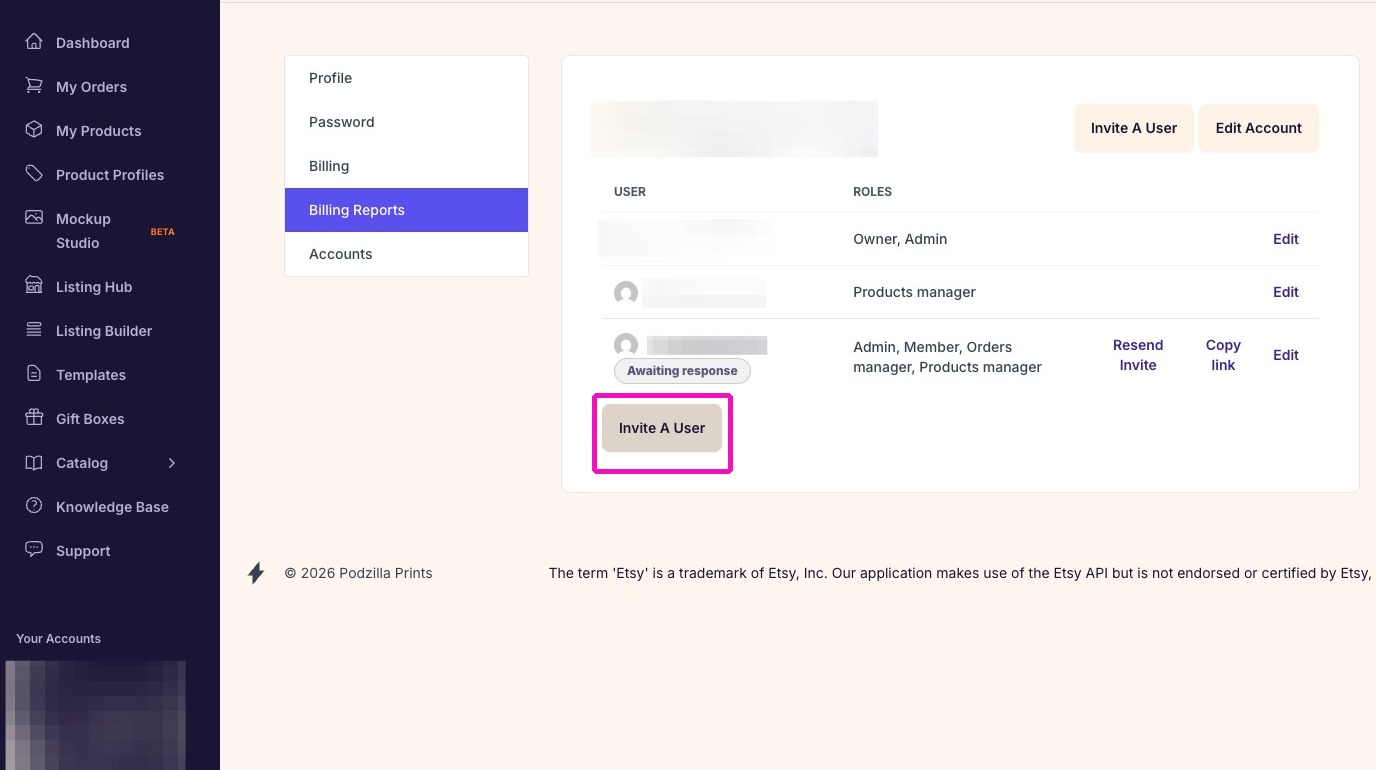
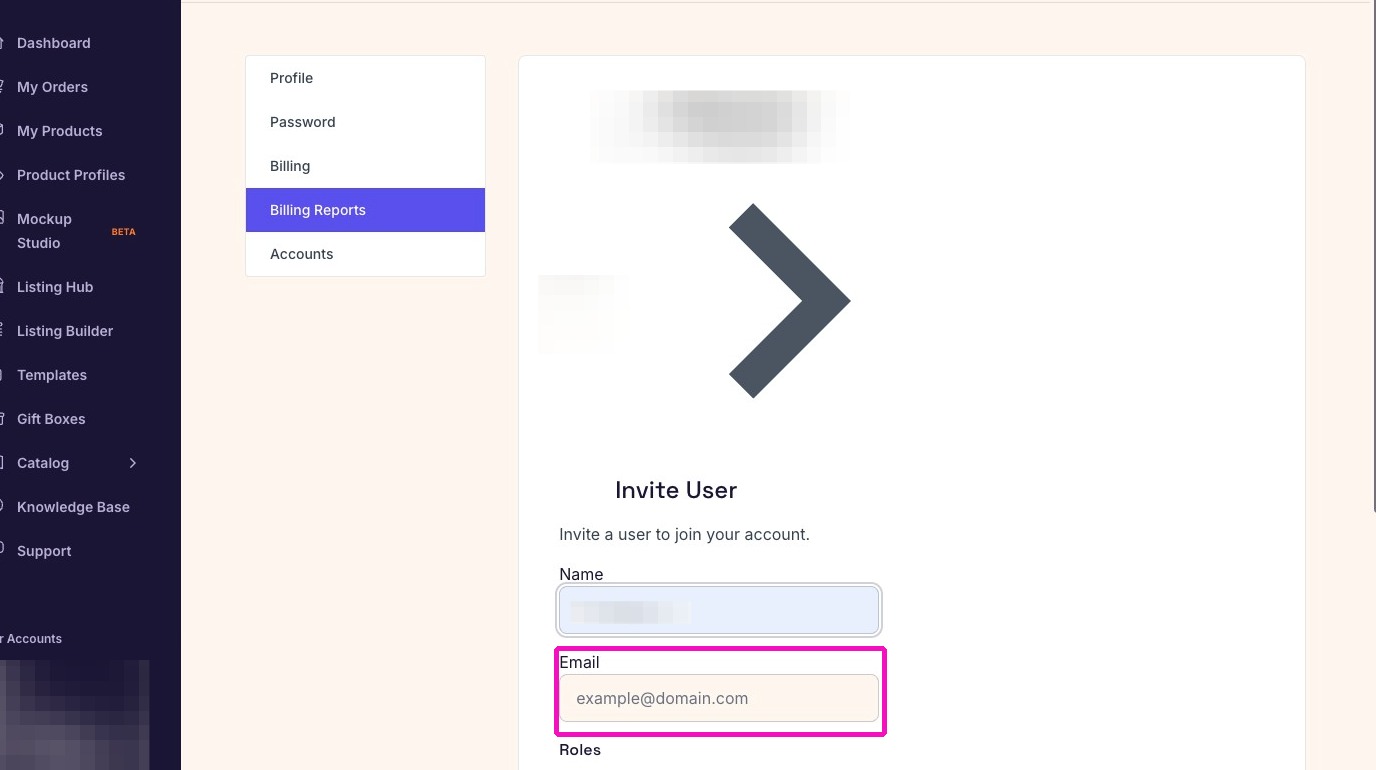
4. Enter the team member's name in the Name field.
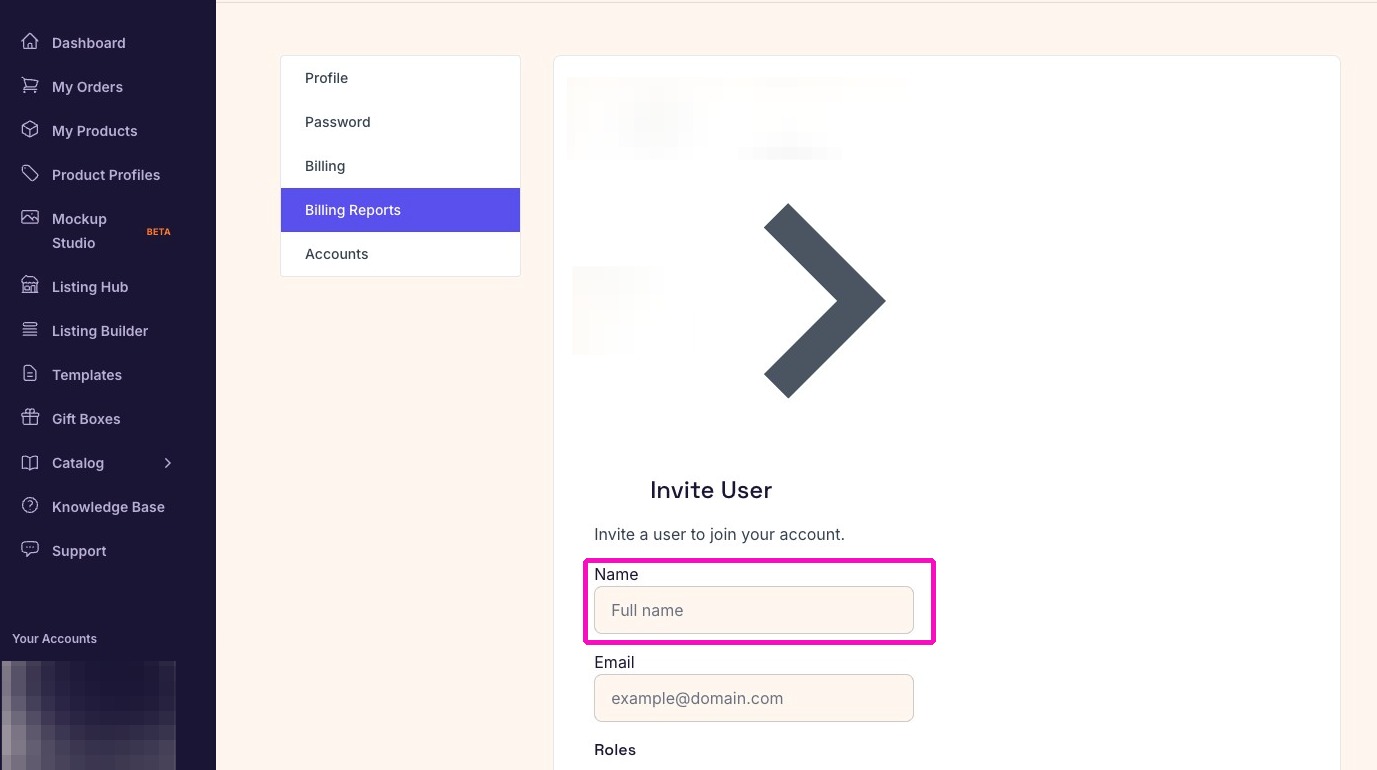
5. Enter the team member's email in the Email field.
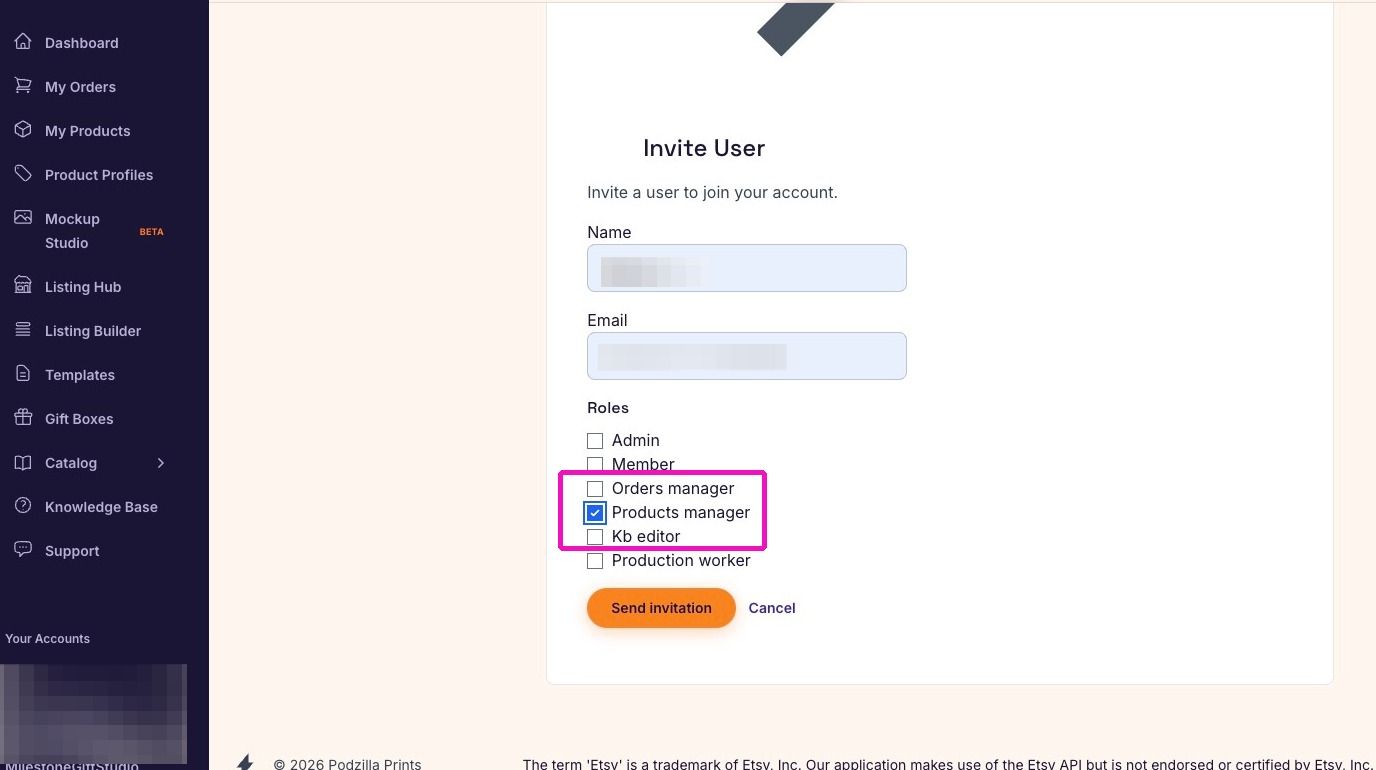
6. Click the box next to the role you are giving the user.
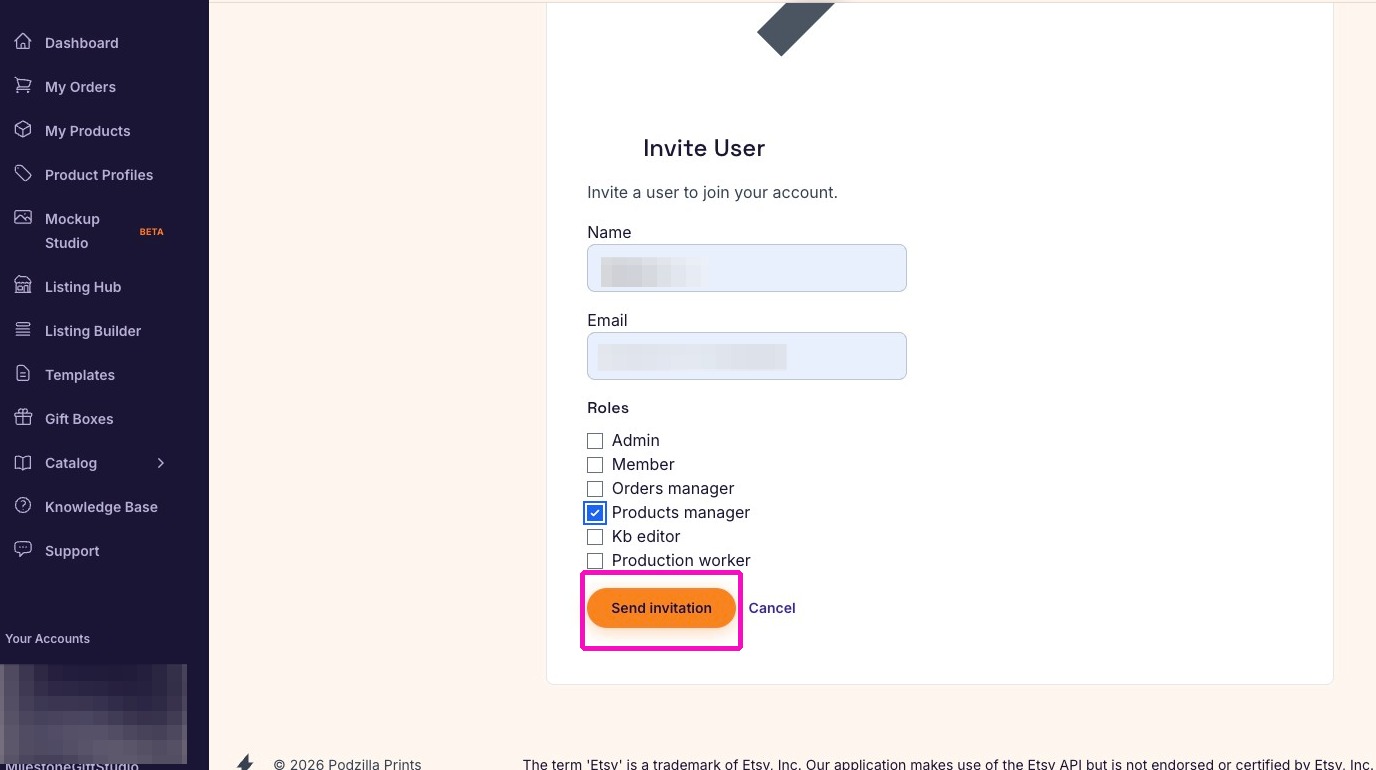
7. Click Send invitation.
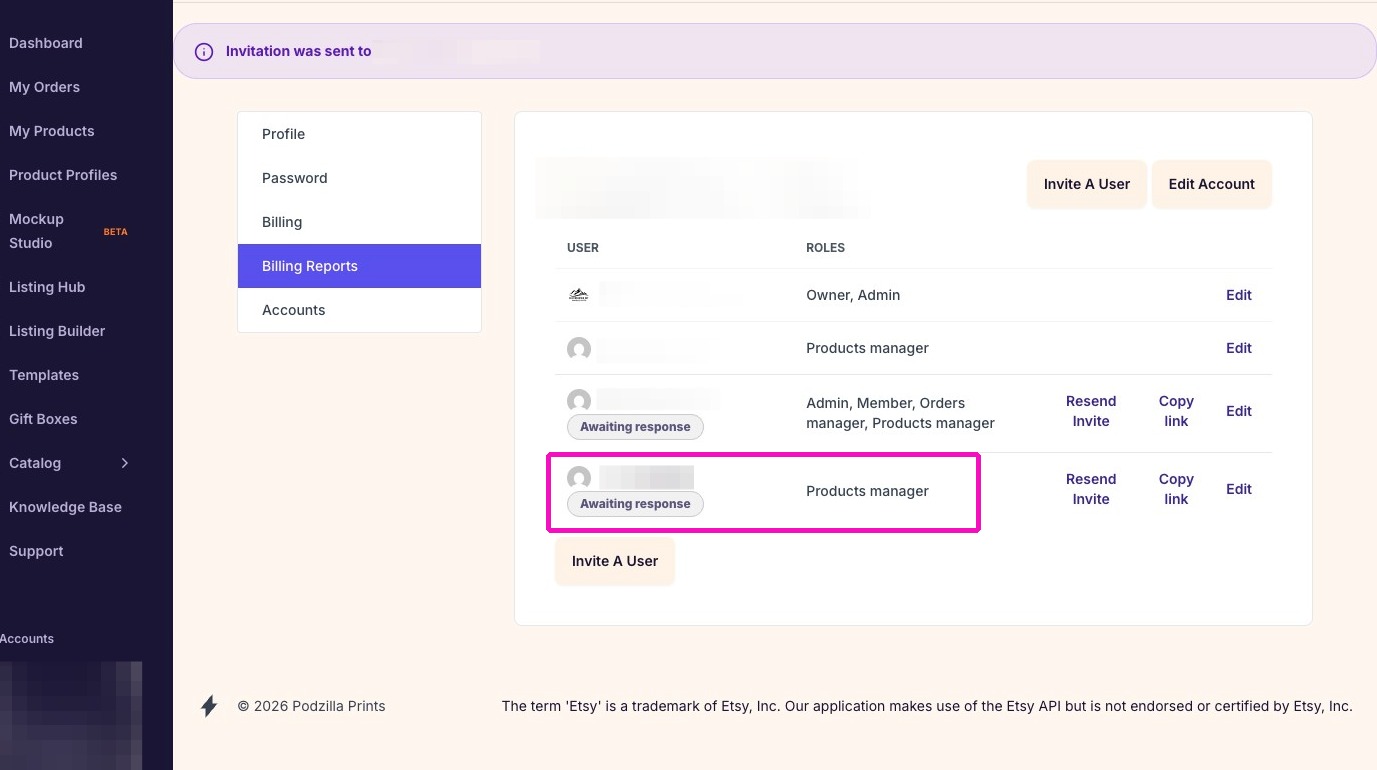
8. You'll see a message that the user has been sent and needs to open the invite email and accept the role.
Related
More Articles
Getting Started
Welcome to Podzilla! The Podzilla website lets you manage products and orders associated with your shop(s). Let’s get you started.
Apparel Deep Dive: Catalog, Templates, Products & Orders
This guide walks through everything you need to know about working with apparel in Podzilla — from browsing the catalog and using the print template, to setting up products, syncing SKUs, and approving orders. It's based on Valerie's comprehensive video tutorial above, which demonstrates each step on screen.
How to Use the Candle Design Template
TRANSCRIPTThis article explains how to use Podzilla’s candle design templates, including layout...
Saving Sales with Canva Photo Cards
This customer service option has saved many of my sales! It only takes a few minutes, and is well worth it. I've included the instructional video and my script. Be sure you modify it for your brand and voice.
[NEW FEATURE] Mockup Studio (Beta) drops TONIGHT - July 14, 2026
We built a Mockup Generator right into PODzilla! Big one for everyone who's tired of mocking up products one at a time in Canva or fighting with Photopea to get it to work with smart objects.