Account & Payments
•
Updated 25 days ago
Removing a User From a Store Account
Account Management
Customer Service
Quick Guide
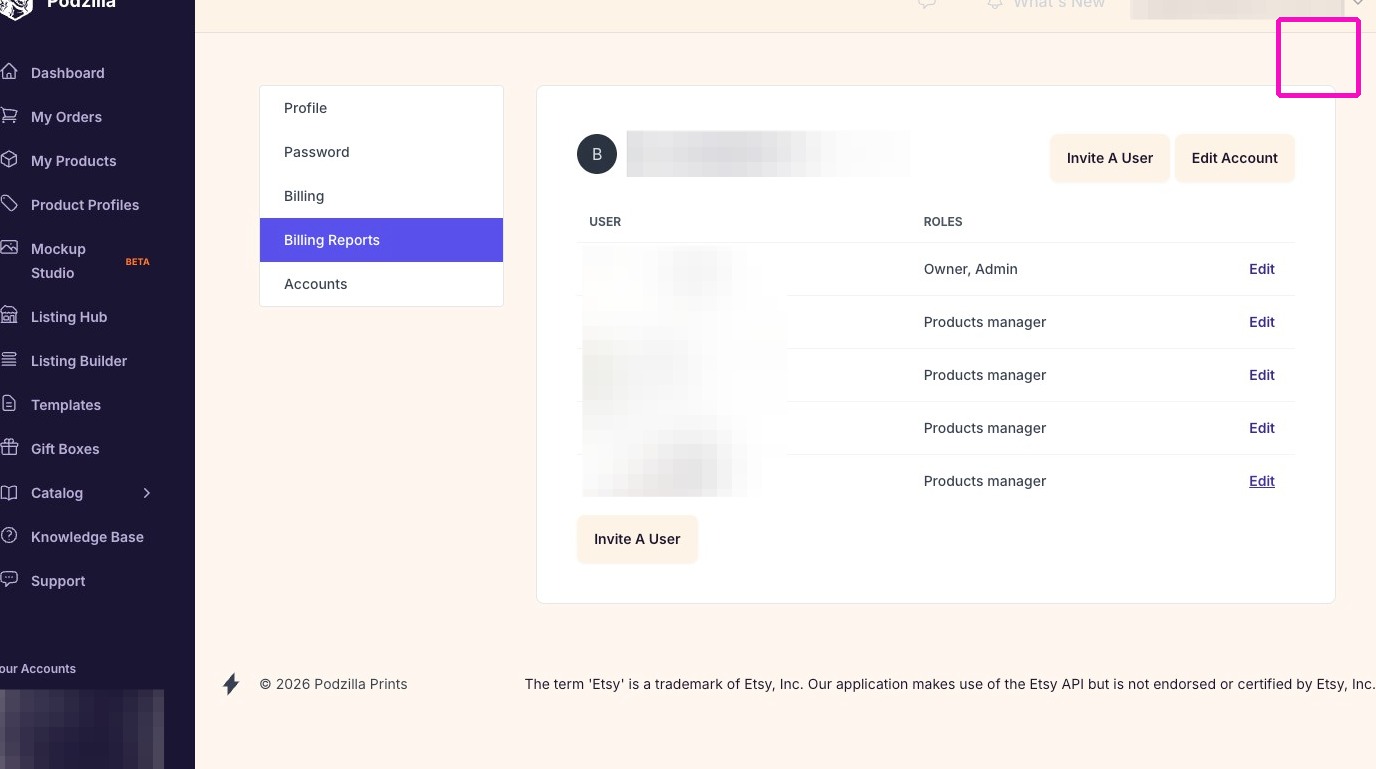
1. Click your Store Name in the top right corner of the screen.
If your name shows here, you are in your personal account. Switch to a Store Account before continuing.
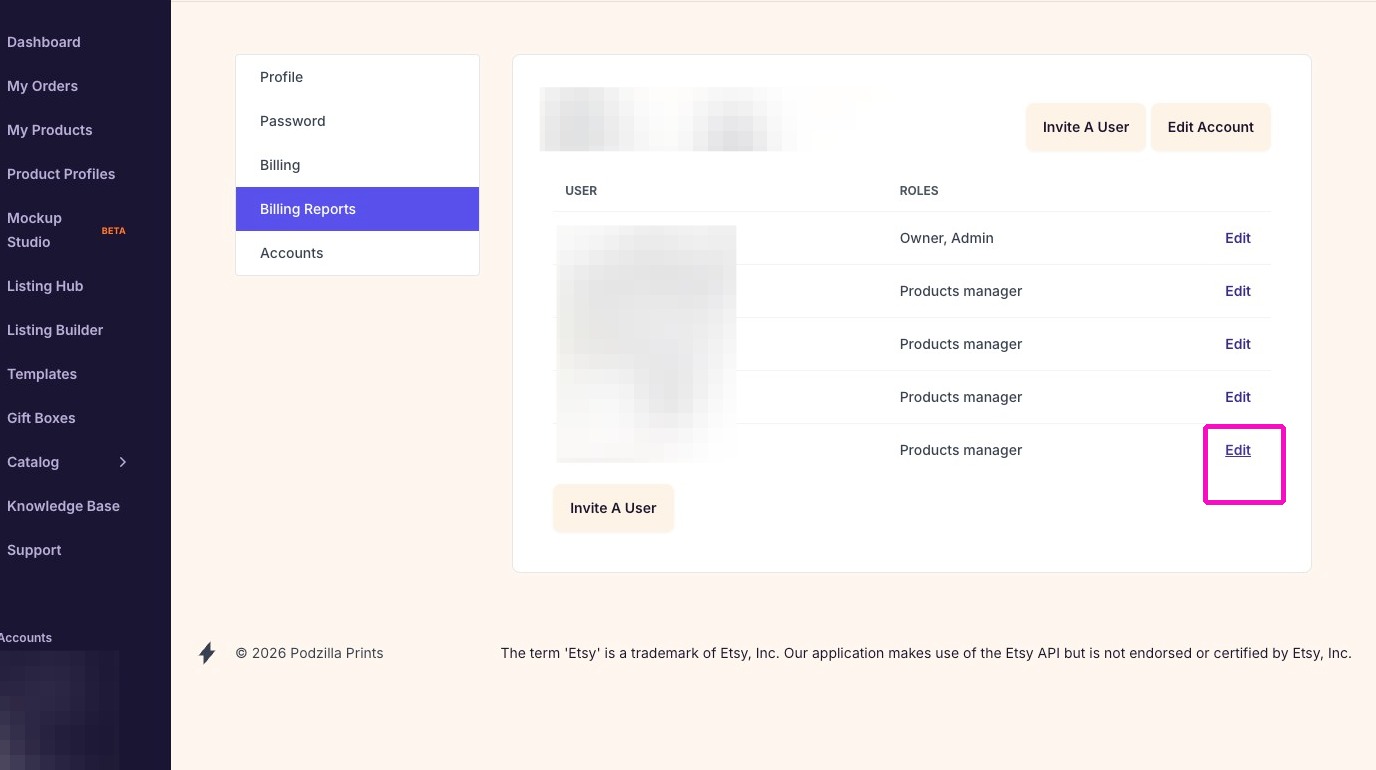
2. Click Edit next to the team member's name you are removing.
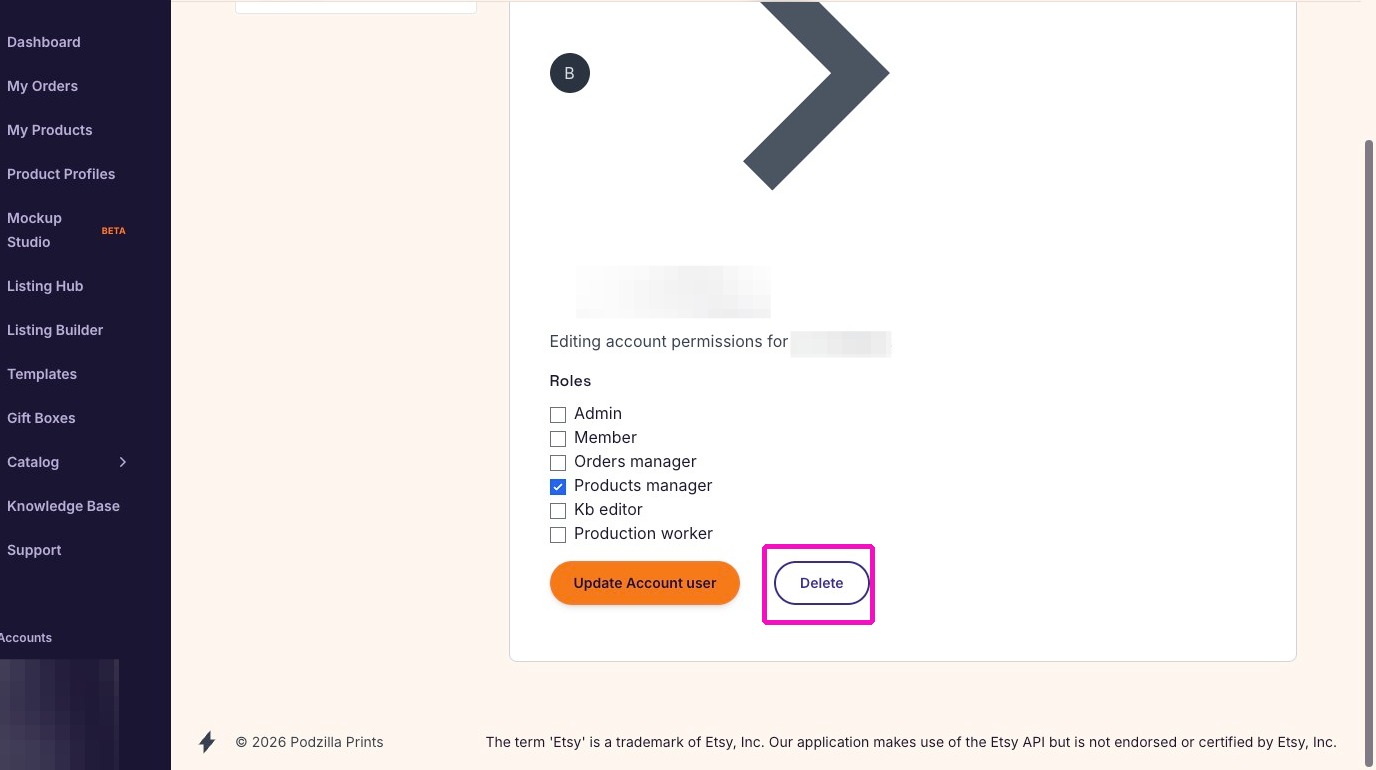
3. Click Delete.
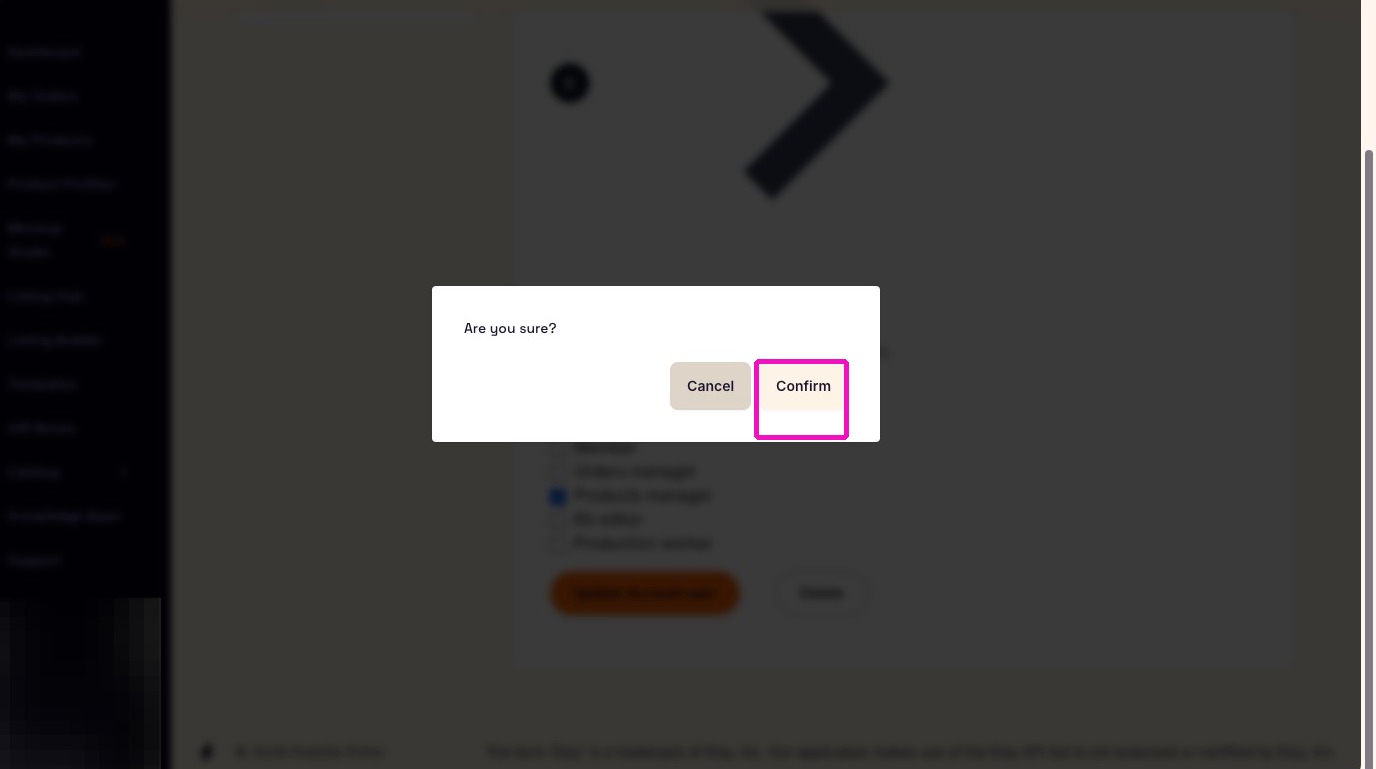
4. Click Confirm.
The user is removed and their access to this store account is immediately revoked.
NOTE:
NOTE:
If the user has access to multiple store accounts, repeat this process in each store account.
Related
More Articles
Getting Started
Welcome to Podzilla! The Podzilla website lets you manage products and orders associated with your shop(s). Let’s get you started.
Getting Started
3,018 views
How to Use the Candle Design Template
TRANSCRIPTThis article explains how to use Podzilla’s candle design templates, including layout...
How-To Videos
1,494 views
Saving Sales with Canva Photo Cards
This customer service option has saved many of my sales! It only takes a few minutes, and is well worth it. I've included the instructional video and my script. Be sure you modify it for your brand and voice.
How-To Videos
1,413 views
Introduction to Podzilla
Introduction to Podzilla by Valerie Pate
Getting Started
894 views
Creating Products
This SOP outlines the steps to create both regular and variant products in the catalog system, focusing on the new product creation form and SKU generation.
Products
753 views