Help Center

How can we help?

Search our knowledge base or browse categories below.

Billing Updated 6 days ago

Add/Update Billing Information

Billing & Payments Subscriptions Account Management Customer Service Getting Started Quick Guide

Add/Update Billing Information


PERSONAL ACCOUNTS 
When you sign up with Podzilla, you are automatically given a free personal account. This gives you access to Podzilla products with no monthly subscription fees. 

To get the best prices on your products, you can upgrade your subscription at any time. If you do go with a paid plan, you must fill in your billing information. Your monthly (or yearly) payment will be charged to your personal account. See Upgrading my Subscription for instructions. 

STORE ACCOUNTS 
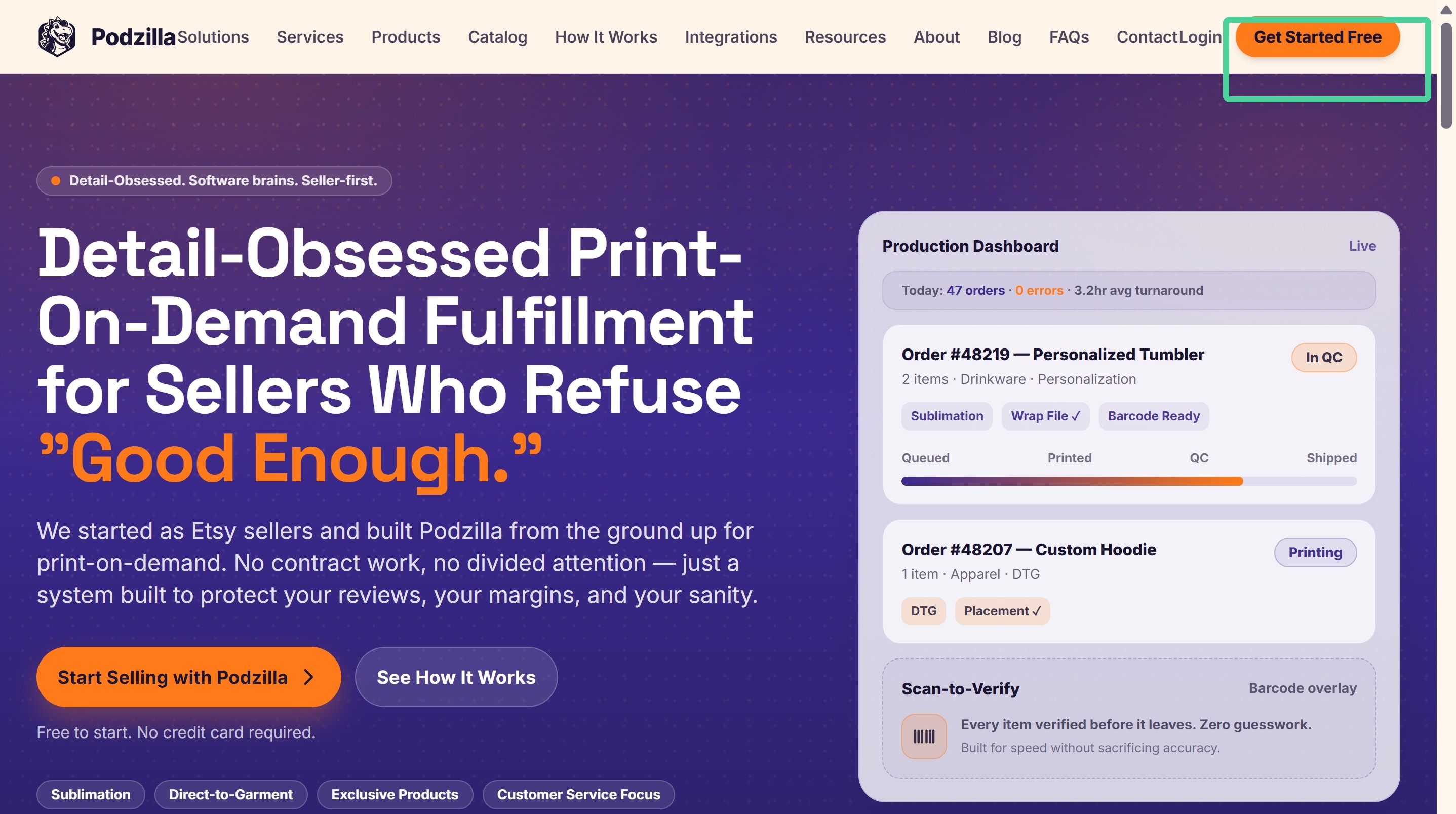
After you have a free personal account, you'll be asked to set up your Etsy store account and billing. This is the account that will be charged every time you process an order. 

1. Click Get Started Free.

PERSONAL & STORE ACCOUNTS


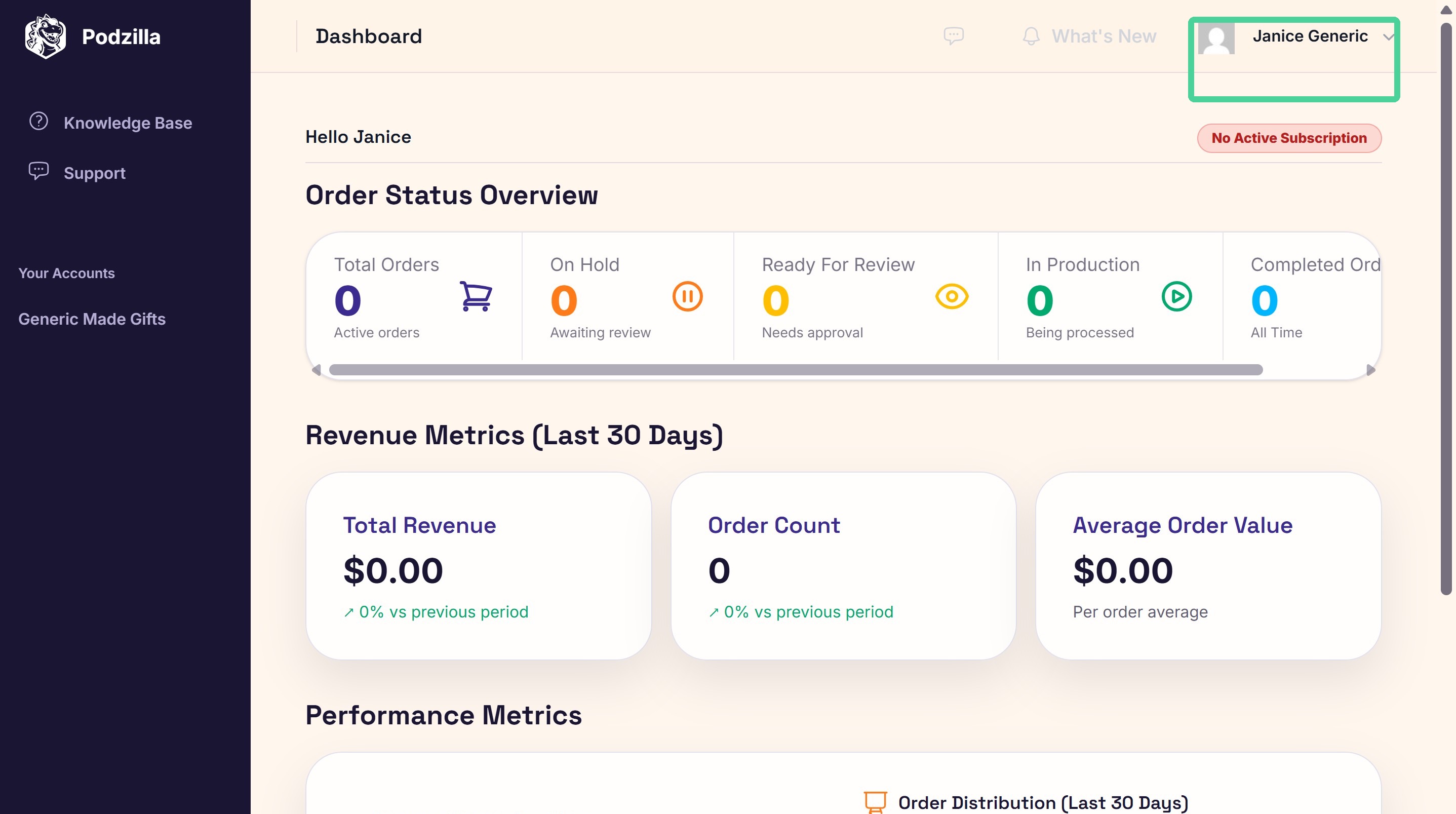
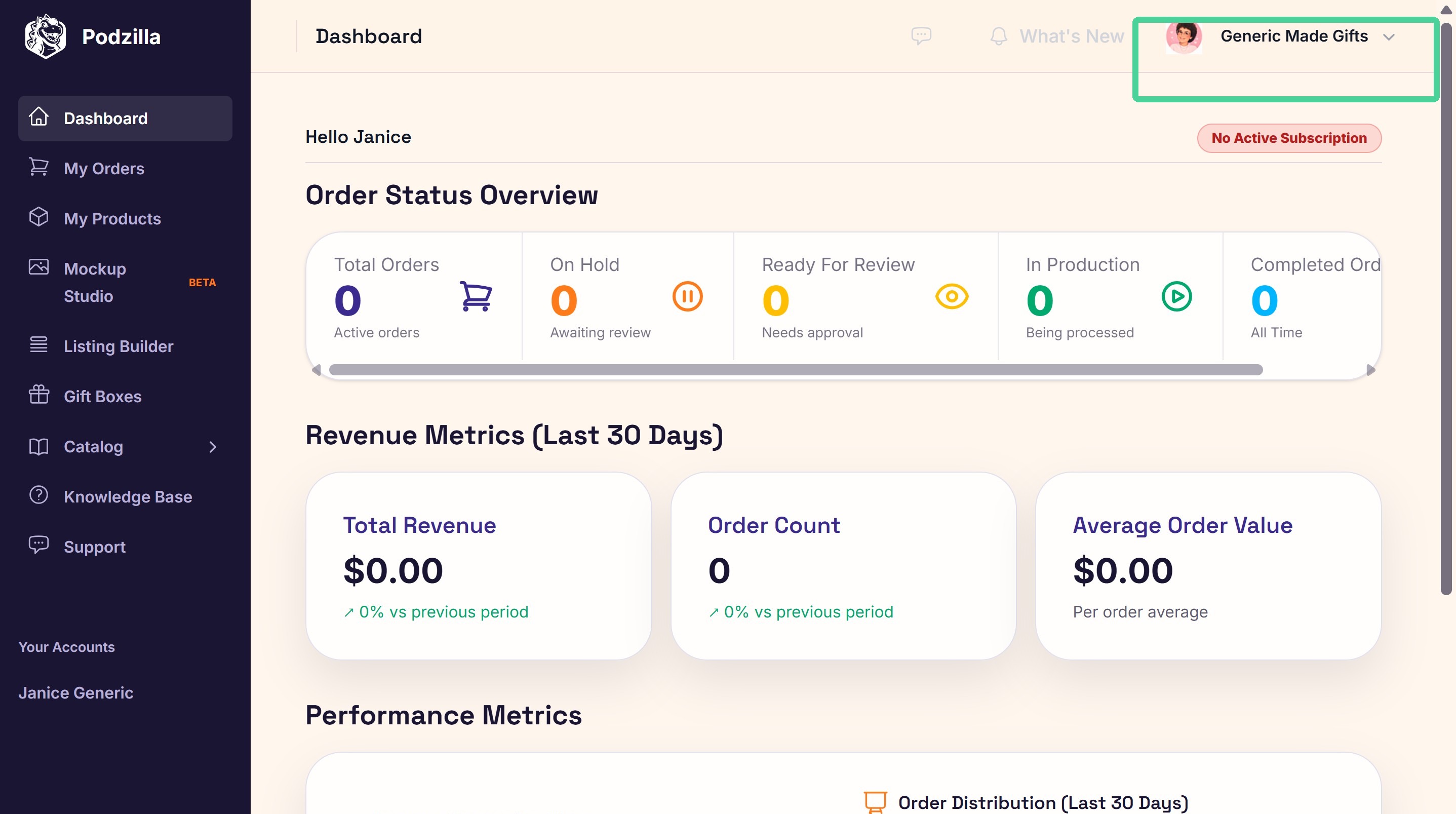
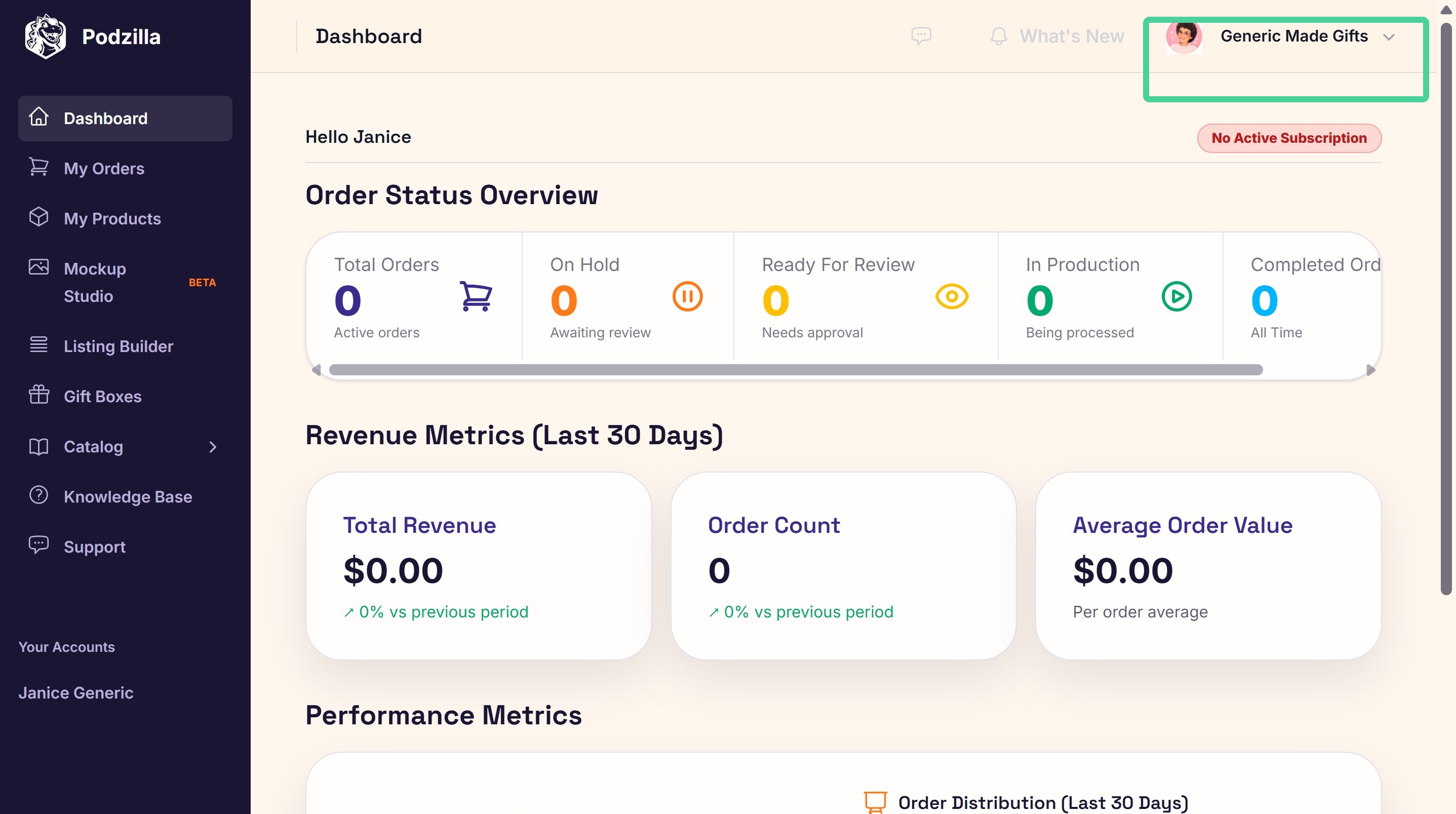
2. In Podzilla, your personal account is the main account we charge each month if you have a subscription. You'll see the name you used when you created the account in the top right corner next to your profile picture place holder.


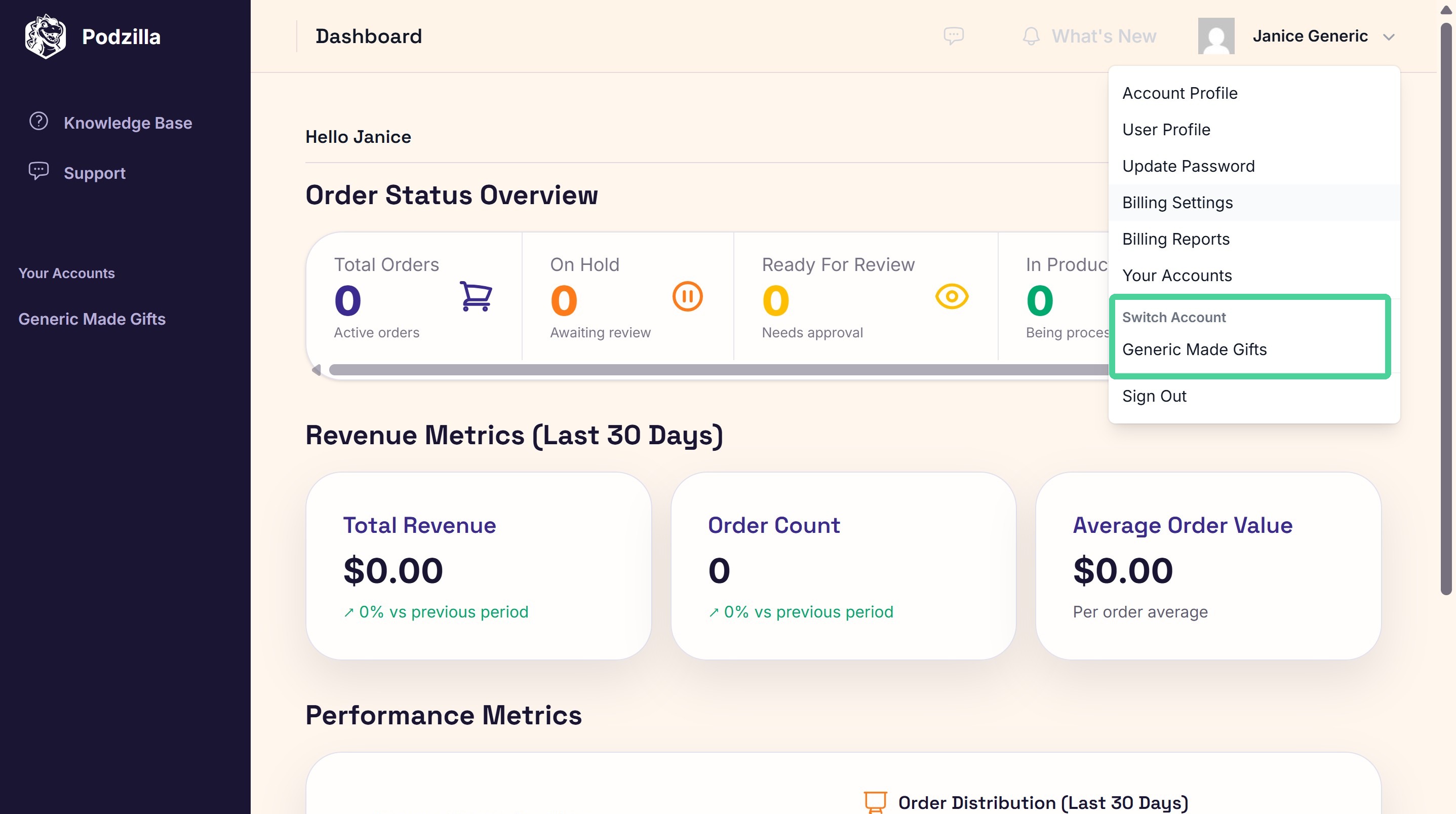
3. You can switch between your personal account and your store from the dropdown menu under your Personal Account Name > Switch Account.


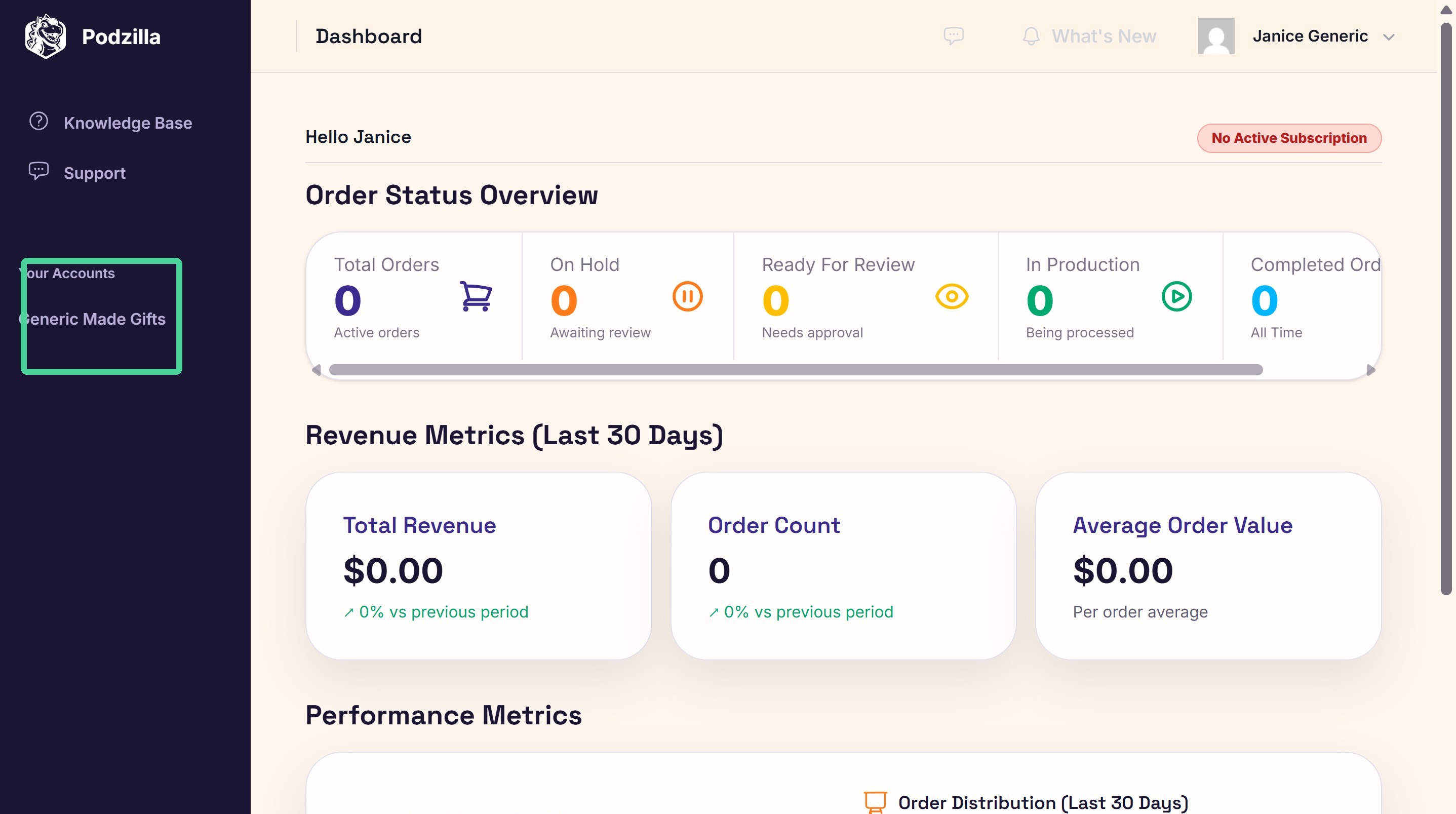
4. You can also click your store from the left bar under Your Accounts to switch between your personal account and store account(s).


5. You'll always know which account you're in by looking at the name in the top right corner.


Add/Update Your Personal Account Billing Information
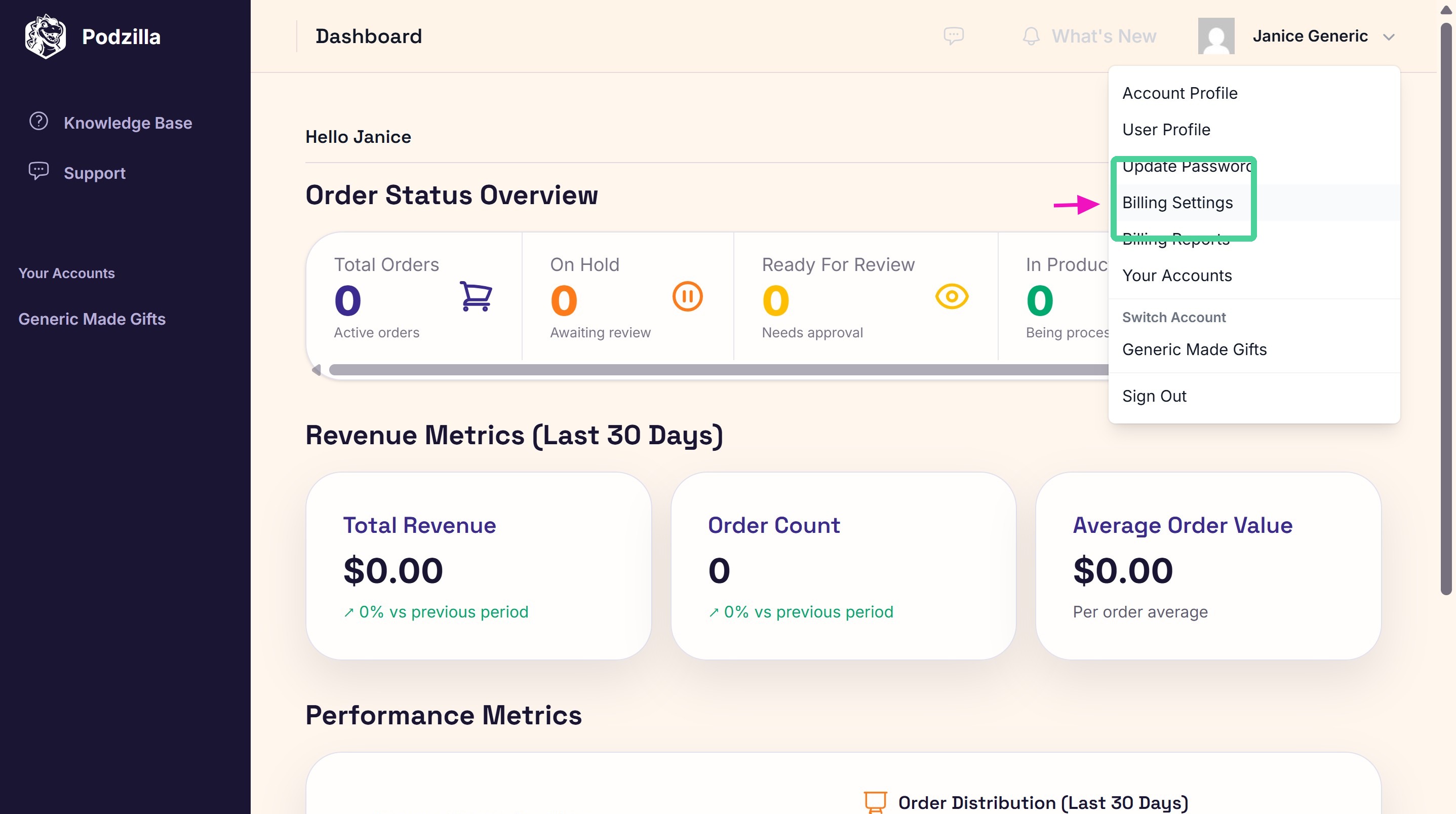

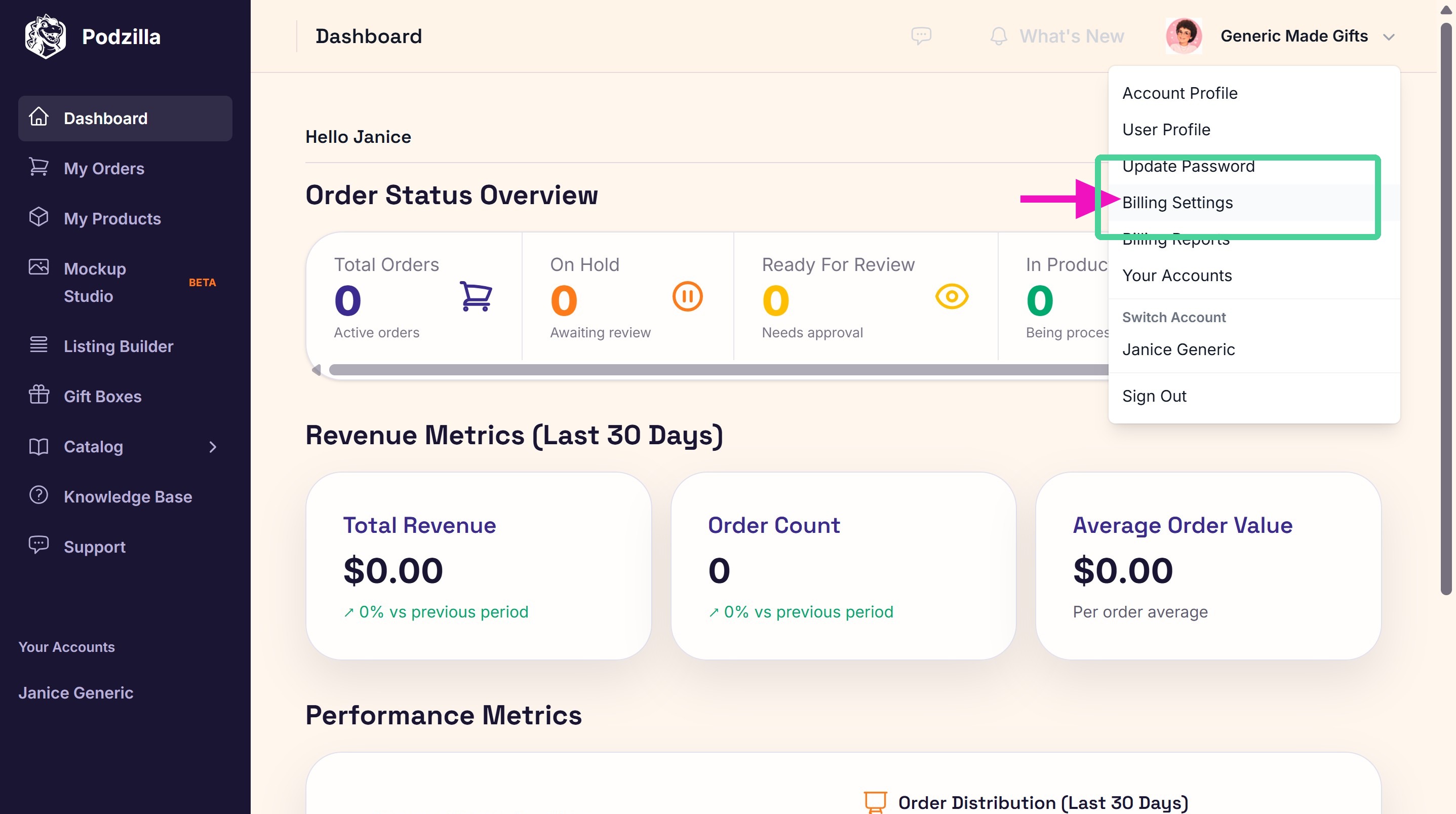
6. From your Personal Account, click Billing Settings in the dropdown menu.


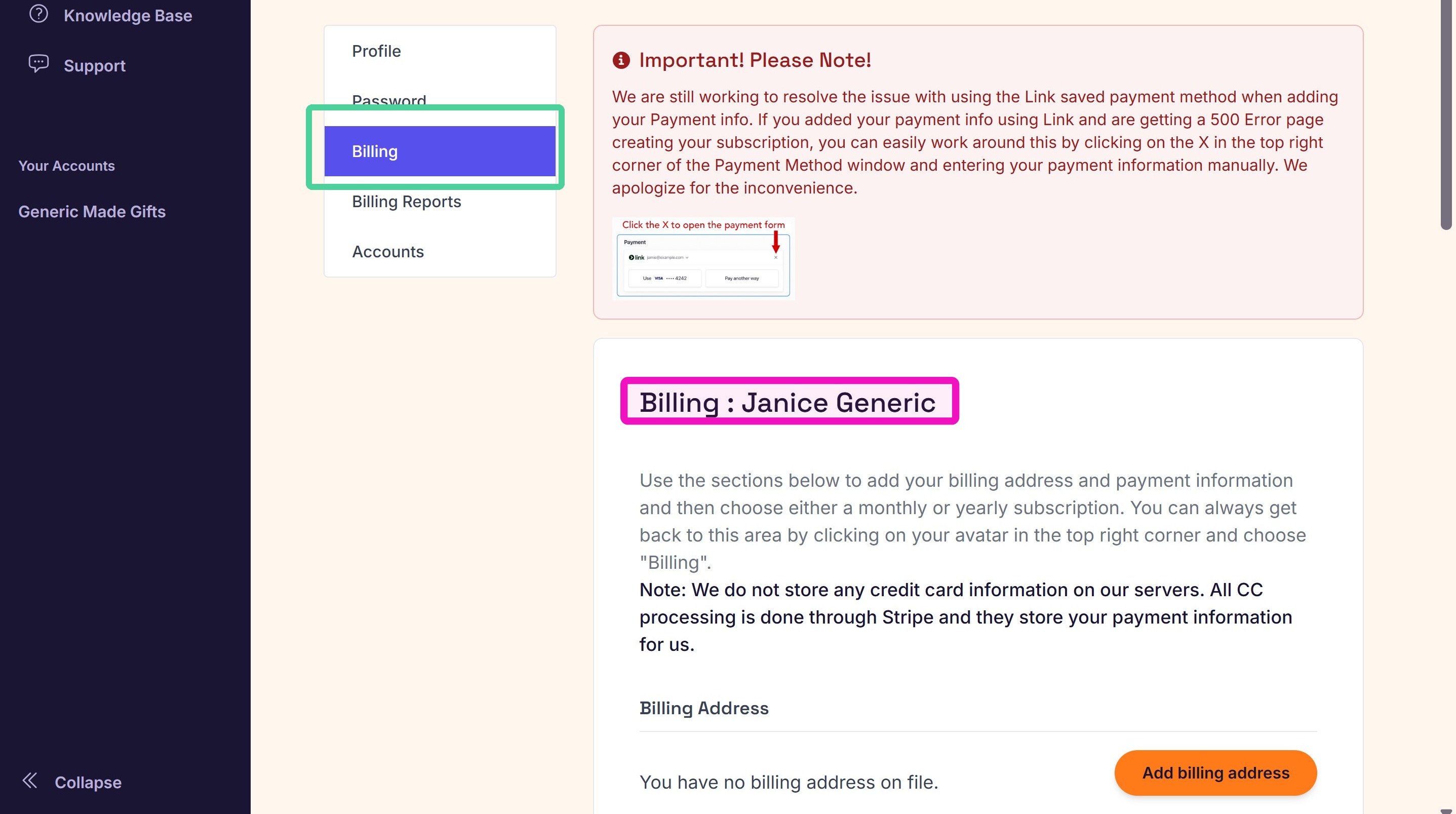
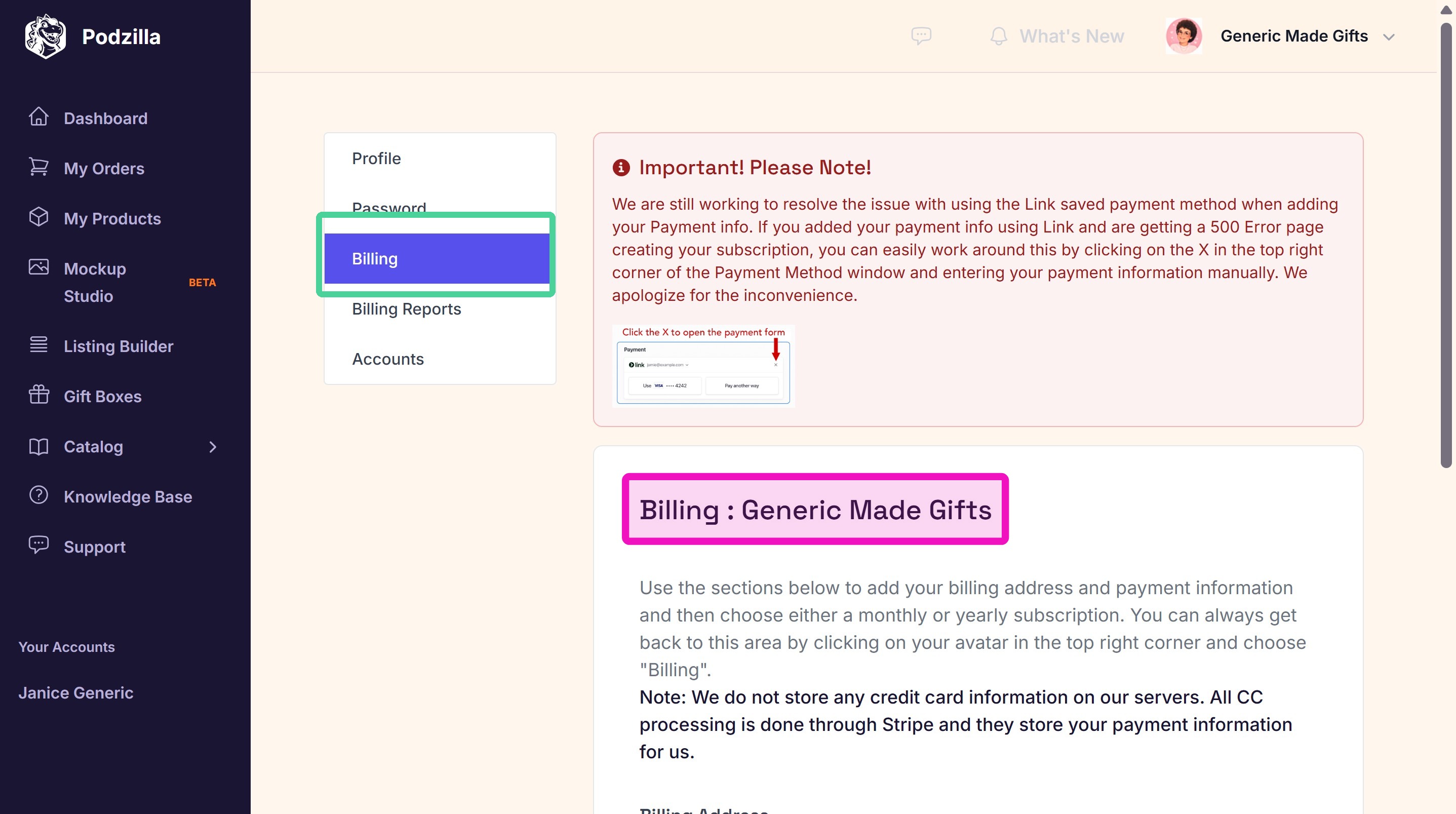
7. Click Billing from the new menu sidebar.
Make sure the name next to the Billing header shows your personal account name.


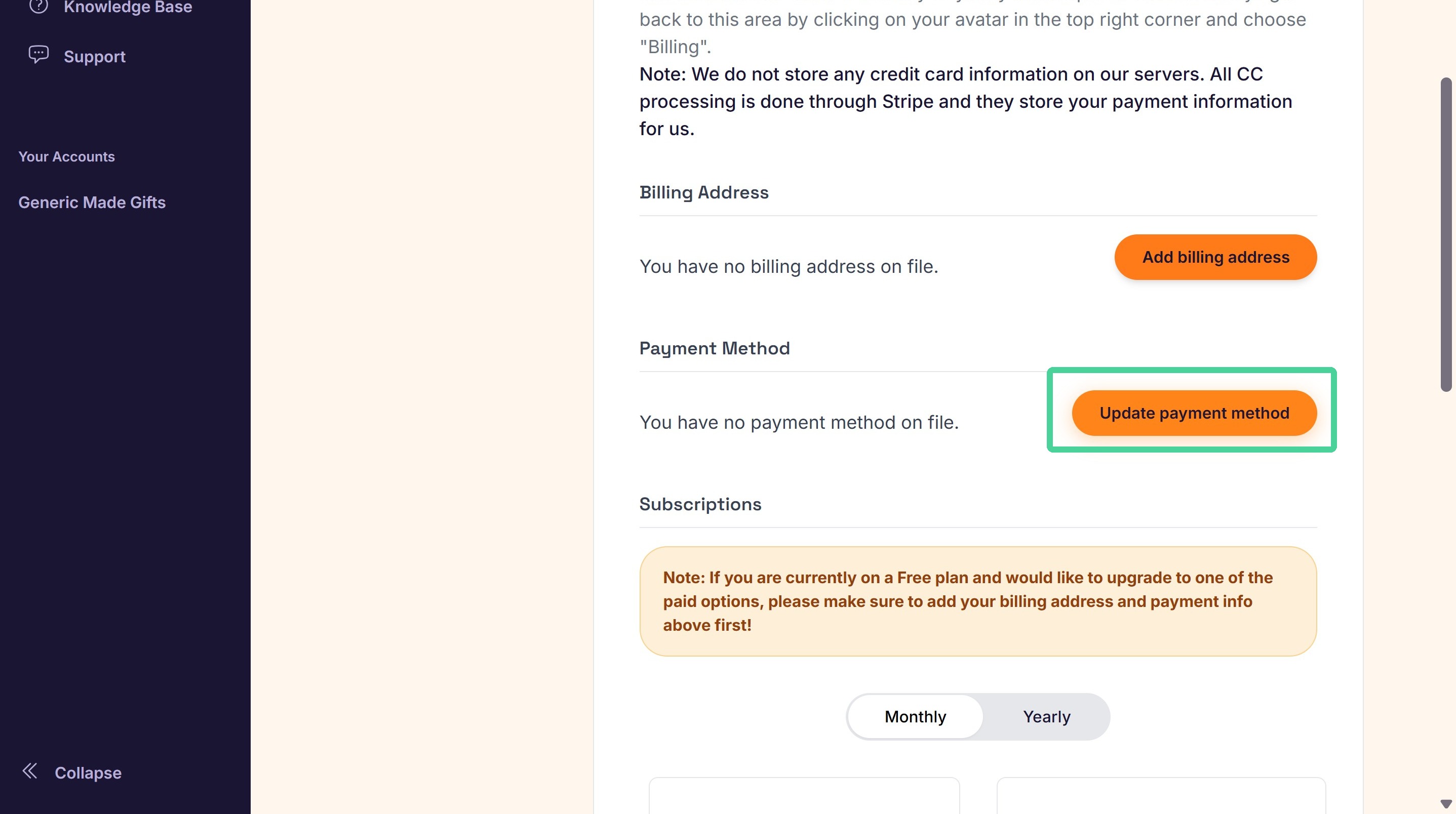
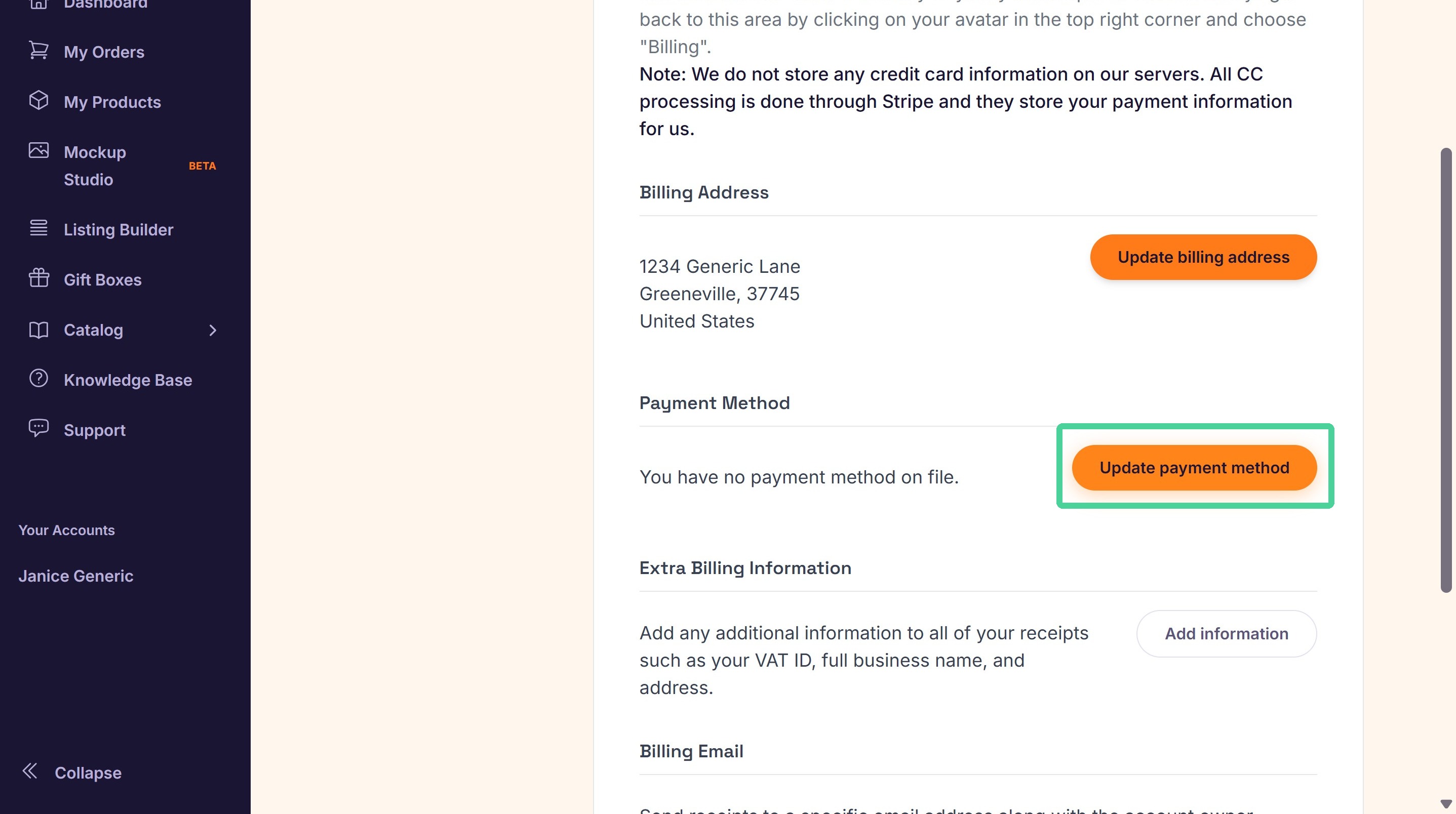
8. Click Update Payment Method.


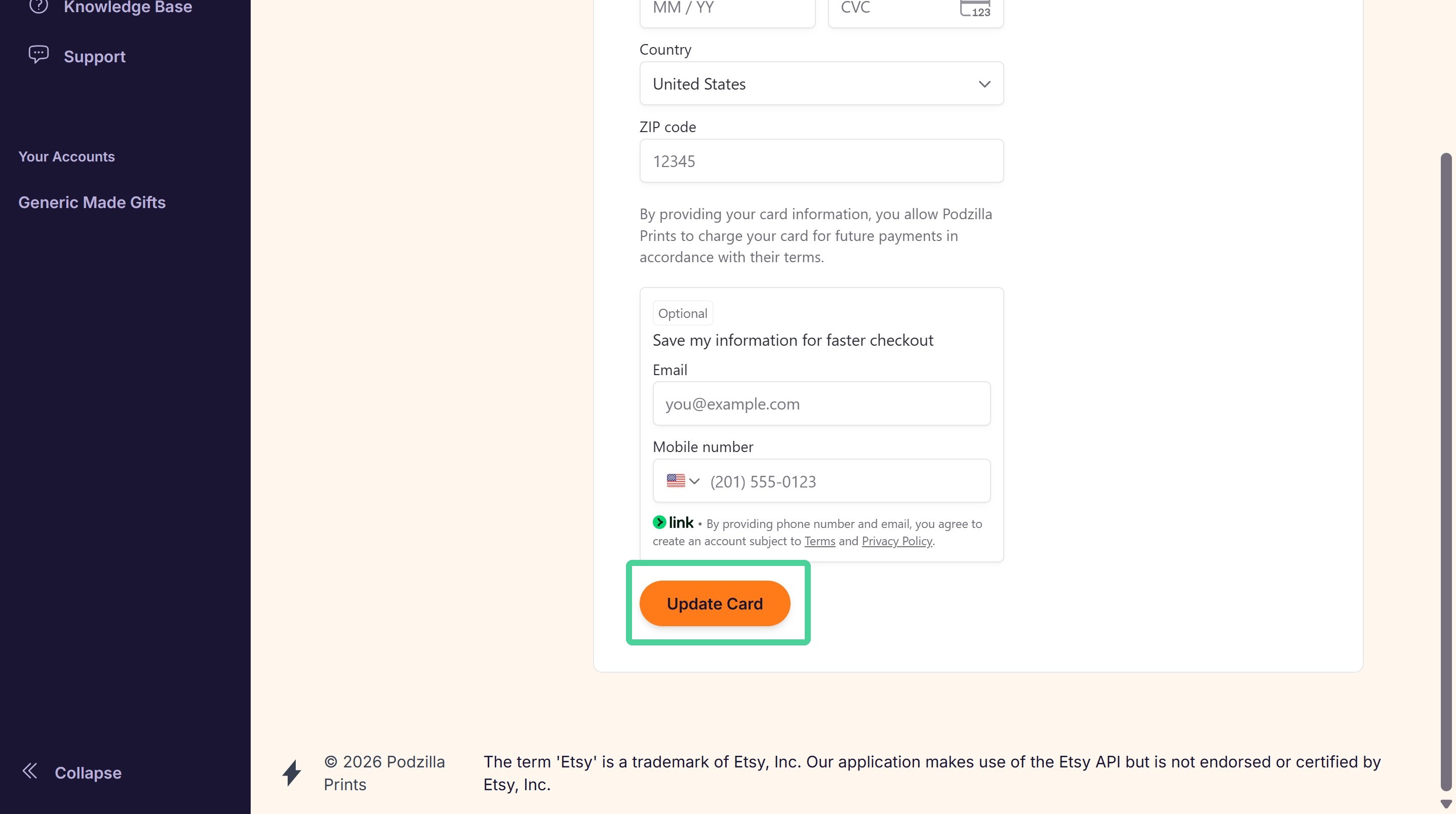
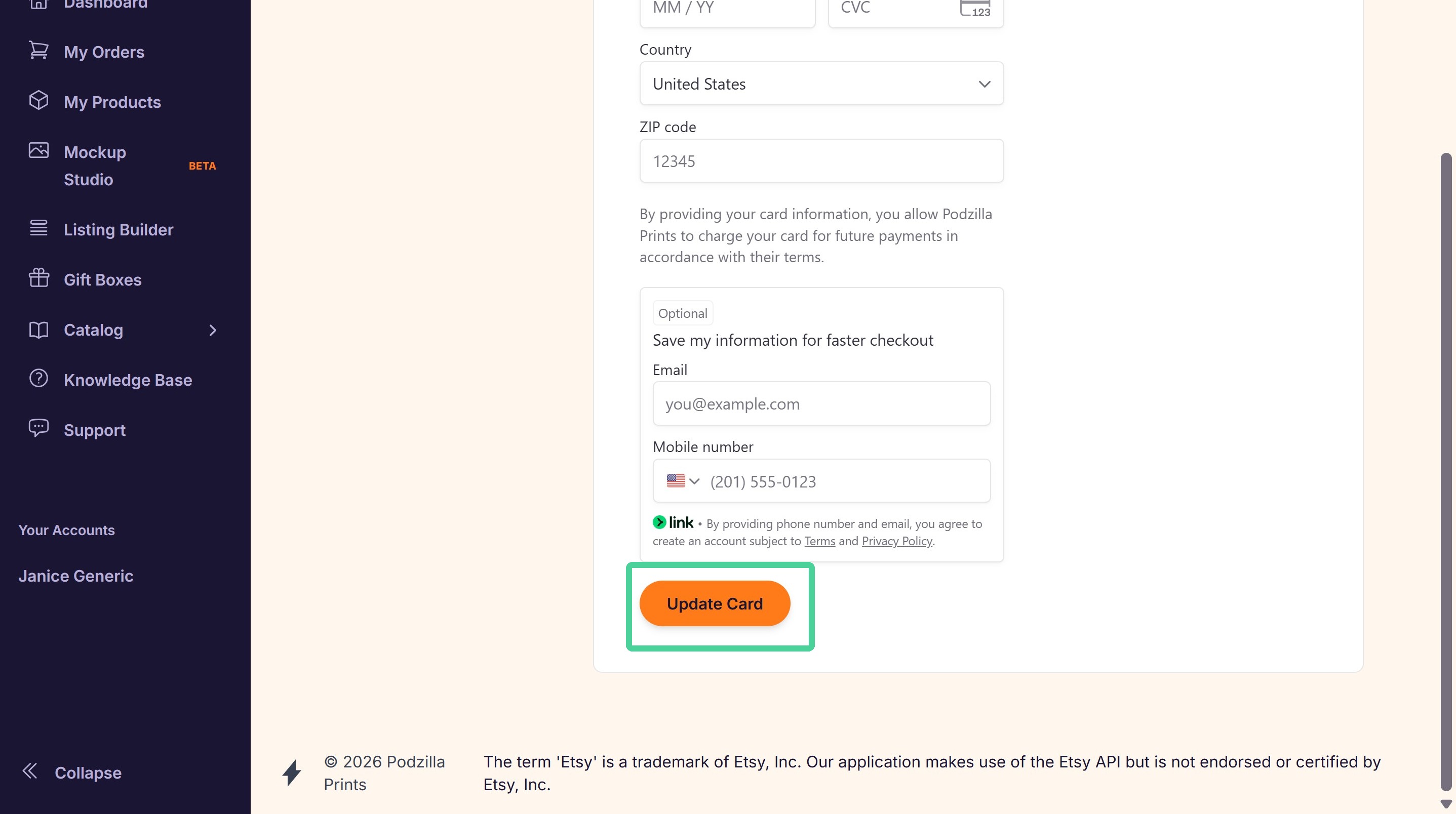
9. Enter your billing information and click Update Card.


Add/Update Your Store Account(s) Billing Information
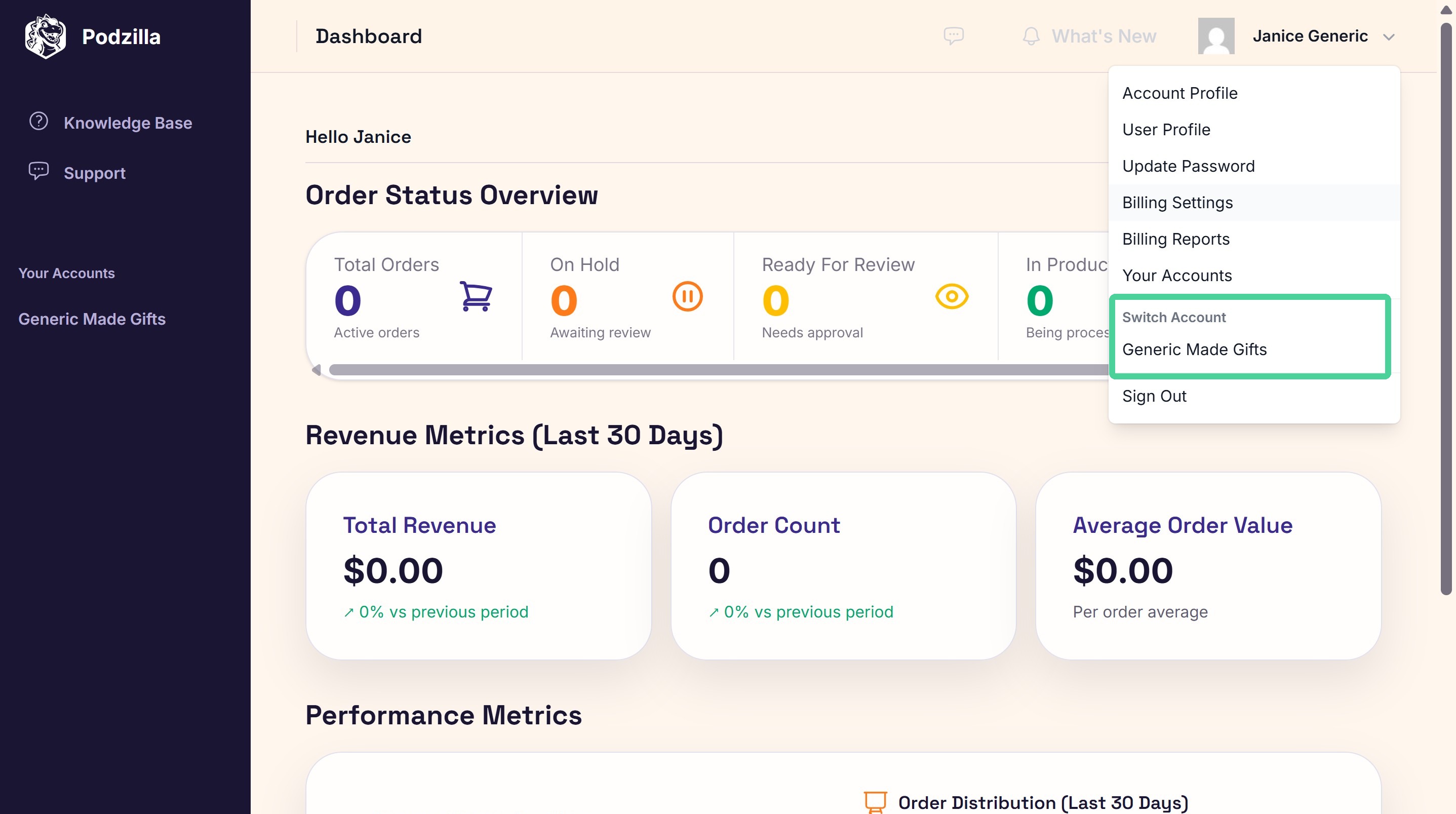

10. Switch to your store from the dropdown menu under your Personal Account Name > Switch Account or from the left bar under Your Accounts.


11. Make sure your store name shows in the top right corner.


12. From your Store Account, click Billing Settings in the dropdown menu.


13. Click Billing from the new menu sidebar.
Make sure the name next to the Billing header shows your store account name.


14. Click Update Payment Method.


15. Enter your billing information and click Update Card.


Issues? Submit a Support Ticket


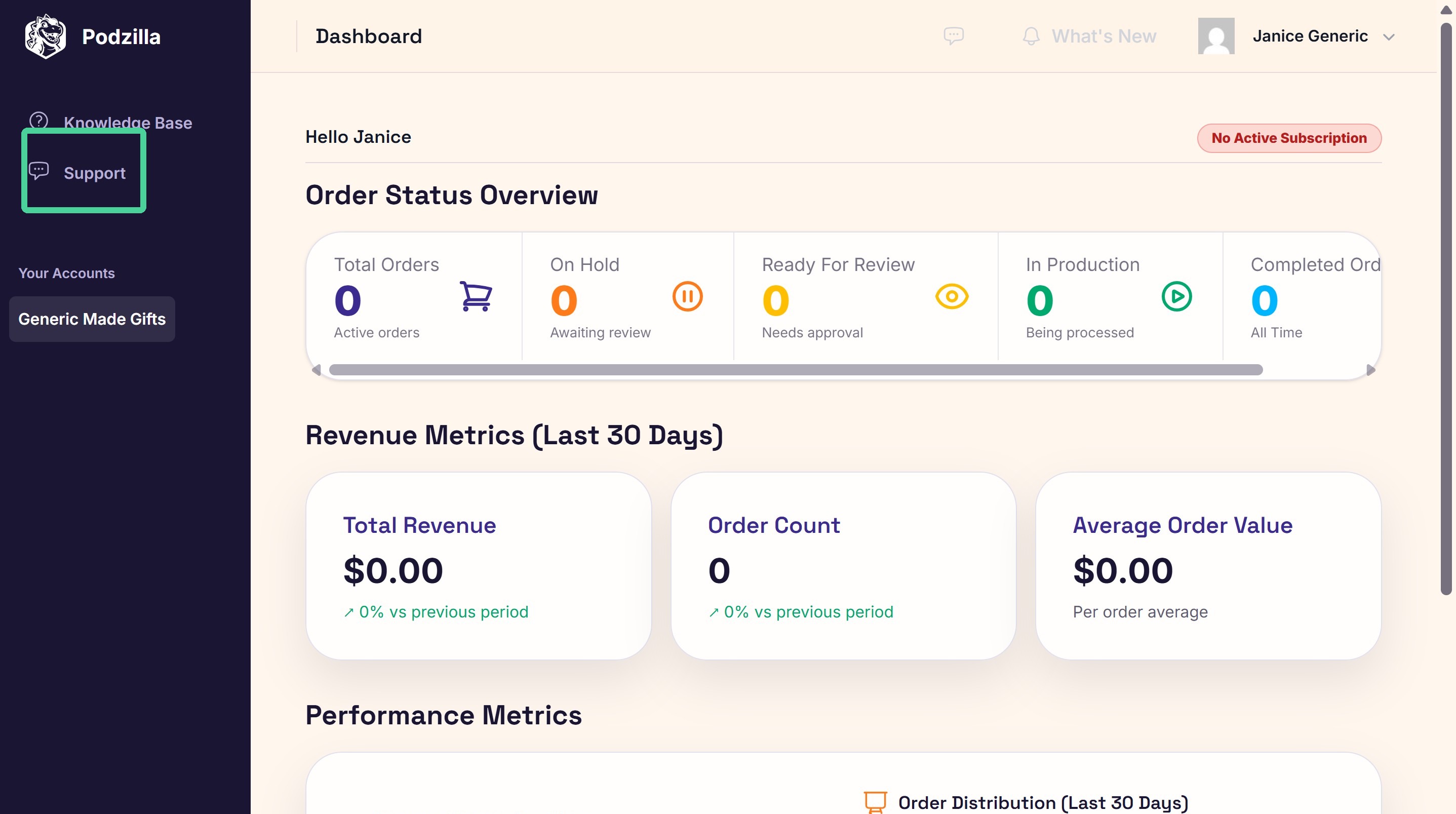
16. Click Support in the left side bar if you have any issues adding or updating your billing information. Add screenshots to the ticket so we can help you faster.


Was this article helpful?

1 of 1 found this helpful

Related

More Articles