Billing
•
Updated 2 months ago
Downloading Your Podzilla Invoices and Receipts
Billing & Payments
Account Management
Customer Service
Quick Guide
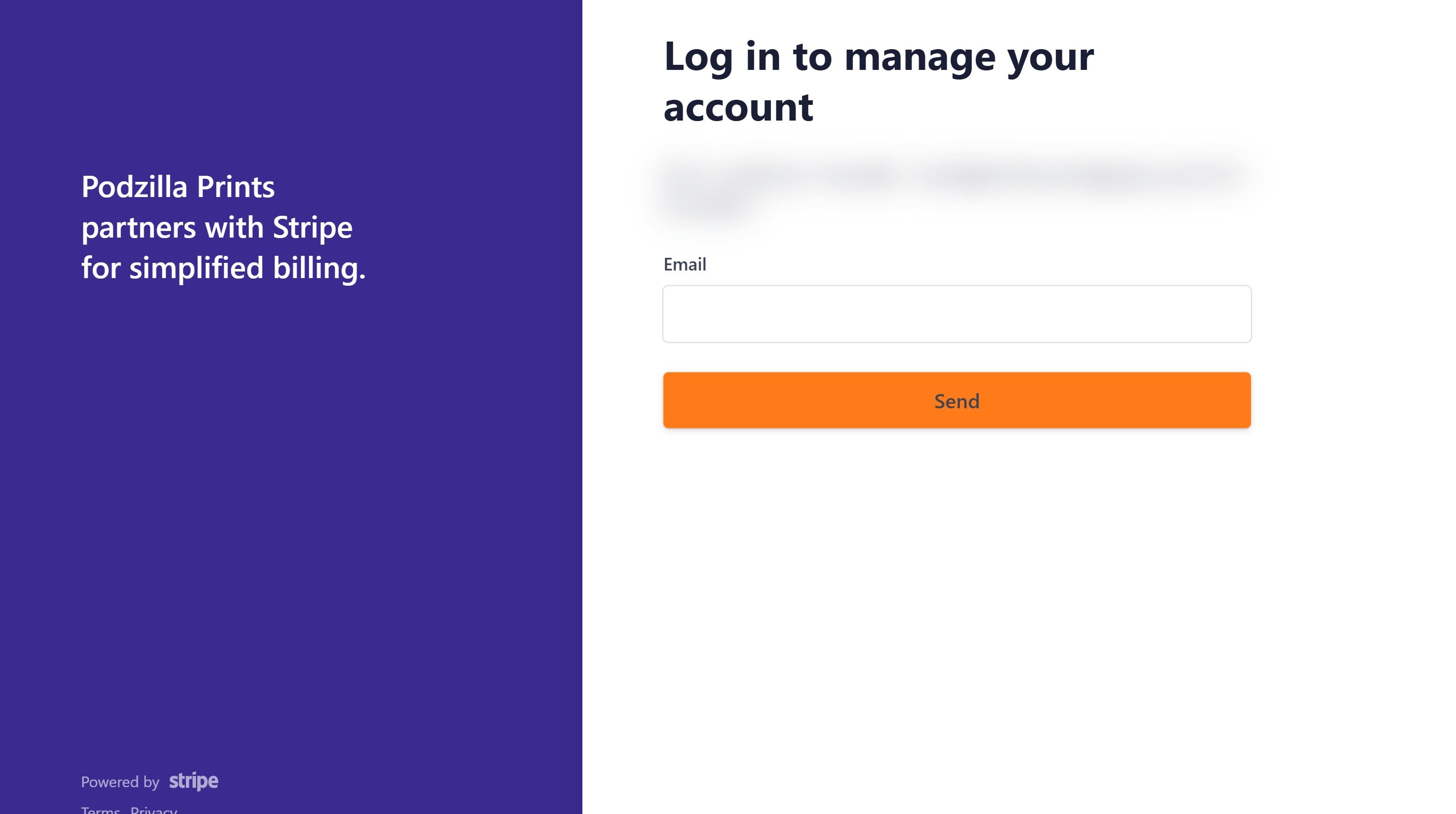
Stripe Login
2. Enter your email address and click Send.
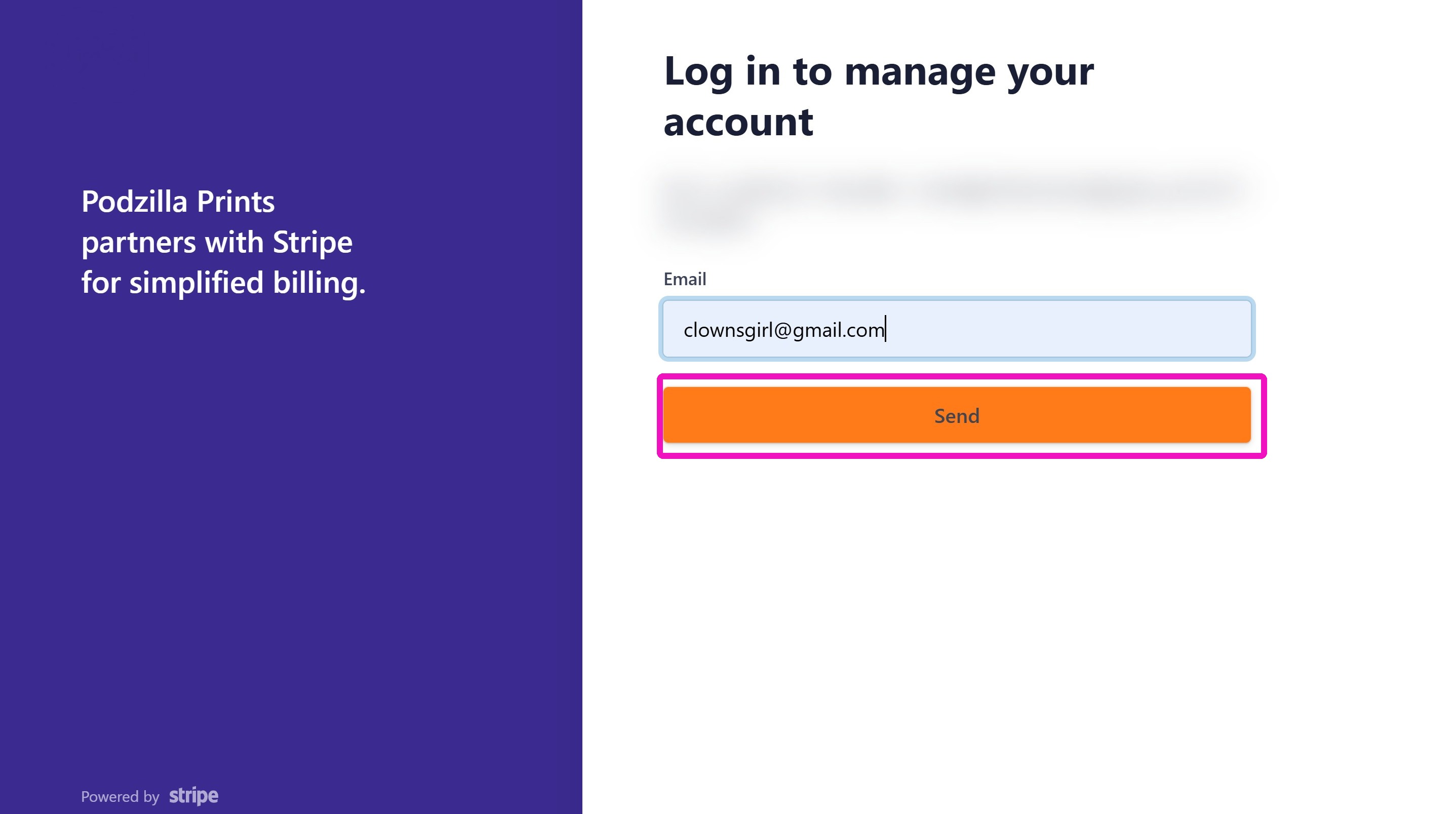
Email Verification
3. Go to your email inbox and open the Podzilla Prints email that was sent from Stripe. Click Log in to your customer portal.
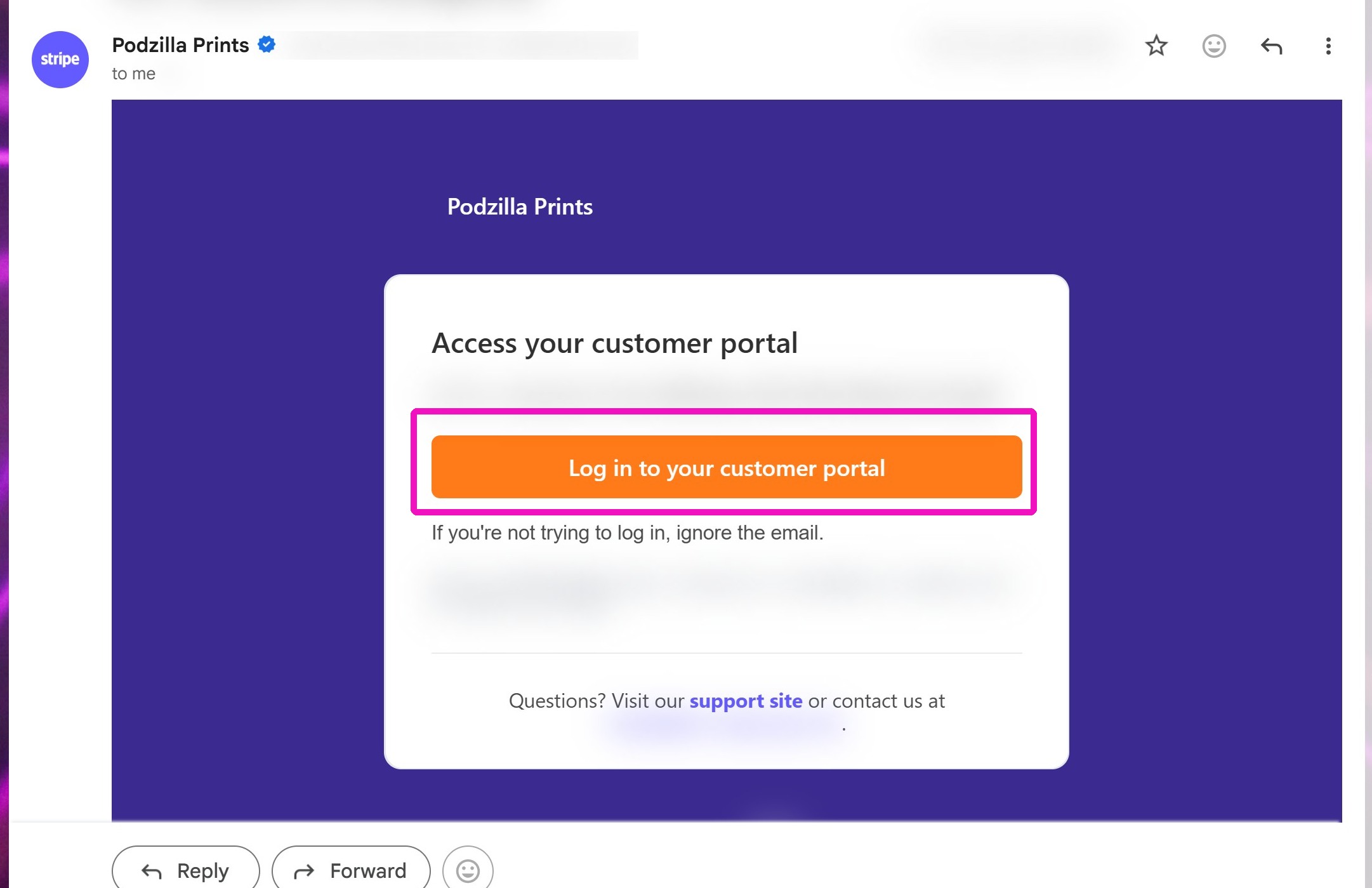
Invoice Details
4. Click on the item you want to see or print.
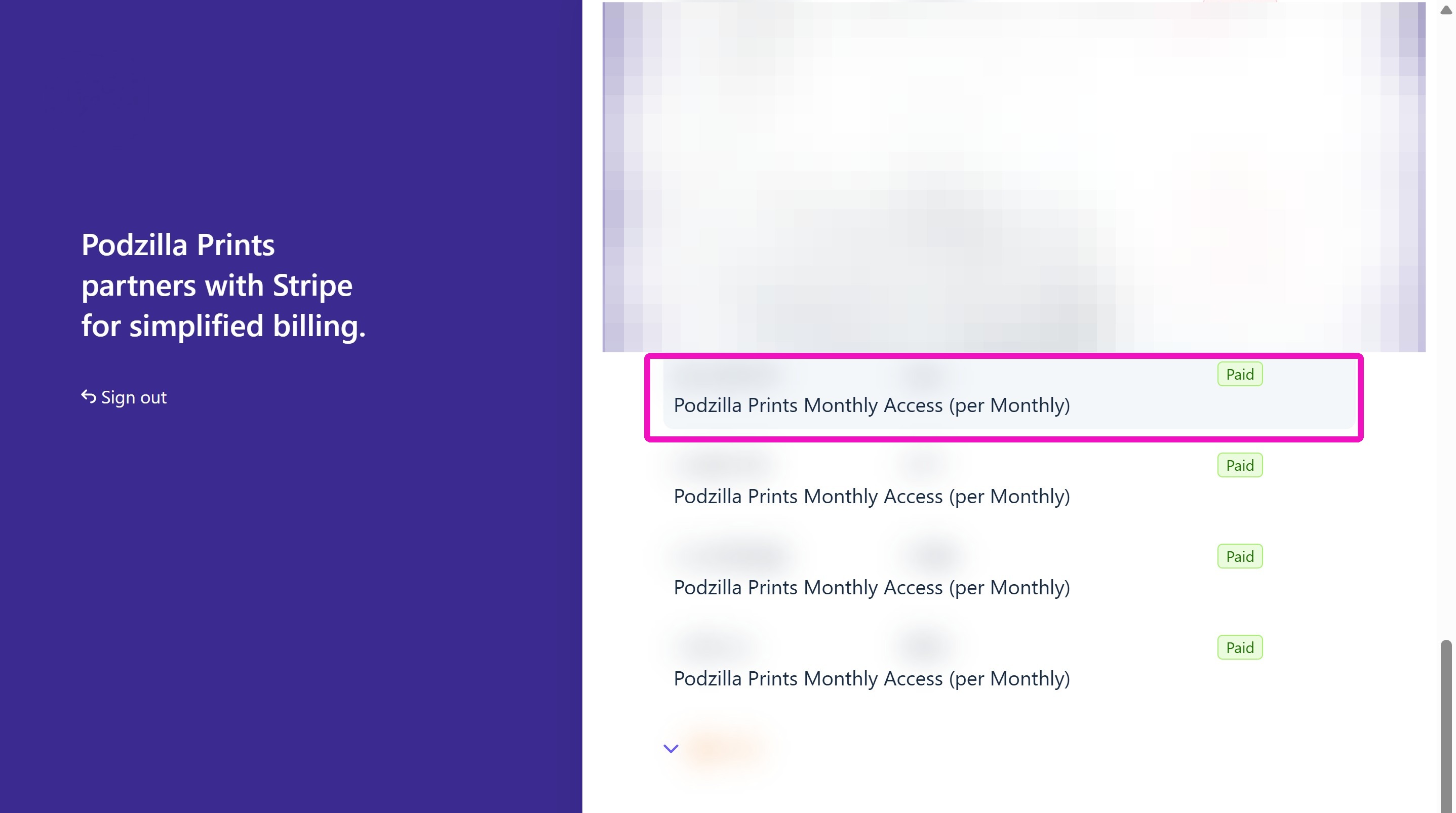
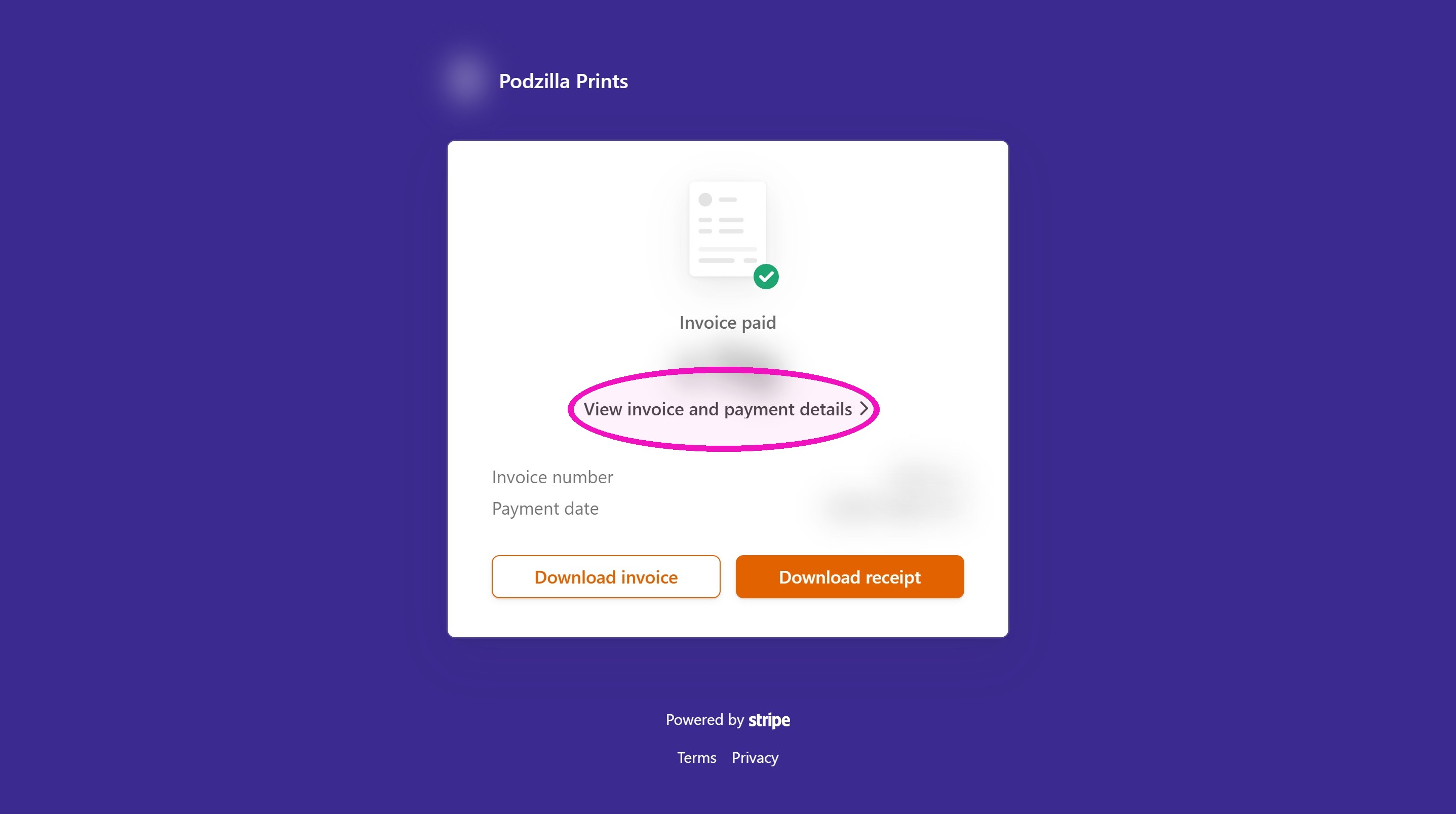
5. Click View invoice and payment details to see the line-by-line details.
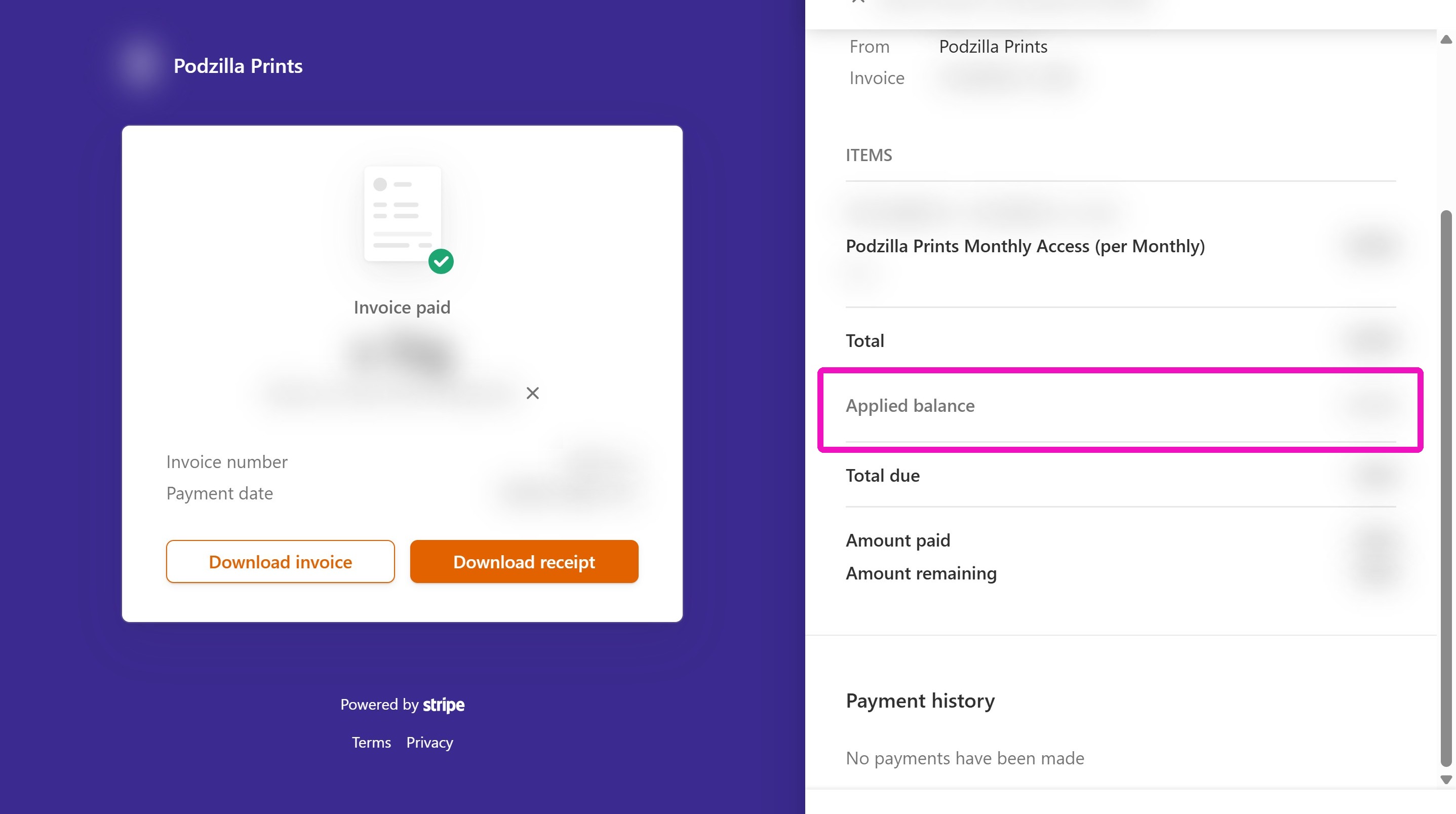
6. The side window pops open for you to see the invoice details. Refunds or credits will show as Applied Balance.
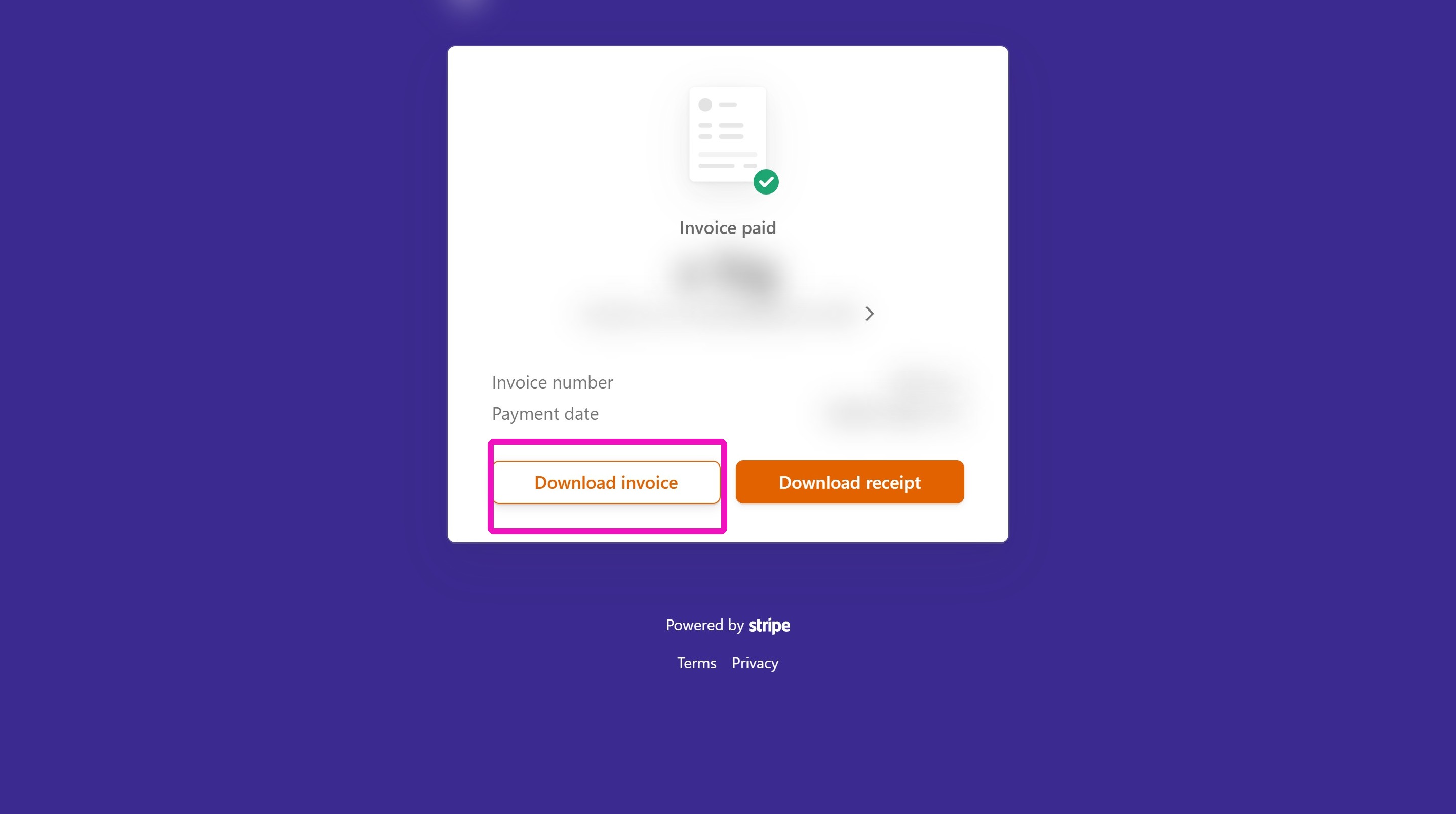
7. Click Download invoice to get and print a copy of the invoice.
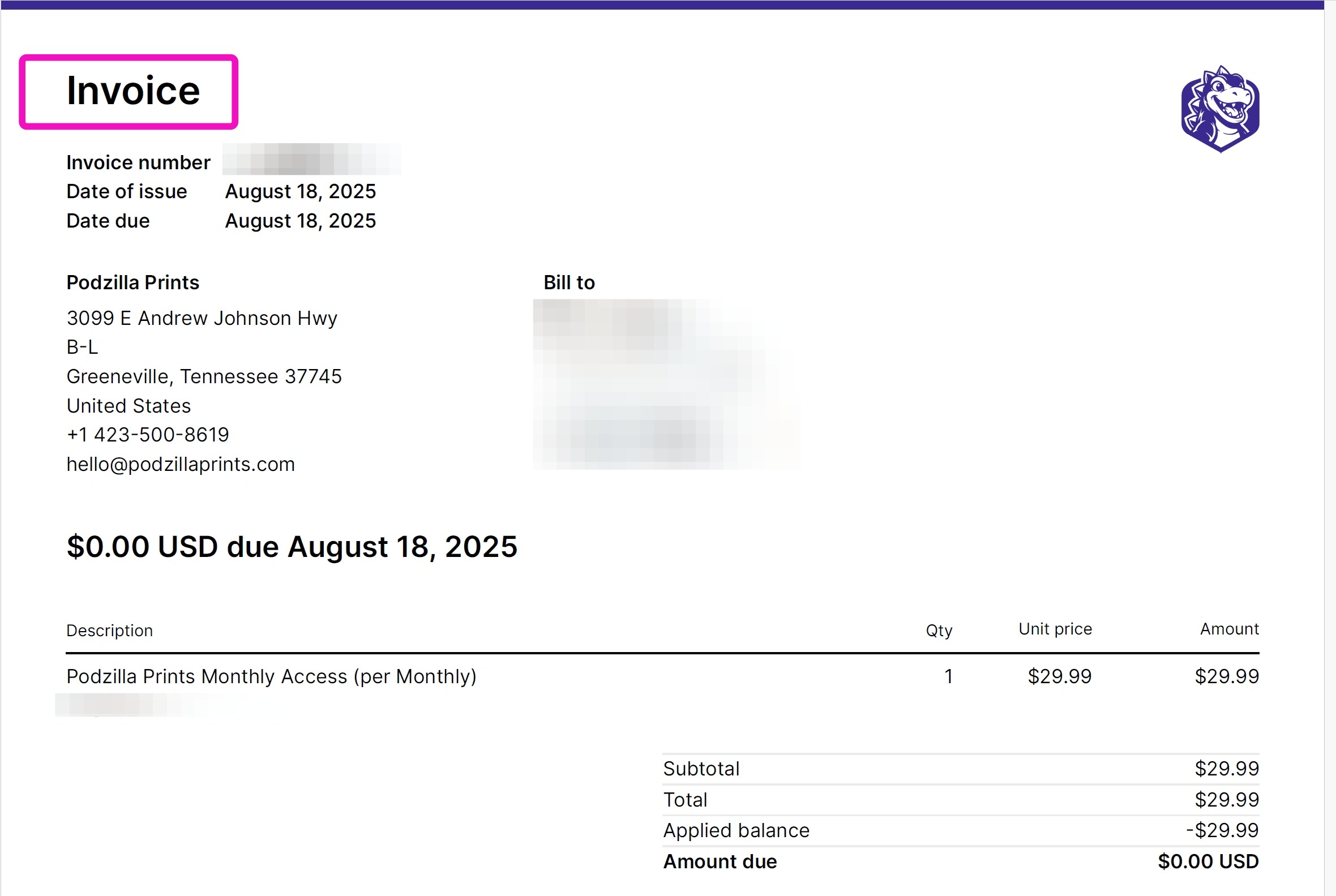
8. The invoice shows how much you need to pay Podzilla.
9. Click Download receipt to get and print a copy of the receipt.
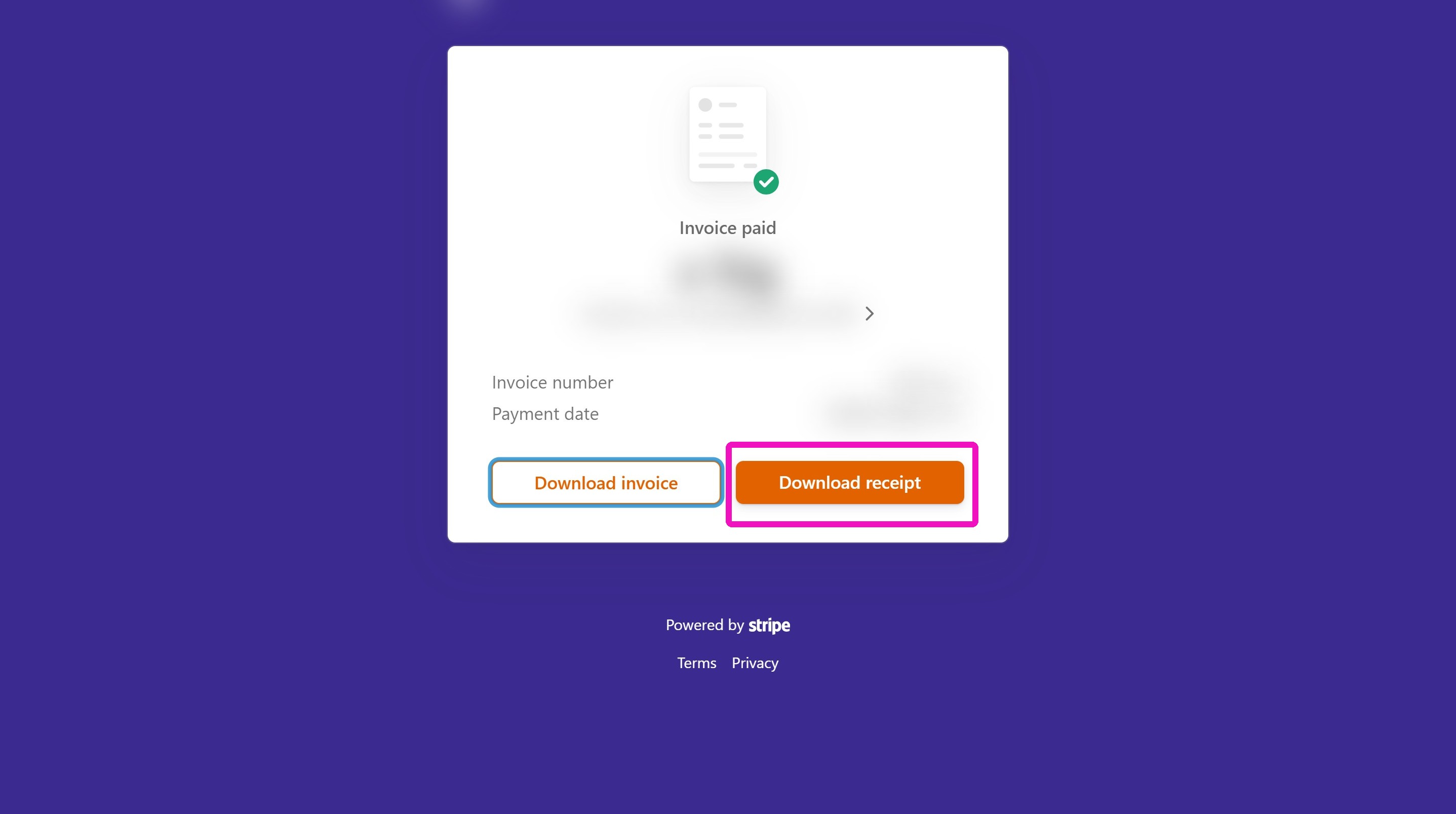
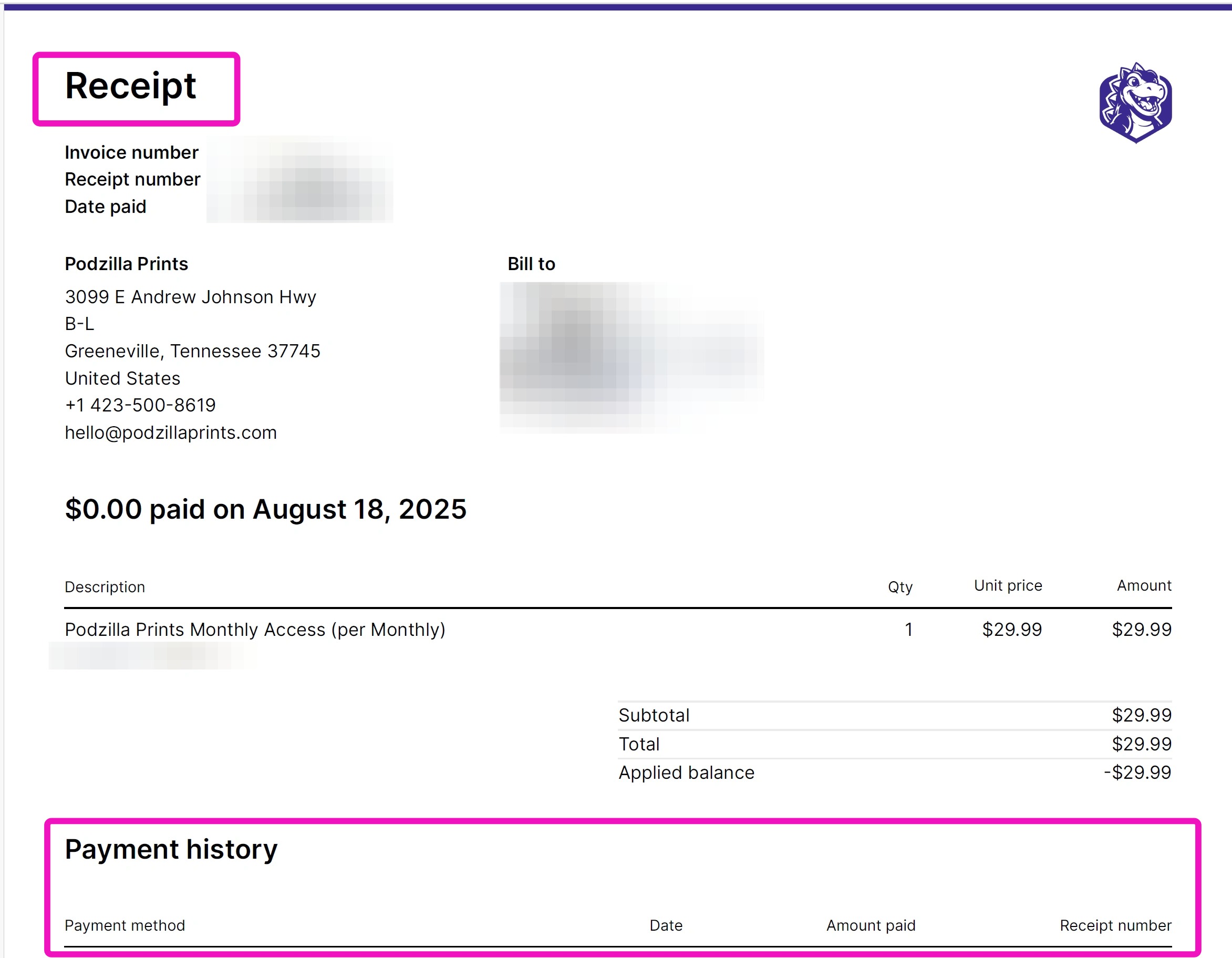
10. The receipt shows how much you paid Podzilla with a list showing your payment history. Keep this for your tax records.
Related
More Articles
Getting Started
Welcome to Podzilla! The Podzilla website lets you manage products and orders associated with your shop(s). Let’s get you started.
Getting Started
3,020 views
How to Use the Candle Design Template
TRANSCRIPTThis article explains how to use Podzilla’s candle design templates, including layout...
How-To Videos
1,497 views
Saving Sales with Canva Photo Cards
This customer service option has saved many of my sales! It only takes a few minutes, and is well worth it. I've included the instructional video and my script. Be sure you modify it for your brand and voice.
How-To Videos
1,415 views
Introduction to Podzilla
Introduction to Podzilla by Valerie Pate
Getting Started
895 views
Creating Products
This SOP outlines the steps to create both regular and variant products in the catalog system, focusing on the new product creation form and SKU generation.
Products
754 views