How to Use the 20oz & 40oz Tumblers Design Templates
TRANSCRIPT
This article explains how to use Podzilla’s Canva and Photoshop design templates for the 20 oz and 40 oz stainless steel tumblers, including layout options, safe design areas, bleed considerations, and best practices for preparing artwork for print.
Key Takeaways
-
Podzilla provides pre-sized Canva and Photoshop templates for both tumbler sizes
-
Important design elements must stay inside the green dotted safe area
-
Backgrounds can wrap with a small seam; text should not rely on perfect alignment
-
The 40 oz tumbler includes a permanent white gap under the handle
Why Design Both Sizes Together
The 20 oz and 40 oz tumblers work well when listed together in a single Etsy listing. Many sellers use the 20 oz as a lower-priced option while selling higher volumes of the 40 oz size.
Accessing the Templates
-
Go to the Podzilla product catalog
-
Navigate to Tumblers
-
Select either the 20 oz or 40 oz stainless steel tumbler
-
Scroll down to the mockups and templates section
-
Open the Canva or Photoshop template
Templates are already sized correctly for Podzilla printing, so no DPI or resolution adjustments are required.
Step-by-Step Instructions
Designing the 20 oz Tumbler
The 20 oz template includes two layout options:
Two-Sided Design
-
Includes red guide lines on the left, center, and right
-
Use the outer red lines to align front and back designs
-
Use the center red line for a single front-facing design
Three-Sided Design
-
Divides the tumbler into three shaded sections
-
Allows text, graphics, or names to be placed in multiple areas
Design rules:
-
Keep all important text and graphics inside the green dotted safe area
-
Backgrounds may wrap with a small overlap seam
-
Avoid designs where text must align perfectly at the seam
Preparing the File for Download (20 oz)
Before downloading for print:
-
Remove the template overlay by deleting it or reducing transparency to zero
-
Leave the background white if desired (white does not print on sublimation products)
-
Download the file according to Podzilla’s artwork upload requirements
Leaving a white background can make it easier to preview artwork during upload.
20 oz Printing Notes
-
A very small seam may appear where the design wraps
-
A thin white gap appears at the bottom of the tumbler
-
These are normal production characteristics and are barely noticeable as shown in these images:
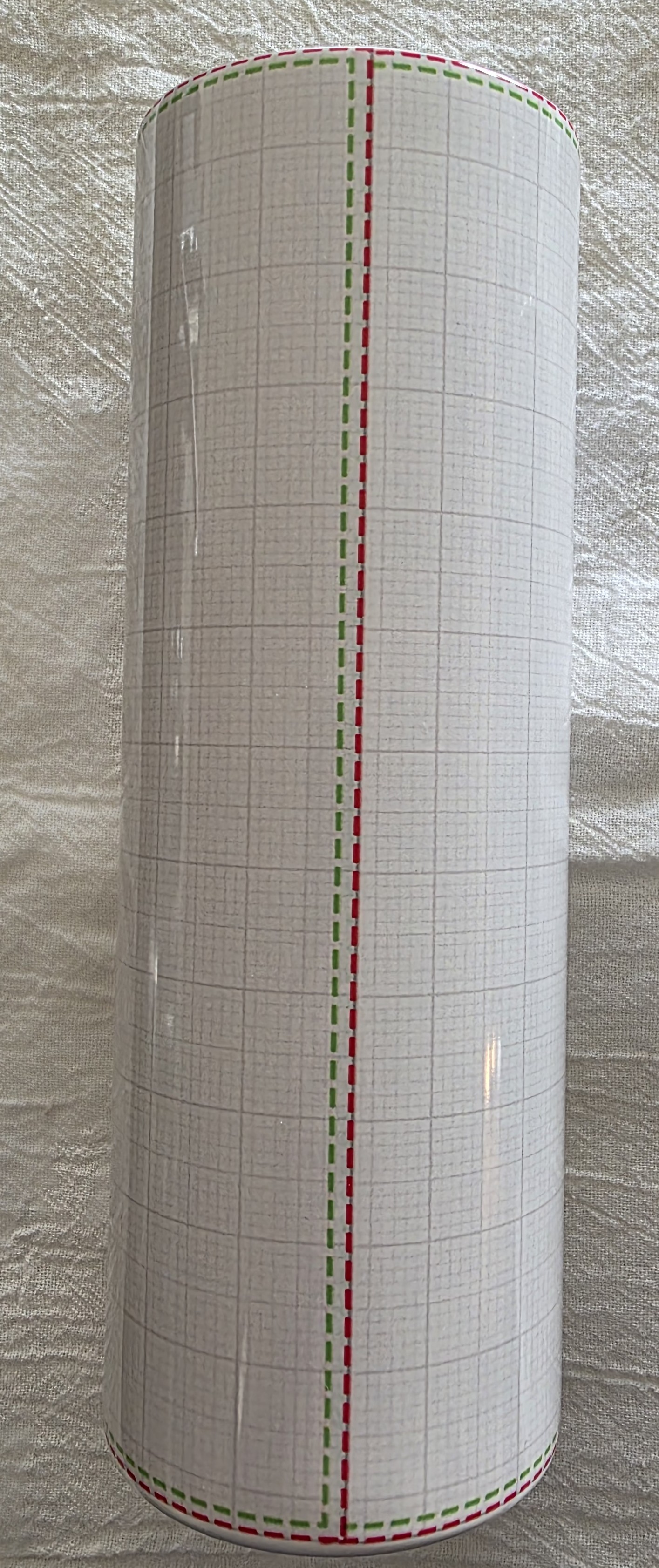 |
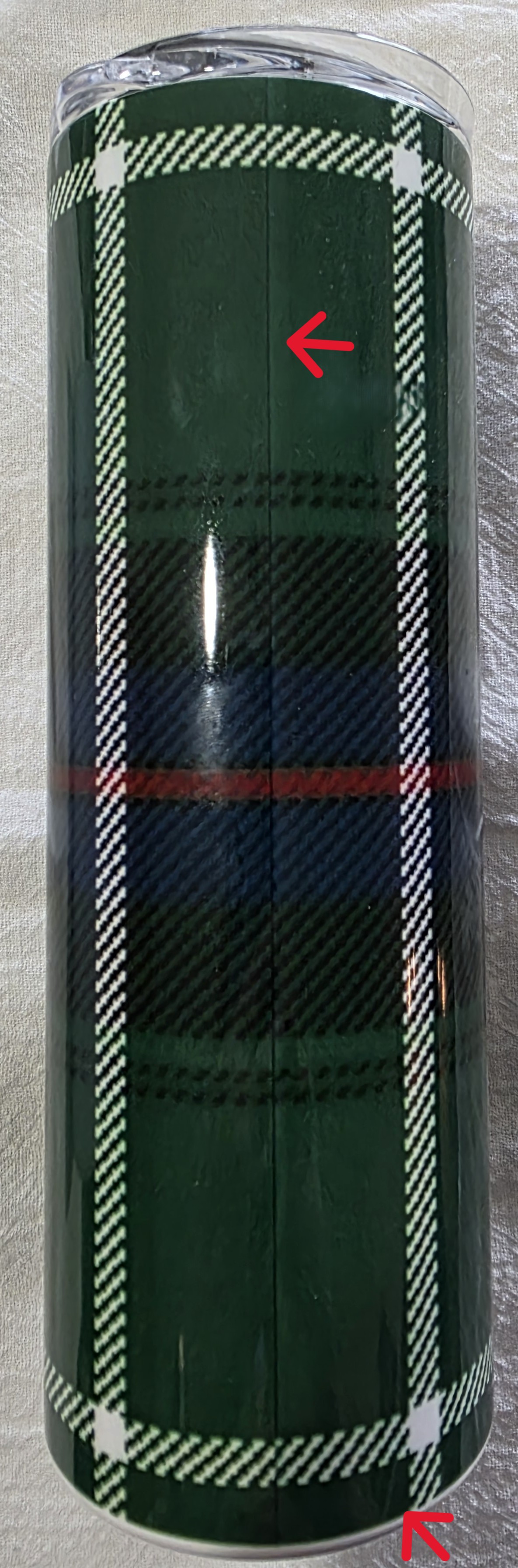 |
Designing the 40 oz Tumbler
The 40 oz tumbler has a different print area due to the handle.
Design rules:
-
Printing goes fully around the tumbler except for the handle area
-
A permanent white gap exists underneath the handle
-
Graphics placed in this area will not print
The template includes red guide lines:
-
One center line with the handle on the right
-
One center line with the handle on the left
-
A center area opposite the handle for additional design elements
This allows for two-sided or three-sided designs similar to the 20 oz tumbler.
Preparing the File for Download (40 oz)
-
Ensure all important elements stay within the green dotted safe area
-
Remove or hide the template overlay before download
-
Download with or without a transparent background (both will print correctly)
A non-transparent background may be easier to visually confirm artwork placement.
Notes and Best Practices
-
Eyeball graphic sizing when elements differ in original dimensions
-
Avoid designs that wrap too far toward the handle area
-
Order samples when possible to fully understand print boundaries
Final Notes
These templates are designed to make tumbler setup easy while ensuring consistent print quality. Following the safe areas and layout guidelines will help prevent cropped or misaligned designs.
Related
More Articles
Getting Started
Welcome to Podzilla! The Podzilla website lets you manage products and orders associated with your shop(s). Let’s get you started.
Apparel Deep Dive: Catalog, Templates, Products & Orders
This guide walks through everything you need to know about working with apparel in Podzilla — from browsing the catalog and using the print template, to setting up products, syncing SKUs, and approving orders. It's based on Valerie's comprehensive video tutorial above, which demonstrates each step on screen.
How to Use the Candle Design Template
TRANSCRIPTThis article explains how to use Podzilla’s candle design templates, including layout...
Saving Sales with Canva Photo Cards
This customer service option has saved many of my sales! It only takes a few minutes, and is well worth it. I've included the instructional video and my script. Be sure you modify it for your brand and voice.
[NEW FEATURE] Mockup Studio (Beta) drops TONIGHT - July 14, 2026
We built a Mockup Generator right into PODzilla! Big one for everyone who's tired of mocking up products one at a time in Canva or fighting with Photopea to get it to work with smart objects.