Your Account
CONTENTS
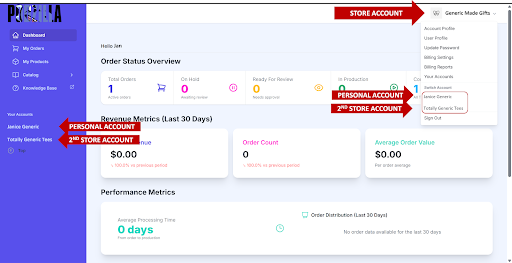
Your account is automatically set up as a Personal account. This is where your subscription billing and main information are linked.
Each time you log in, you’ll see your dashboard. It shows an overview of your orders, revenue, production processing times, top selling products in the last 30 days, and recent orders.
From here, you can link to your Etsy store(s) in the Accounts view using the menu in the top right corner.
When creating your store account, make sure you check the Connect Account to Etsy box before you save the form. This will prompt you to authorize your store with Podzilla.
Repeat these steps to set up additional stores.
Once you link your Etsy store, you will see subaccounts for each Etsy shop you link to your personal account. Your orders will be billed to the store account where they were purchased.
Accounts View
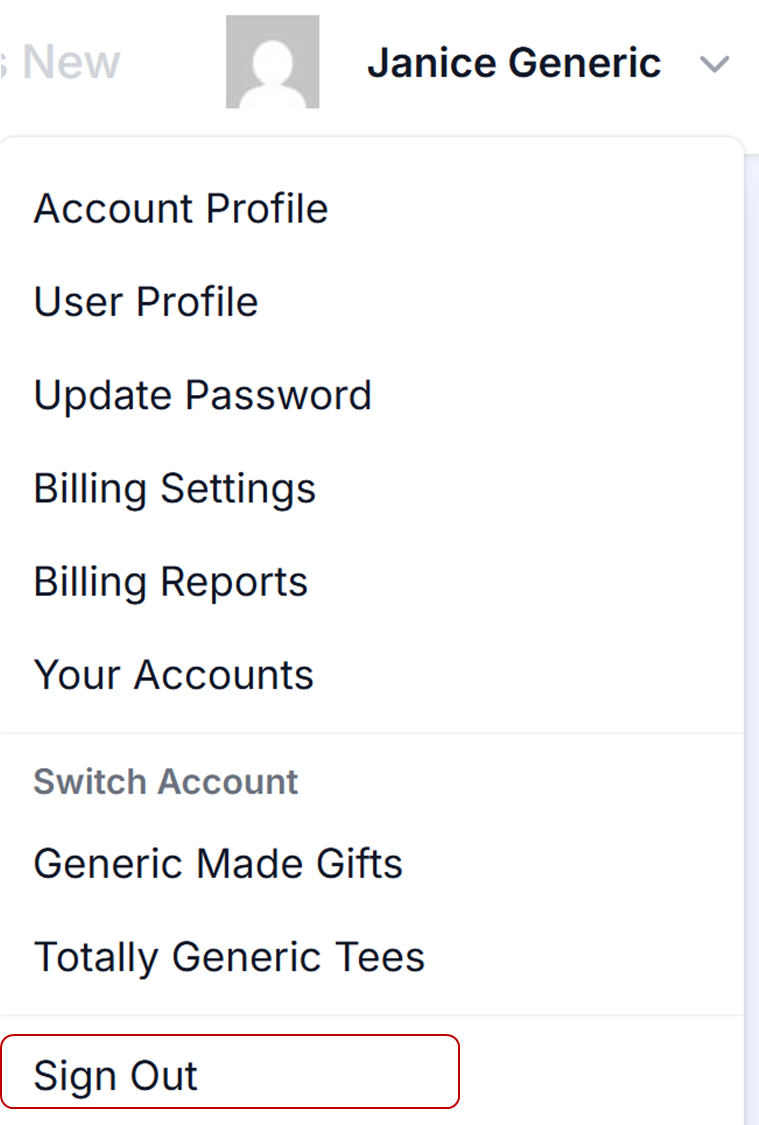
The Accounts View includes the following options:
Account Profile
This option gives you access to your overall profile options, including User Profile, Password, Billing Settings, Billing Reports, and Accounts.
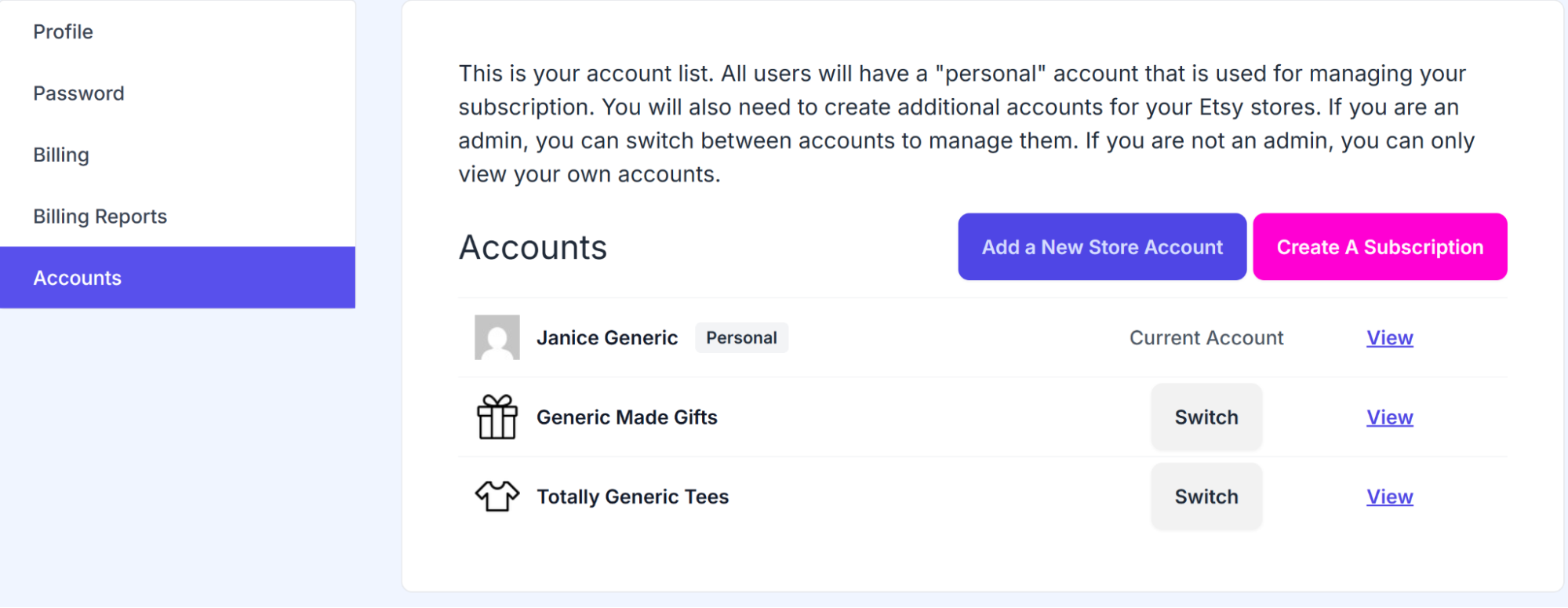
Clicking this link will automatically take you to Accounts where you can Invite a User or Edit your account.
Accounts
You can add additional users, such as an employee, to your store accounts to help with processing orders or creating listings.
On your store’s Account screen, click Invite a User. Enter the new user's full name and email address. Then choose one of the following roles for them:
-
Admin
-
Member
-
Orders Manager
-
Products Manager
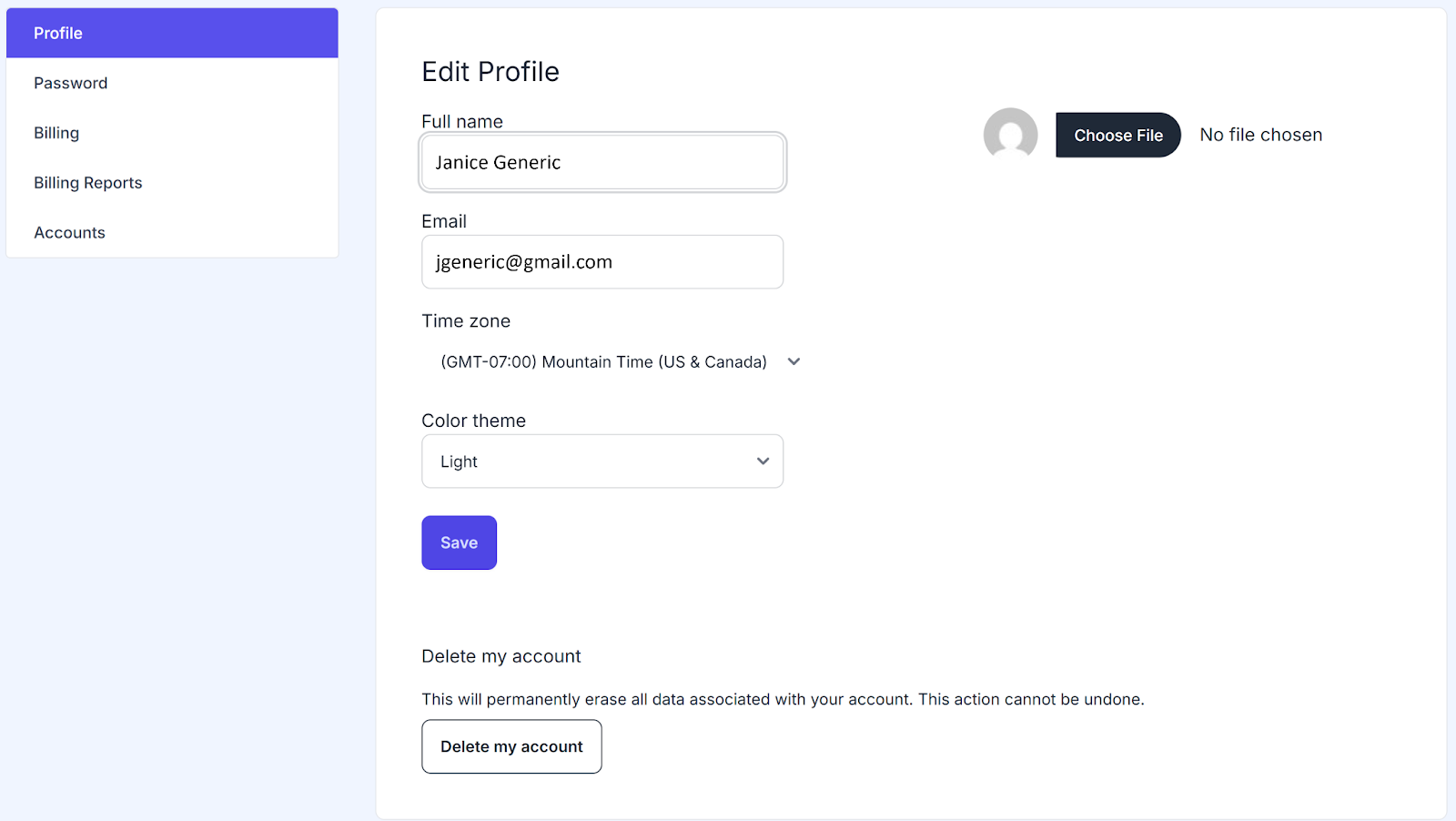
User Profile
This option lets you edit your name, profile photo, email address, time zone, and account color scheme (light or dark).
Update Password
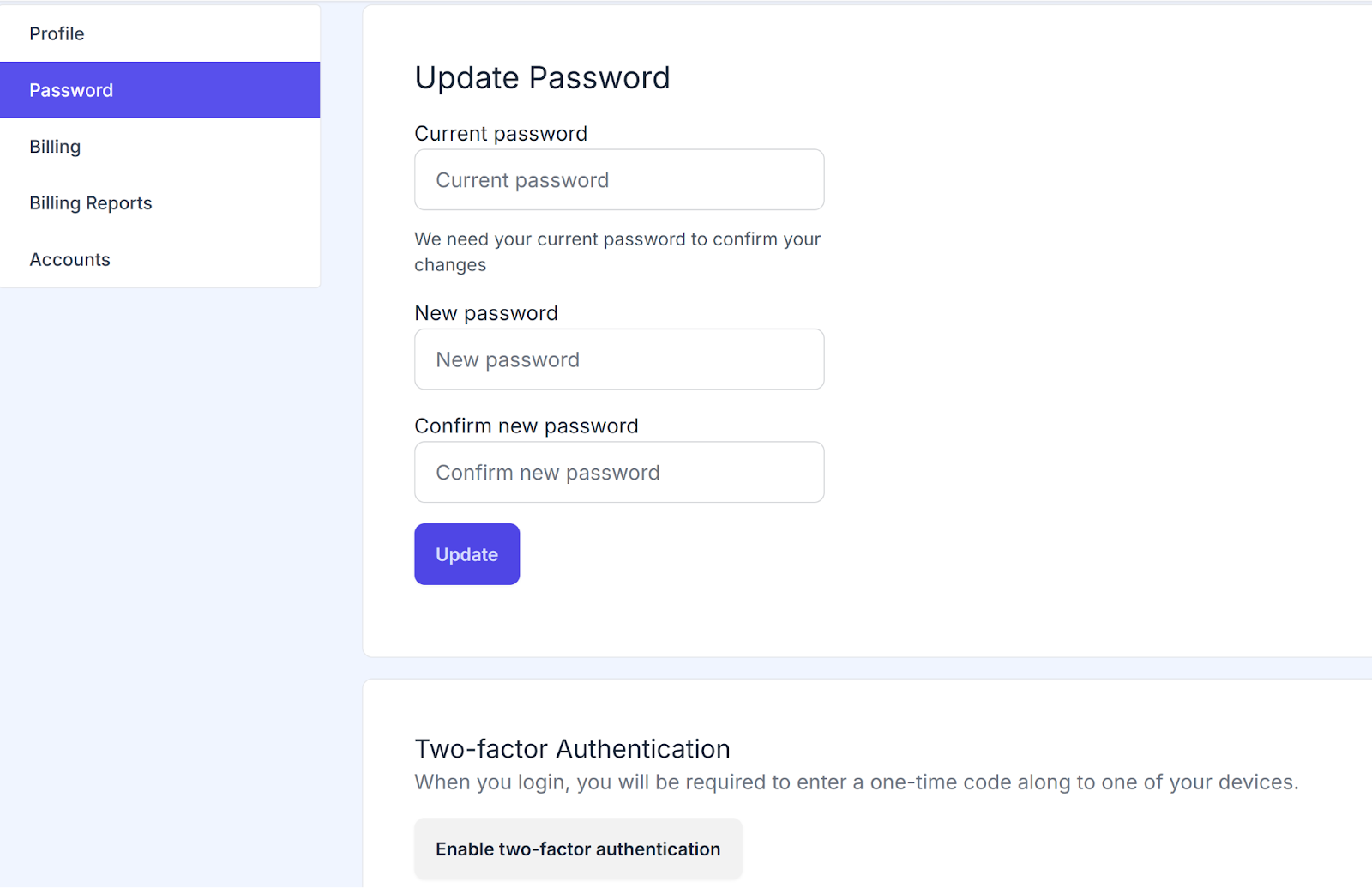
Use this option to change your password. Two-Factor Authentication set-up is also available from here.
Billing Settings
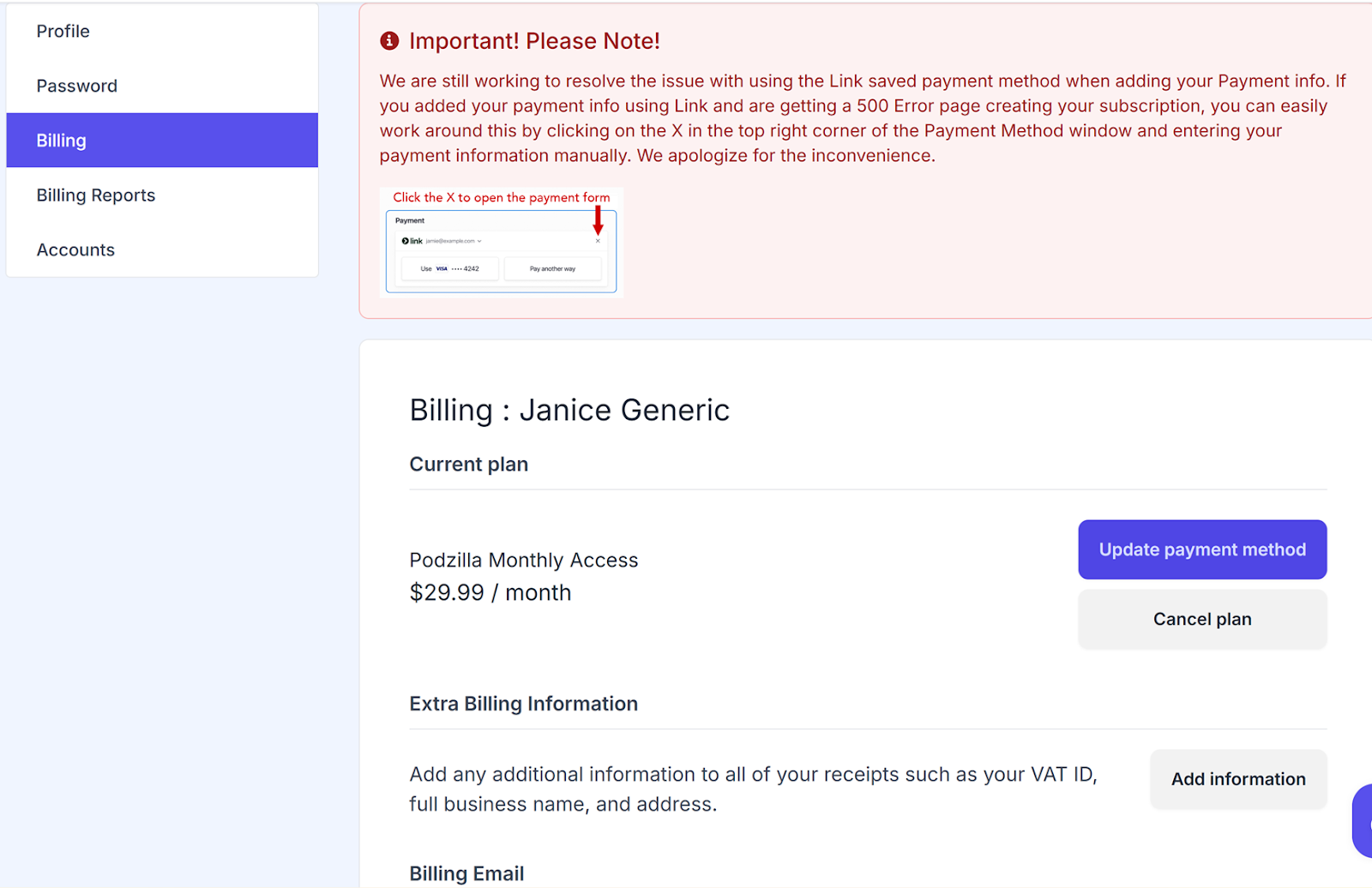
In your personal account (not your shop accounts), you can add your billing address, payment method, billing email, billing history, and manage your subscription.
Billing Reports
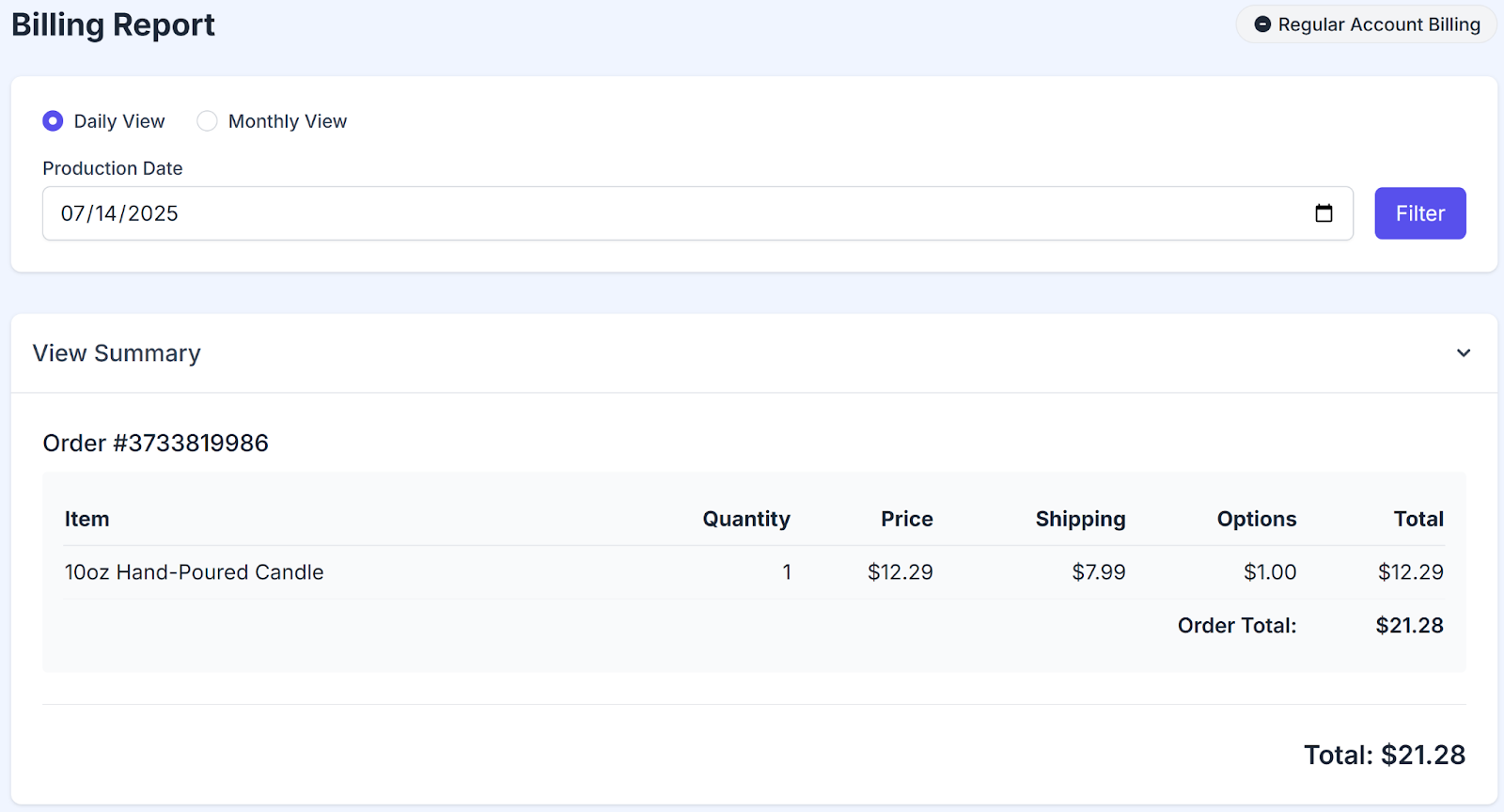
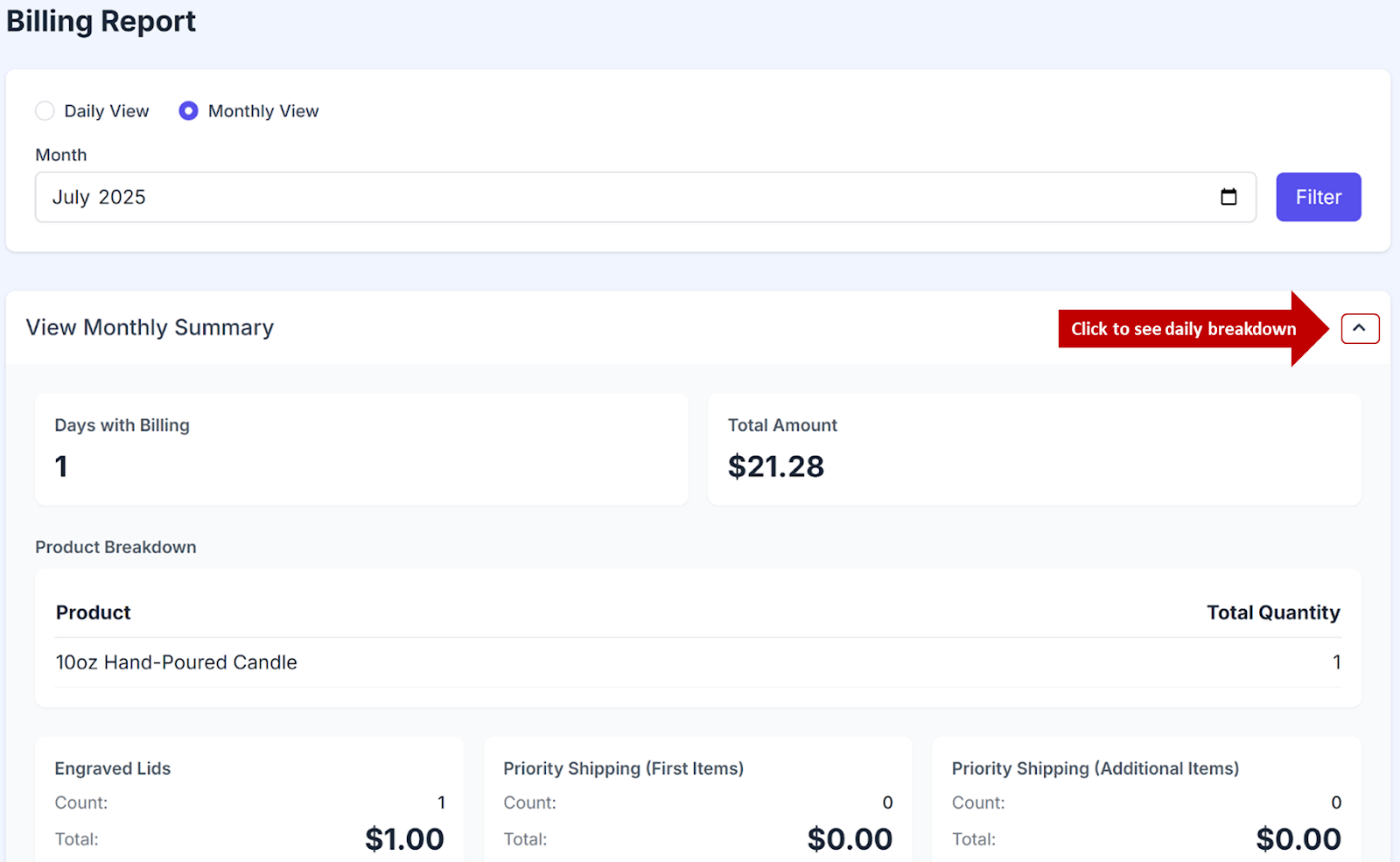
In your shop account, you can see your billing invoices by specific date or a month.
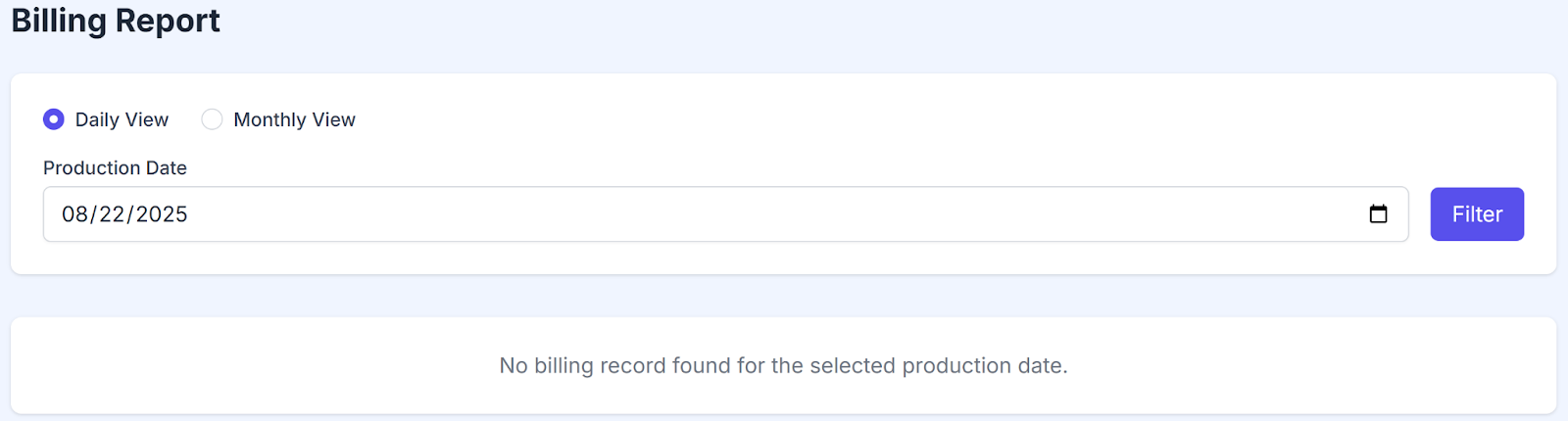
Enter a specific date and click the Filter button to see all orders from that day.
Click the Monthly View radio button, choose the month from the dropdown menu, and click the Filter button.
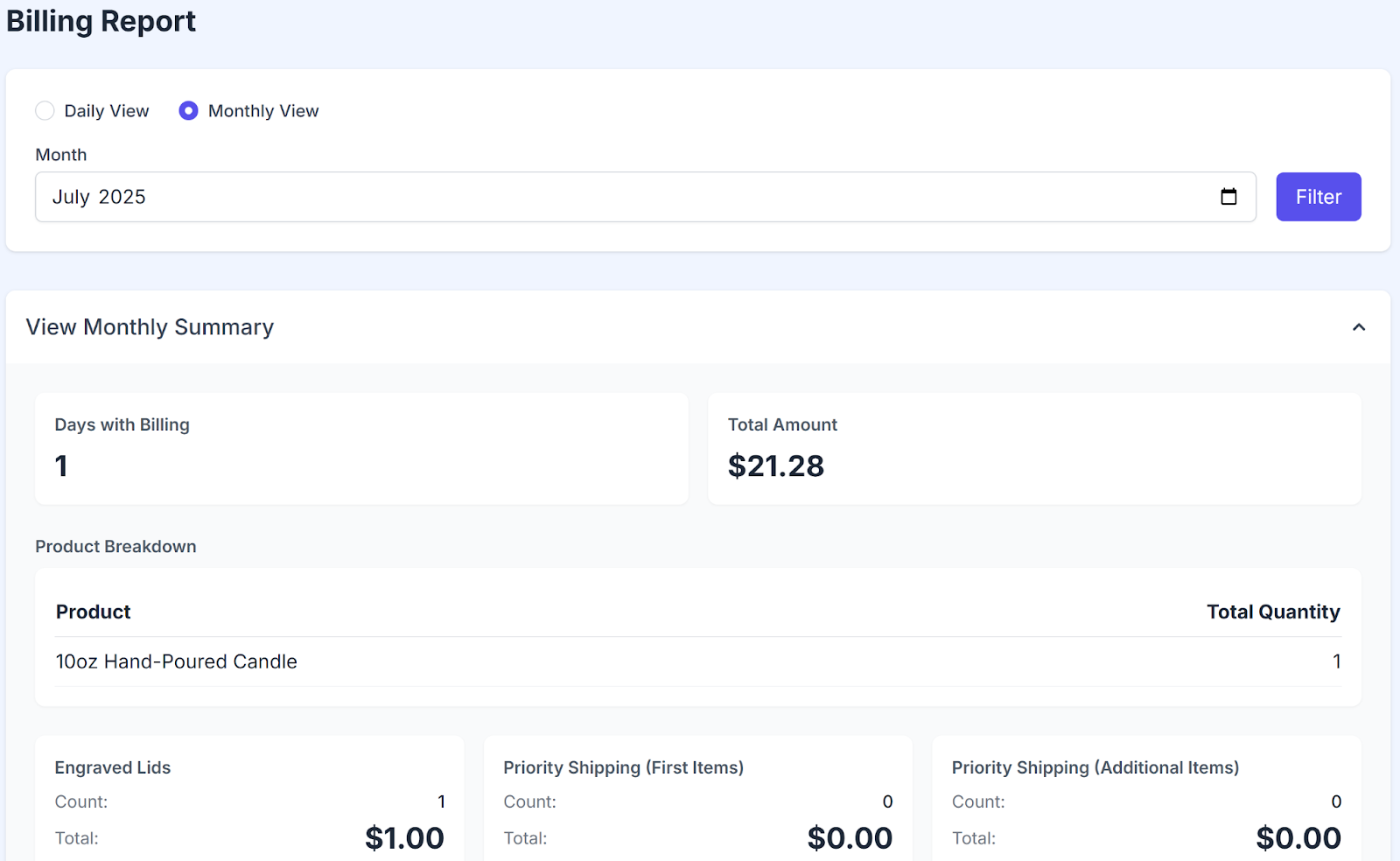
Clicking the up arrow to the right of View Monthly Summary will expand the summary so you can see the daily breakdown.
Your Accounts
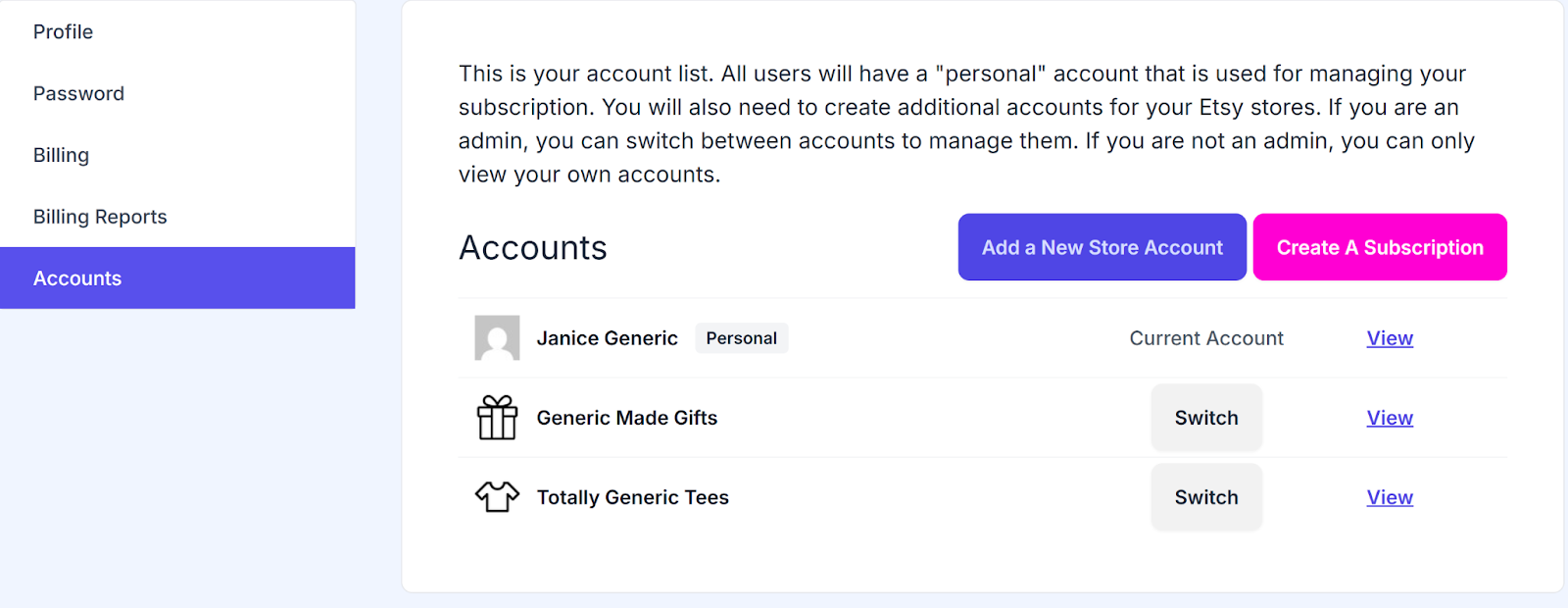
Use this screen to add new Etsy shops or switch between existing shops and your personal account. To add a new store account
-
Click the Add a New Store Account button.
-
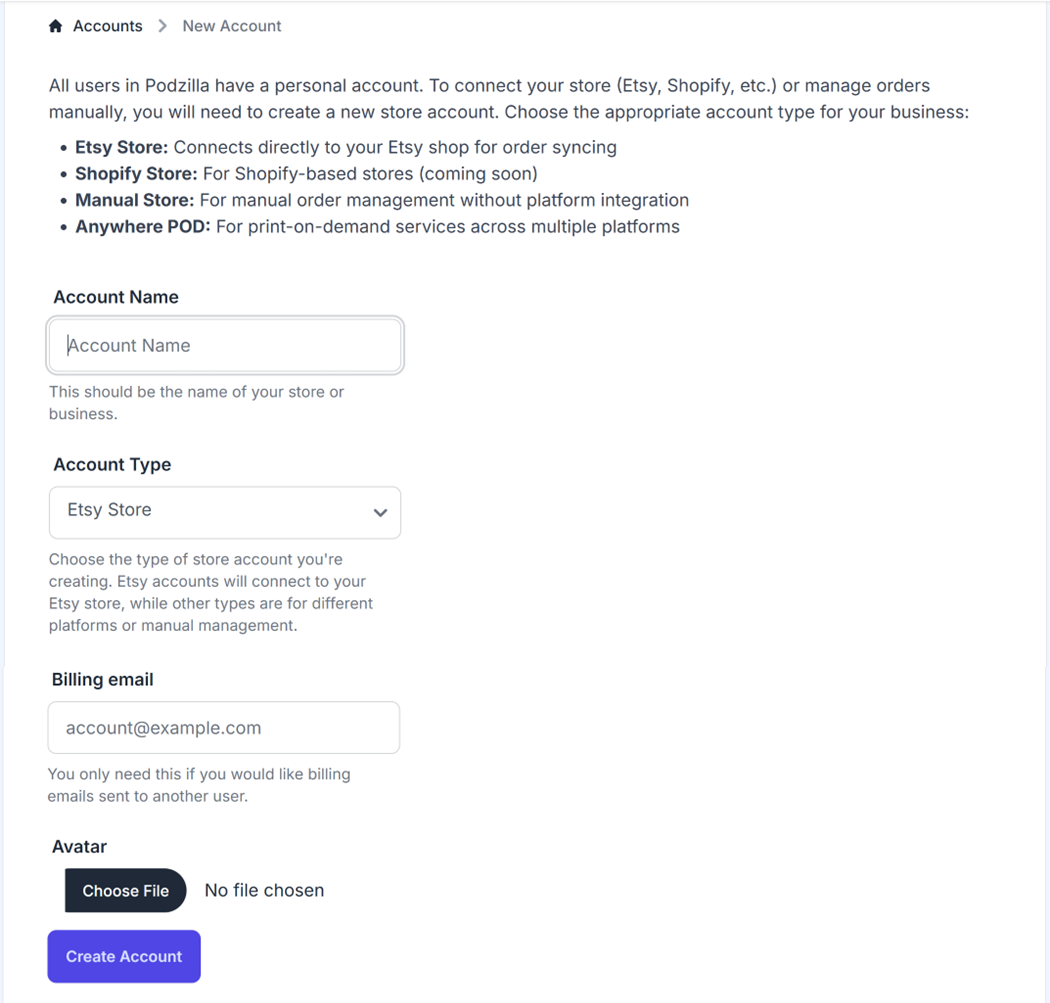
Enter your Etsy Account Name, Account Type, and Etsy Billing Email address in the popup box. Upload a store avatar if you want (optional) and click Create Account.
- You’ll see another popup from Etsy asking you to allow the integration.
Repeat these steps to set up additional stores.
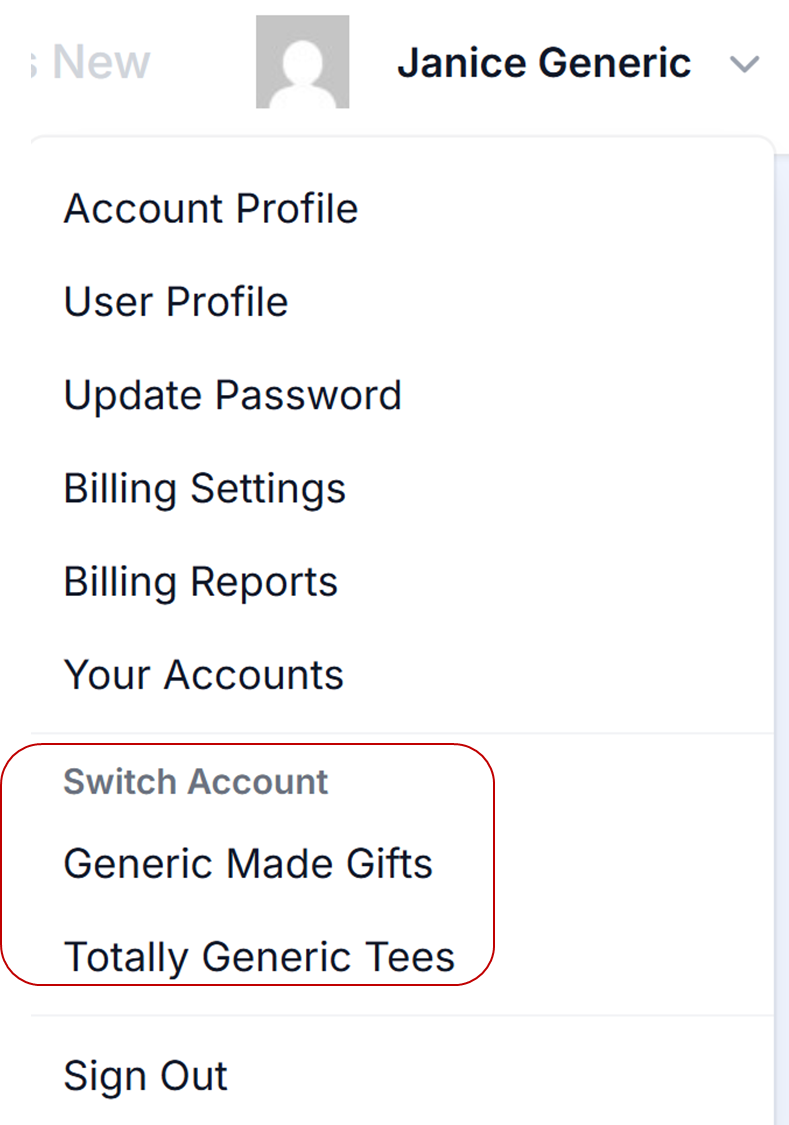
Quickly switch between accounts by selecting an option directly from the menu.
Sign Out
Click to sign out of Podzilla on your device.
Related
More Articles
Getting Started
Welcome to Podzilla! The Podzilla website lets you manage products and orders associated with your shop(s). Let’s get you started.
Apparel Deep Dive: Catalog, Templates, Products & Orders
This guide walks through everything you need to know about working with apparel in Podzilla — from browsing the catalog and using the print template, to setting up products, syncing SKUs, and approving orders. It's based on Valerie's comprehensive video tutorial above, which demonstrates each step on screen.
How to Use the Candle Design Template
TRANSCRIPTThis article explains how to use Podzilla’s candle design templates, including layout...
Saving Sales with Canva Photo Cards
This customer service option has saved many of my sales! It only takes a few minutes, and is well worth it. I've included the instructional video and my script. Be sure you modify it for your brand and voice.
How to Use the 20oz & 40oz Tumblers Design Templates
TRANSCRIPTThis article explains how to use Podzilla’s Canva and Photoshop design templates for ...