Order Cards
CONTENTS
- Identifiers
- General Order Information
- Order Action Buttons
- Approving Orders
- Order Reprints
-
Production Timeline
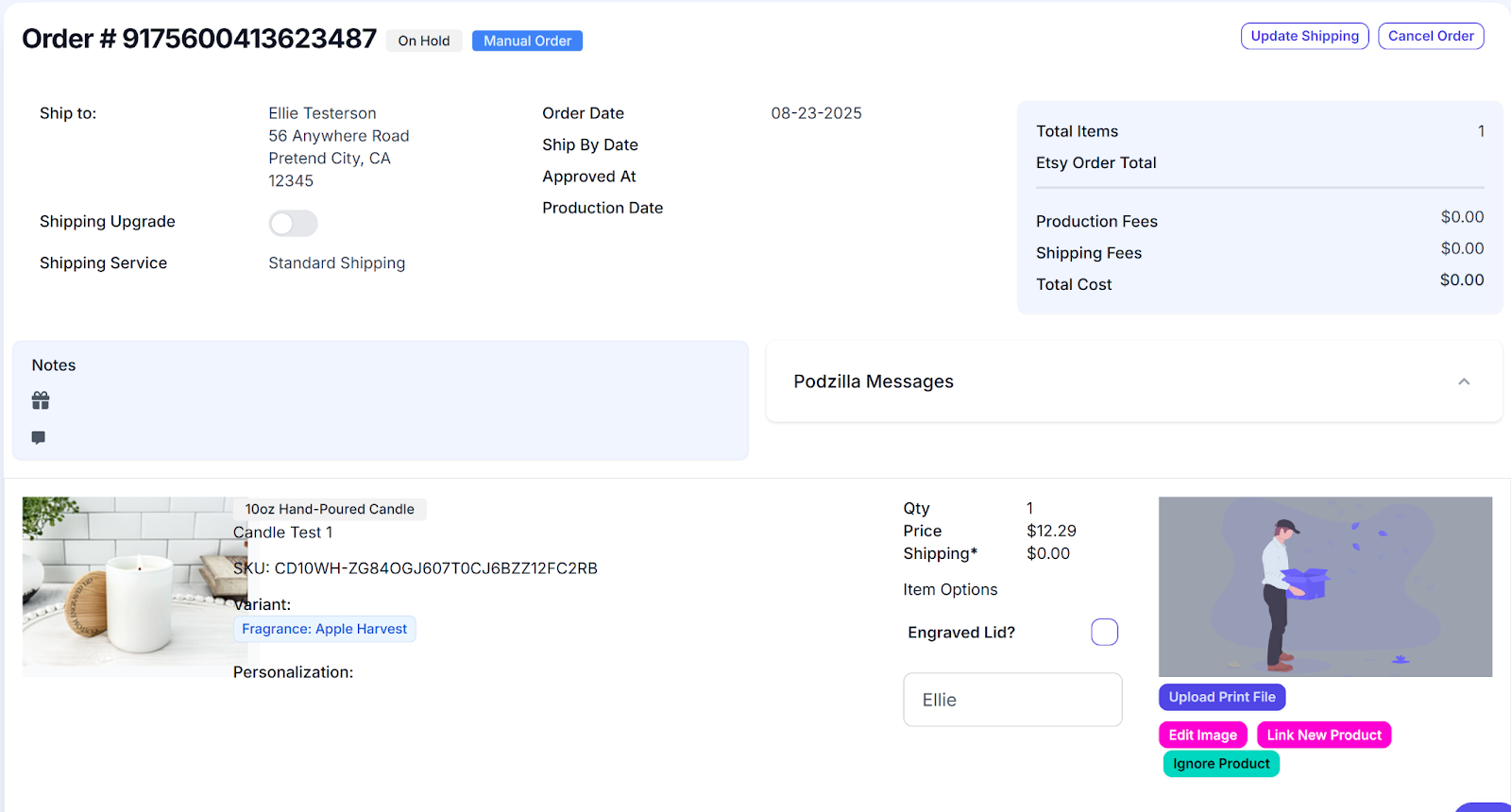
Each order shows up on a card with all the details for that order. It includes special identifiers to keep you updated on the order’s progress, action buttons, and special fields to communicate with Podzilla.
Identifiers
Cards may have any of the following identifiers at the top of the card:
-
Etsy - This order came in through your Etsy store.
-
Manual - You entered this order manually.
-
On Hold - The order has not been reviewed and approved. This usually means some important information is missing.
-
Ready for Review - The order has all the necessary information, but hasn’t been approved to go to production.
-
Approved - You have approved the order, but it hasn’t gone to production, yet.
-
In Production - The item is in production. Remember, you can’t make any changes once production has started.
-
Ready for Shipping - The item has finished in production and is waiting to be shipped.
-
Shipped - The order has been shipped. You should see the tracking information on the order card now.
-
Payment Processing - The customer’s payment has been completed in Etsy.
-
Cancelled - You have cancelled the order and no further action will be taken.
-
Ignored - This shows any orders not linked to items in your Podzilla products and not being fulfilled by Podzilla such as orders fulfilled by Printify. No action is needed on these orders.

General Order Information
The next section of the order card shows the general information for the order such as the:
This is the order number from your Etsy store. Manual orders are assigned a random number.

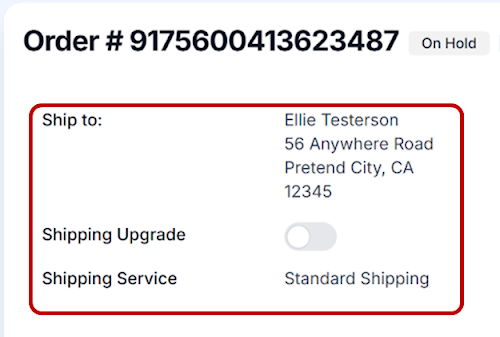
This information comes directly from the Etsy order. If you need to upgrade the shipping,
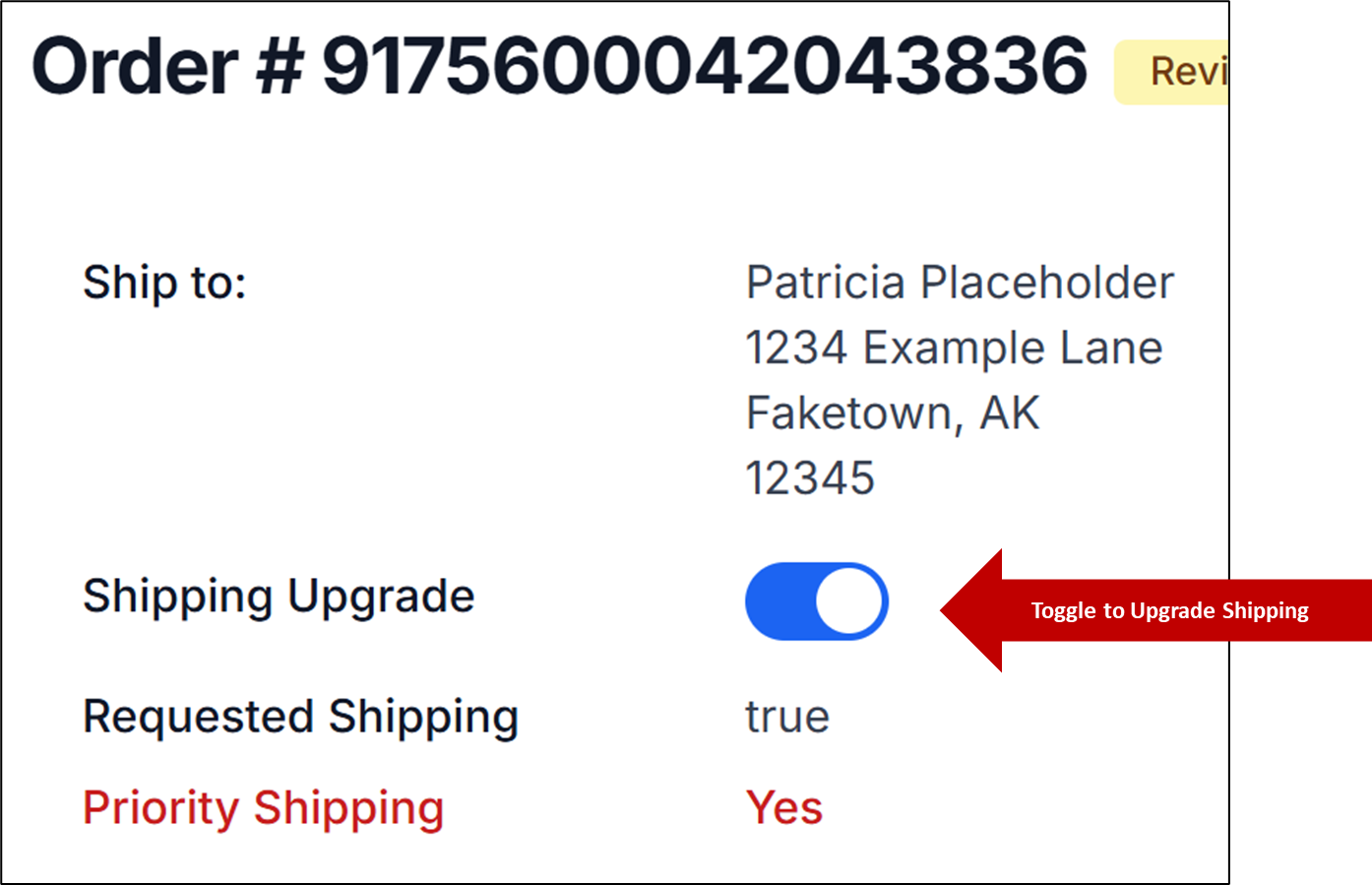
Be sure to click the Shipping Upgrade switch if the customer wants priority shipping. See Shipping FAQ's for more information on priority shipping.
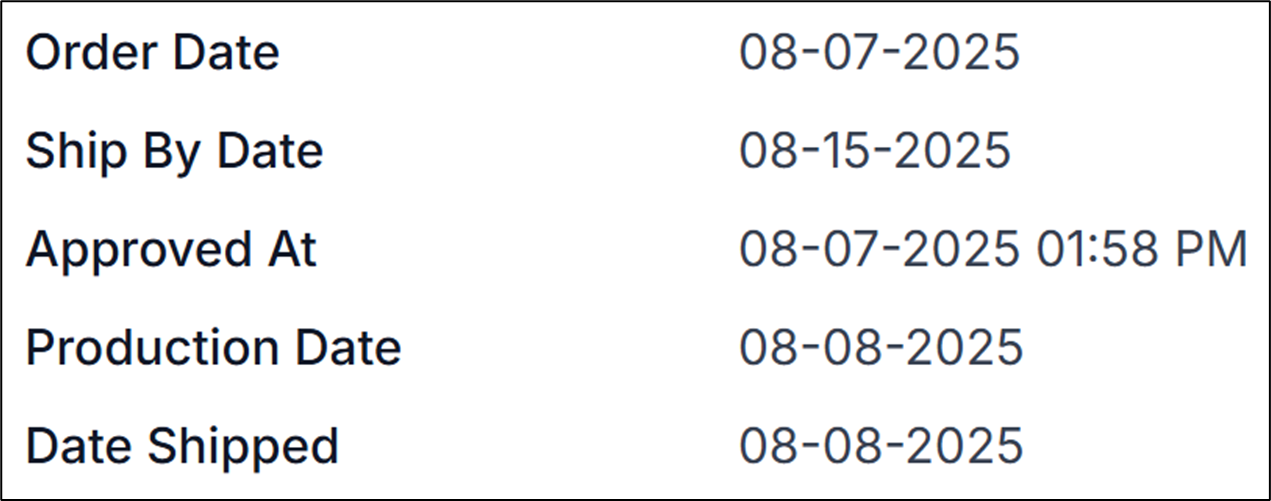
This section shows when the item was ordered and each step in the production process for easy tracking.
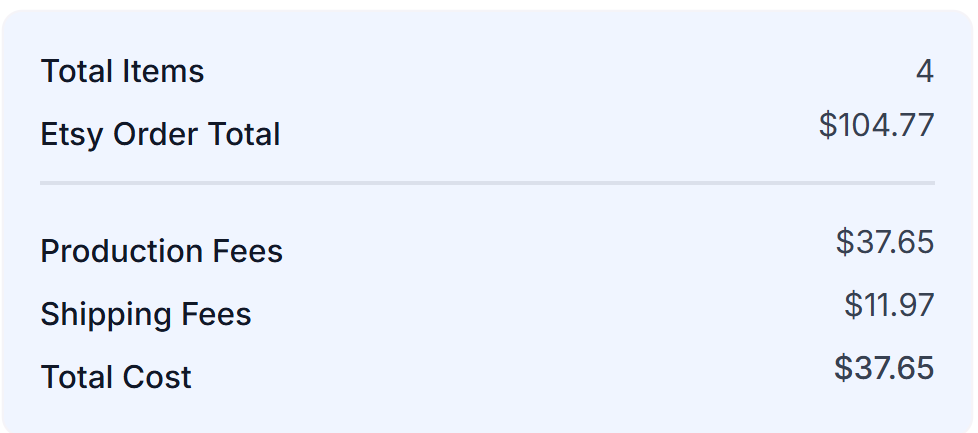
This section outlines the number of items in the order and the cost breakdown for the product(s).
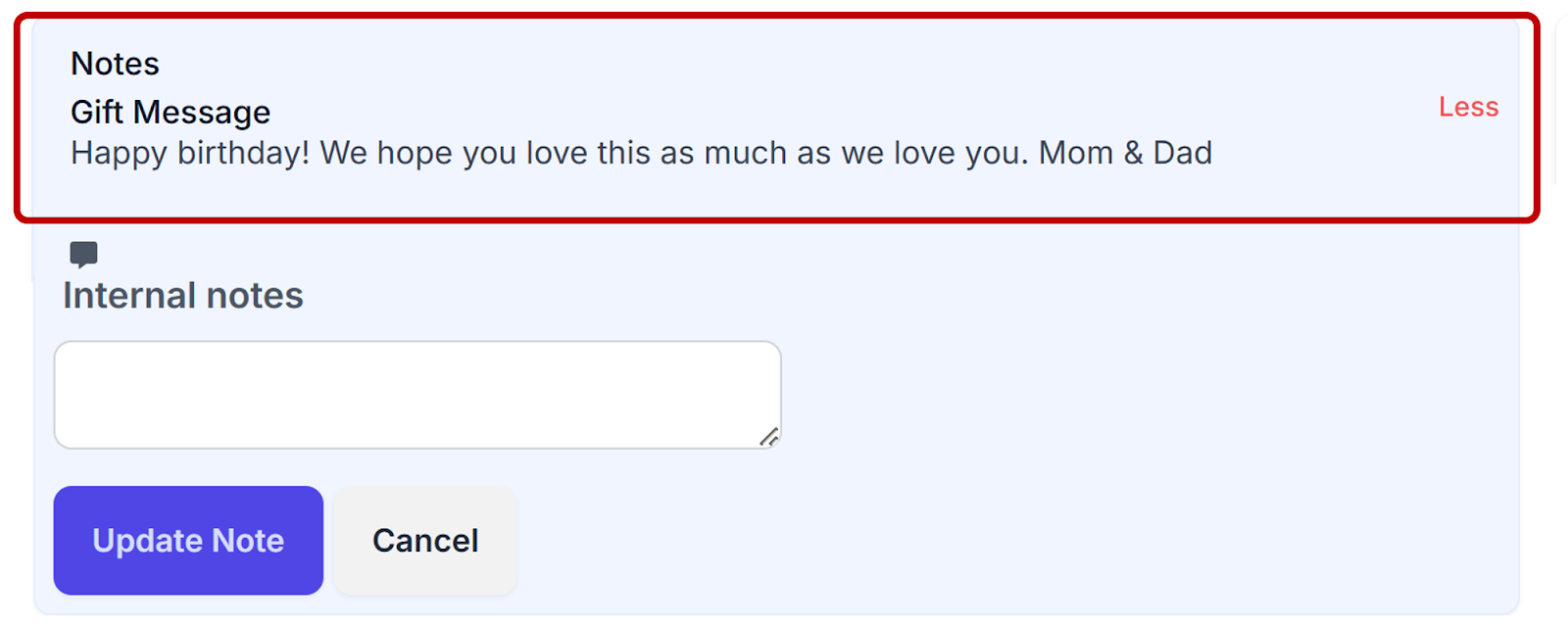
This section has two parts - the Gift Message field and the Internal Notes field.
If you allow gift messages in your Etsy store, Podzilla will pull in any gift message the customer enters when ordering and you’ll see it in this field. This is an editable field, so you can also add a gift message if the customer requests one after they order. This message will be printed on the packing slip and included in the order.
Use the Internal Notes field when you need to put in reminder information for your own use or to send a message about the order to Podzilla.
This field is where Podzilla will let you know if there is an issue with the order that is preventing them from processing the order. If you have questions about the message, you can reply in the box below the Podzilla message. Otherwise, make any necessary changes and re-approve the order.
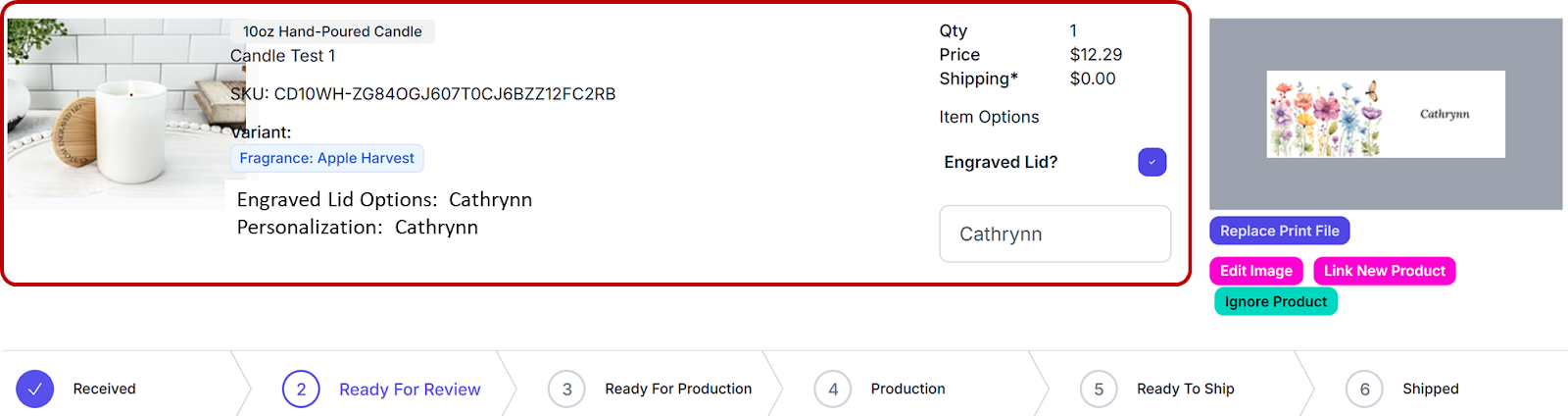
This section shows the product ordered and costs along with any personalization the customer added in the Etsy order.
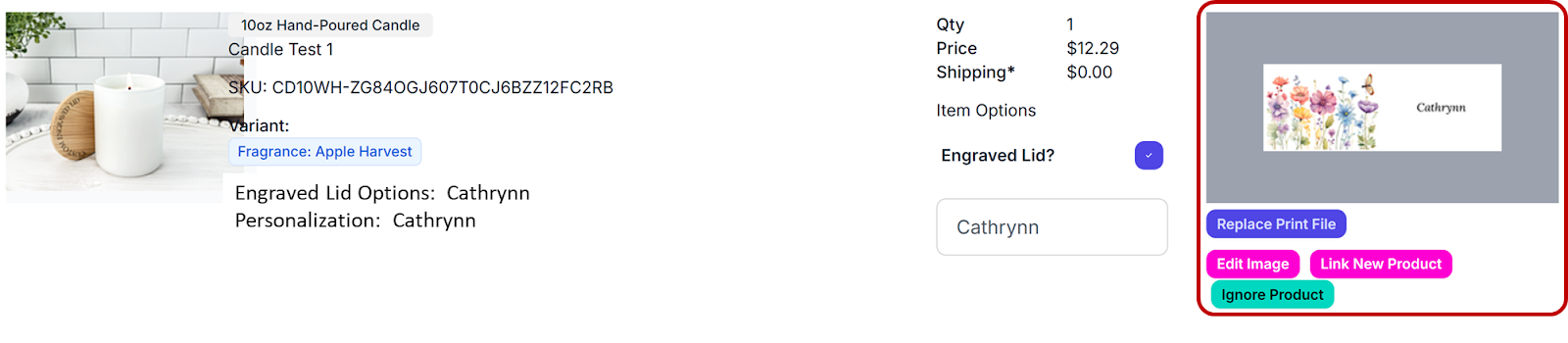
This section shows the image to be printed on the product. A preview thumbnail shows the image you uploaded when you created the product.
You now have several options:
-
Replace Print File - Use this if you need to change the file to be printed from the one you originally uploaded. This is most often used to change a name on a personalized product.
-
Edit Image - This button will take you directly to the Canva or Kittl URL if you added one when you created the product.
-
Link New Product - This button will open a popup box with your products so you can choose a new one to attach.
-
Ignore Product - Choose this if you want to remove that product and add a different one.
If you didn’t upload an image file when you created the product, you’ll see the following image in the preview box and a button to Upload Print File. Click that button and upload your file to be printed on the product.
Image Actions - Unlinked Orders
Unlinked orders only have two options:
-
Link Product - Use this to link your product to the order.
-
Ignore Product - Click this to remove the product.

If you choose Ignore Product, you’ll see a new Re-Add Product option. Clicking this will add the original item back into the order.

Order Action Buttons
When everything is correct on the Order Card, the action buttons in the top right corner will change. The options are:
-
Update Shipping - Click this if you need to change or update any of the shipping information before approving the order.
-
Approve Order - Congratulations! You’re ready to send your order to production. Click the Approve Order button to start the process.
-
NOTE: Nothing gets sent to production without you approving the order.
-
-
Cancel Order - Use this if the order is no longer needed.
-
NOTE: Cancelling the order only cancels it in Podzilla. If the customer has canceled the order, you still have to cancel it and handle any refunds in Etsy.
-

Approving Orders
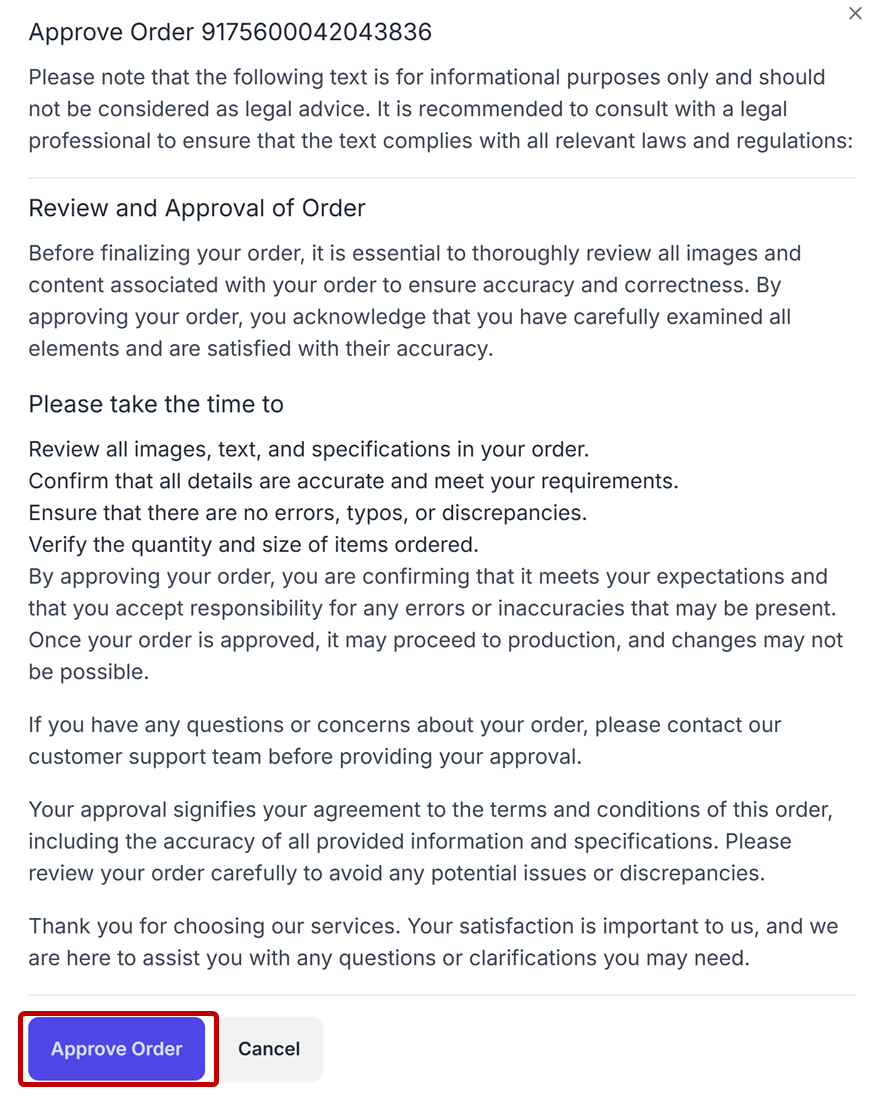
After you click the Approve Order button, you’ll get a popup menu with a message reminding you to double check everything before clicking the second Approve Order button.
The order indicator will now show the order has been approved and is going to production.

Order Reprints
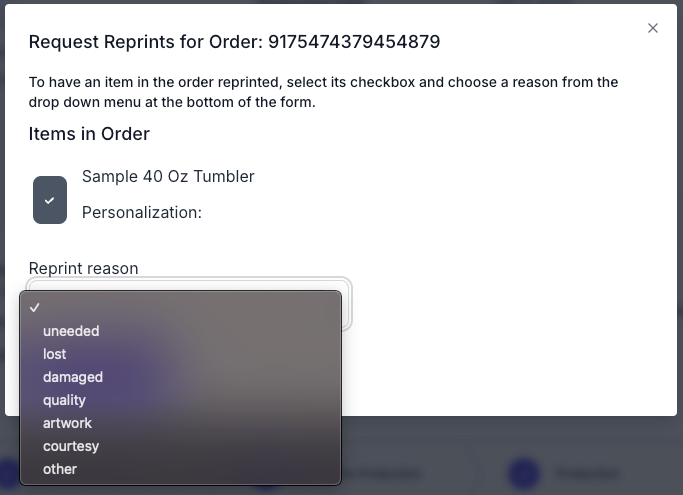
If an item has been processed and you need to have it reprinted, you can open the order and click the Request Reprint button.

Then you will select the item on the order that you would like reprinted and select a reason for the reprint. Requesting a reprint will create a brand new order on your orders page for your review. There you will be able to upload new artwork or change shipping details as you would for a normal order.
Production Timeline
The bottom of each order card has a production timeline. It will show you each step of the production process.


Once the order has shipped, the tracking number will be added to the order card. This information will also update on the Etsy order.

Related
More Articles
Getting Started
Welcome to Podzilla! The Podzilla website lets you manage products and orders associated with your shop(s). Let’s get you started.
Apparel Deep Dive: Catalog, Templates, Products & Orders
This guide walks through everything you need to know about working with apparel in Podzilla — from browsing the catalog and using the print template, to setting up products, syncing SKUs, and approving orders. It's based on Valerie's comprehensive video tutorial above, which demonstrates each step on screen.
How to Use the Candle Design Template
TRANSCRIPTThis article explains how to use Podzilla’s candle design templates, including layout...
Saving Sales with Canva Photo Cards
This customer service option has saved many of my sales! It only takes a few minutes, and is well worth it. I've included the instructional video and my script. Be sure you modify it for your brand and voice.
How to Use the 20oz & 40oz Tumblers Design Templates
TRANSCRIPTThis article explains how to use Podzilla’s Canva and Photoshop design templates for ...