My Products
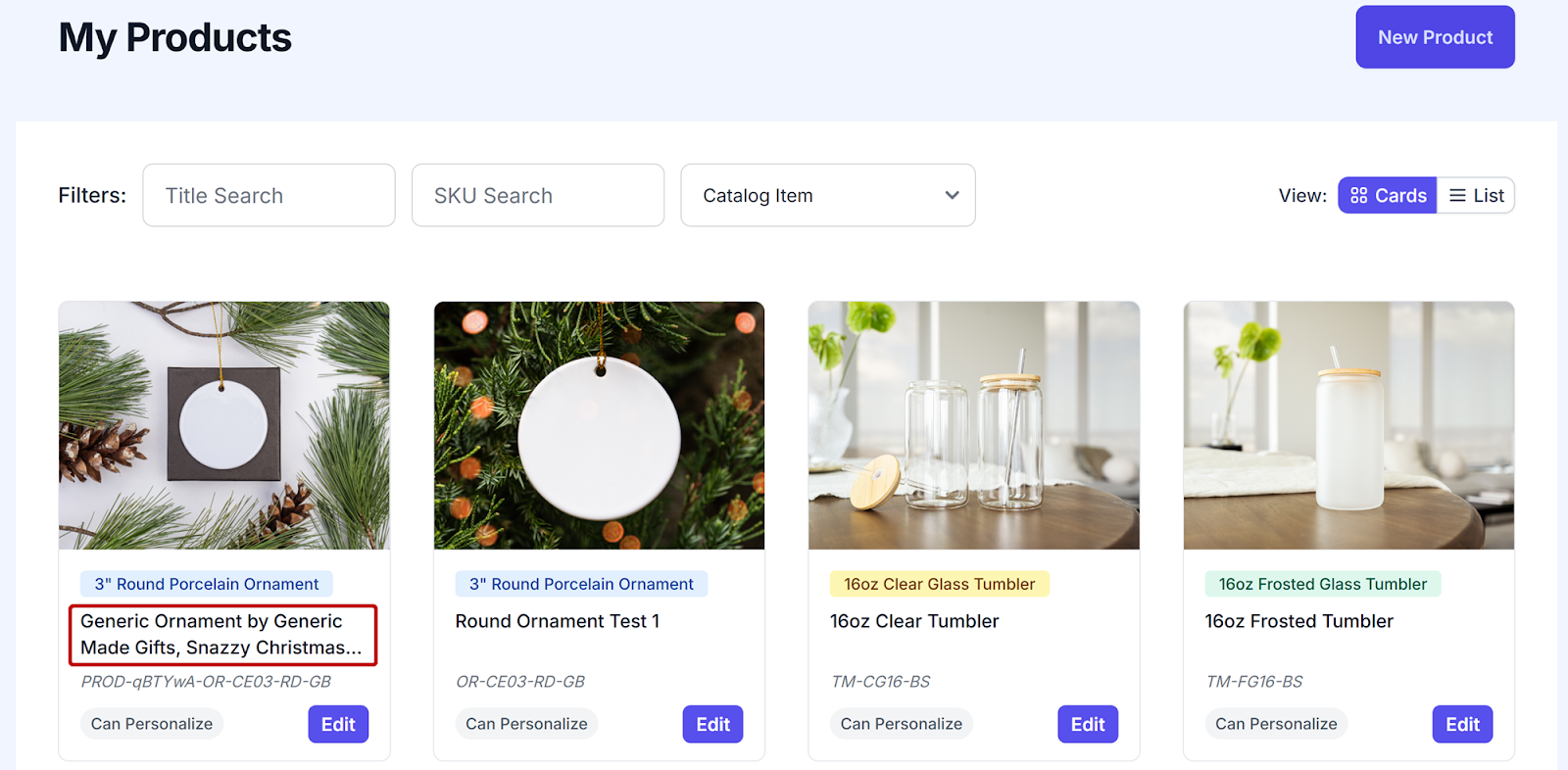
This section is where you see your products and create new ones. The default setting is Grid view, but you can see all your products in a list by clicking the List button.
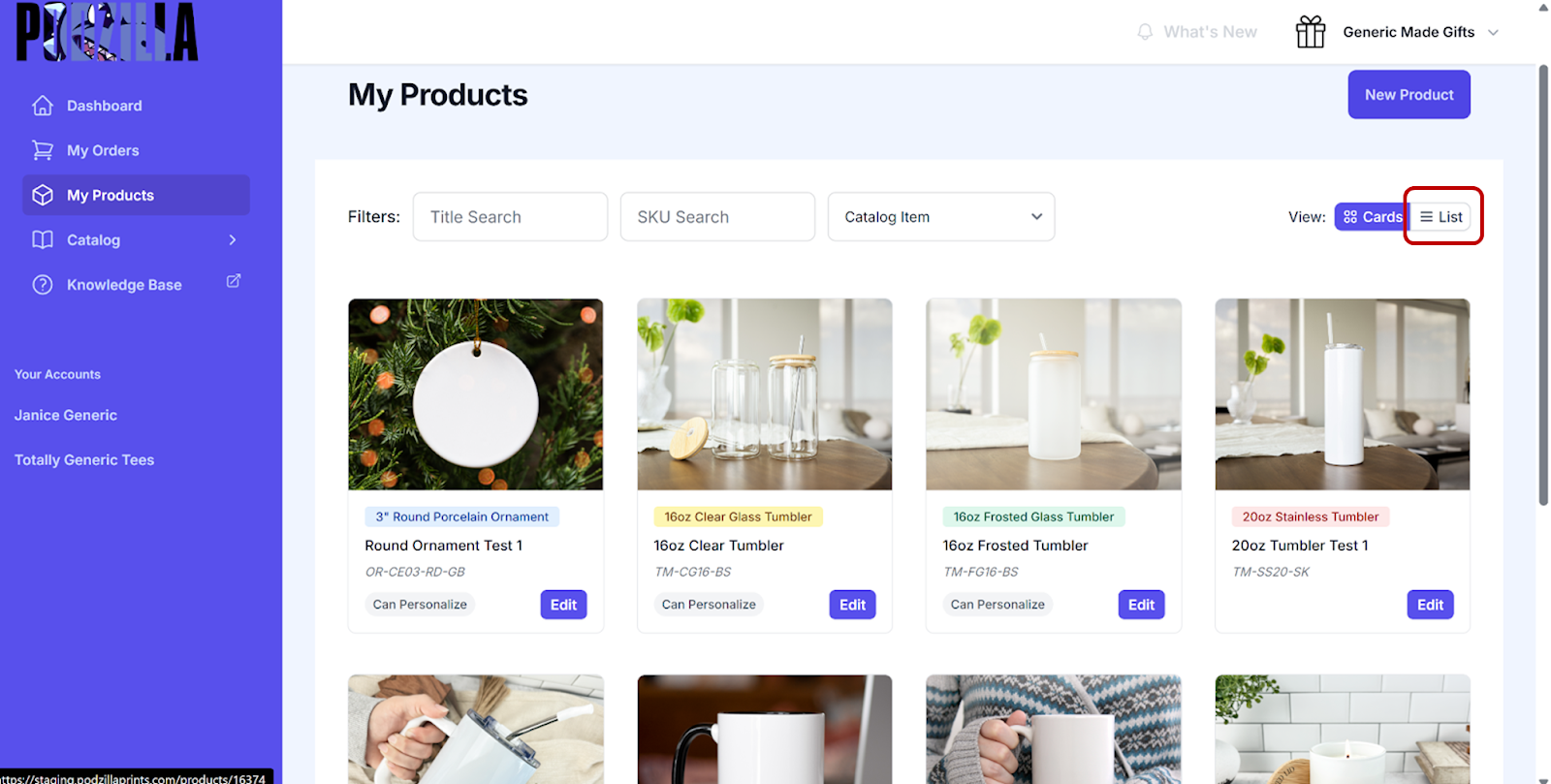
You can also filter your products by the Title, SKU, or Catalog Item (product type).
CONTENTS
- Adding a New Product
- Adding SKUs to Your Etsy Listing
- Clone an Existing Product
- Import from an Etsy Listing
Adding a New Product
You’ll want to have the following ready before creating a new product:
-
A catalog item or product in mind.
-
Your product title. You may also want to have your description and tags.
-
A completed design (or at least an idea).
-
Access to your design files (PNG format for printing).
There are three ways to create a new product:
New Product Button
-
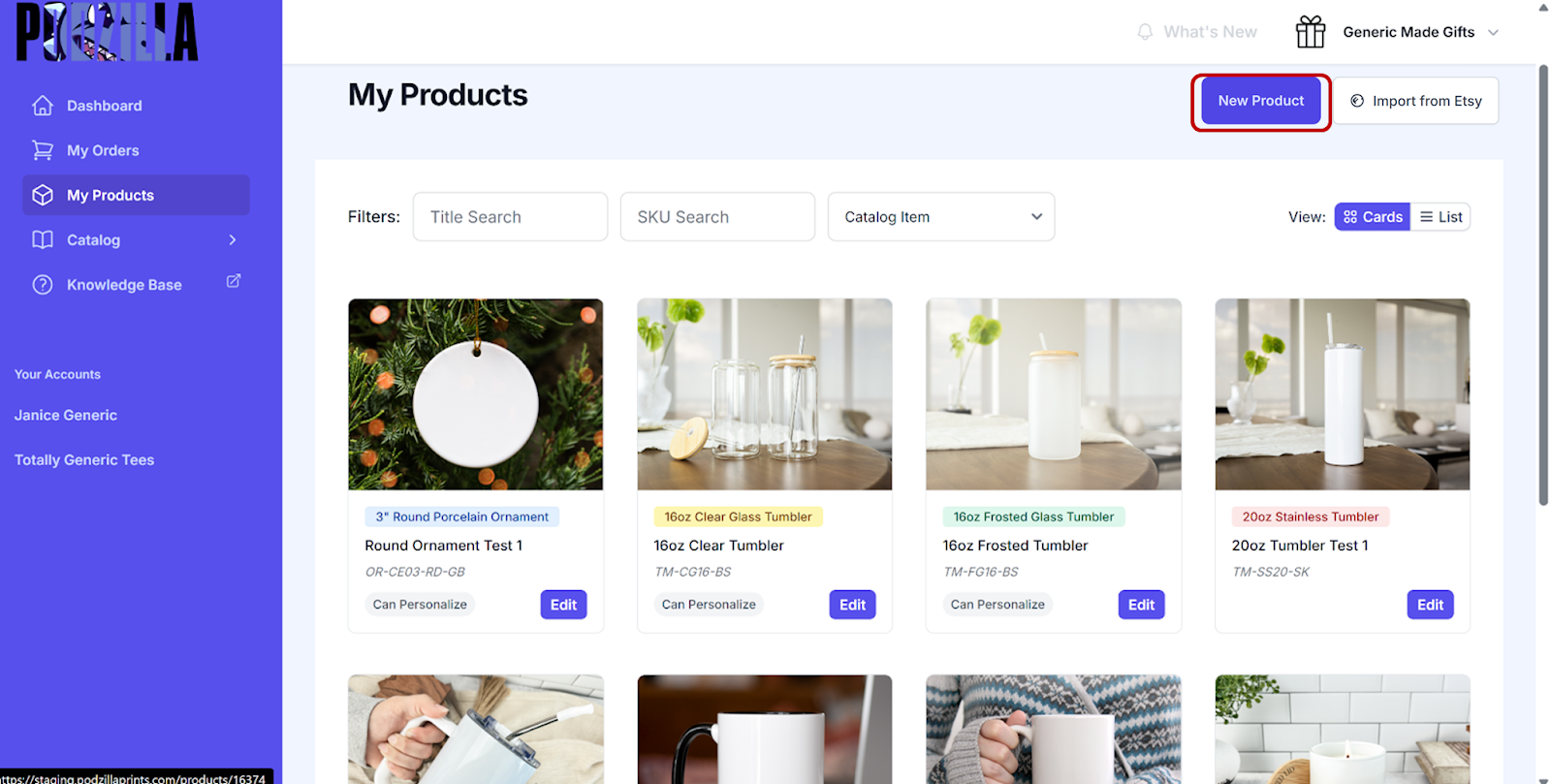
Click the New Product button in the top right corner.
-
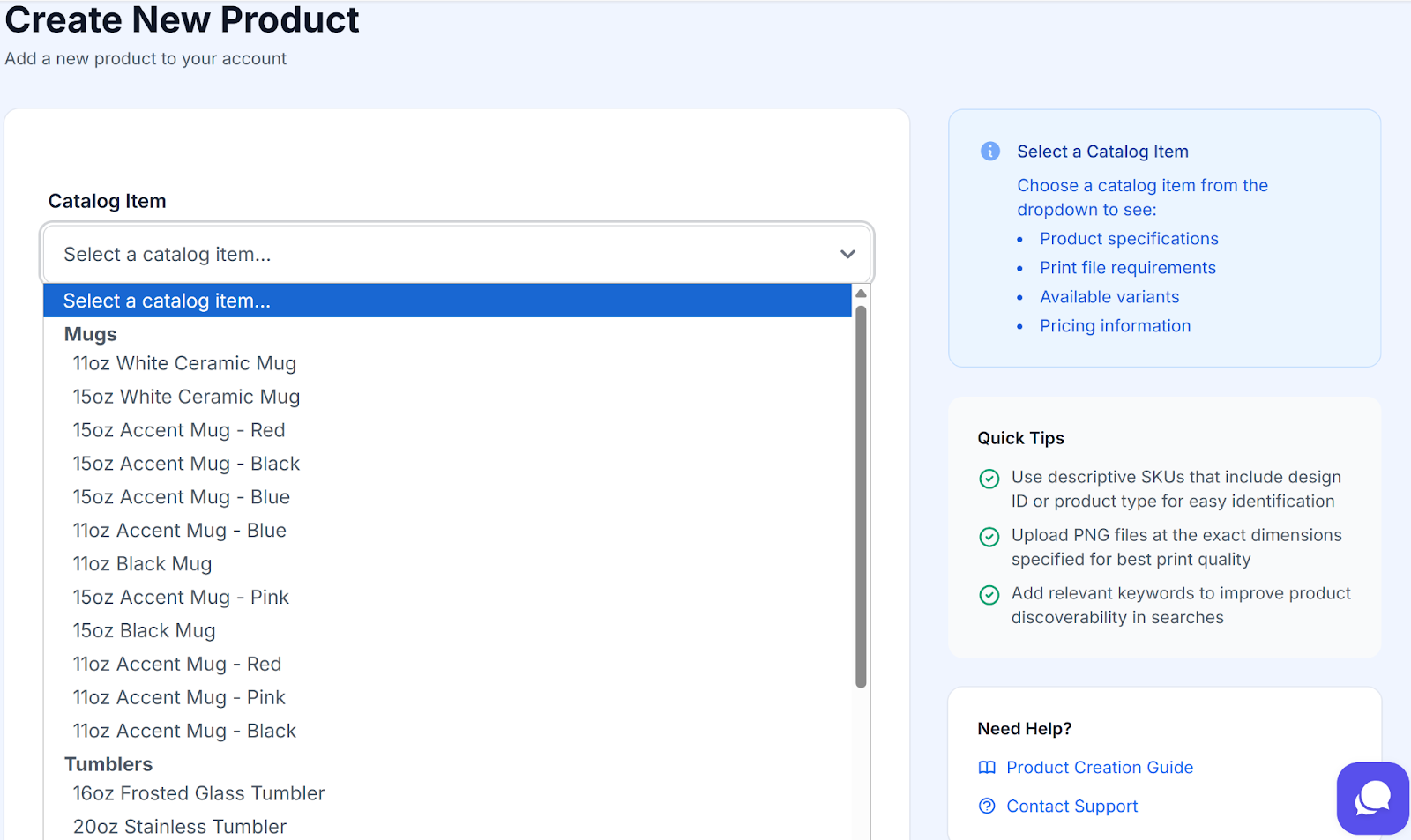
Choose your product from the Catalog Item dropdown menu.
-
Items are organized by category within the dropdown (Tumblers, Clothing, etc.). Depending on your screen size, you may need to scroll down to see the full list.
-
Some product types are listed by variation like the Accent Mugs, while others let you choose variations later in the product creation process.
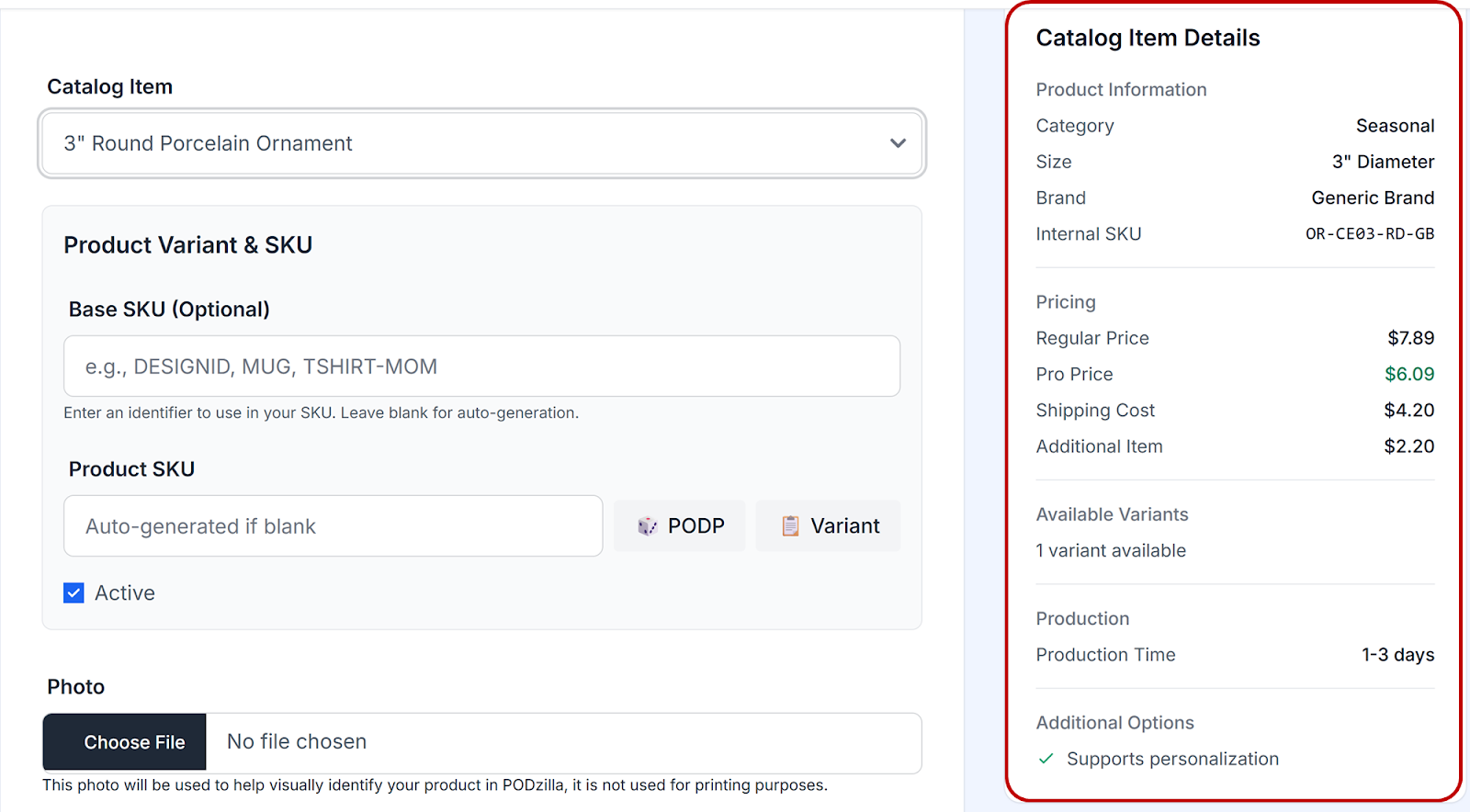
After you choose a product, you’ll see the item details down the right side of your screen to help as you create your item.
This section gives you information about the product itself including sizing, pricing, production times, and personalization options.
This section gives you the sizing, template, and any other information necessary when uploading your design file.
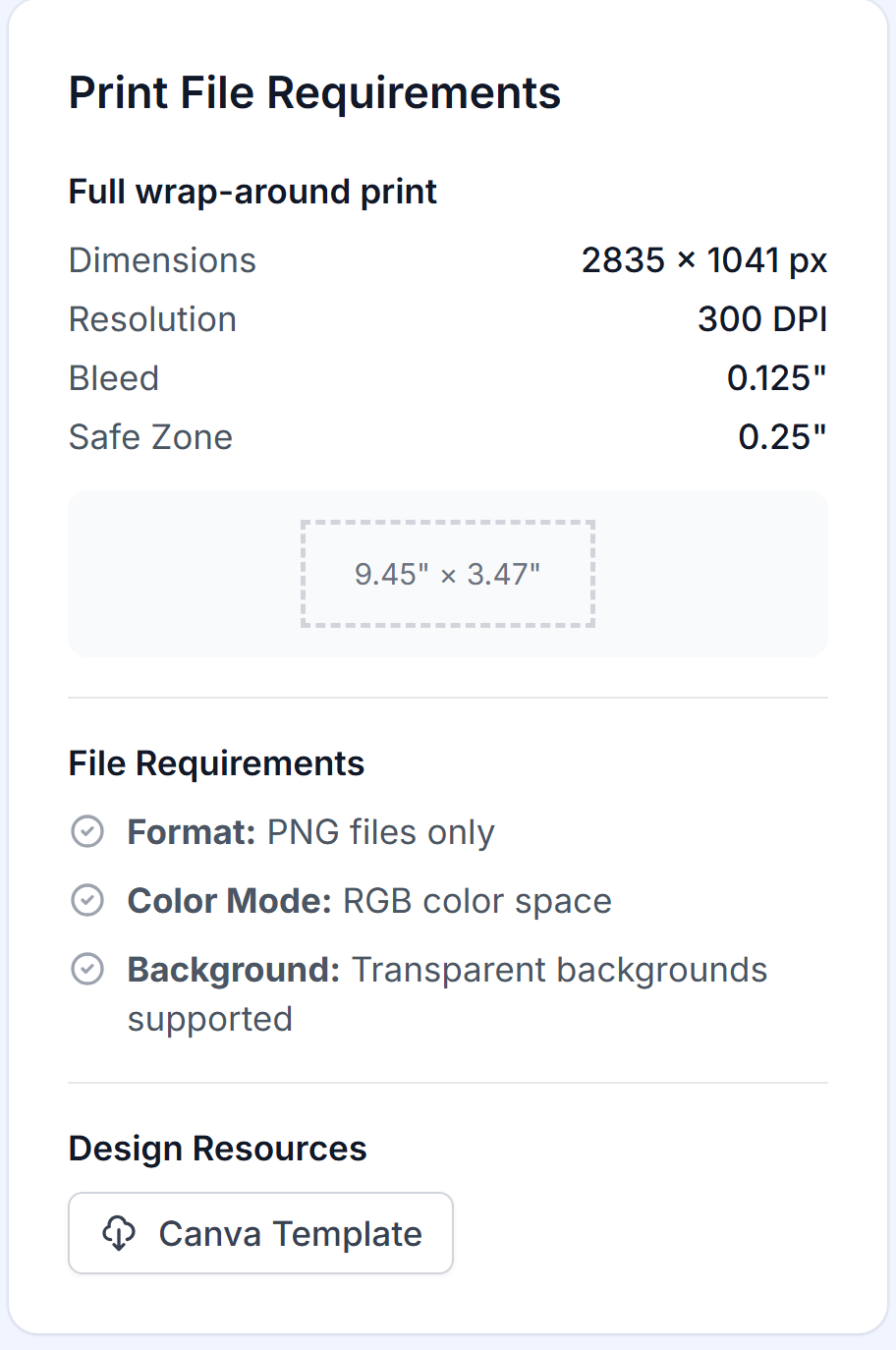
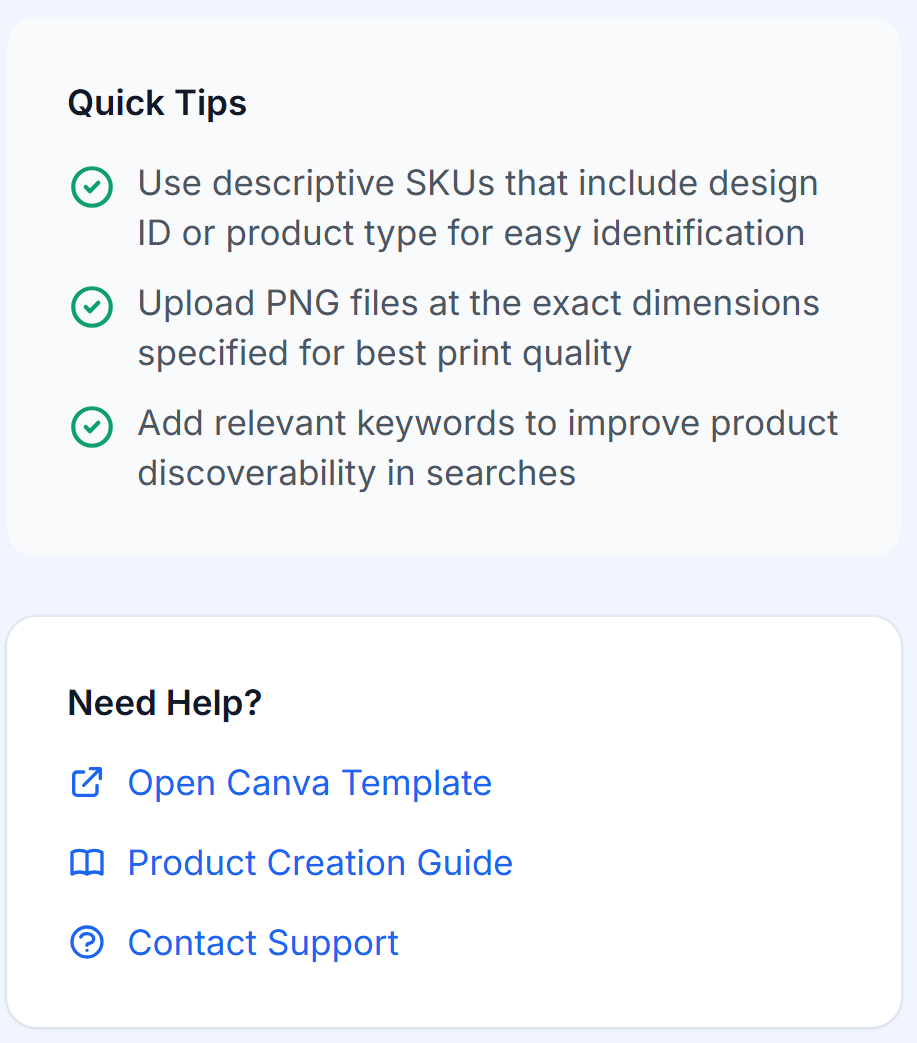
These sections provide fast information and links you may need when creating your product.
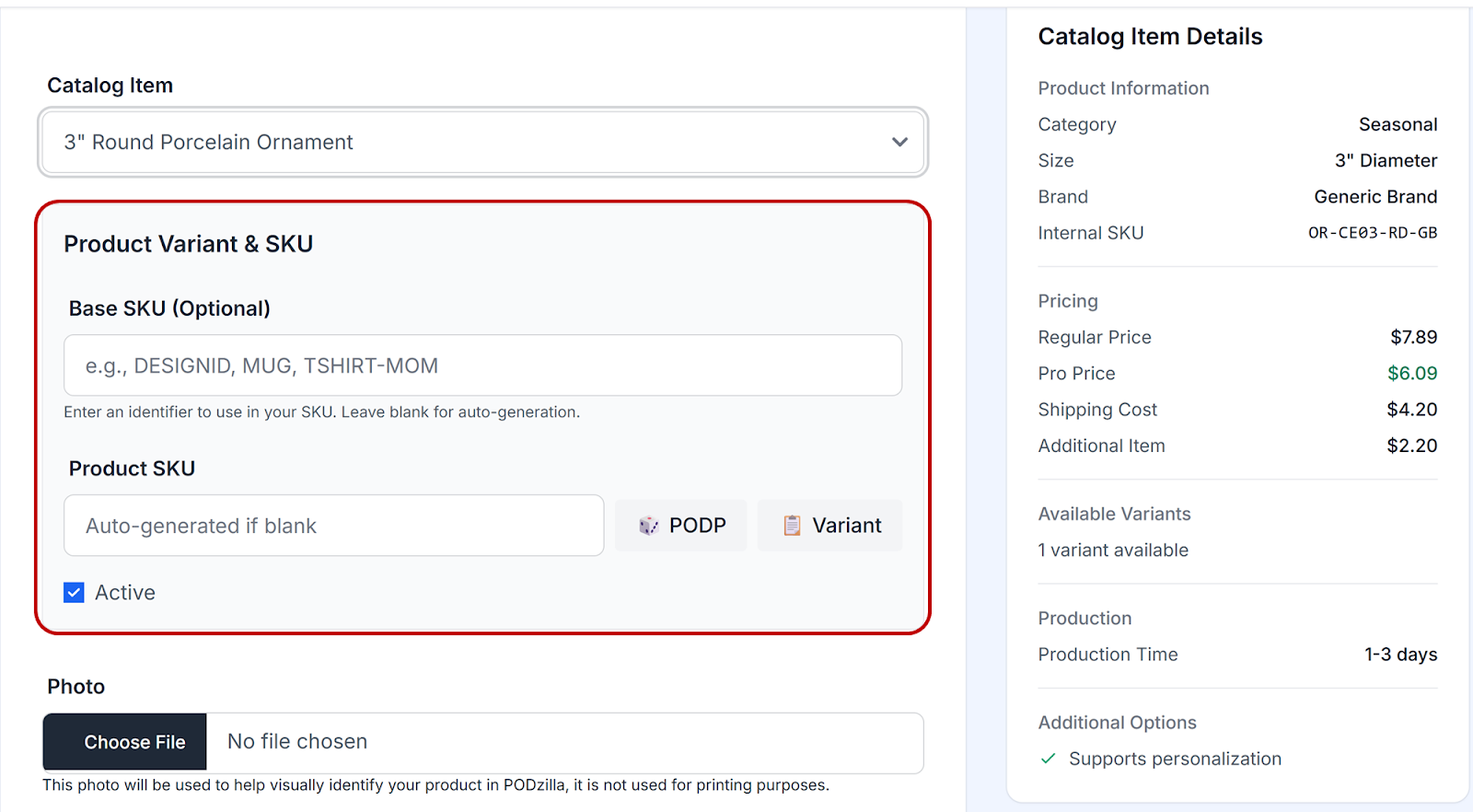
Product Variants & SKU
Some products only allow for one variant, such as mugs, tumblers, and ornaments. Others, such as candles, allow for many variants. This section of your screen will change depending on the product you are creating.
SKU
Podzilla allows for the use of a Base SKU. This is an identifying prefix for all your variant SKUs such as:
-
Your design name
-
Product line abbreviation
-
Color
-
Size
For example, if your product was a candle with a beach design and you entered BEACH as your Base SKU for three variants, your SKUs would become:
-
BEACH-AFT-TEA
-
BEACH-APP-HAR
-
BEACH-CIT-AGA
If you:
-
Want Podzilla to create a SKU for you, leave the Base SKU field blank. A SKU will be randomly created when you click Save at the end of the form.
-
Have your own SKU naming system and want to use a Base SKU for your item, enter it in the Base SKU field. Then click either the:
-
POPD button to add a hyphen and a randomly generated 8 character ID to the end of your base SKU. For example, D0093-AZO2D99A.
-
Variant button to add the Podzilla-designated ID to the end of your base SKU. For example, D0093-OR-CE03-RD-GB.
-
See SKU’s and How to Use Them for more information and best practices.
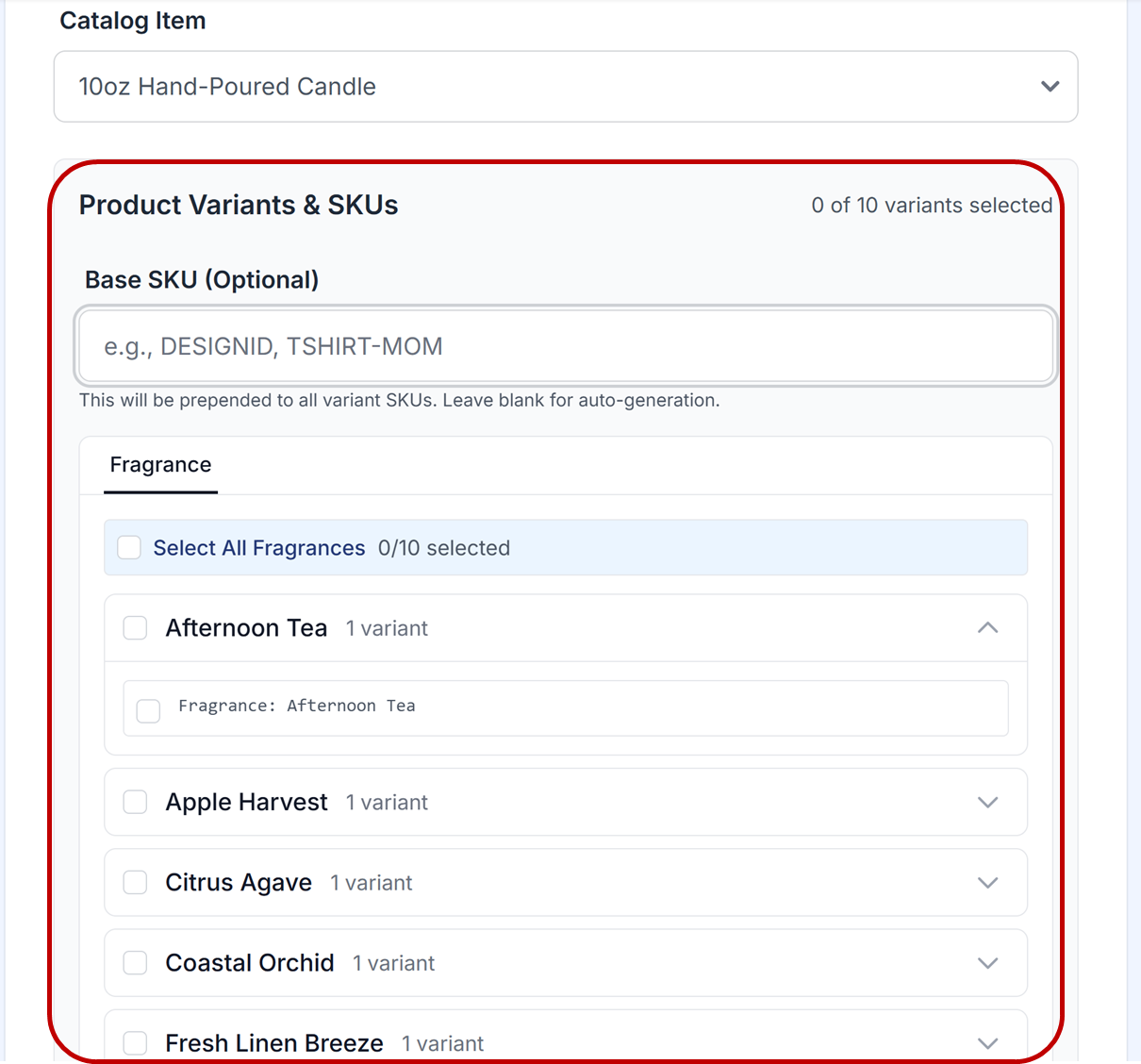
If your product has the option for multiple variants, such as fragrance, color, size, etc., you’ll see your choices in a list below the Base SKU field.
1. If you:
-
Want Podzilla to create a SKU for you, leave the Base SKU field blank. A SKU will be randomly created when you click Save at the end of the form.
-
Have your own SKU naming system and want to use a Base SKU for your item, enter it in the Base SKU field.
See SKU’s and How to Use Them for more information and best practices.
2. Choose the variants you sell in your shop by clicking the checkbox next to the variant name.
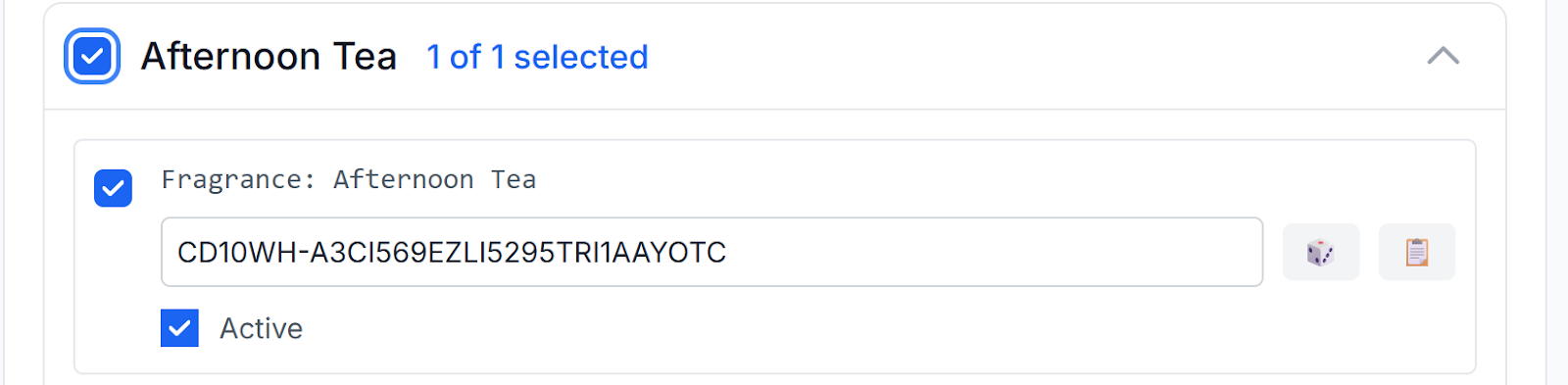
The SKU will populate for each option you choose. At this point you can:
-
Edit the SKU to fit your own naming system.
-
Click the POPD button to add a hyphen and a randomly generated 8 character ID to the end of your base SKU. For example, D0093-AZO2D99A.
-
Click the Variant button to add the Podzilla-designated ID to the end of your base SKU. For example, D0093-OR-CE03-RD-GB.
The SKUs will be saved after you click the Save button at the end of the form.
-
Click in the SKU box under each variant to edit the SKU or
-
Click either the PODP All or Variant All button so it assigns new shorter SKUs to your variations. Then you can copy and paste those shorter SKUs into your Etsy listing.
Photo
You can upload a photo of your product so you can tell what it is from a glance in your My Products screen. This can be a listing image, screen shot, or design file. It is not the file that will be used to print your product.

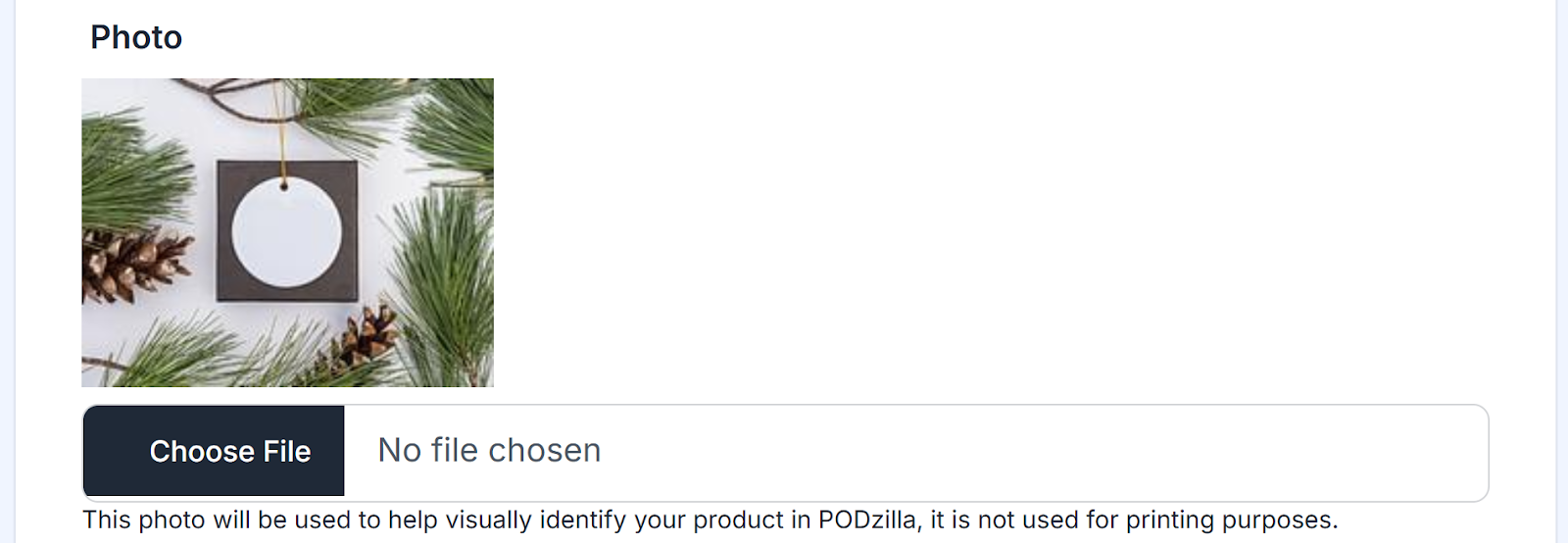
Upload your main mockup image from your Etsy listing for easy recognition later.
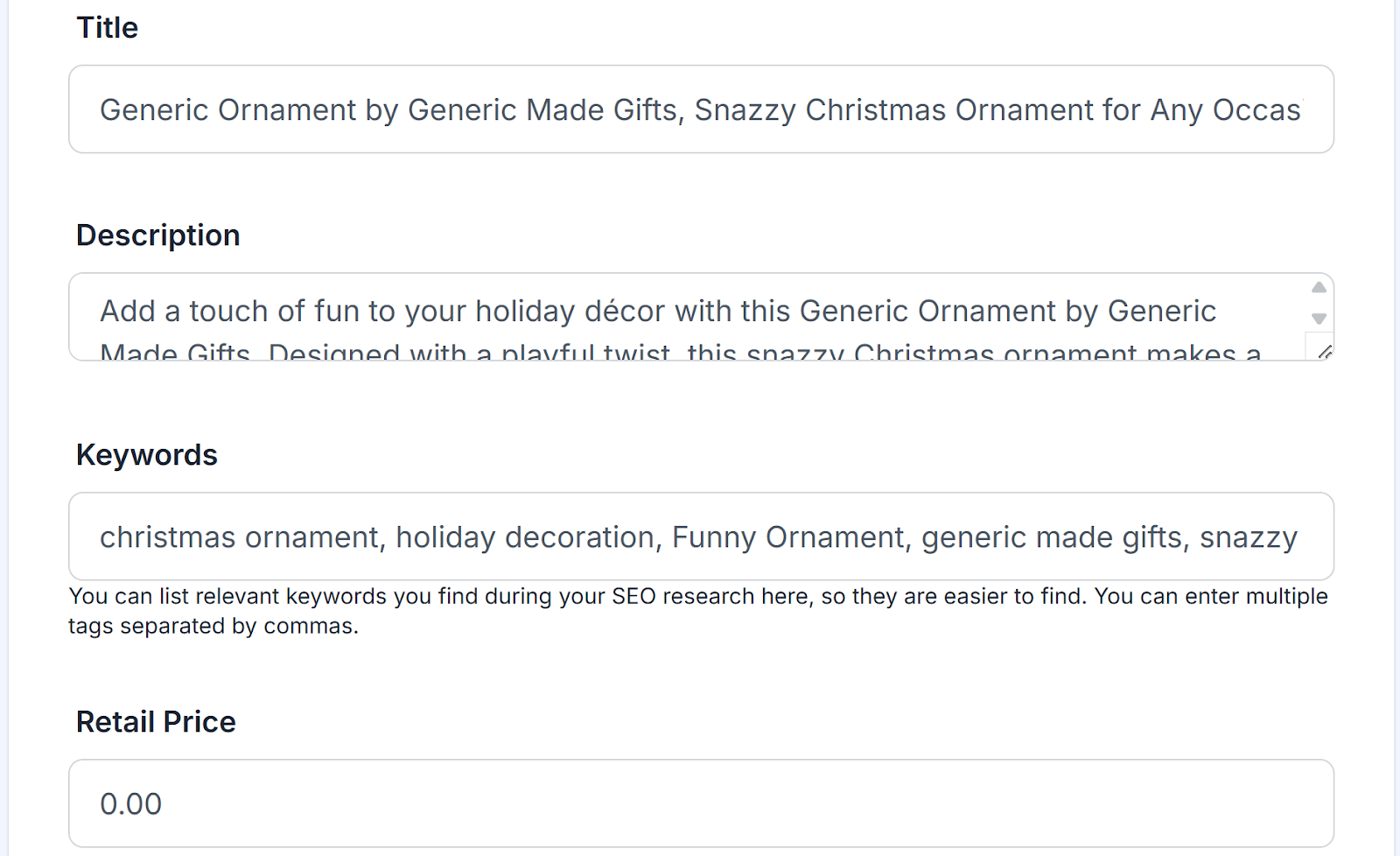
Title, Description, Tags, and Retail Price
These fields are optional. They can be the details from your Etsy listing or any other way you choose to identify your listing. If you enter a Retail Price, it should be the amount you will charge your customers (before any sale you run in your shop).
Template File URL
You can add the URL of your design file for quick reference later. This is helpful if you have a personalized design that needs to be updated manually.

Print Files
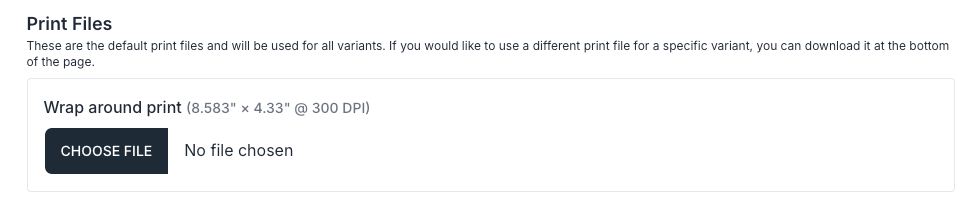
This is where you’ll upload your file to be printed on the product. All files must be uploaded as PNG files.
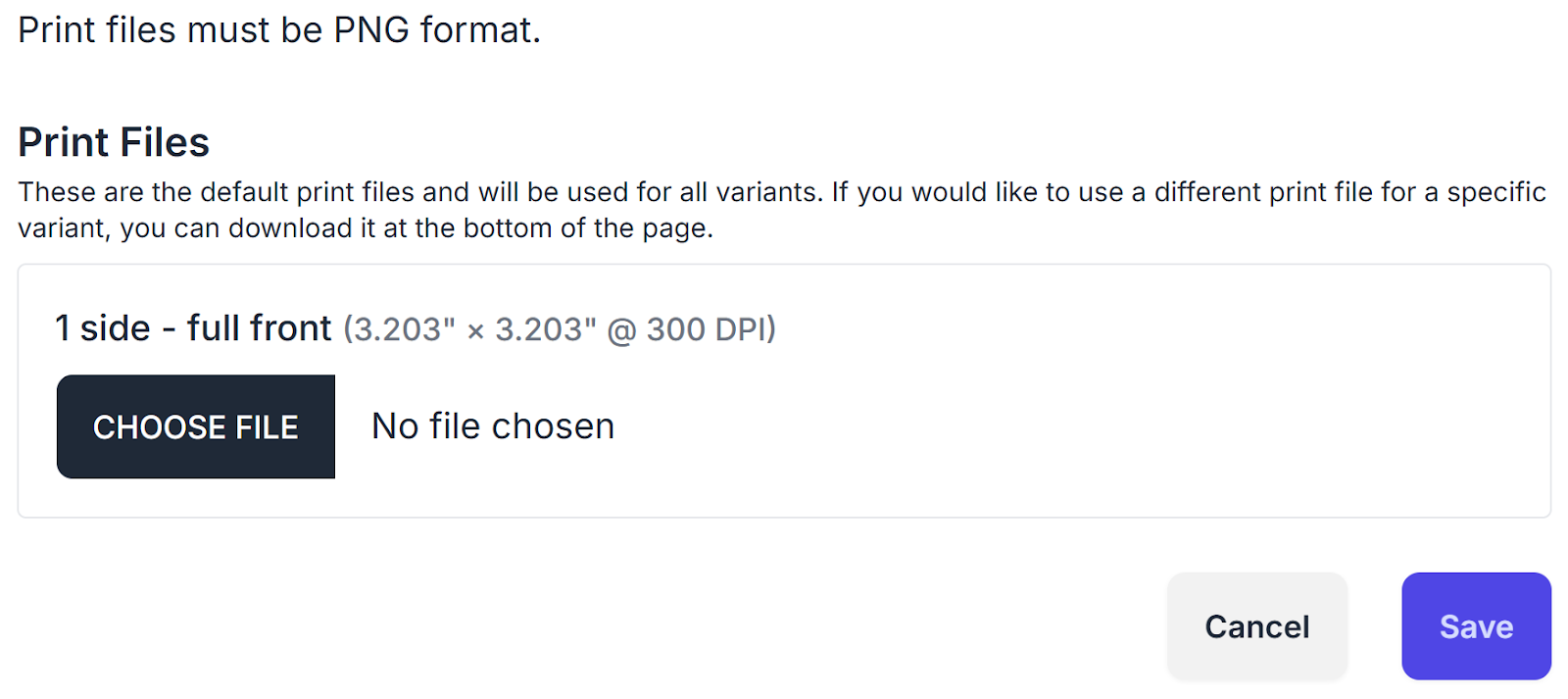
Generally products without variants have one place to upload a design (with the exception of candles.)
Save
Be sure to click the Save button before exiting out.

Adding SKUs to Your Etsy Listing
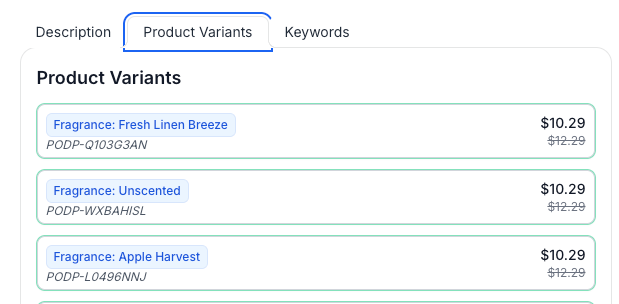
After you save your product, you can go to the Product Variants tab and see the SKUs. Copy these into your Etsy listing so they will be connected to your Podzilla product(s). This will assure any future orders will show up in your Podzilla Orders tab instead of the Unlinked Orders tab.
Clone an Existing Product
From the My Products screen, click the title of the product you want to copy.
Click the Clone button.
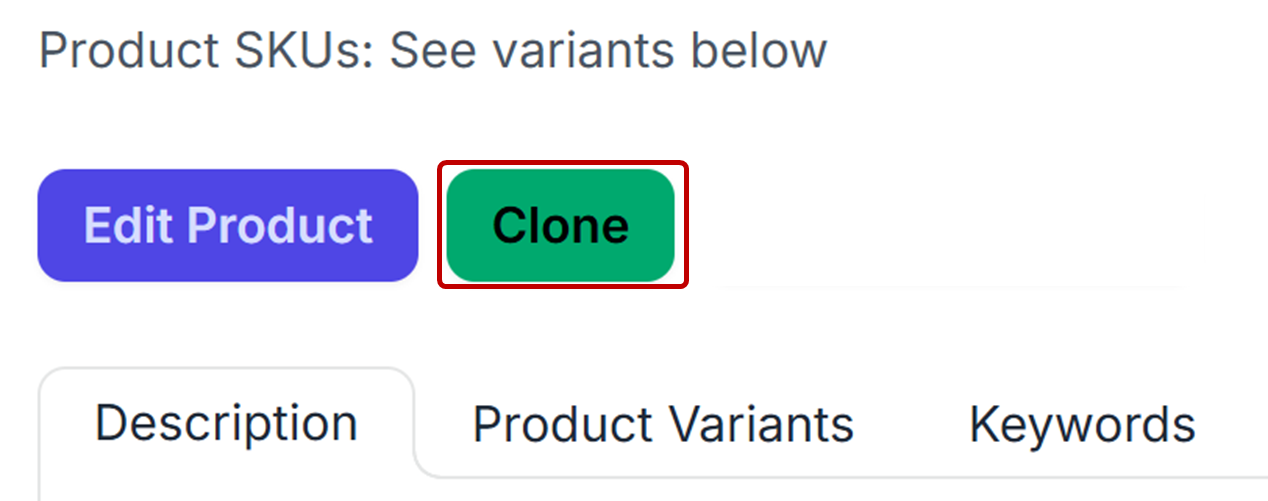
The product will be copied and a banner will show at the top stating that the cloning was successful. This is the new file where you’ll add the information for your new product.
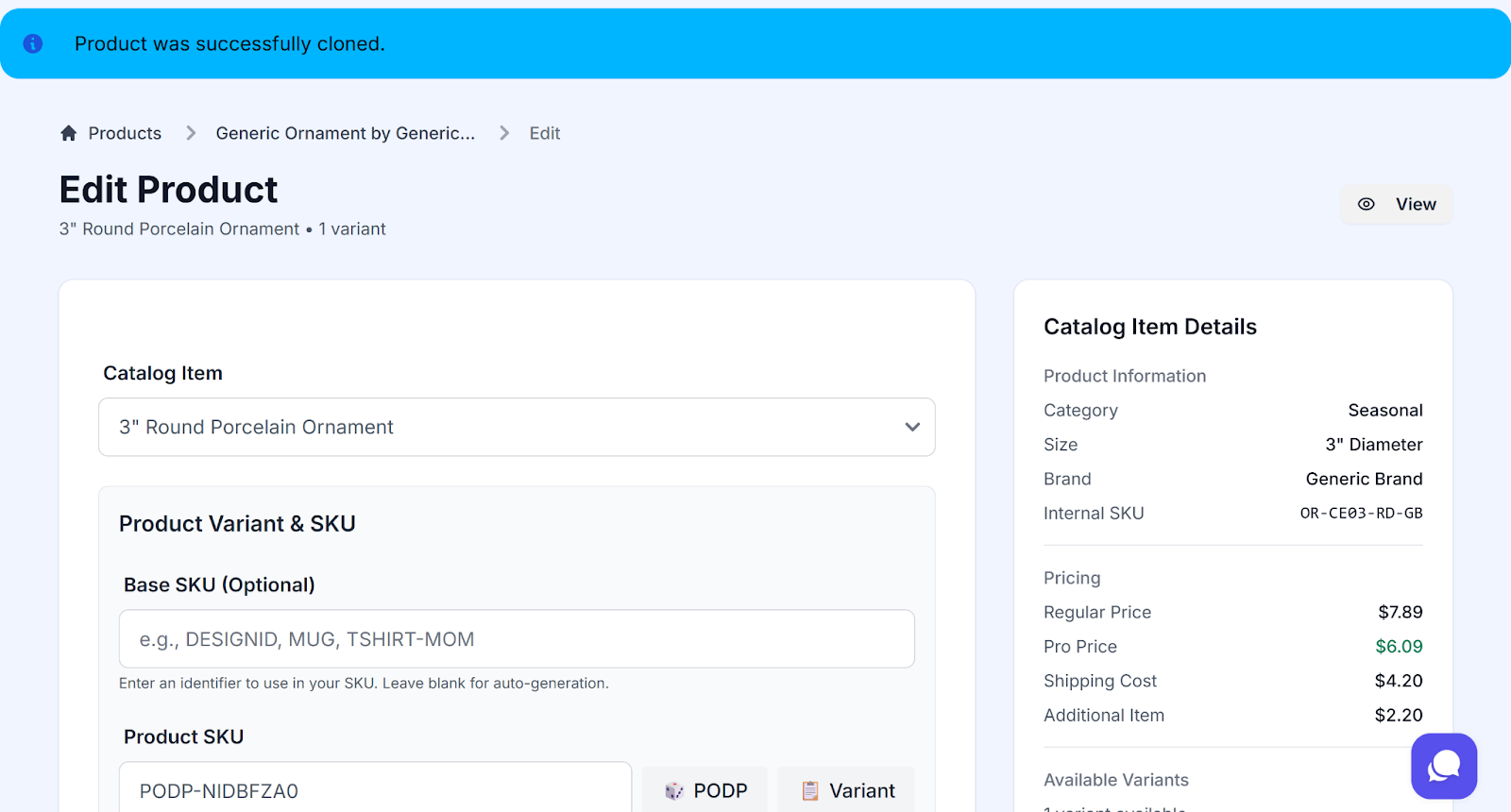
Complete the steps as outlined in Adding a New Product.
Import from an Etsy Listing
If you already have an Etsy listing, you can import that information directly into Podzilla by using the Import from Etsy button.
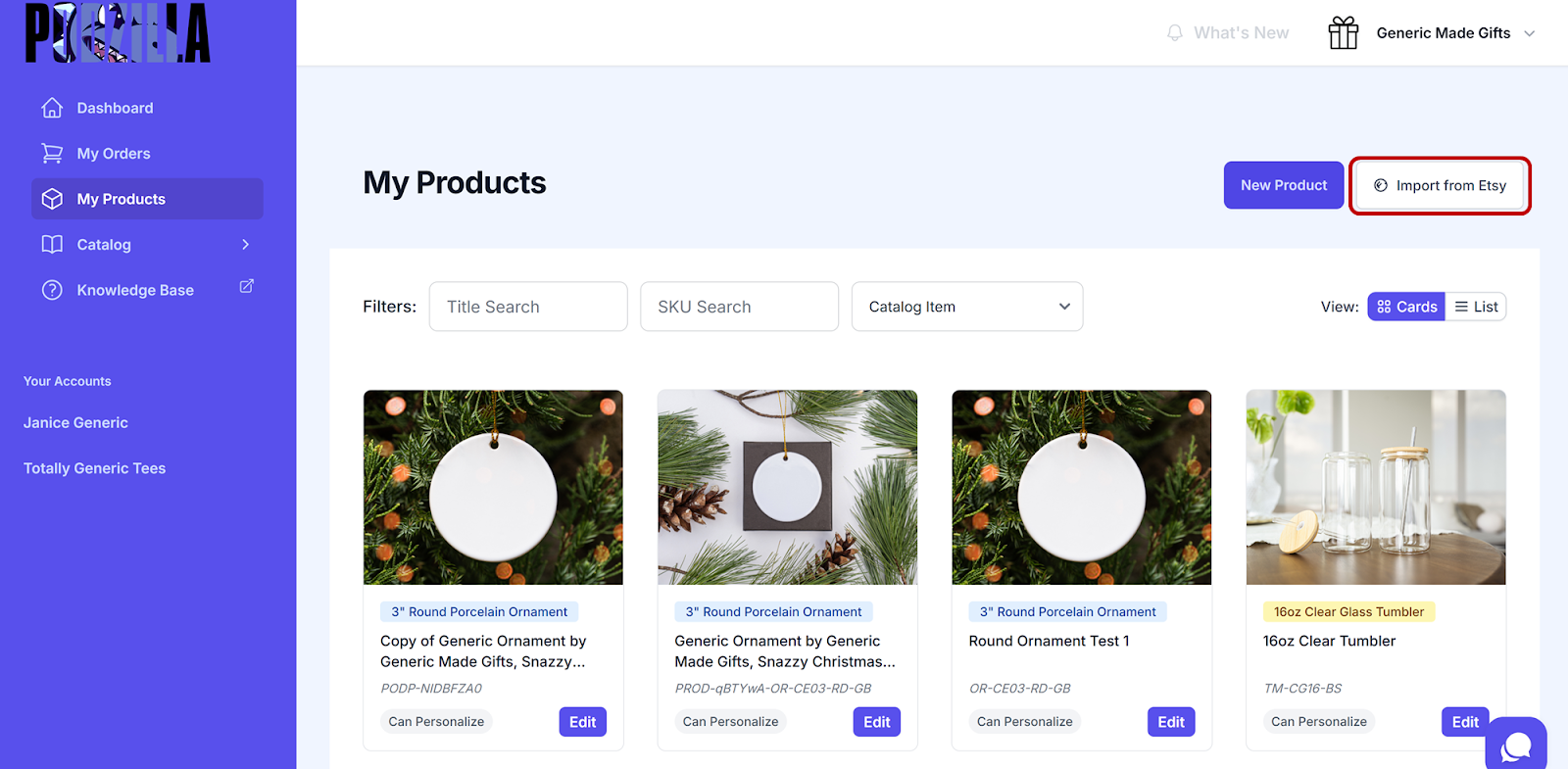
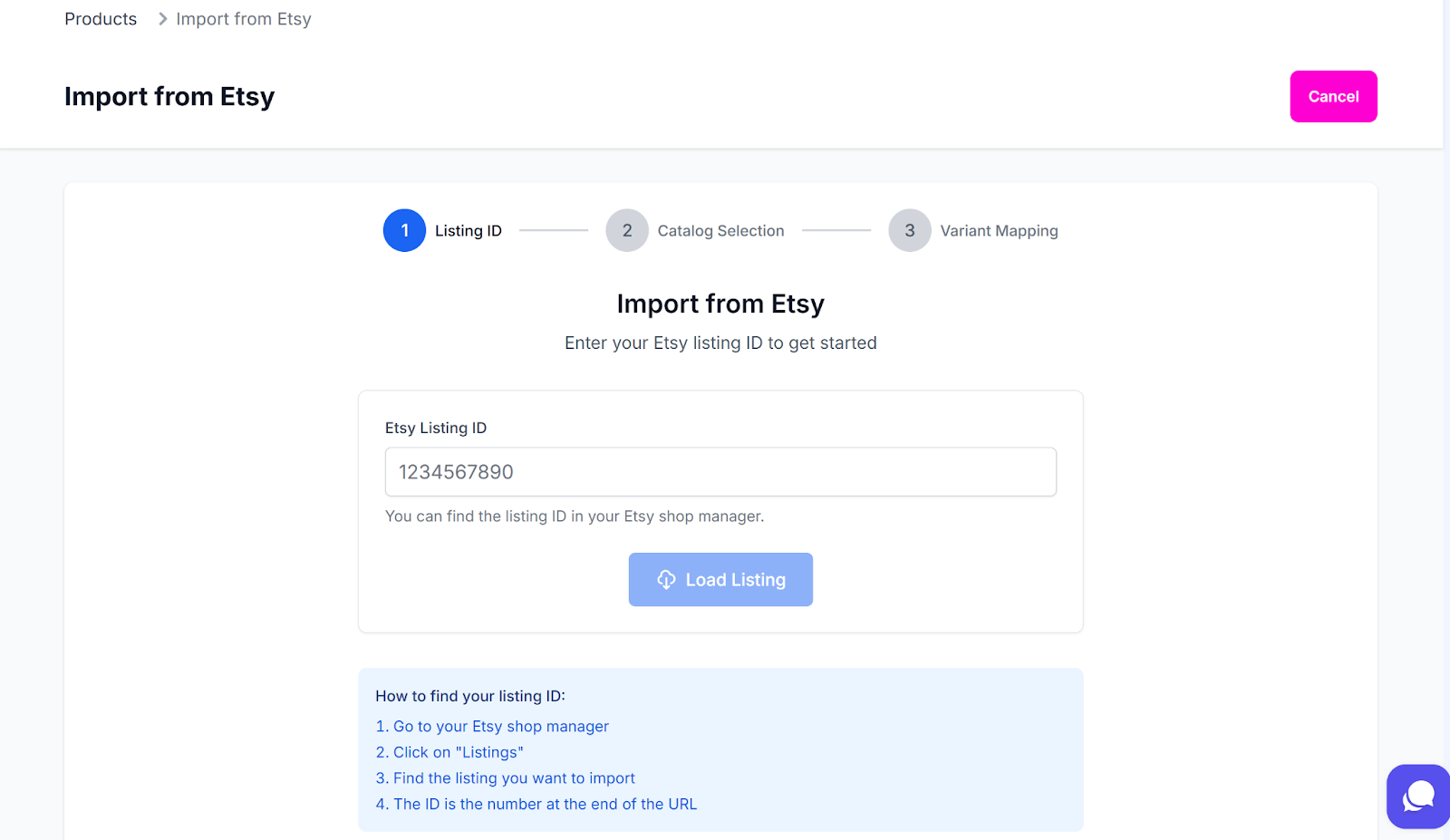
1. Open your listing in Etsy and copy the listing ID at the end of the URL:
https://www.etsy.com/your/shops/me/listing-editor/edit/1234567890
2. Choose your product from the catalog dropdown menu.
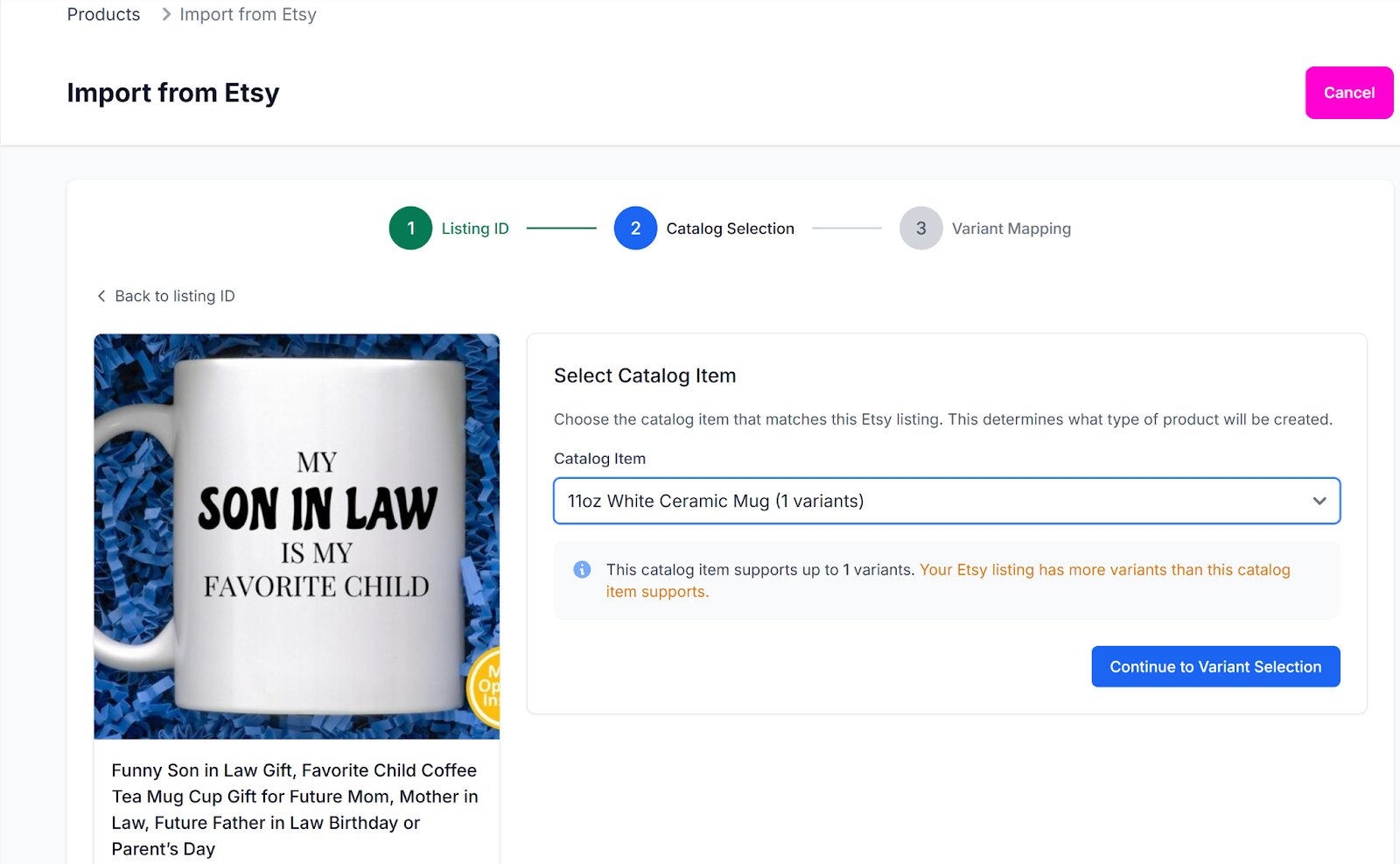
3. Click Continue to Variant Selection.

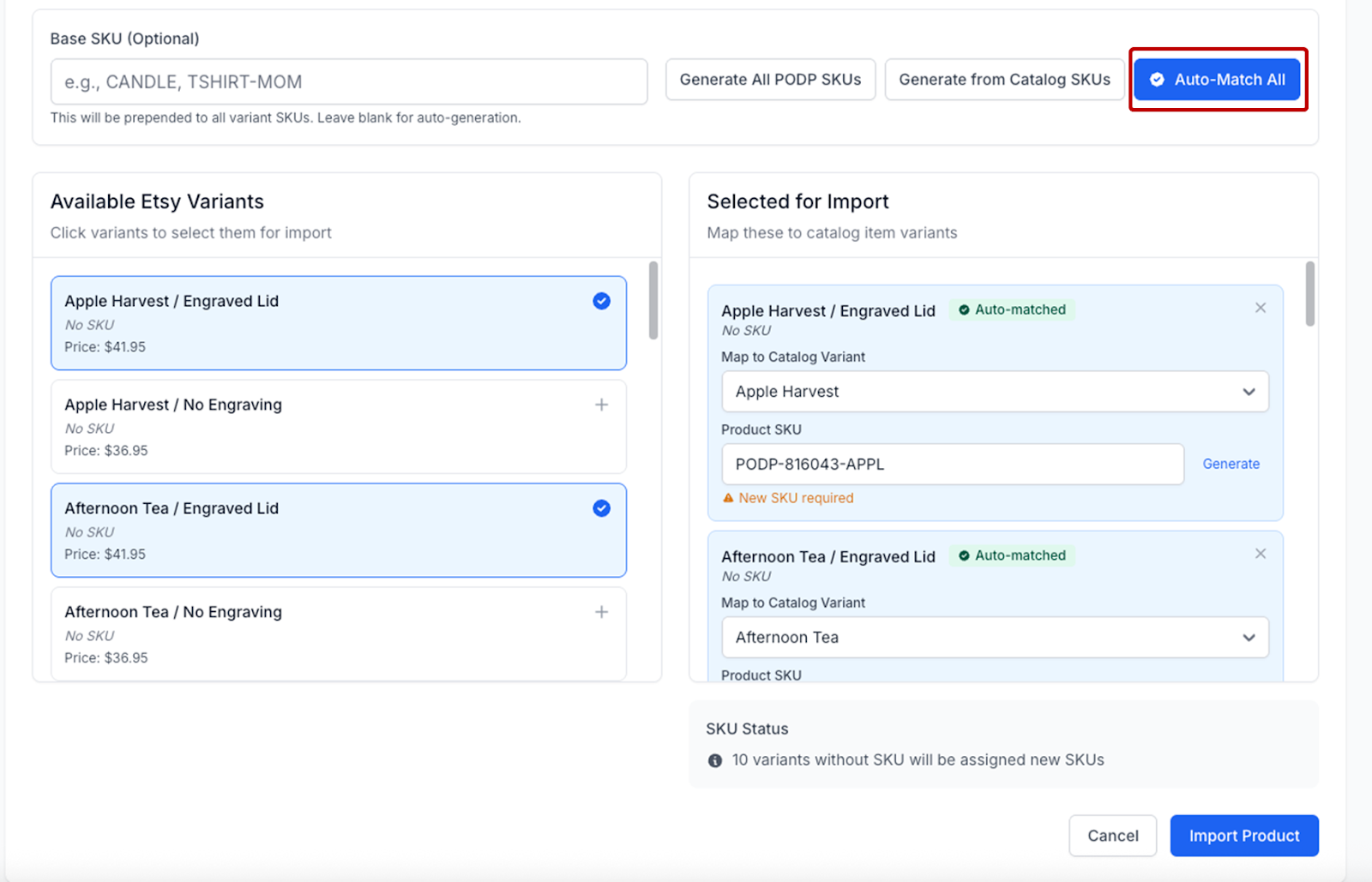
Auto-Match
The Auto-Match All button automatically matches your Etsy listing products to Podzilla products.
-
Your Etsy listing variation names must be an exact match to the Podzilla names for this to work. For example, if you named the candle Apple Harvest scent something different (like Apple Orchard), Podzilla won’t find your unique name in the product catalog.
-
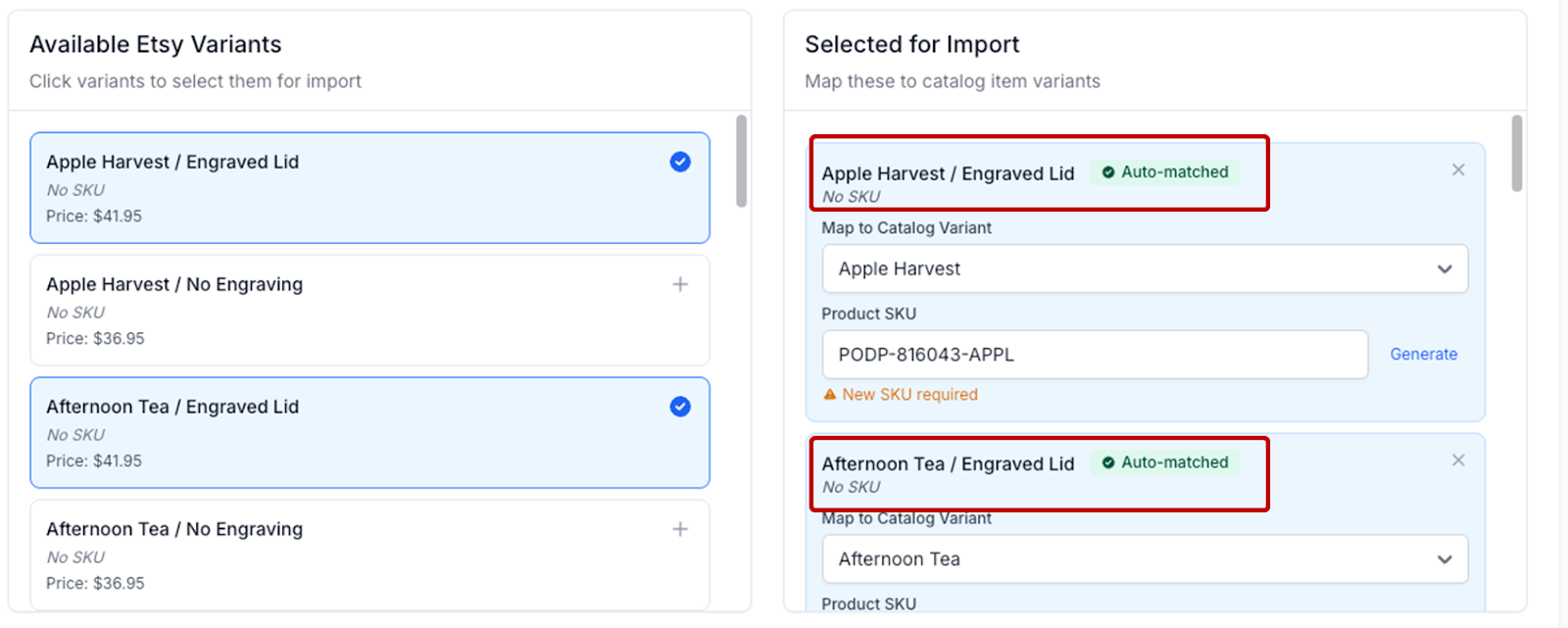
If your Etsy listing has two variations and the second is a lid engraving option (like with candles), this function will only match half of your variations. For example, if you offer the Apple Harvest scent with and without lid engraving, Etsy sees this as two separate products and requires a unique SKU for each.
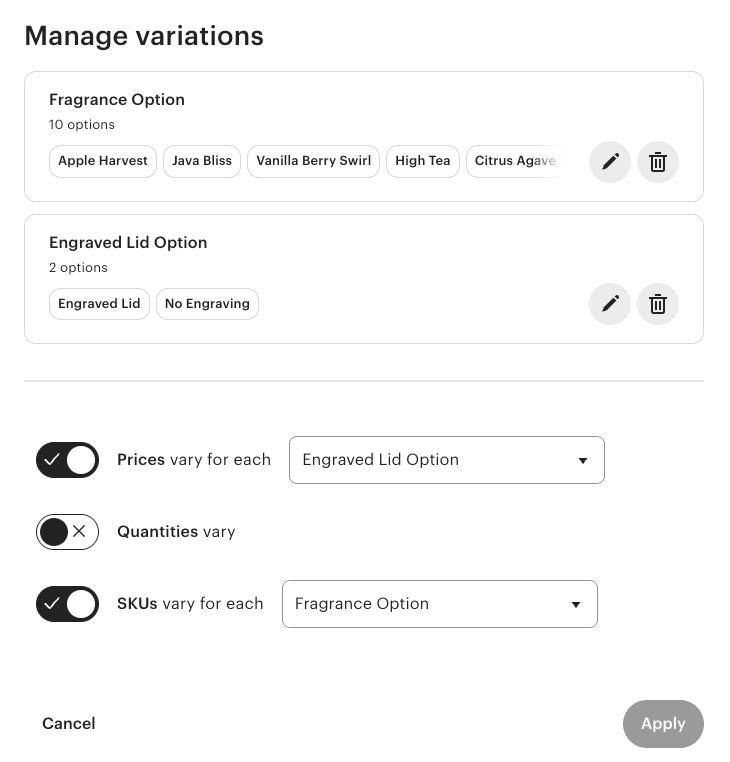
Because Podzilla uses a checkbox on the order card for engraving, you don’t have to create two products for one scent (one product with an engraved lid and another one without). So, when you import those Etsy listings, each fragrance shows up twice. Podzilla knows this and matches the scents rather than the engraving options.
Podzilla Generated SKUs
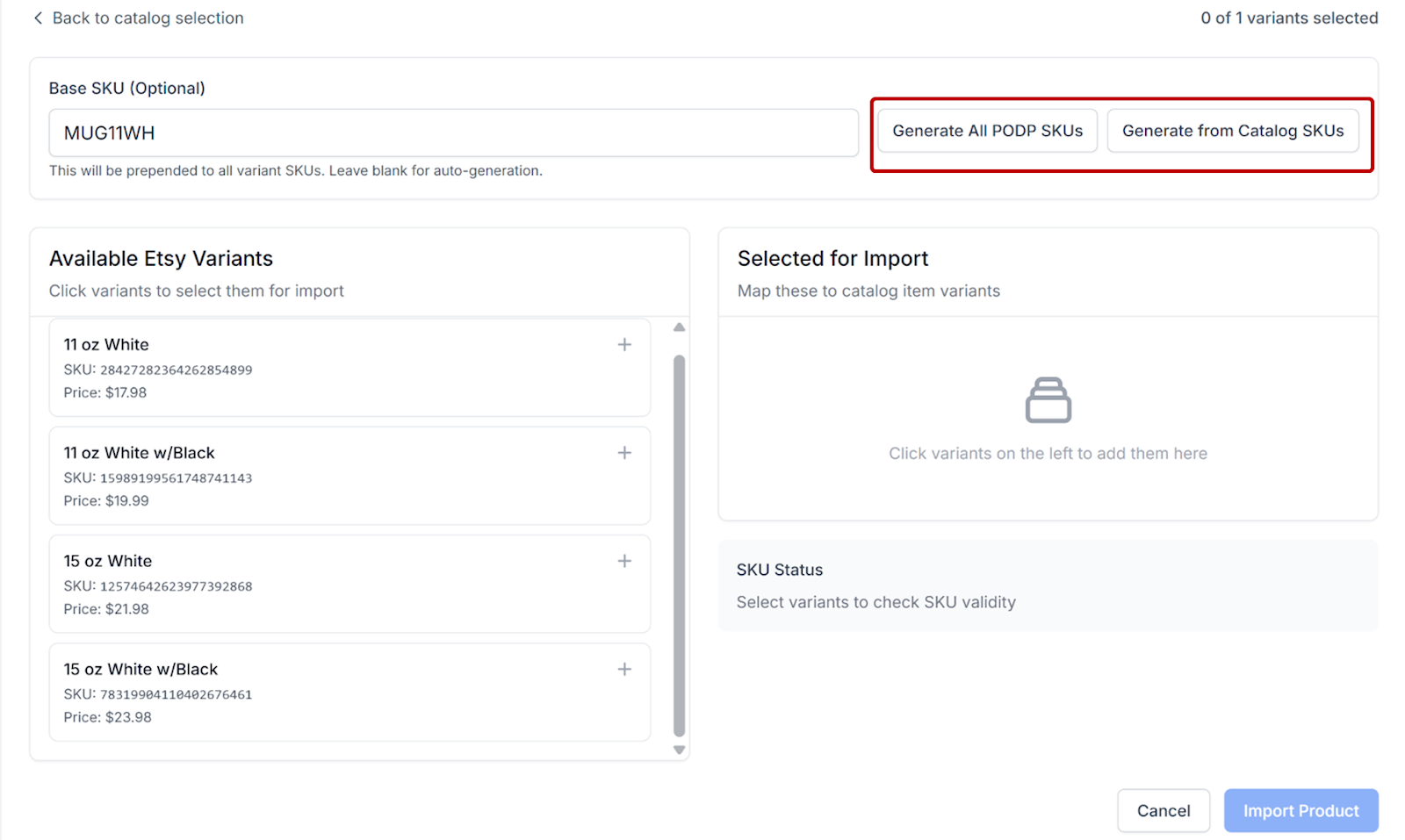
If you are not using the Auto-Match option, Podzilla can generate SKUs for you.
-
Enter your base SKU (if you are using one) or click either the Generate All PODP SKUs button or the Generate from Catalog SKUs button. You can also leave the SKU fields blank and SKUs will be generated automatically when you save the product.
-
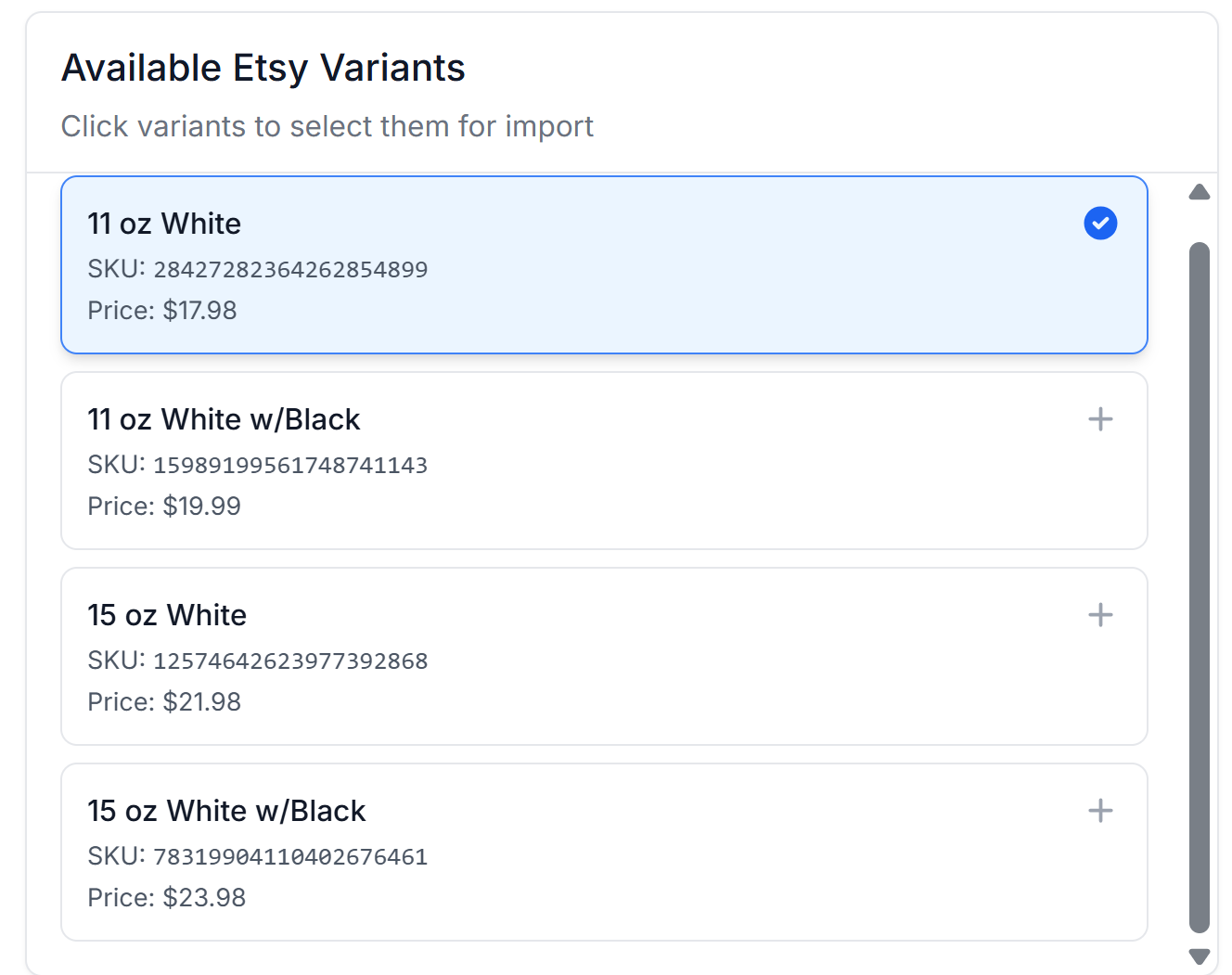
Click the item you are importing under Available Etsy Variants.
-
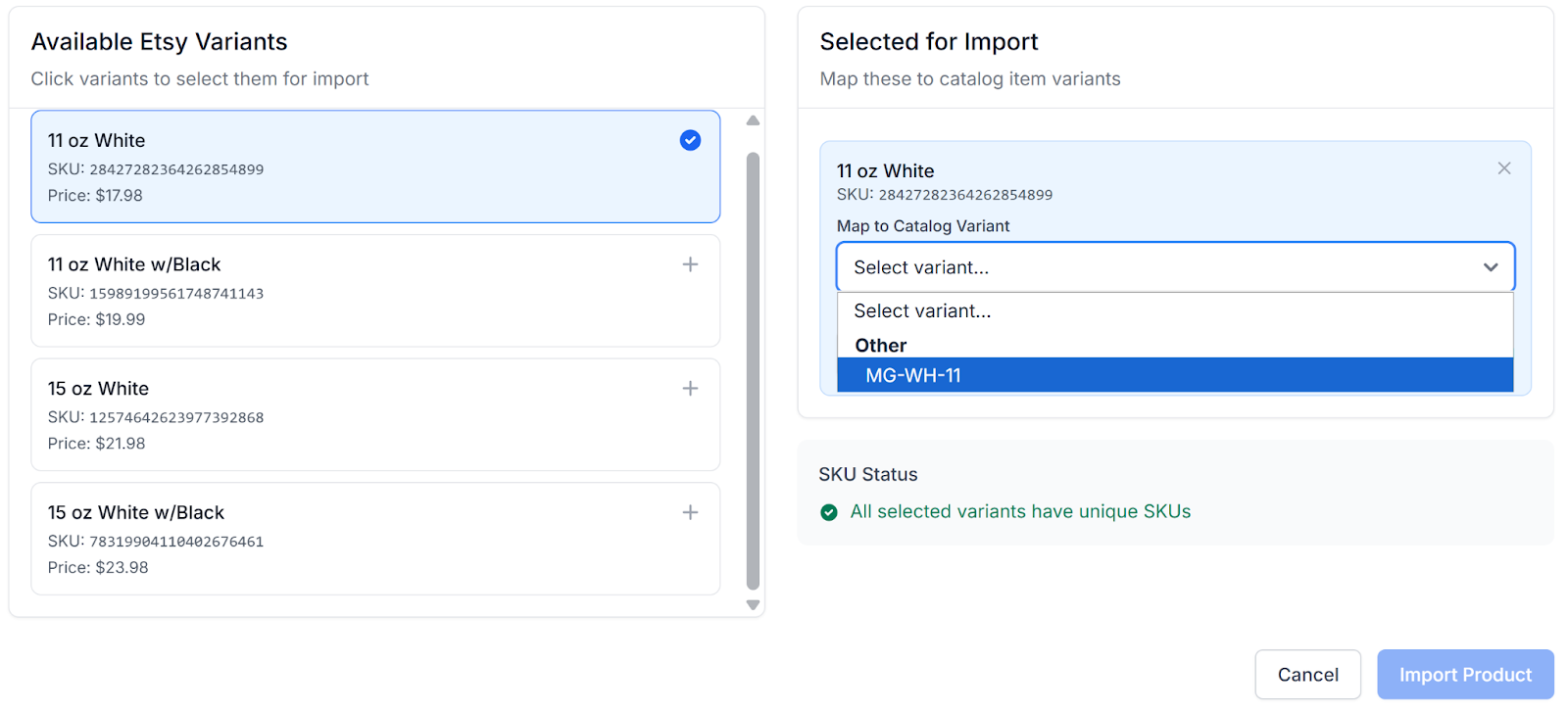
Under Selected for Import, choose the Podzilla product you are connecting to your Etsy listing.
-
Click Import Product.
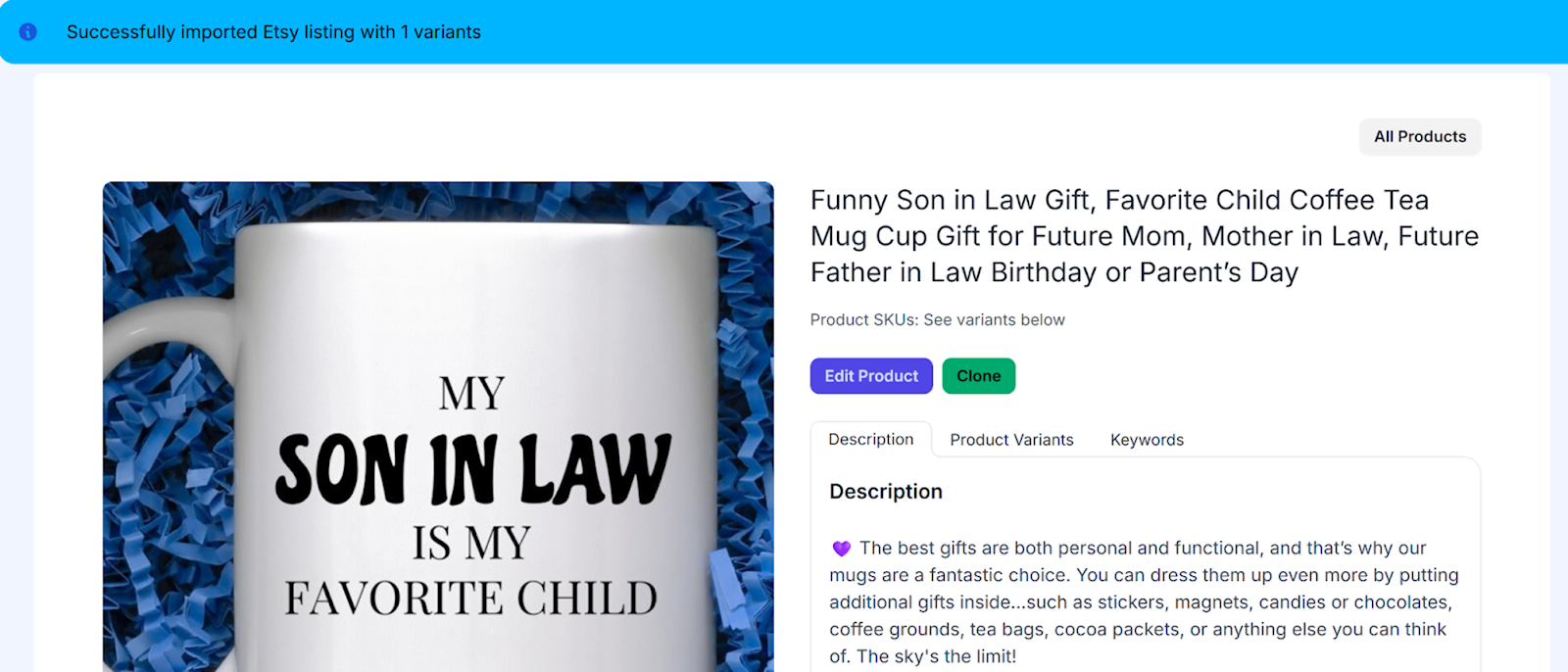
The product will be imported and a banner will show at the top stating that the import was successful.
Any orders for this product in your Unlinked Orders tab will now be linked.
Related
More Articles
Getting Started
Welcome to Podzilla! The Podzilla website lets you manage products and orders associated with your shop(s). Let’s get you started.
Apparel Deep Dive: Catalog, Templates, Products & Orders
This guide walks through everything you need to know about working with apparel in Podzilla — from browsing the catalog and using the print template, to setting up products, syncing SKUs, and approving orders. It's based on Valerie's comprehensive video tutorial above, which demonstrates each step on screen.
How to Use the Candle Design Template
TRANSCRIPTThis article explains how to use Podzilla’s candle design templates, including layout...
Saving Sales with Canva Photo Cards
This customer service option has saved many of my sales! It only takes a few minutes, and is well worth it. I've included the instructional video and my script. Be sure you modify it for your brand and voice.
How to Use the 20oz & 40oz Tumblers Design Templates
TRANSCRIPTThis article explains how to use Podzilla’s Canva and Photoshop design templates for ...