Changing Products on an Unapproved Order
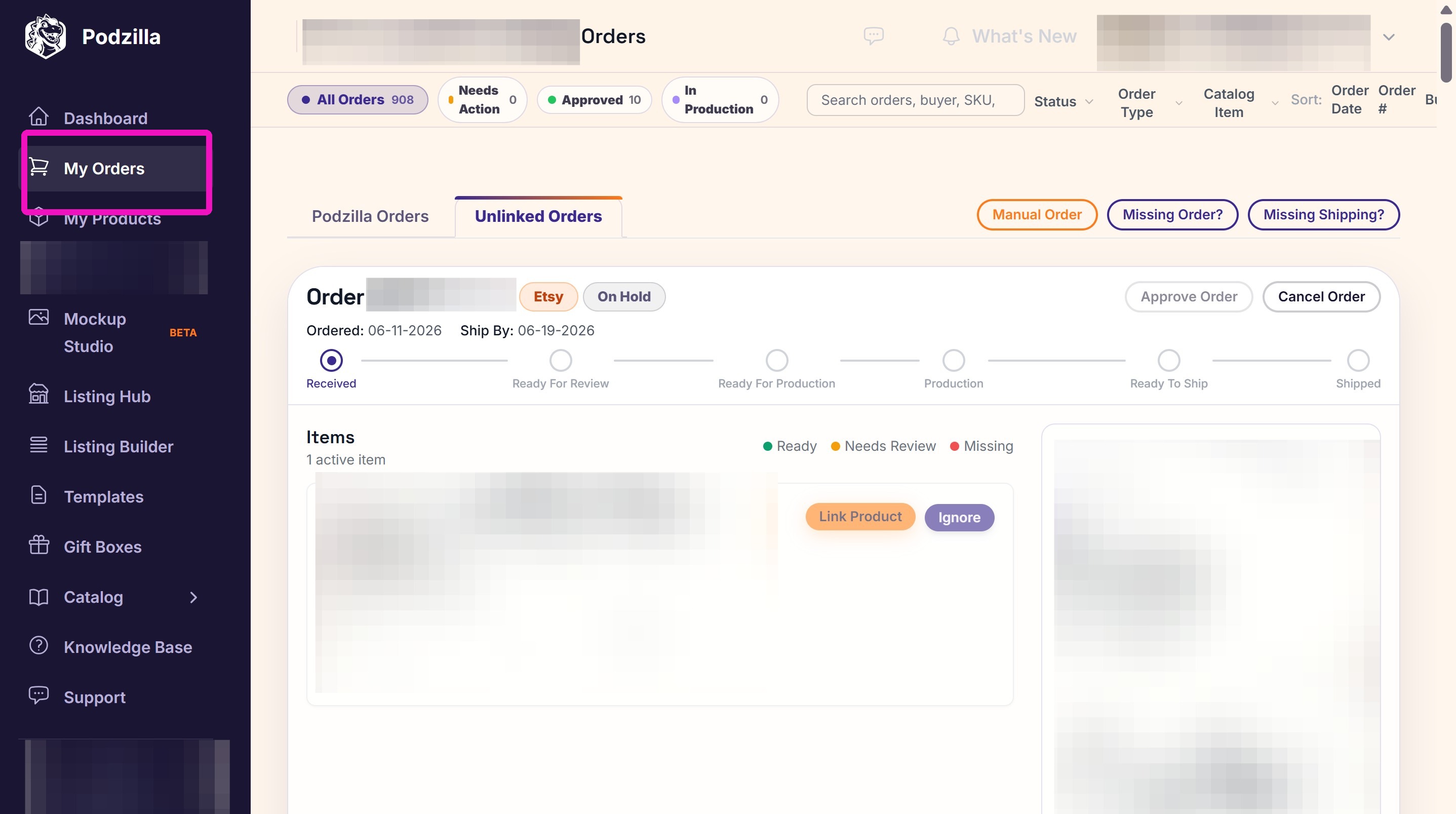
2. Go to the order card that you need to adjust. Click the Link Product button under the Product photo.
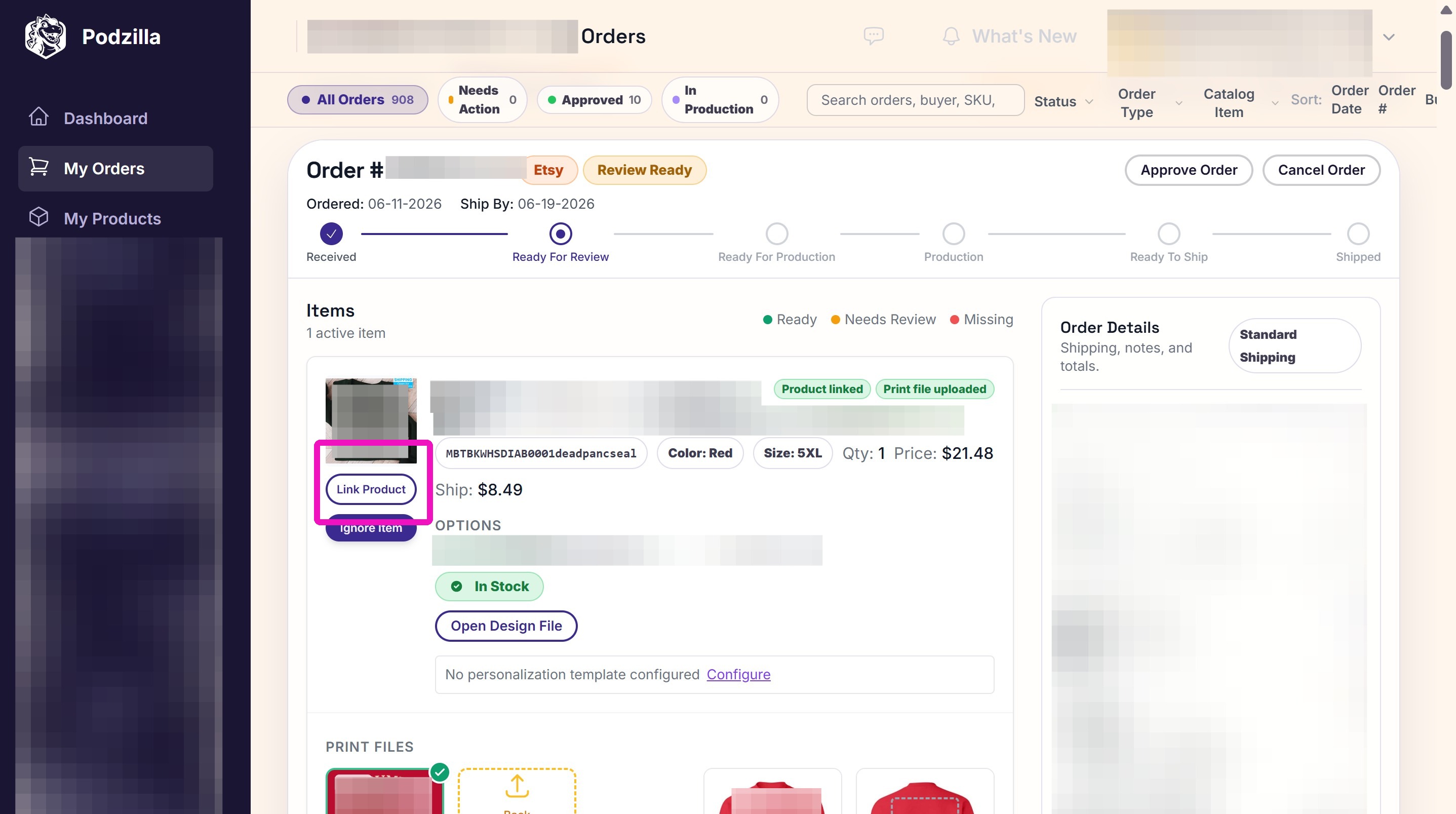
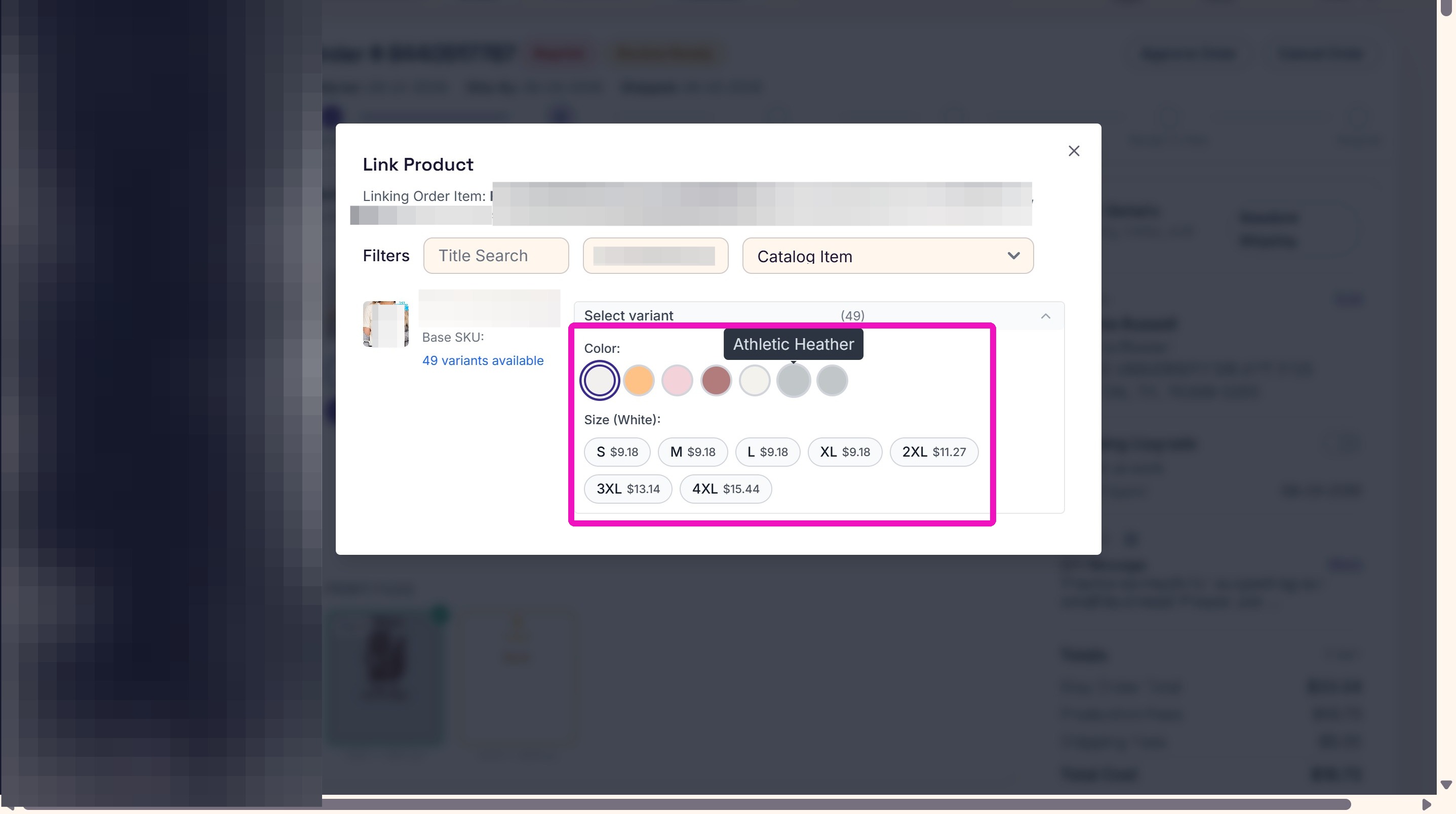
3. Enter the SKU for the new product you want to connect.
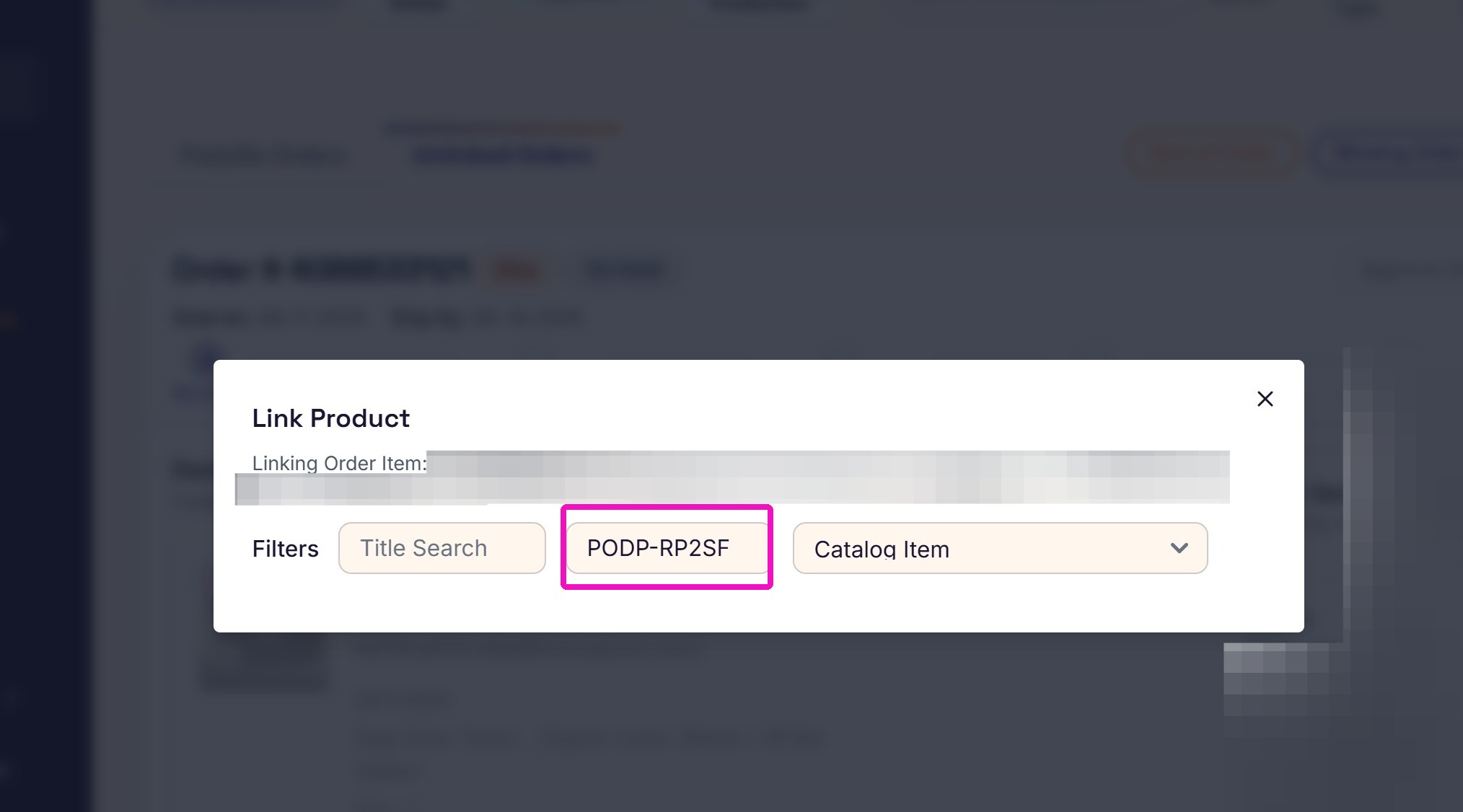
4. Click the Select Variation dropdown.
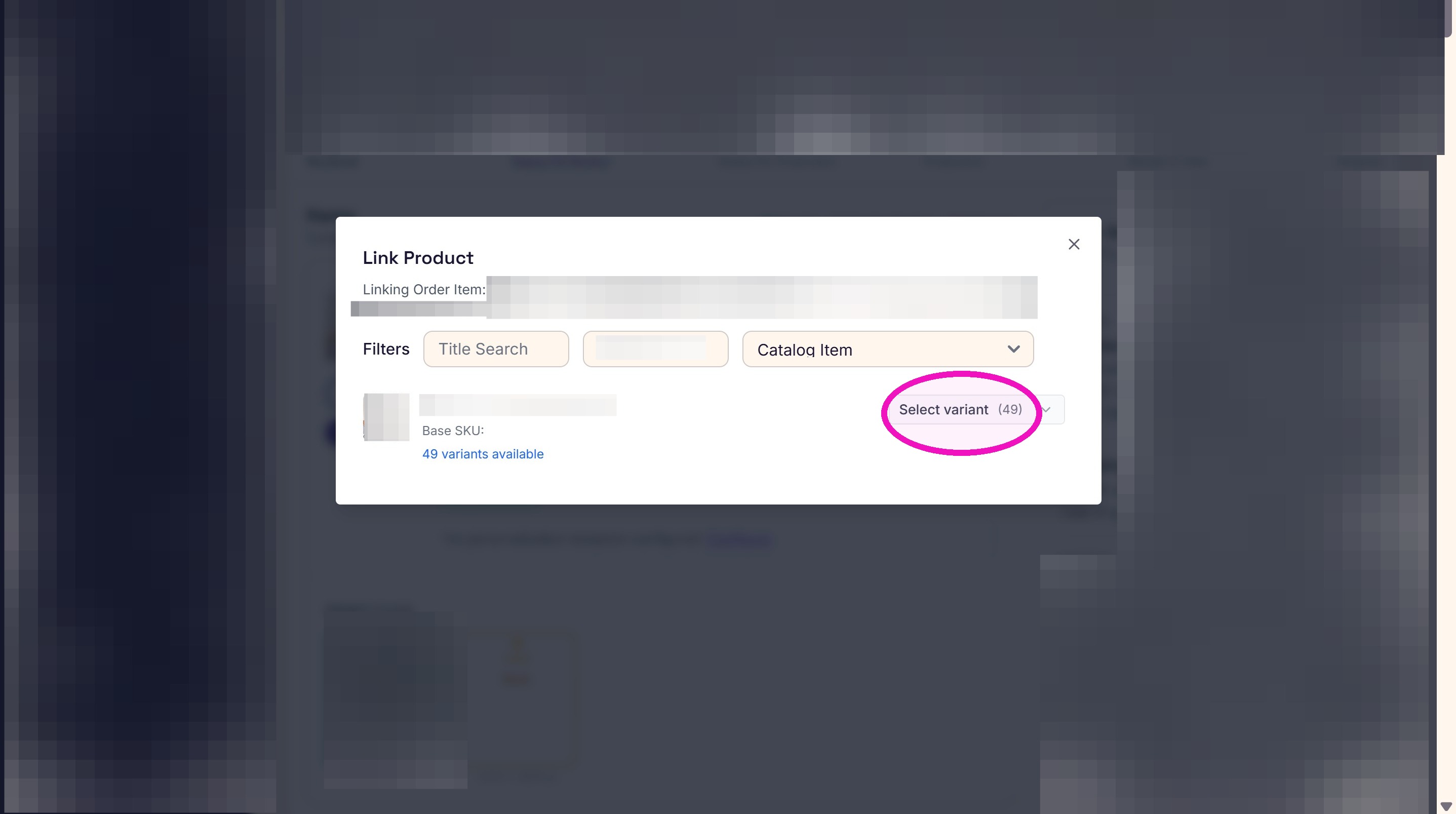
5. Choose you the variant(s) for the new product.
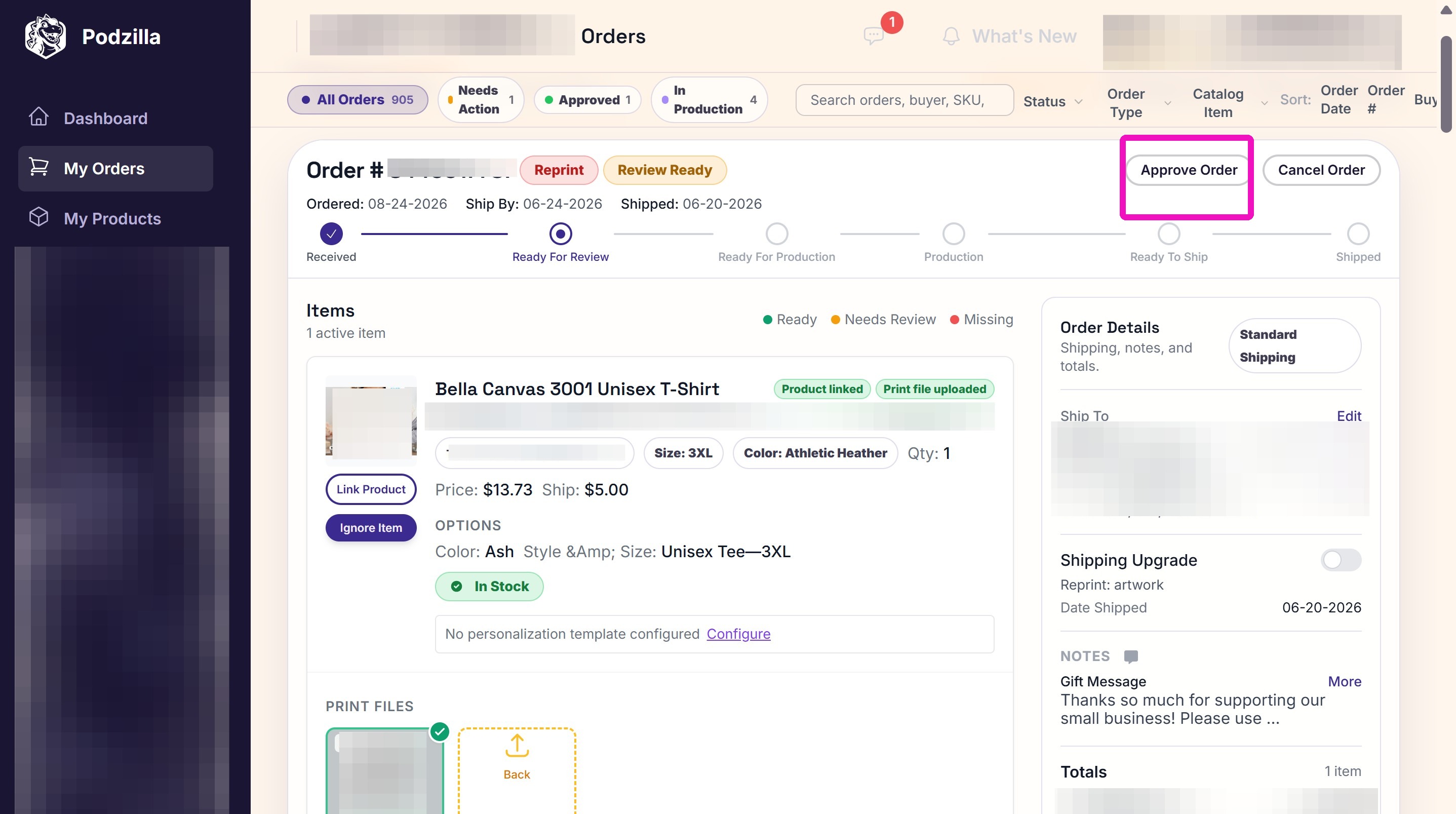
6. Check to make sure the new product is in the order card. When everything is correct, you can Approve the Order.
Related
More Articles
Getting Started
Welcome to Podzilla! The Podzilla website lets you manage products and orders associated with your shop(s). Let’s get you started.
Apparel Deep Dive: Catalog, Templates, Products & Orders
This guide walks through everything you need to know about working with apparel in Podzilla — from browsing the catalog and using the print template, to setting up products, syncing SKUs, and approving orders. It's based on Valerie's comprehensive video tutorial above, which demonstrates each step on screen.
Saving Sales with Canva Photo Cards
This customer service option has saved many of my sales! It only takes a few minutes, and is well worth it. I've included the instructional video and my script. Be sure you modify it for your brand and voice.
Shipping Profile Info
We use USPS Ground Advantage for all standard shipping. If your customers need their orders faster, Express upgrades are available. These use USPS Priority Mail, and pricing is as follows:
How to Use the 20oz & 40oz Tumblers Design Templates
TRANSCRIPTThis article explains how to use Podzilla’s Canva and Photoshop design templates for ...