My Orders
CONTENTS
Before you can fill an order, it must be linked to a product in Podzilla. Products are linked from your Etsy store to your Podzilla product by the SKU (or Stock Keeping Unit). This is a unique code that tells the system what product and variation (if applicable) the customer ordered. Think of them as product ID numbers.
See SKU’s and How to Use Them for more information and best practices.
CONTENTS
Orders Dashboard
If you already have your product set up in Podzilla with the SKU linked to your Etsy store, your orders will pull in automatically to your Podzilla Orders tab.
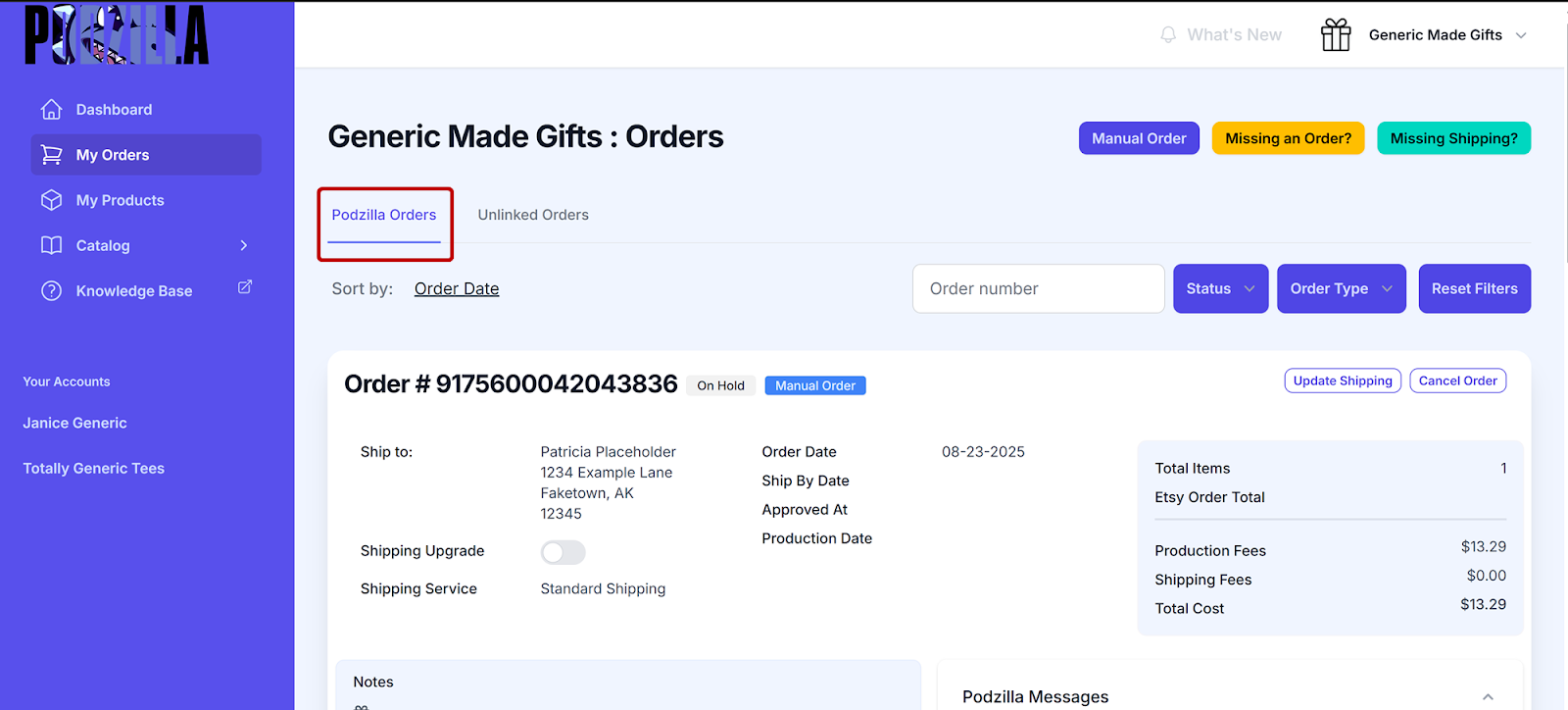
Etsy orders that haven’t been connected to a Podzilla product will show up on your Unlinked Orders tab.
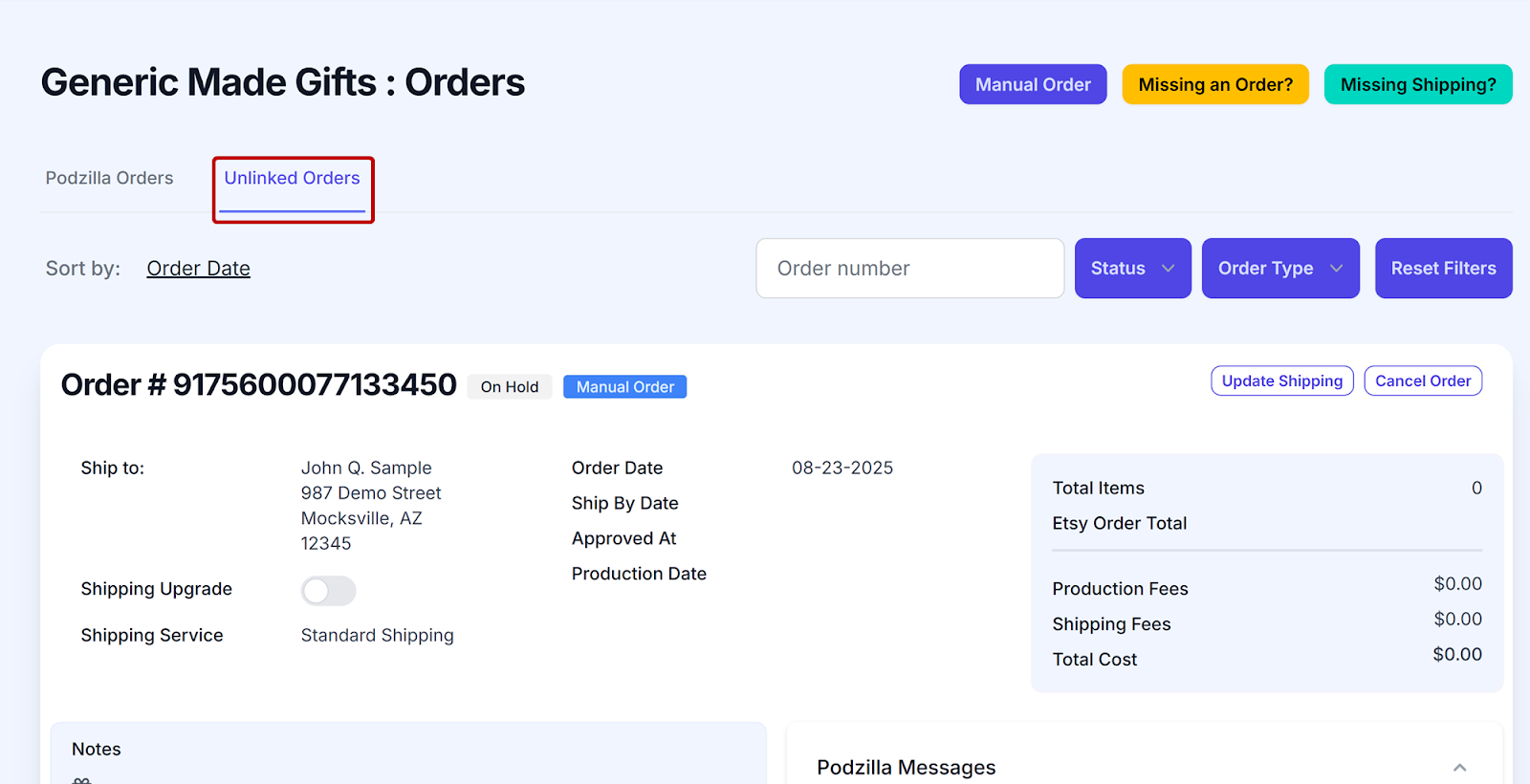
Adding a Manual Order
Use this feature if you are ordering samples or take orders outside of Etsy.
-
Click the Manual Order button.

- Search for the product you want to connect. You can search by the product type, title, or SKU.
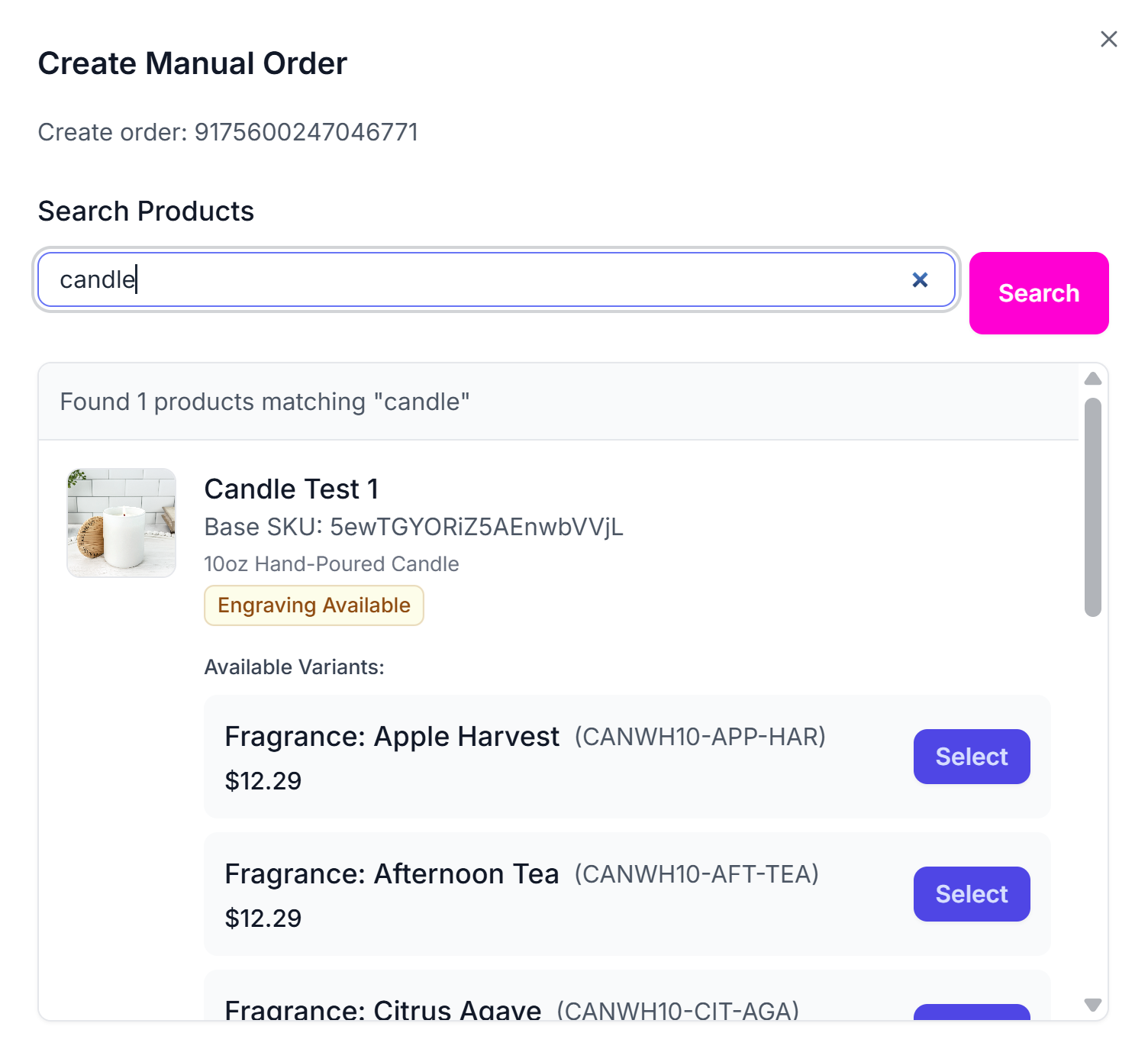
- Choose your product type and variant.
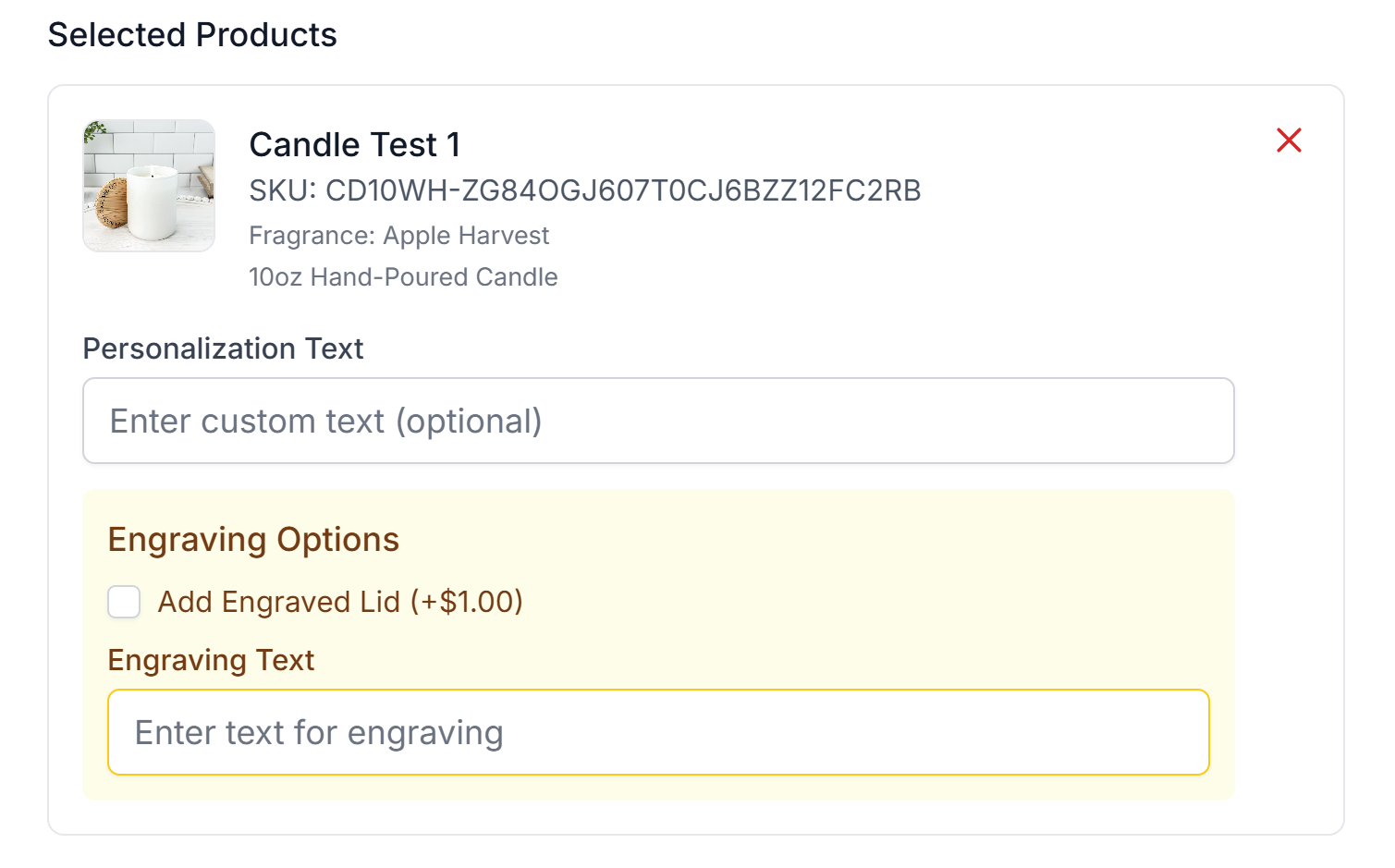
- If this item can be personalized or has an engraved lid, enter the personalization information.
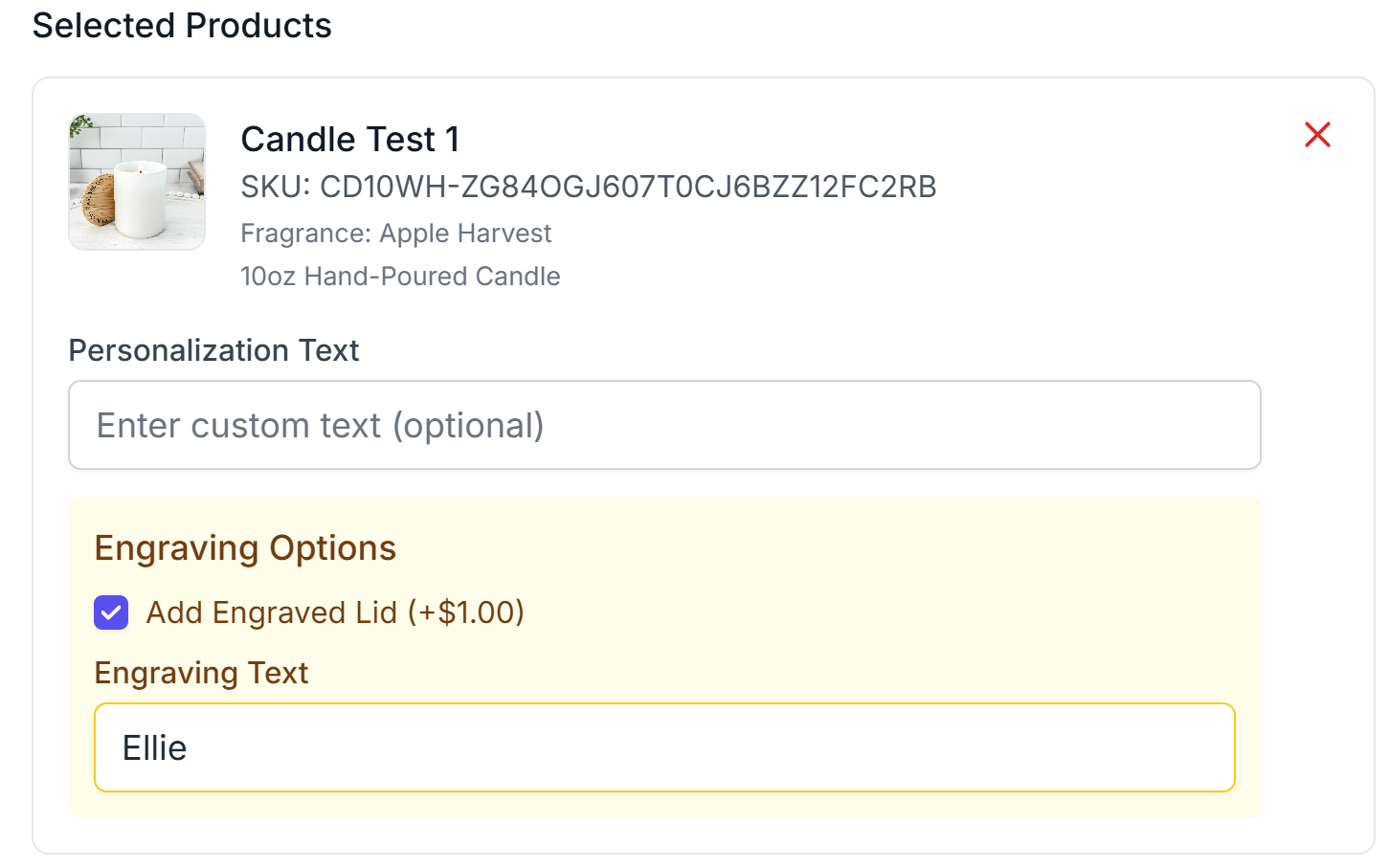
- If you want to add other items to the manual order go back to the search box and search for the next product you would like to add to the order. As you add the items they should show up in the Selected Products section.
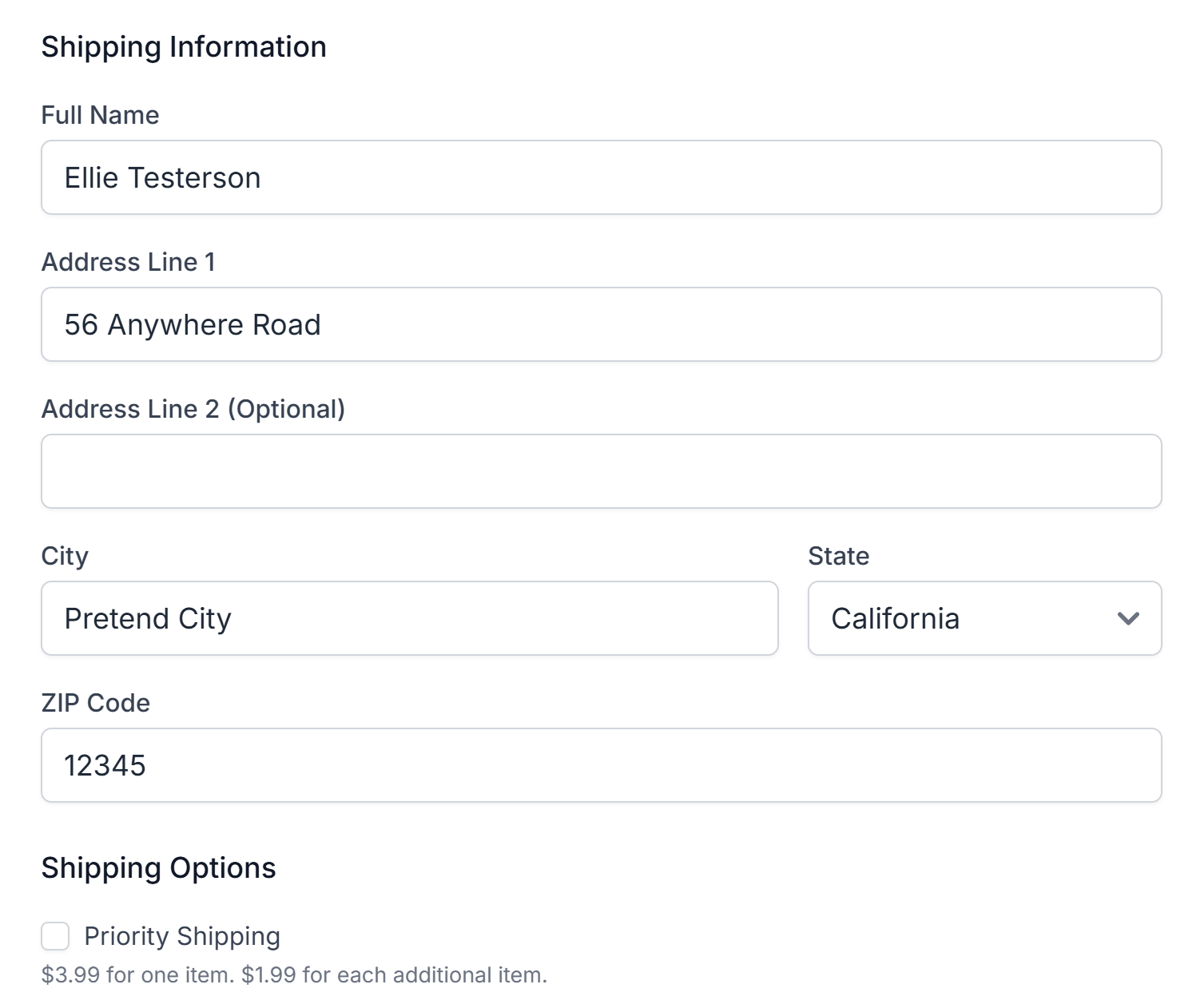
- Enter the customer’s shipping information.
-
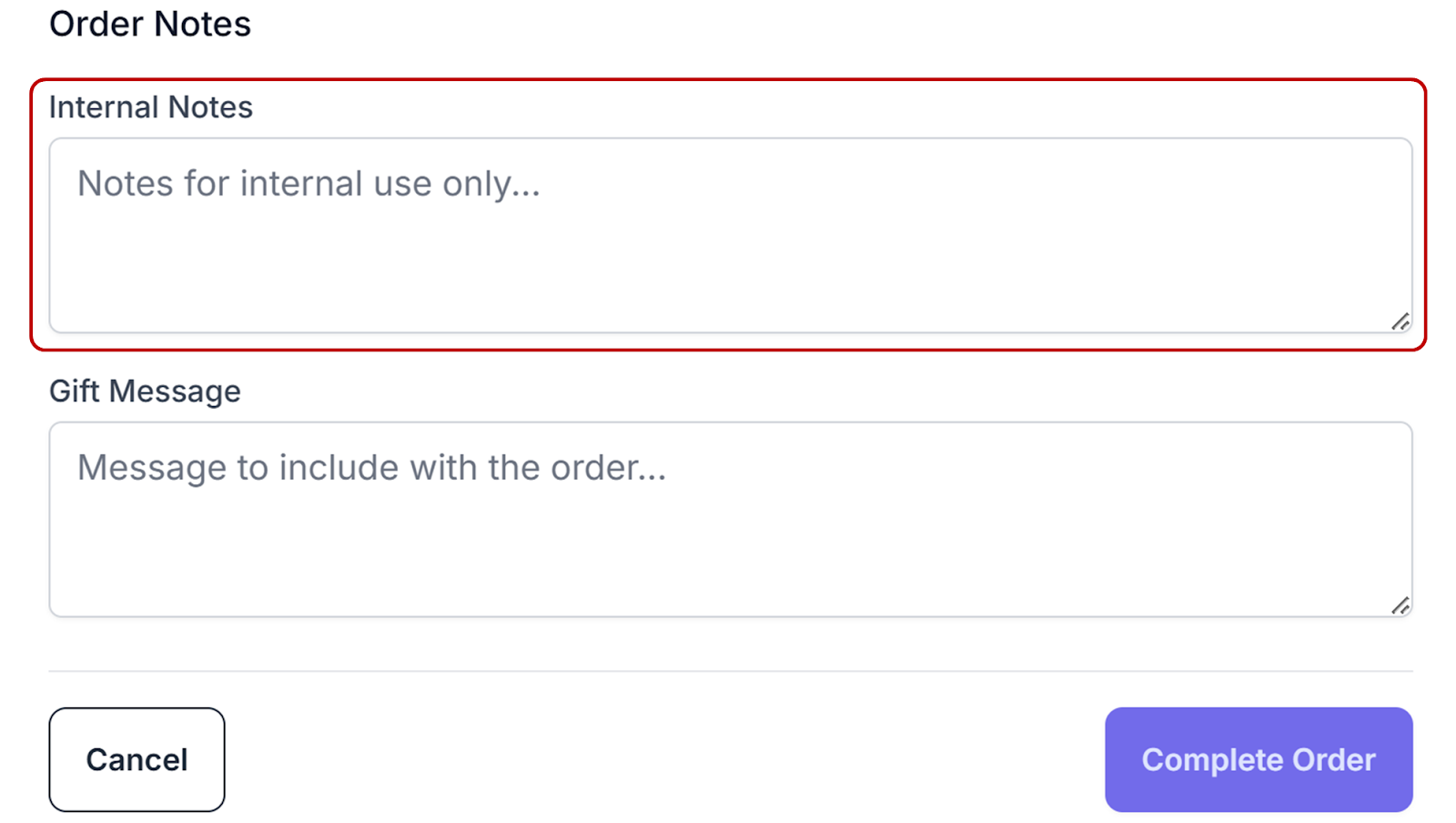
Add any notes for your use or to communicate information to Podzilla for the order in the Internal Notes field. For example, if a customer places two separate orders, but wants them shipped together, you can add a note asking Podzilla to combine the orders when shipping.
-
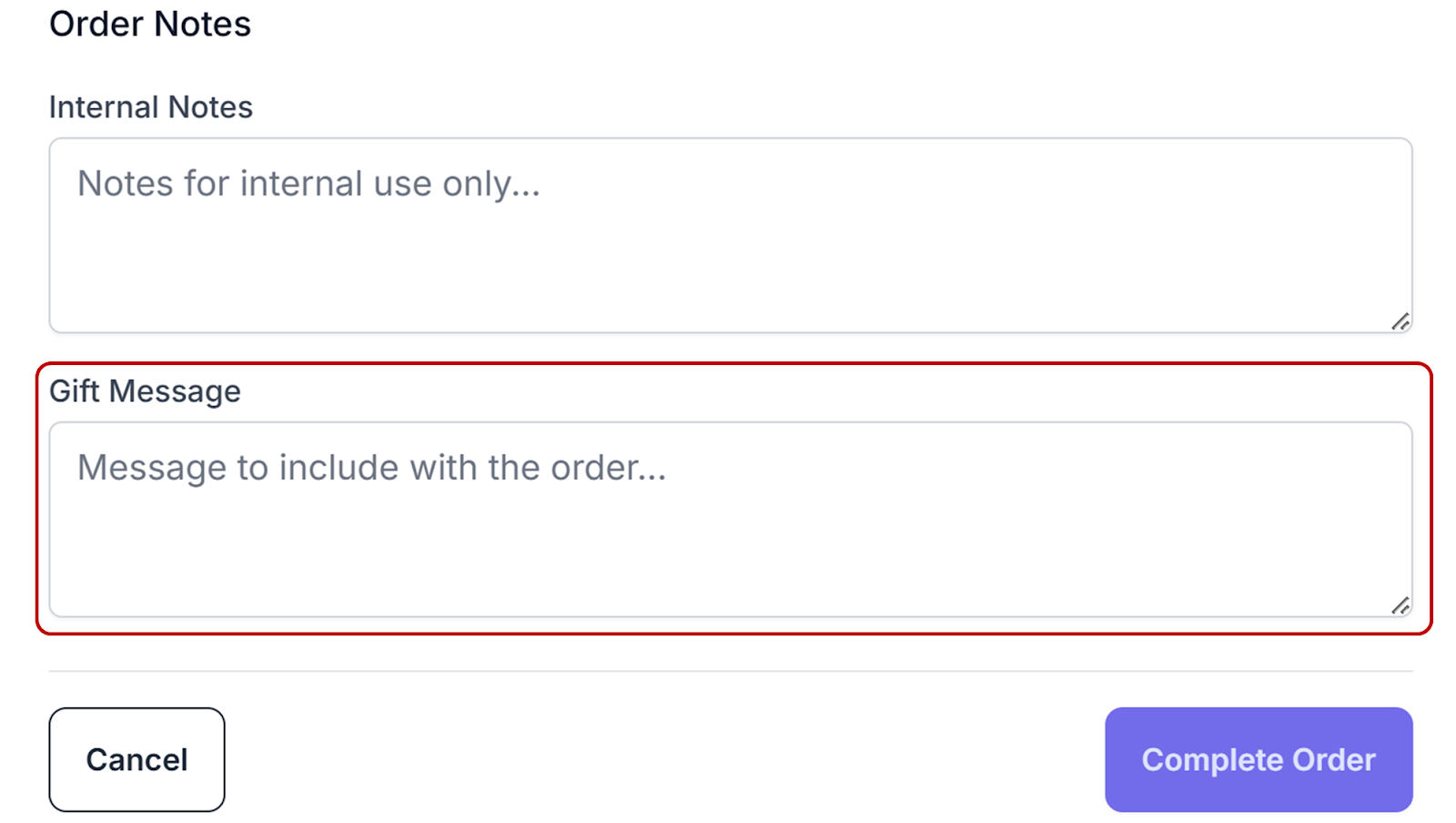
If the customer wants a message sent because this product is a gift, enter the message in the Gift Message field.
NOTE: Gift messages are printed on the packing slip that is sent to the customer.
- Click the Complete Order button to save the order.
Your order will show up under your Podzilla Orders tab. Notice that the order card shows the order is On Hold and is a Manual Order.
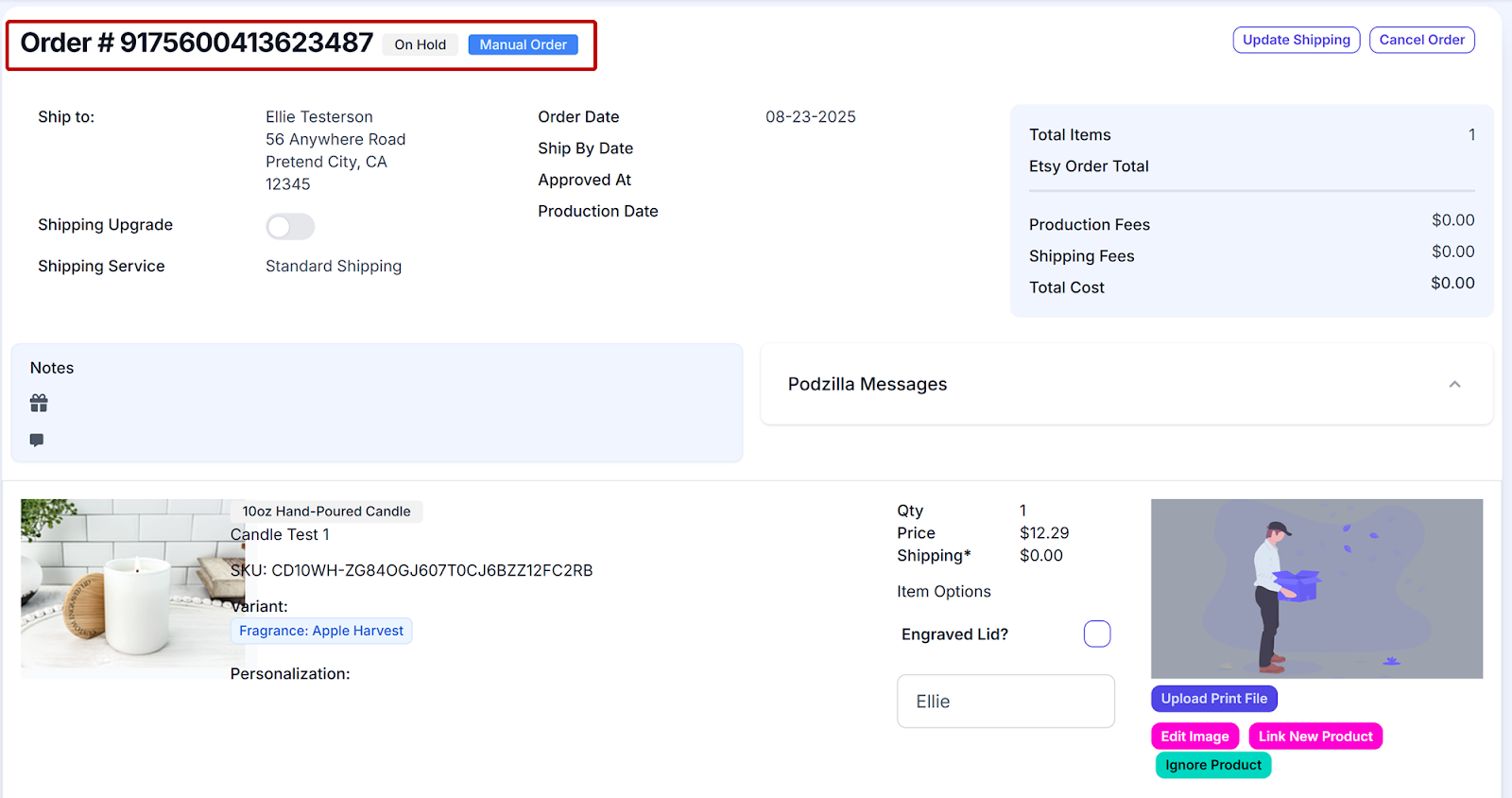
Orders imported from Etsy have an orange Etsy label.

Missing an Order
If you can’t find an Etsy order in either your Podzilla Orders tab or Unlinked Orders tab, you may have to resync that order.
Click the Missing and Order? button.
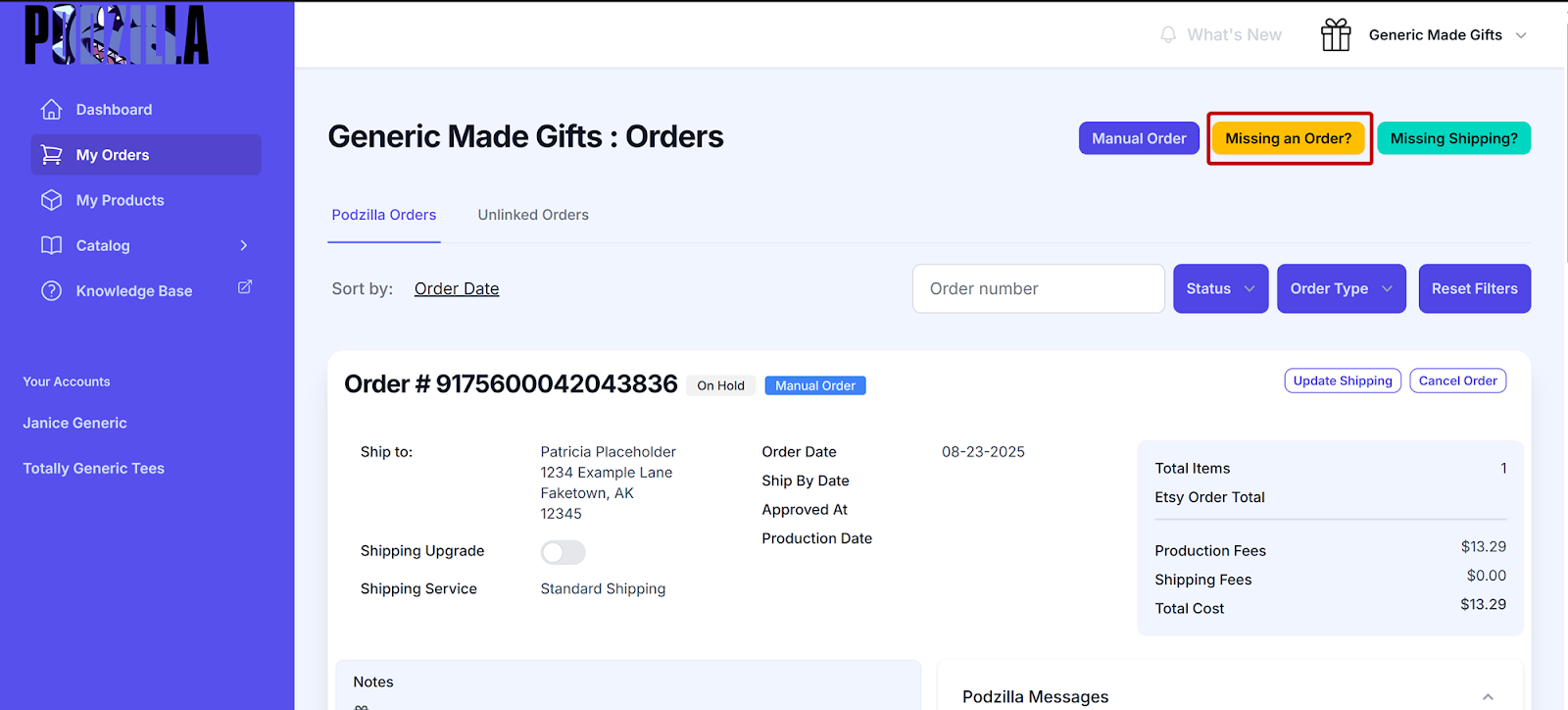
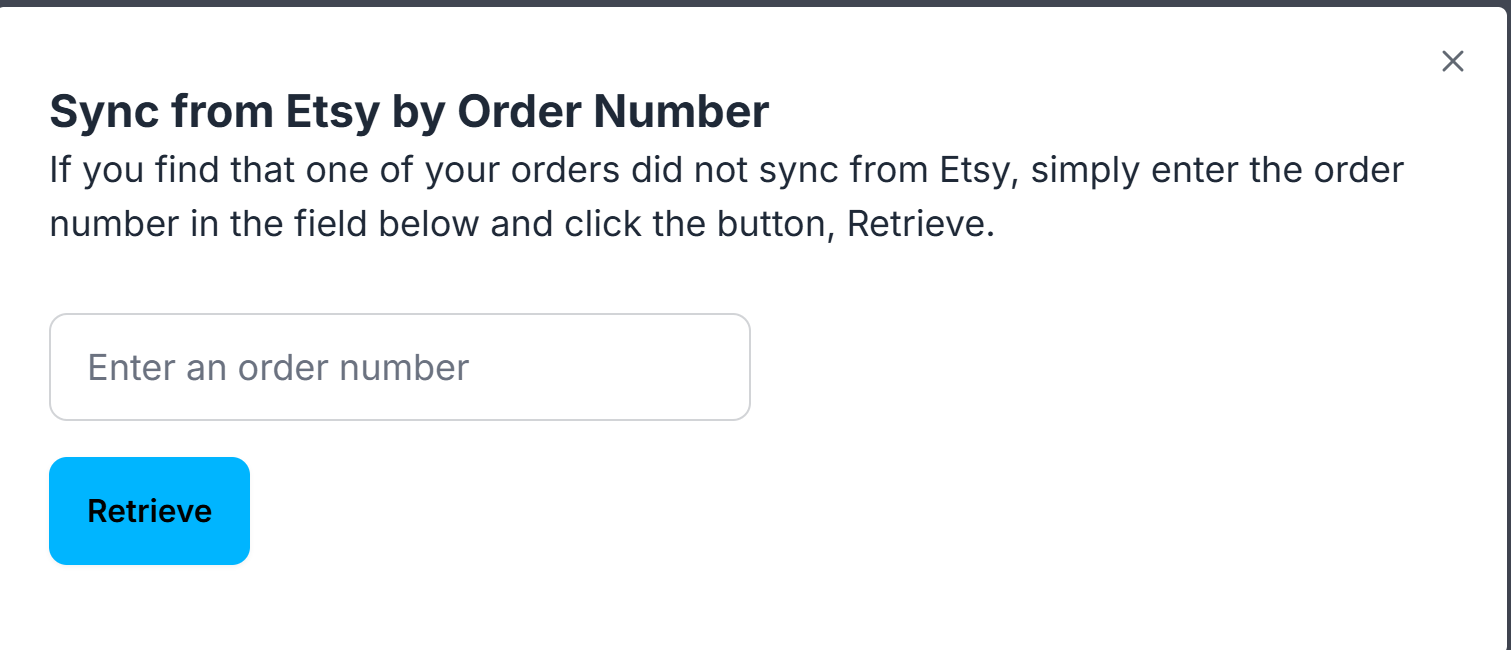
Enter the Etsy order number in the pop-up box and click Retrieve.
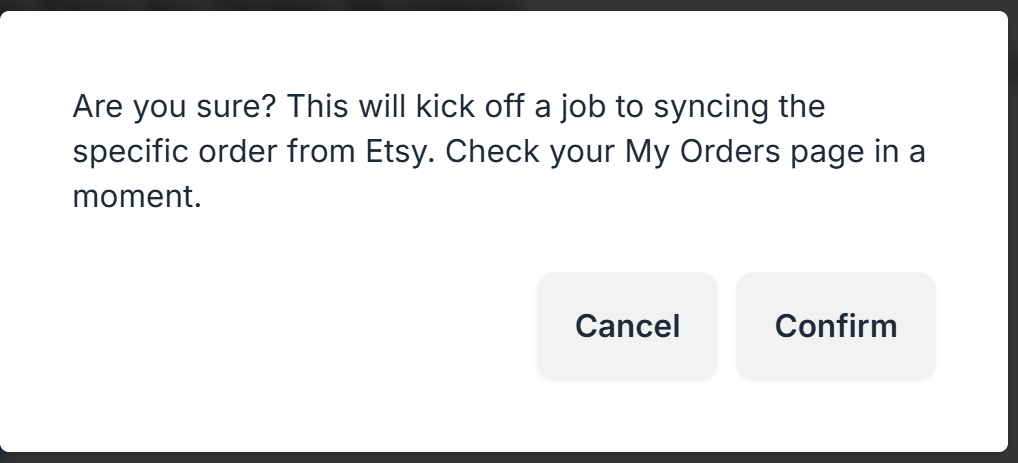
As a safety measure, you’ll be asked to verify that you want to proceed. Click Confirm to continue.
Go back to My Orders. The order should be there (it may take a few minutes). You may have to scroll down to see it depending on how your Order Date is set to sort.

Missing Shipping
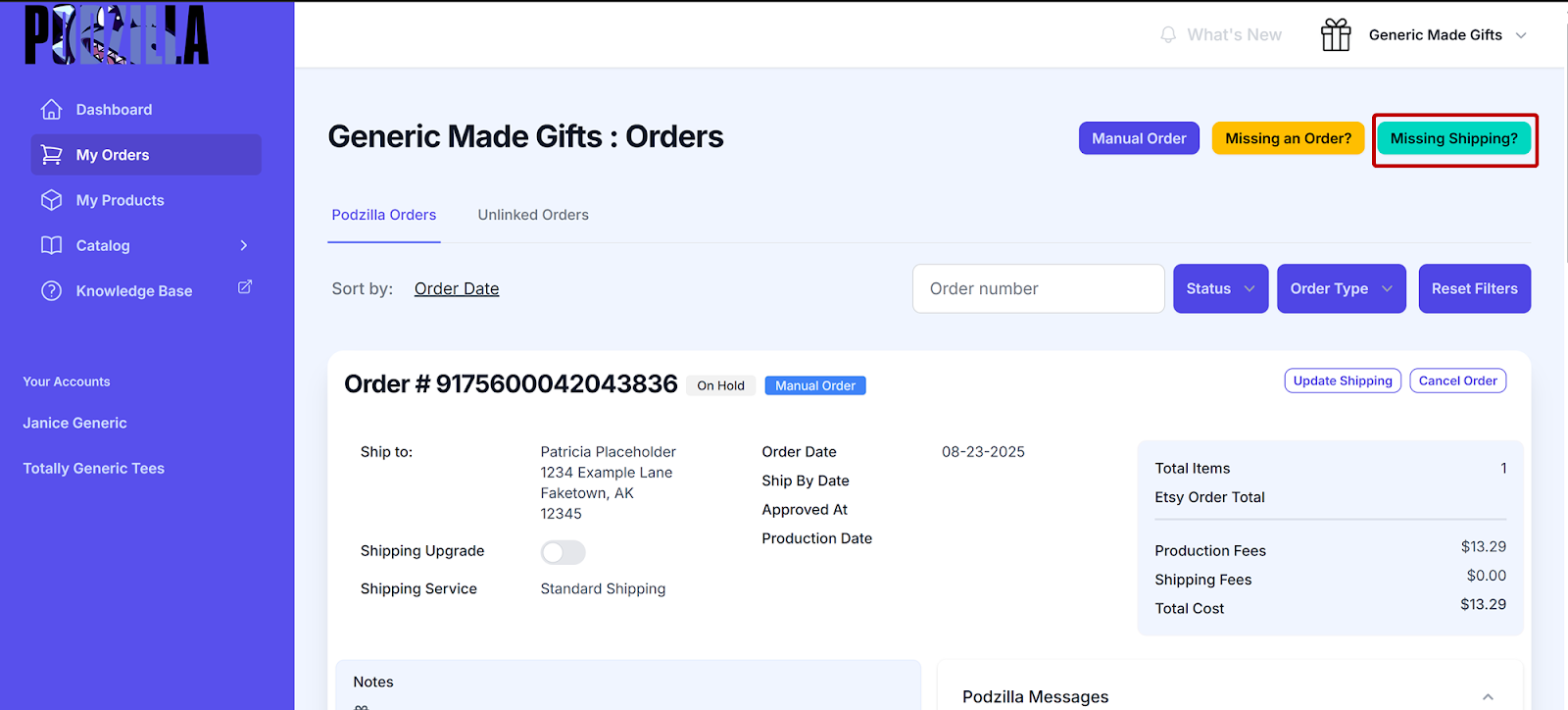
If your order shows it has shipped, but you cannot see the shipping information, click the Missing Shipping? button.
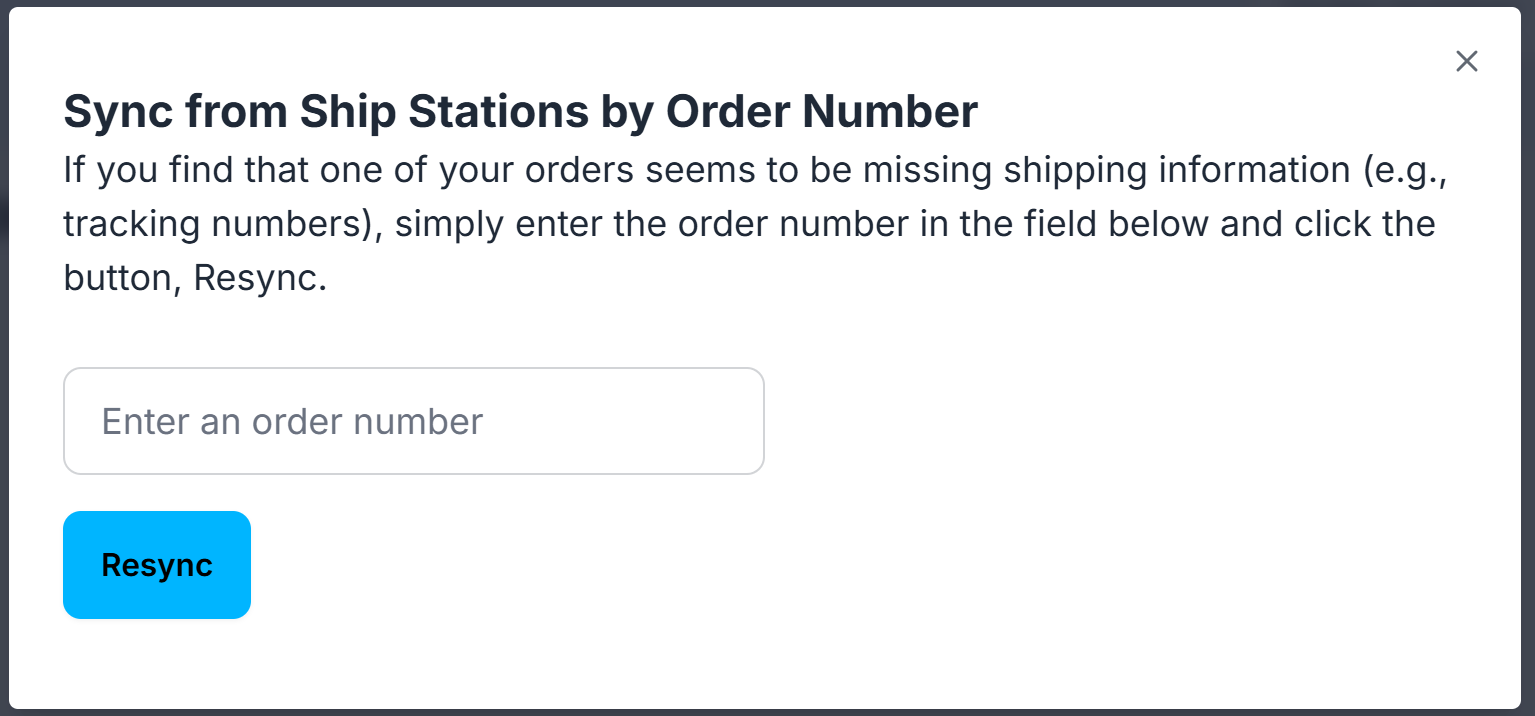
Enter the order number and click Resync.
Sorting & Filters
You can sort your orders by the newest or oldest date. Just click the Order Date link to change the sort order.

An up or down triangle will appear to show you how the orders are sorting.

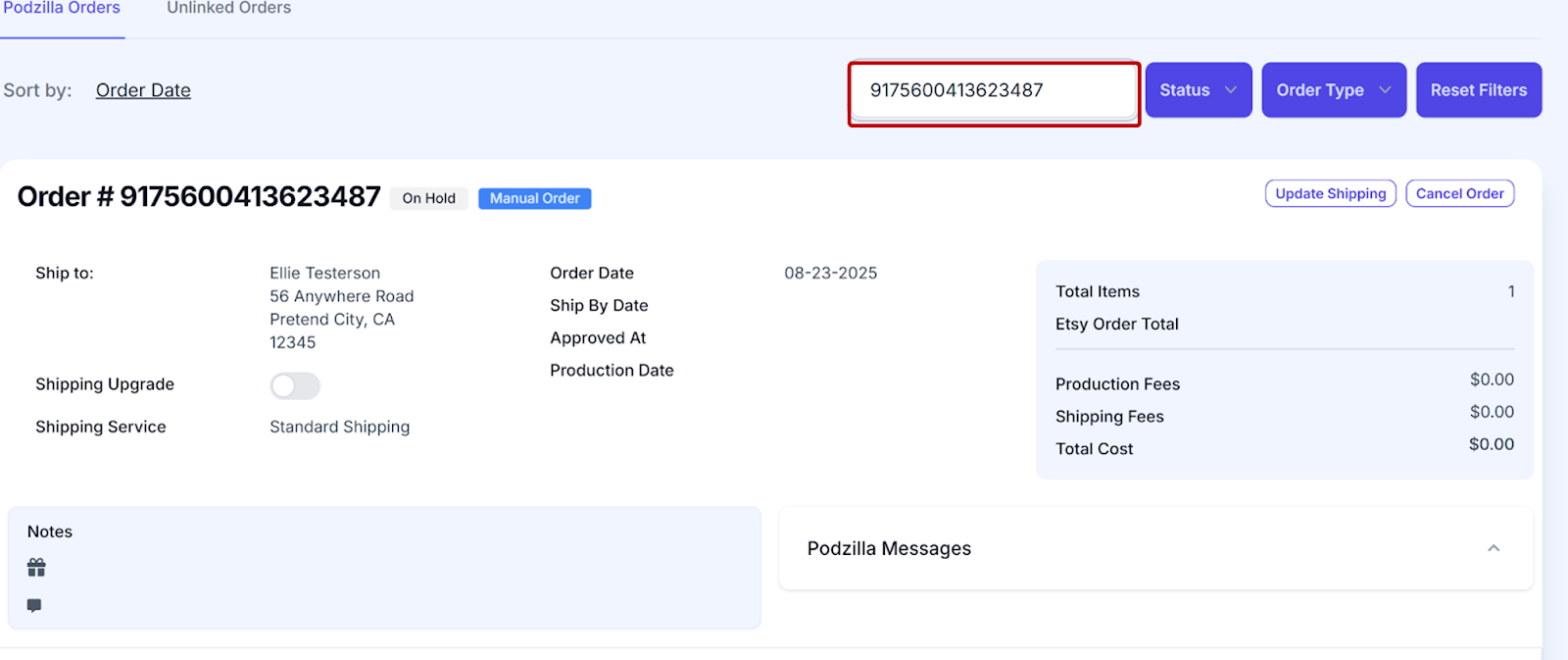
You can find a specific order by entering the order number in the Order Number field and hitting Enter.
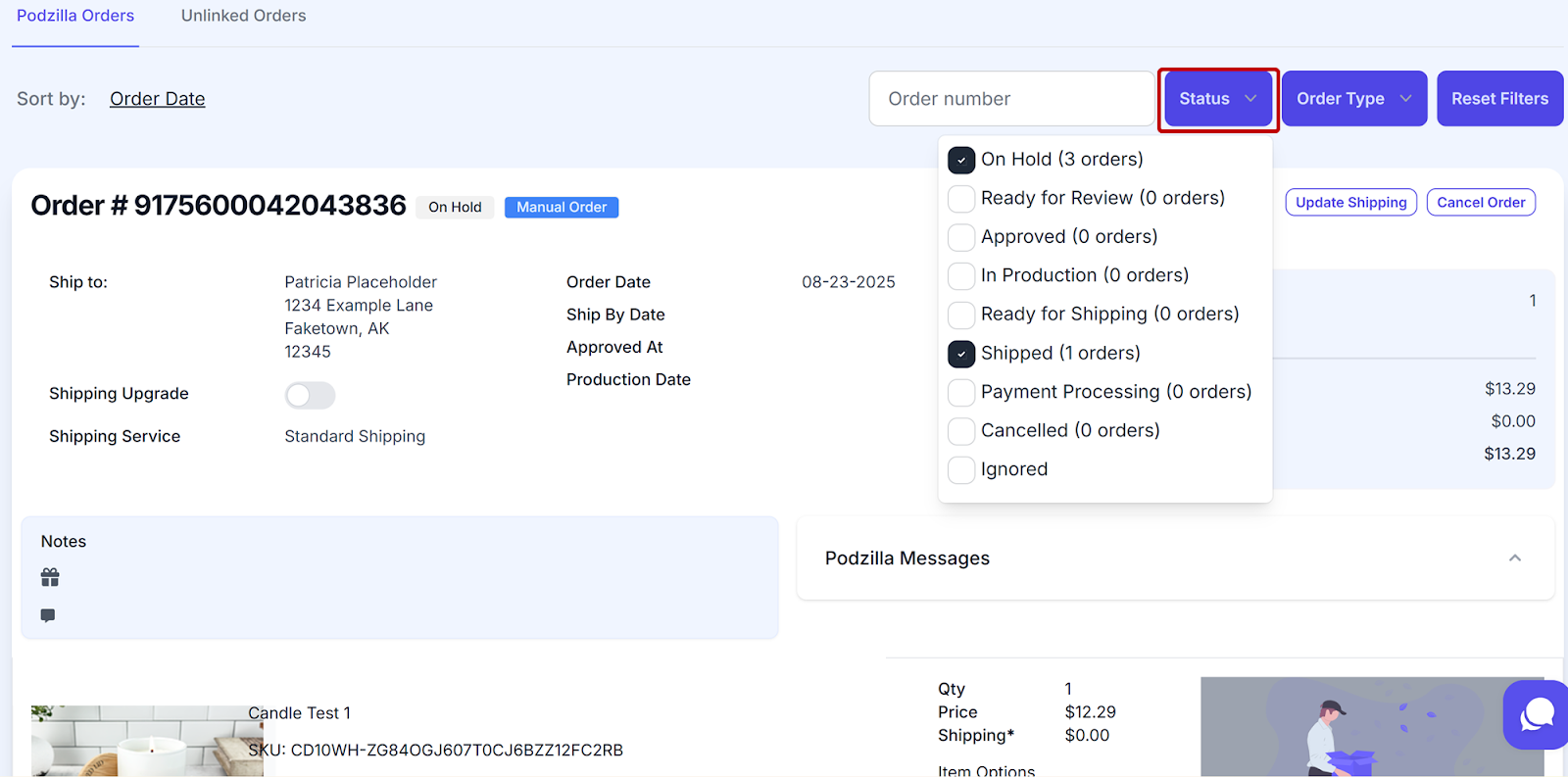
Clicking the Status button gives you a dropdown menu with the following options:
-
On Hold - The order has not been reviewed and approved. This usually means some important information is missing.
-
Ready for Review - The order has all the necessary information, but hasn’t been approved to go to production.
-
Approved - You have approved the order, but it hasn’t gone to production, yet.
-
In Production - The item is in production. Remember, you can’t make any changes once production has started.
-
Ready for Shipping - The item has finished in production and is waiting to be shipped.
-
Shipped - The order has been shipped. You should see the tracking information on the order card now.
-
Payment Processing - The customer’s payment has been completed on Etsy.
-
Cancelled - You have cancelled the order and no further action will be taken.
-
Ignored - This shows any orders not linked to items in your Podzilla products and not being fulfilled by Podzilla such as orders fulfilled by Printify. No action is needed on these orders.
Click the box you want to filter by. You can click more than one box.
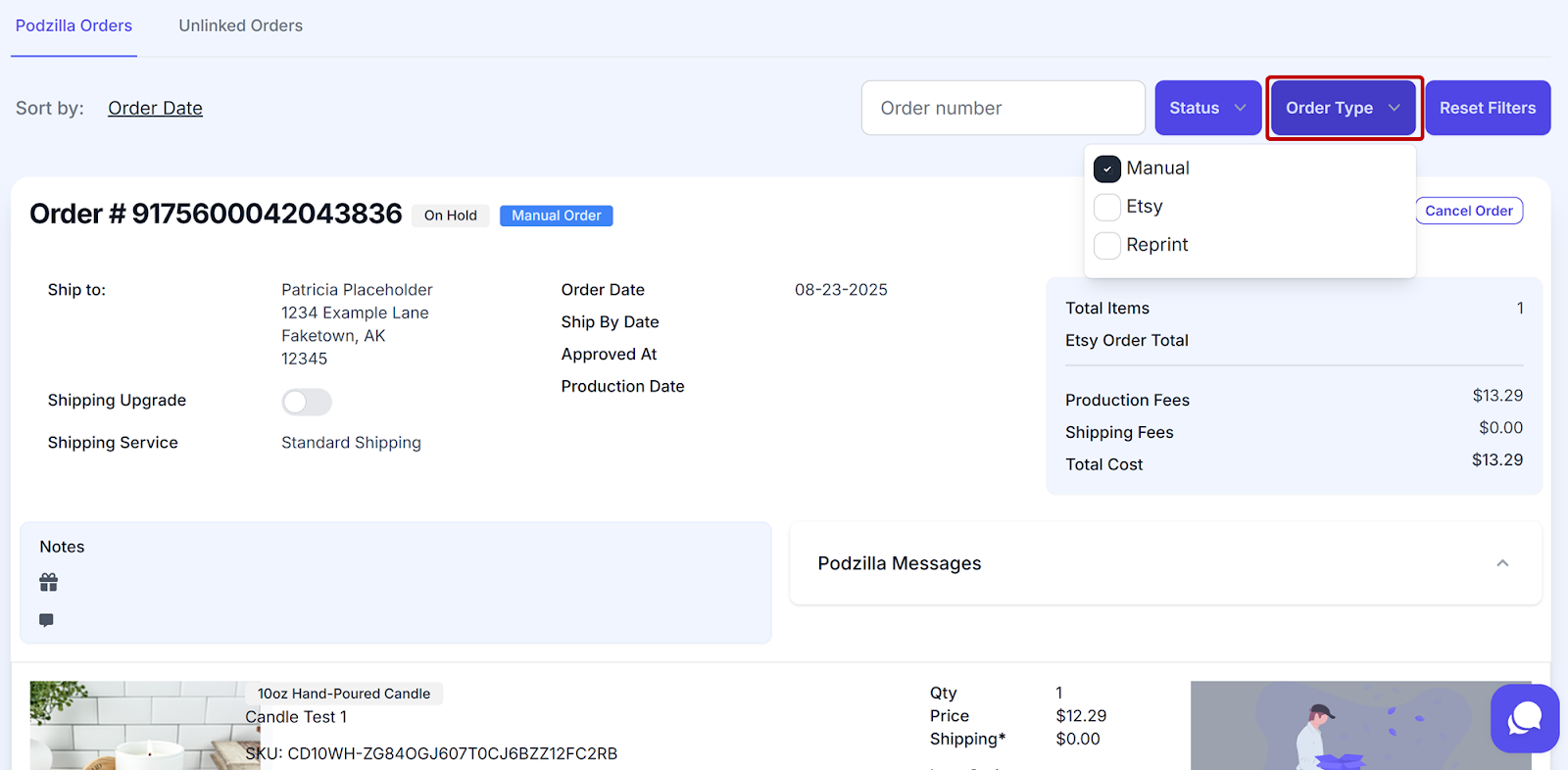
Clicking the Order Type button gives you a dropdown menu with the following options:
-
Manual - filters by orders you’ve added manually.
-
Etsy - orders that came in through your Etsy store.
-
Reprint - orders you requested to be reprinted.
Click the box you want to filter by. You can click more than one box.
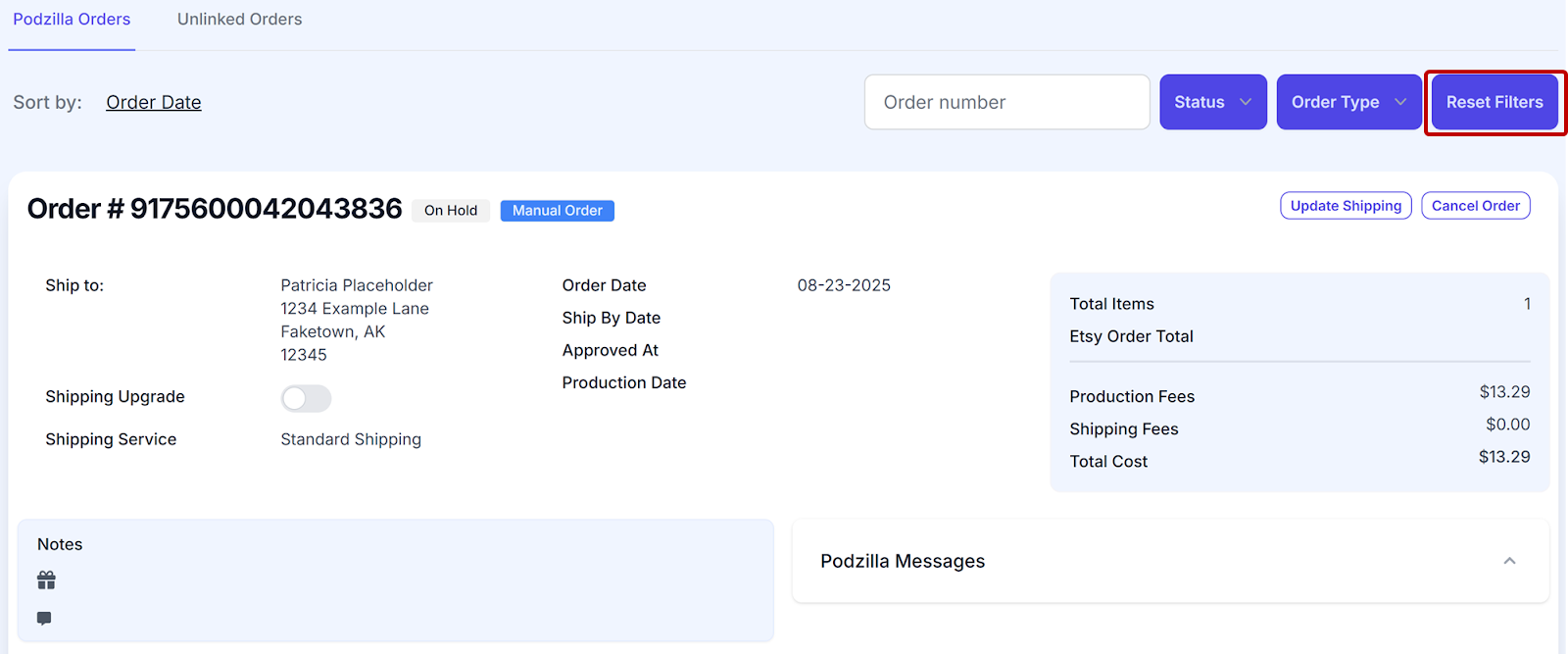
Click the Reset Filters button to clear out all the filters and start fresh.
Related
More Articles
Getting Started
Welcome to Podzilla! The Podzilla website lets you manage products and orders associated with your shop(s). Let’s get you started.
Apparel Deep Dive: Catalog, Templates, Products & Orders
This guide walks through everything you need to know about working with apparel in Podzilla — from browsing the catalog and using the print template, to setting up products, syncing SKUs, and approving orders. It's based on Valerie's comprehensive video tutorial above, which demonstrates each step on screen.
Saving Sales with Canva Photo Cards
This customer service option has saved many of my sales! It only takes a few minutes, and is well worth it. I've included the instructional video and my script. Be sure you modify it for your brand and voice.
How to Use the 20oz & 40oz Tumblers Design Templates
TRANSCRIPTThis article explains how to use Podzilla’s Canva and Photoshop design templates for ...
[NEW FEATURE] Mockup Studio (Beta) drops TONIGHT - July 14, 2026
We built a Mockup Generator right into PODzilla! Big one for everyone who's tired of mocking up products one at a time in Canva or fighting with Photopea to get it to work with smart objects.