Automatically Personalizing Products
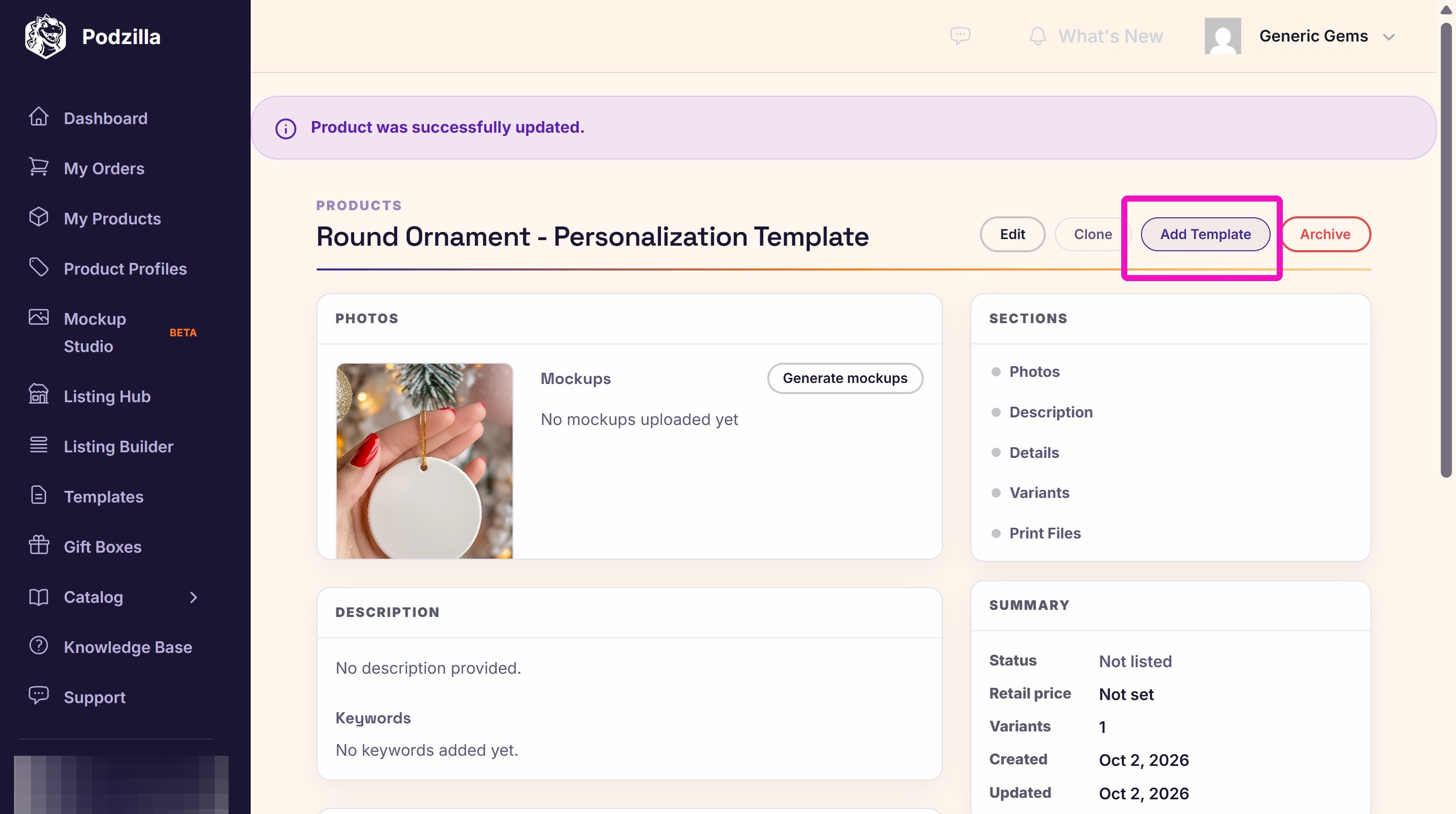
2. Click "Add Template"
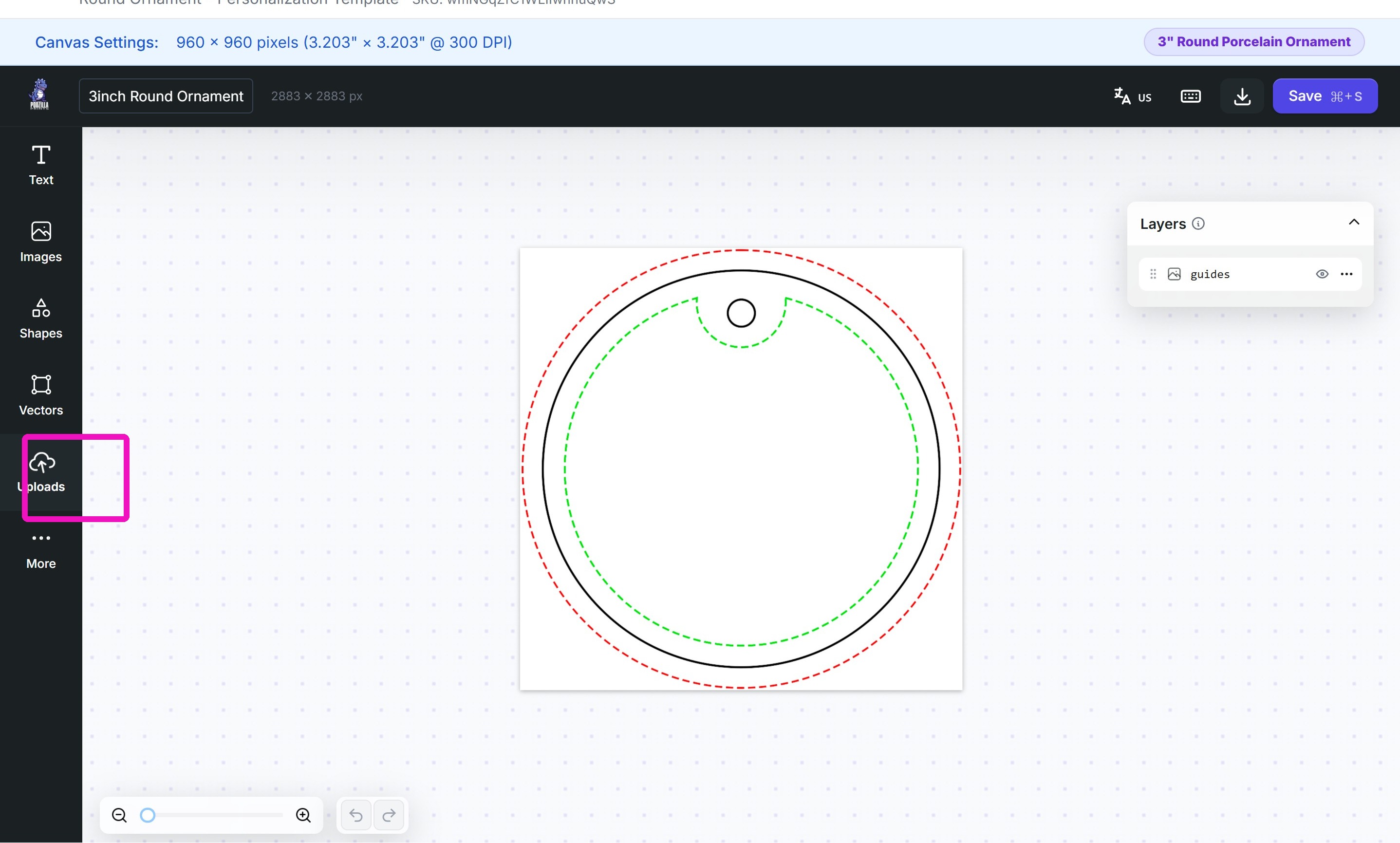
Template Setup
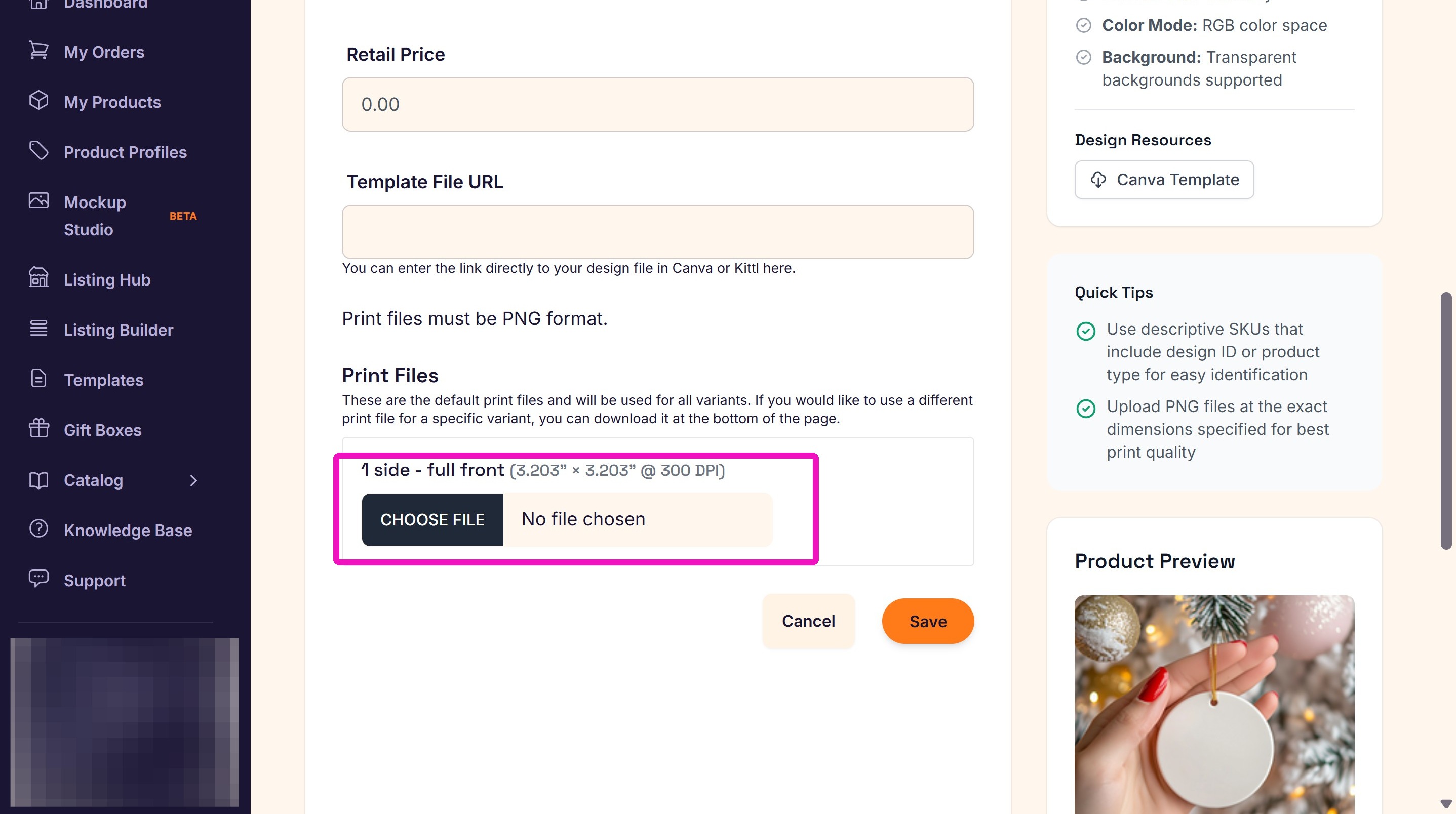
4. Upload your file. Make sure none of the personalization from your design file is on this file.
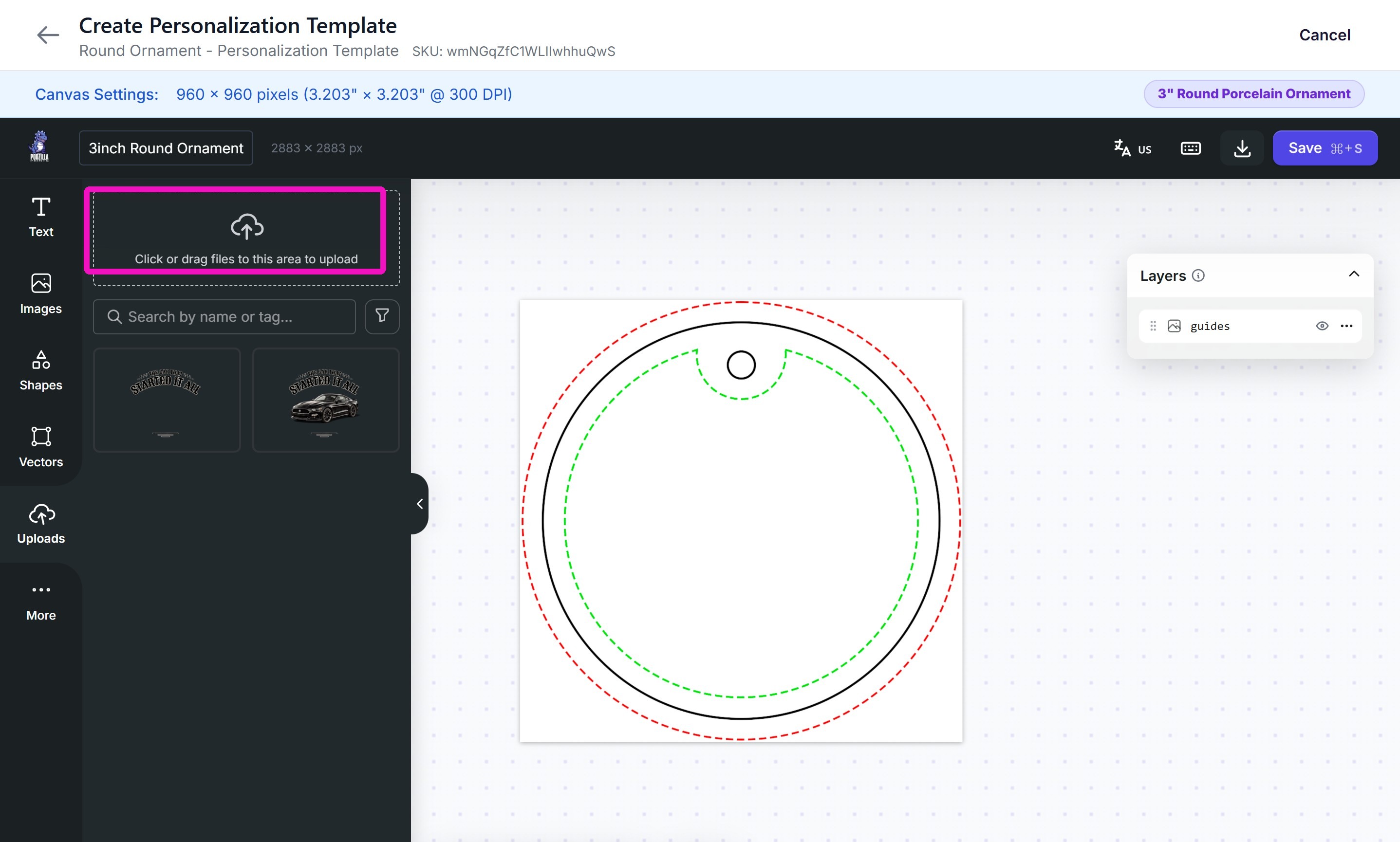
5. Click the uploaded file to place it on the template.
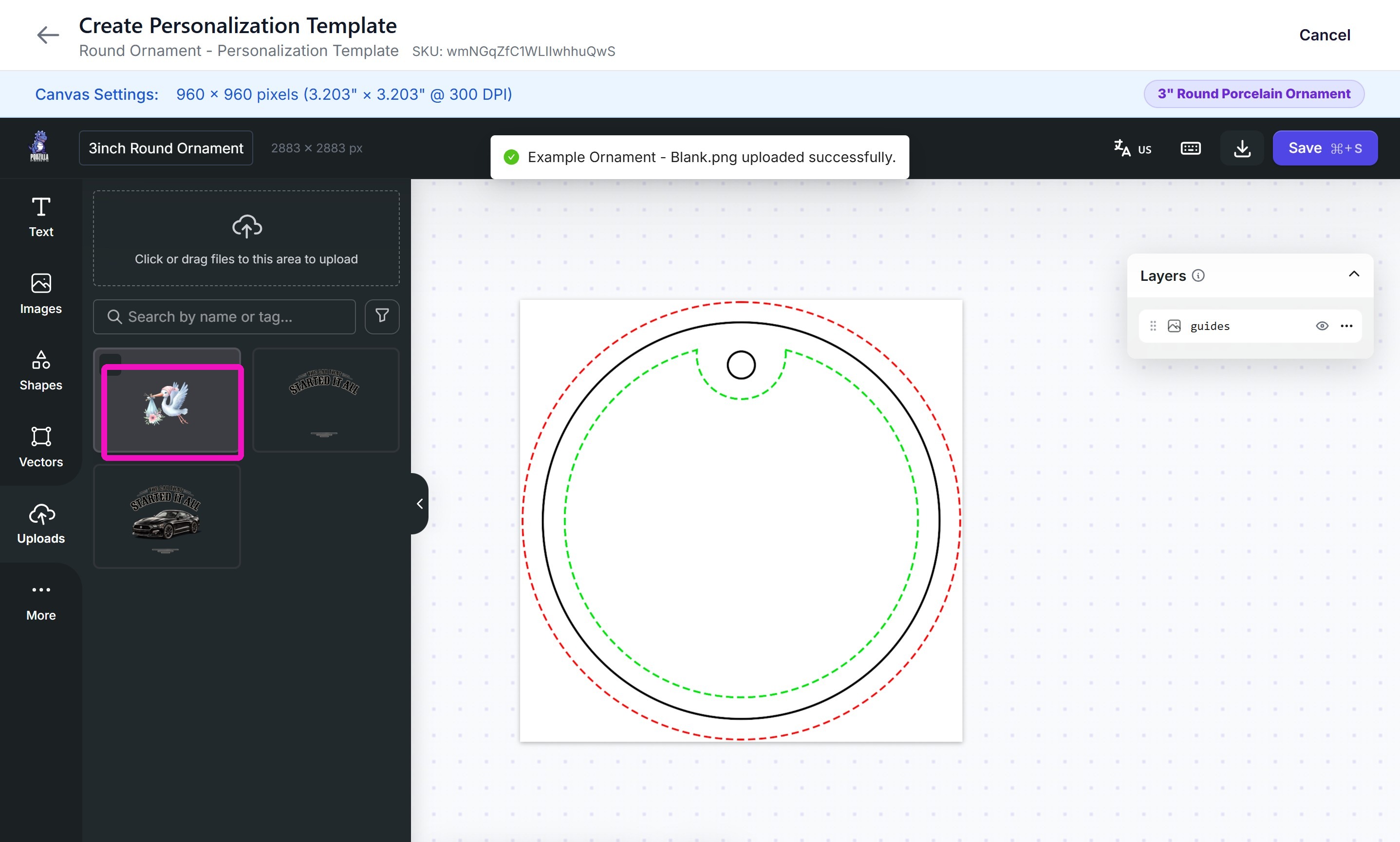
6. Size the design on the template grid and rename the layer (optional).
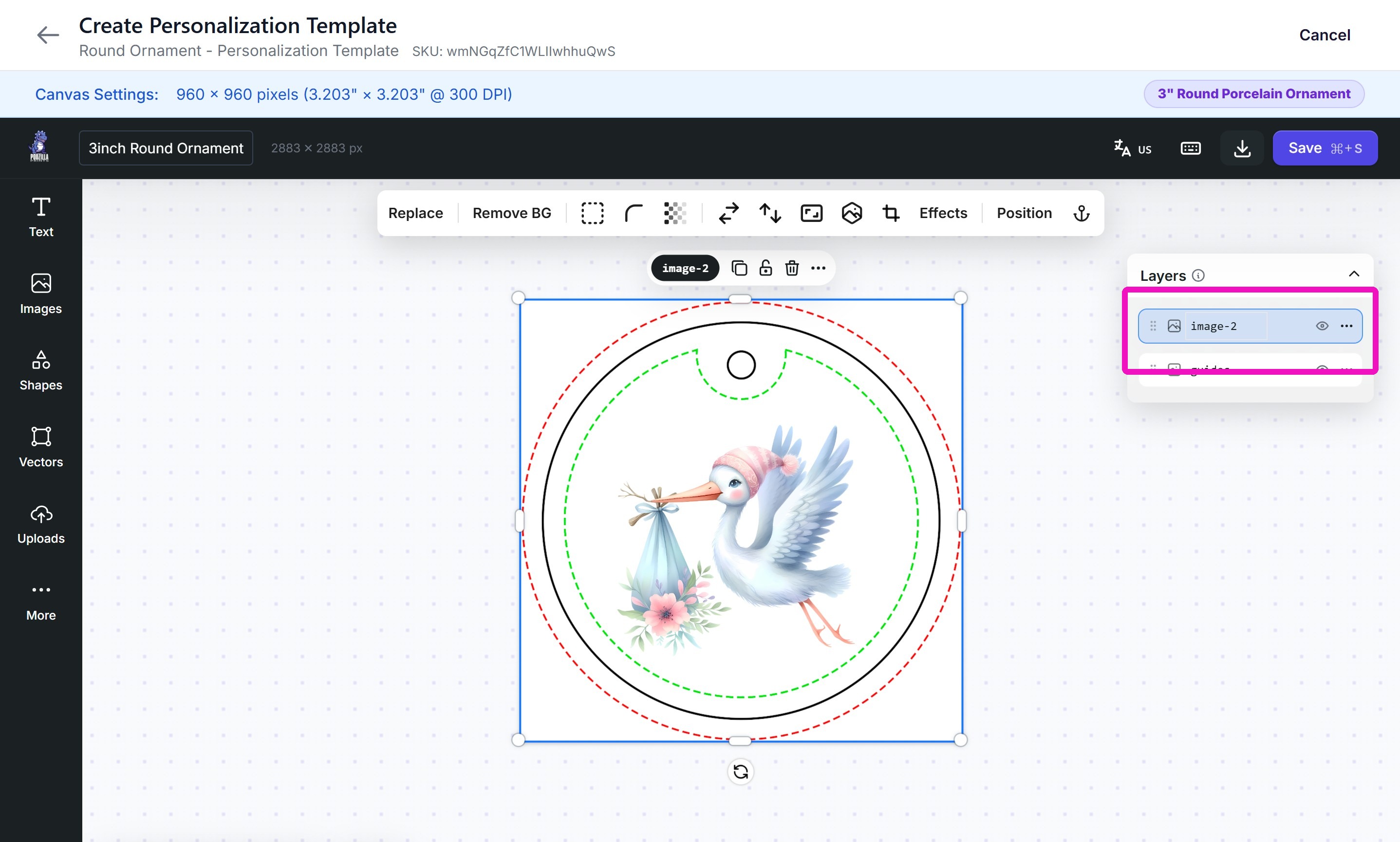
7. Click the 3 dots next to the layer name to lock the layer in place. This is helpful when adding text layers.
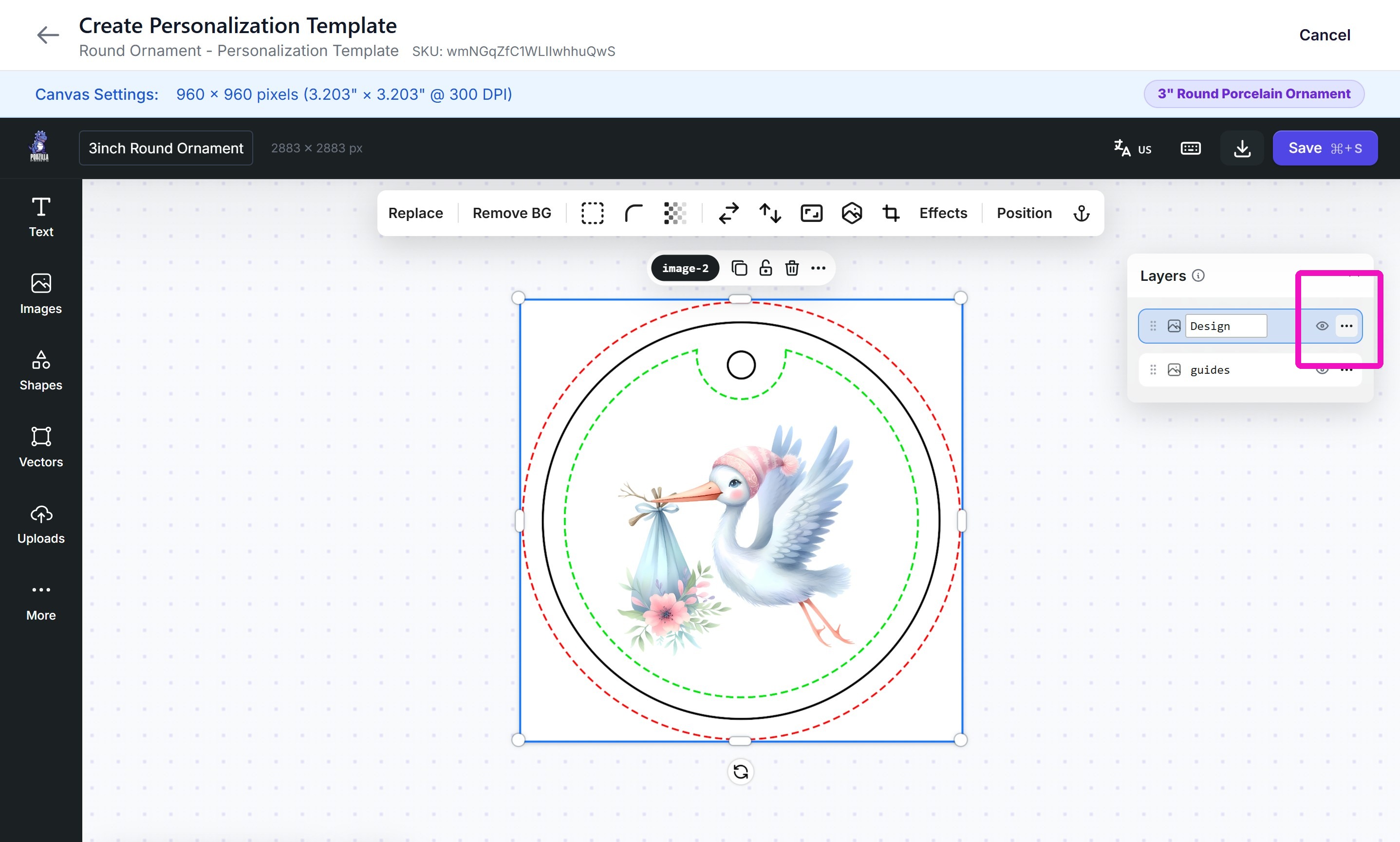
8. Click the Text icon to add a text layer.
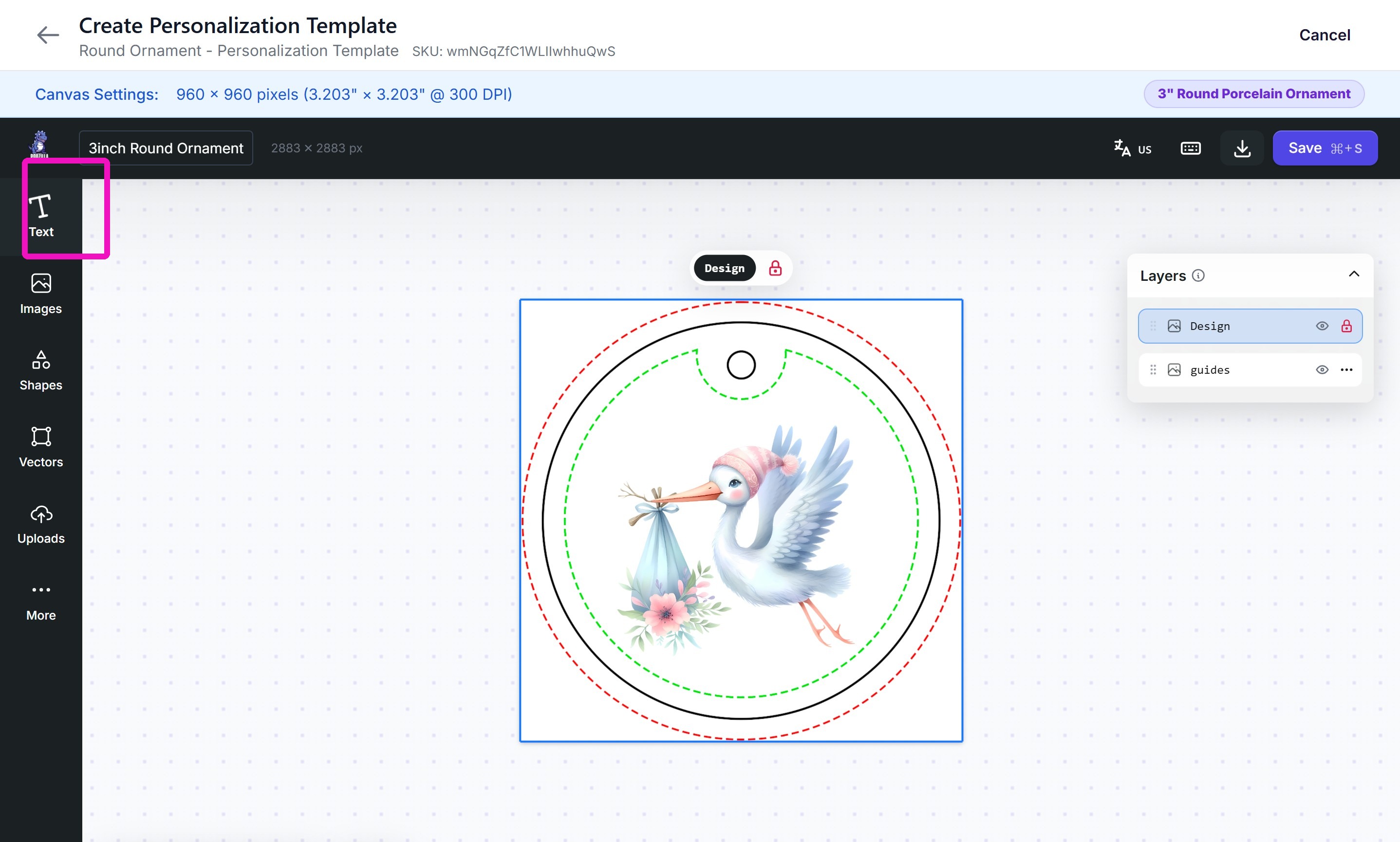
9. Click the text style you want.
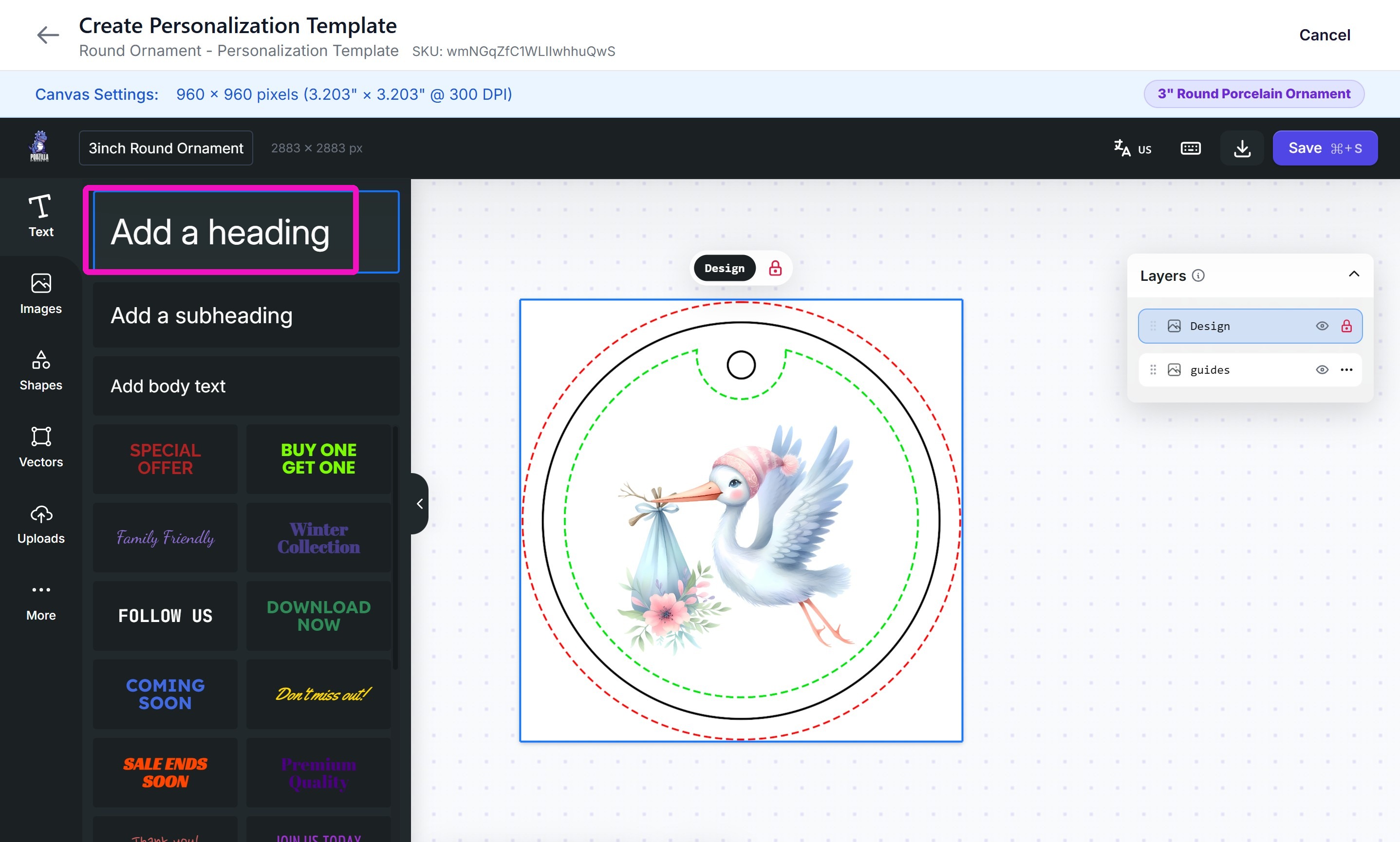
10. Position the text layer as you want it. Click the font box to change the font.
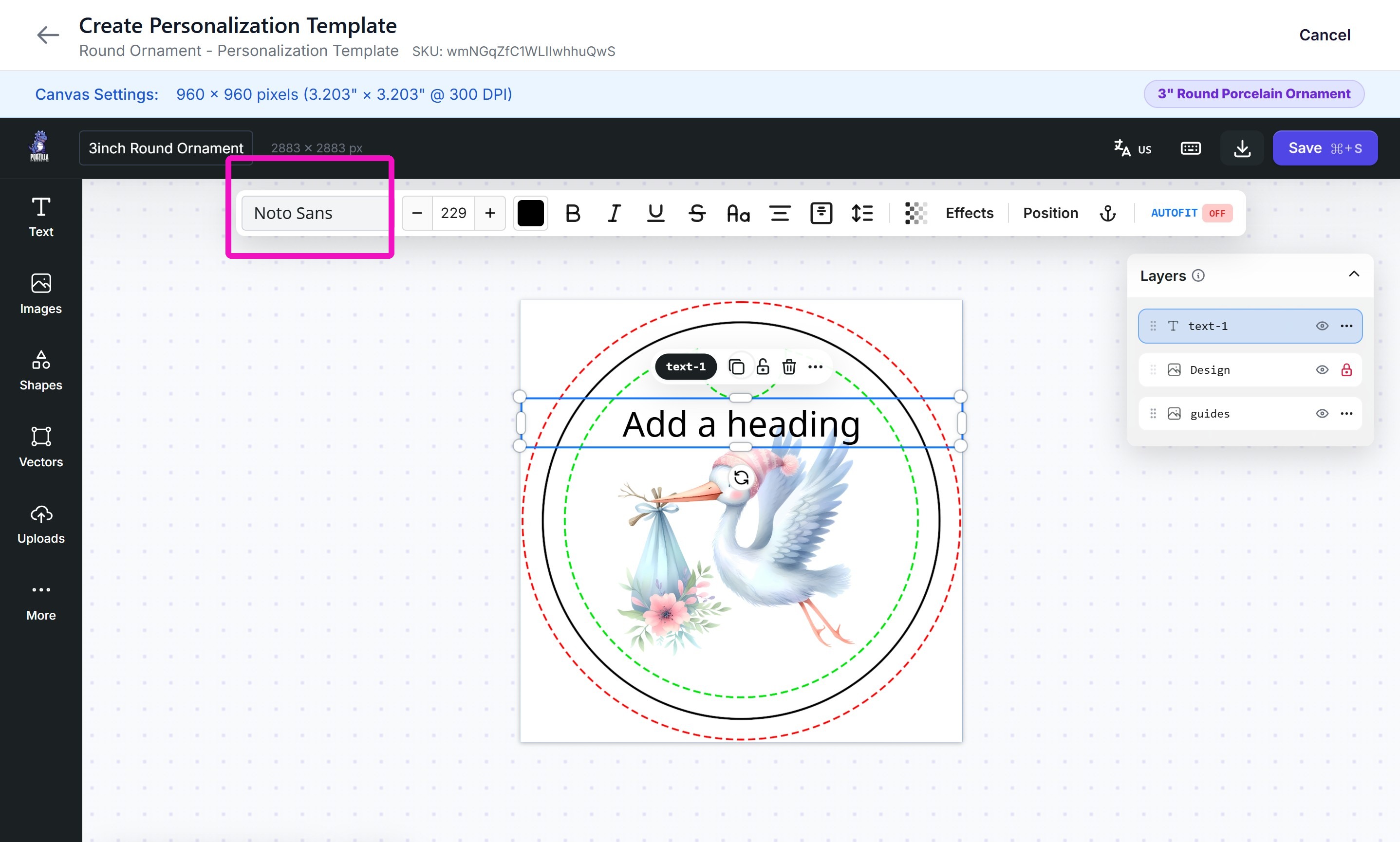
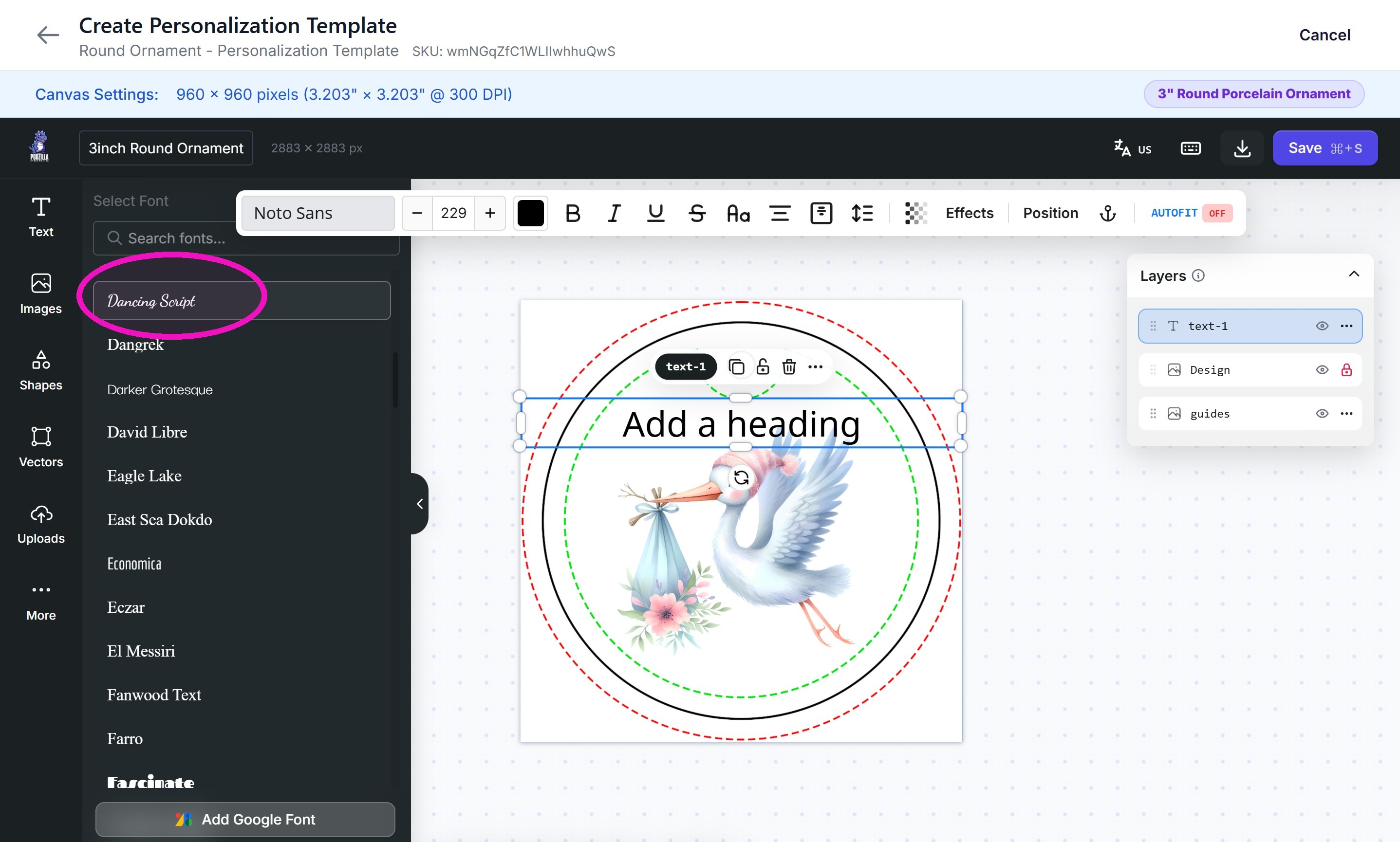
11. Choose your font from the system fonts or from a font you've uploaded.
12. Add personalized text to test the placement in the grid. When you have it where you want it, change the layer name (optional).
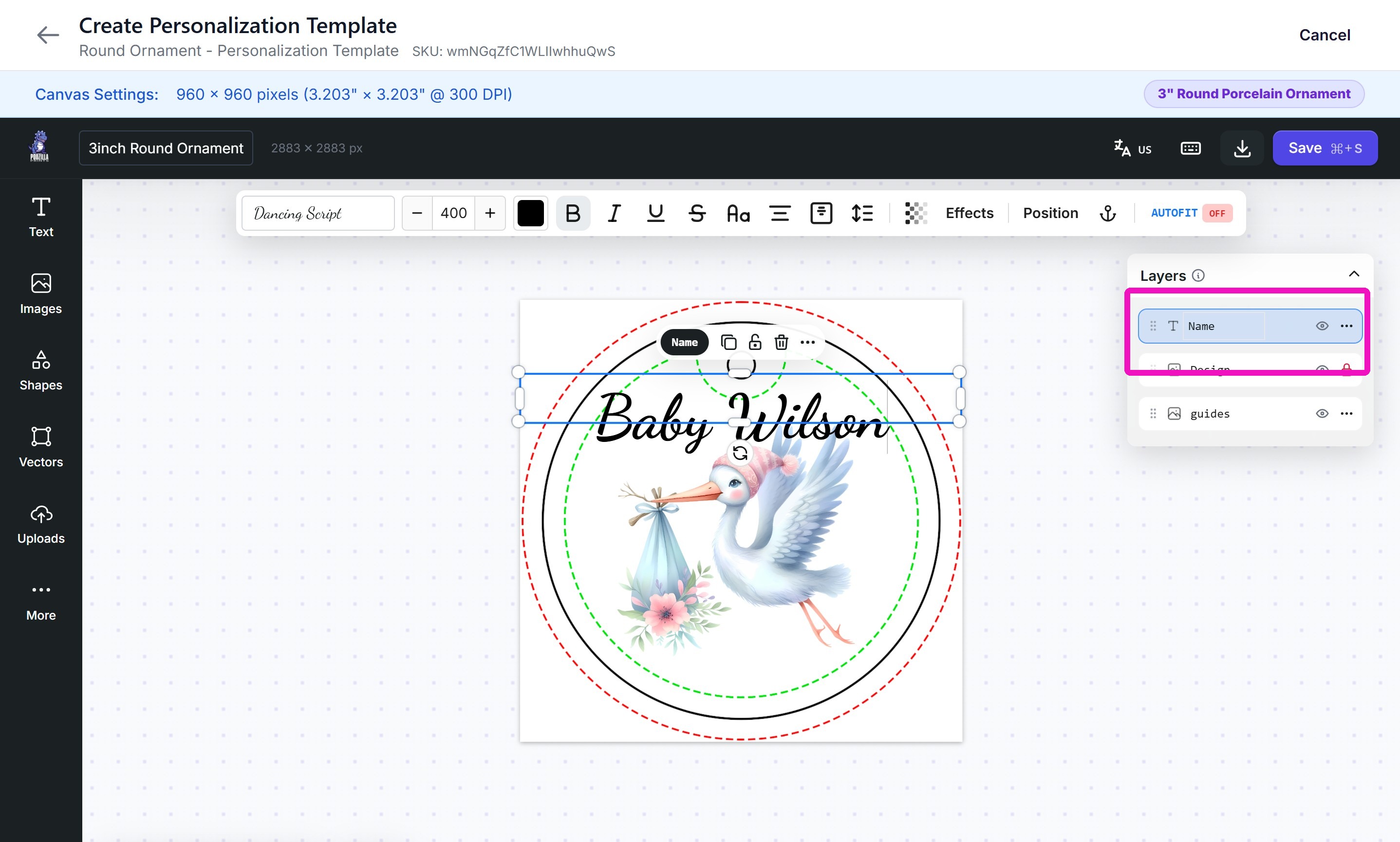
13. Repeat Steps 8-12 for each additional layer you want personalized.
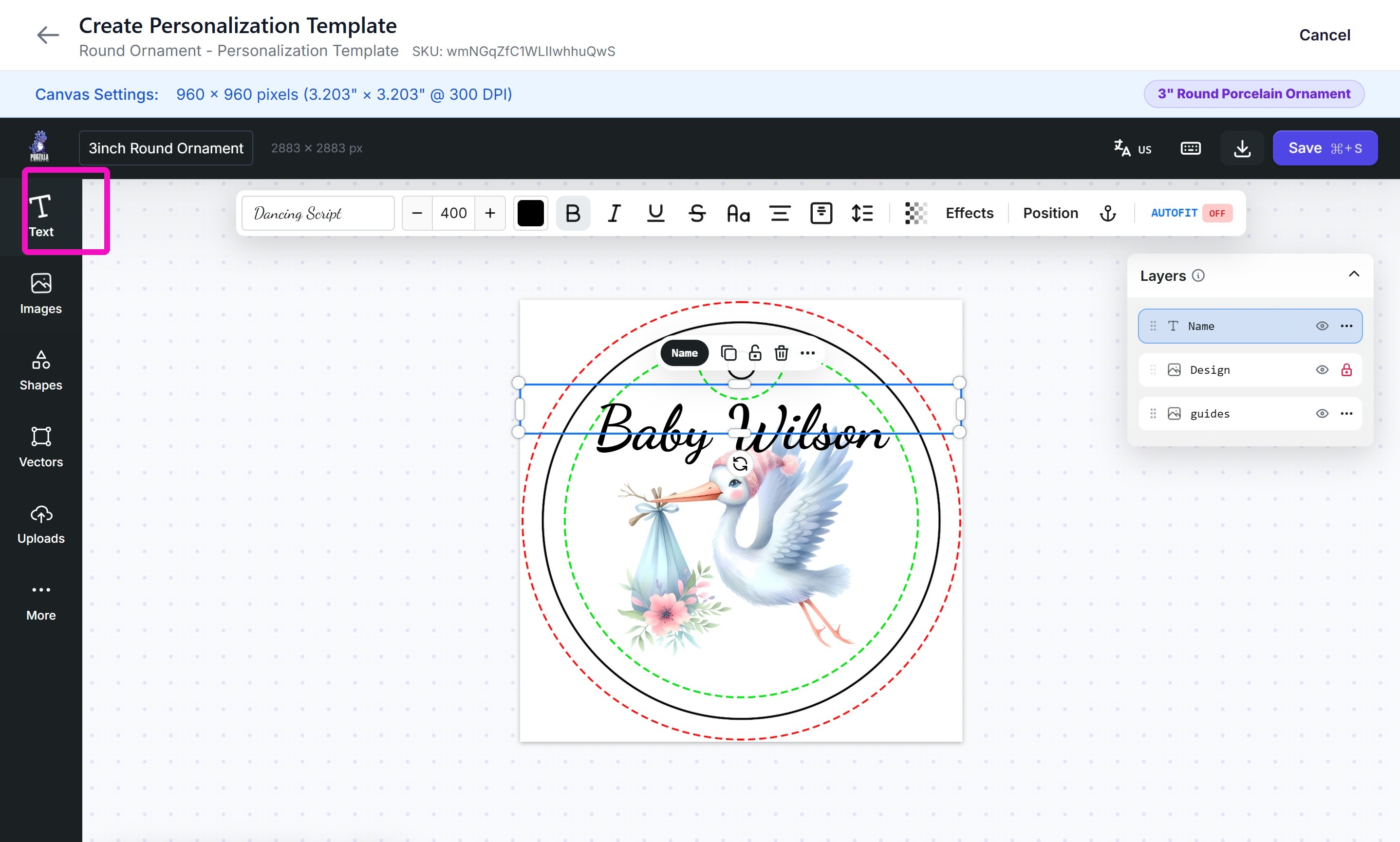
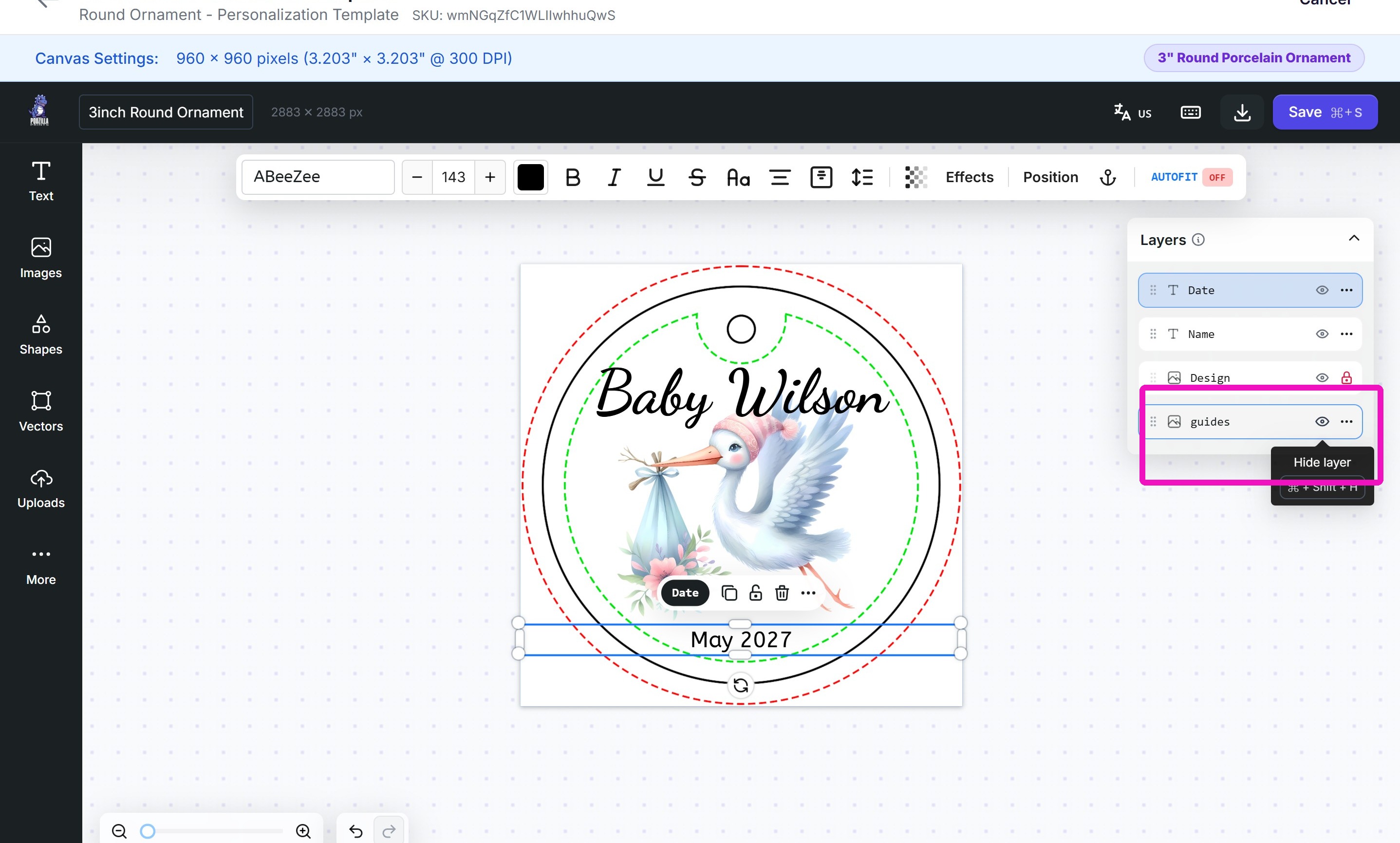
14. IMPORTANT:
Hide or delete the guide layer so it doesn't show up on the printed product.
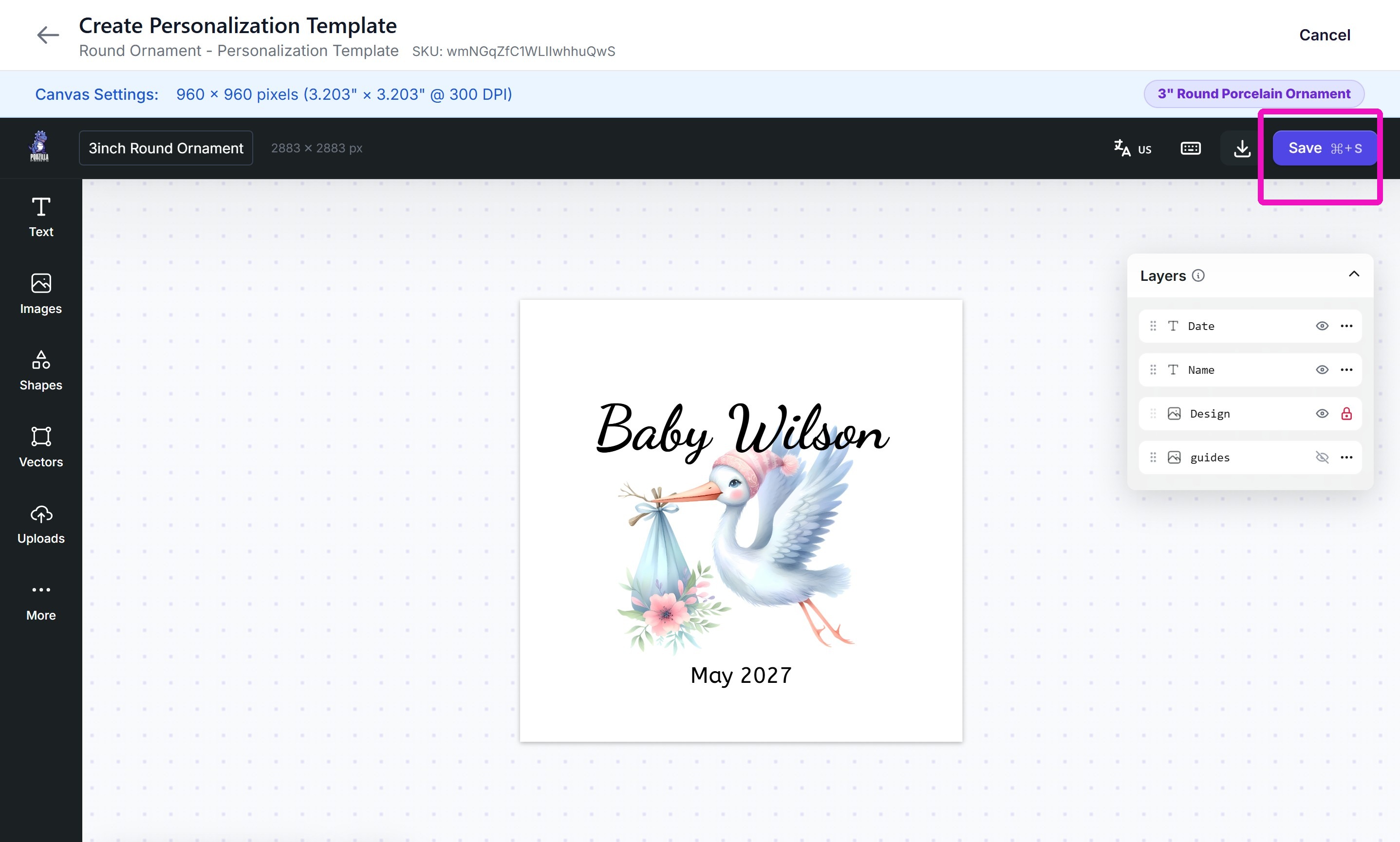
15. Save the template.
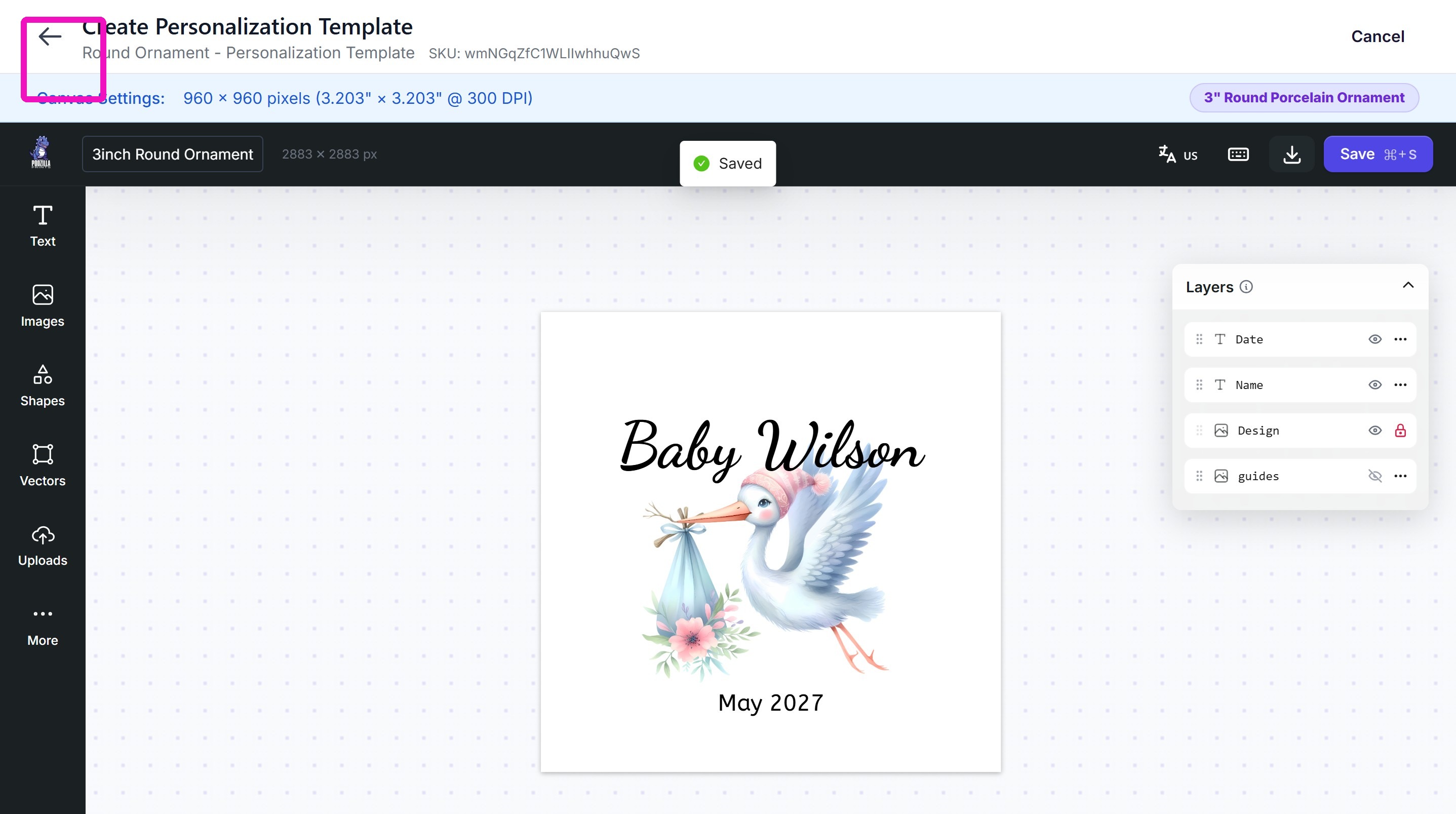
16. Once the ornament shows as Saved, click the back arrow to return to the product.
Turning On Personalization
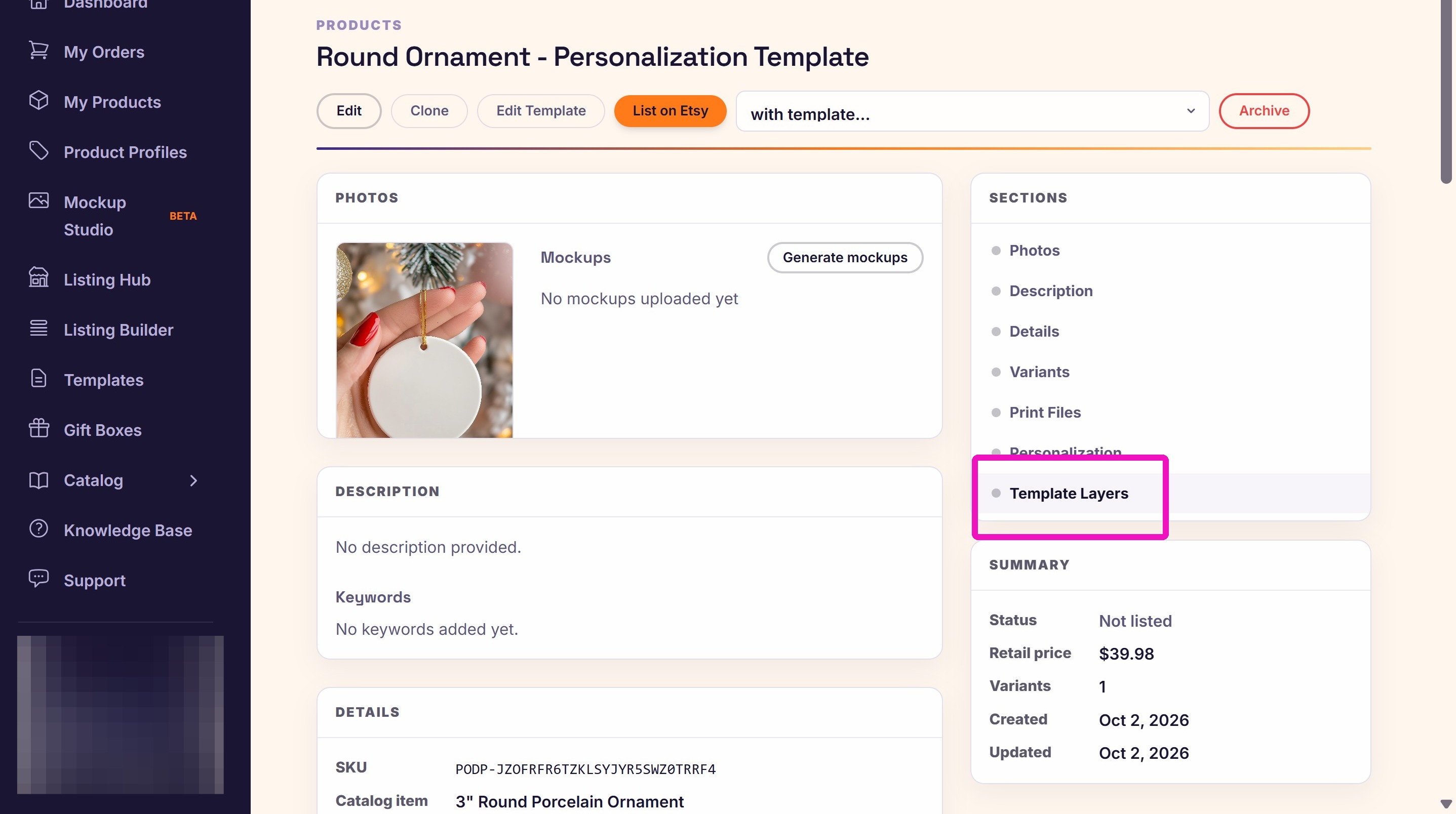
18. Click the toggle button to turn on each layer you want personalized.
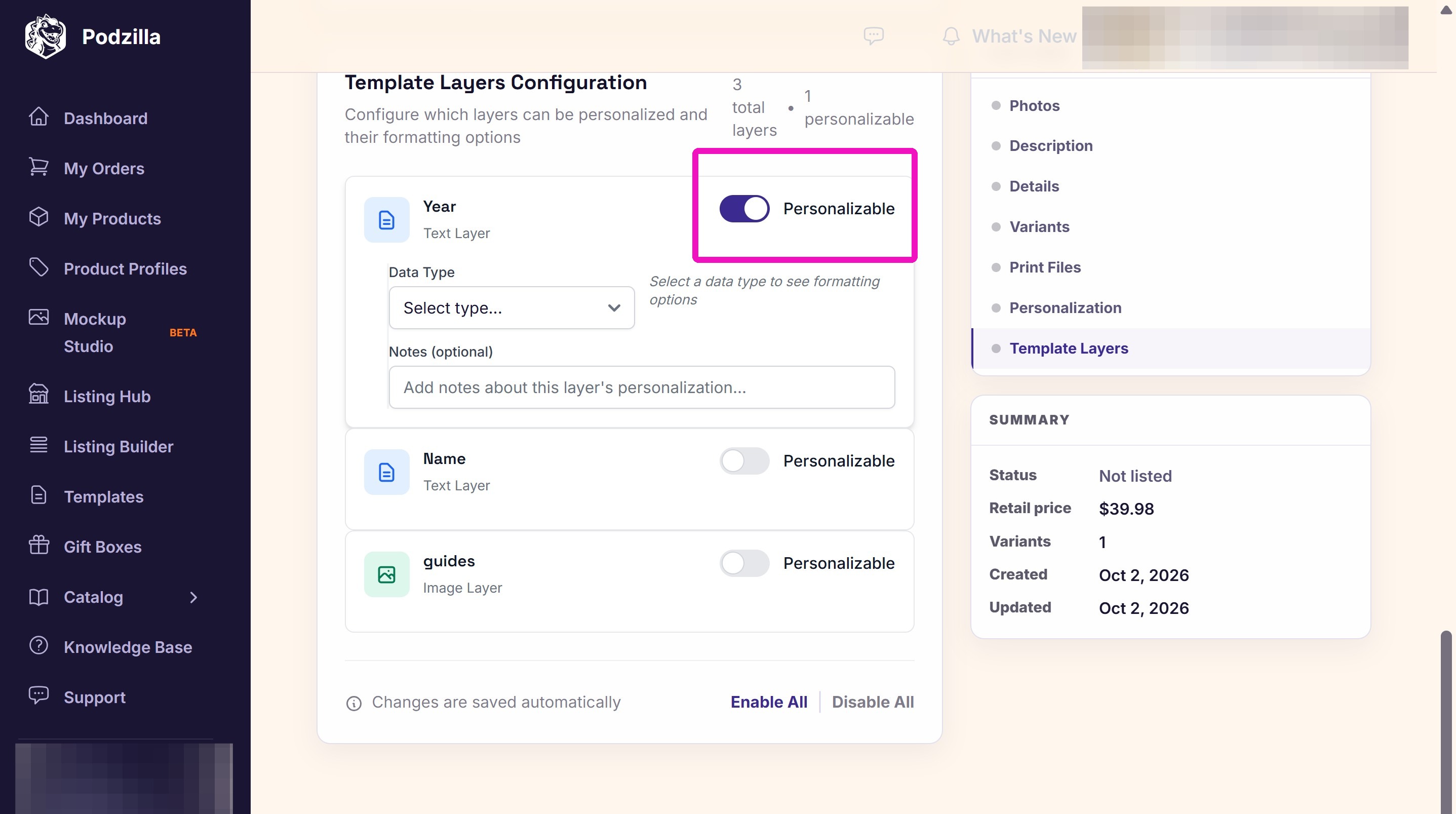
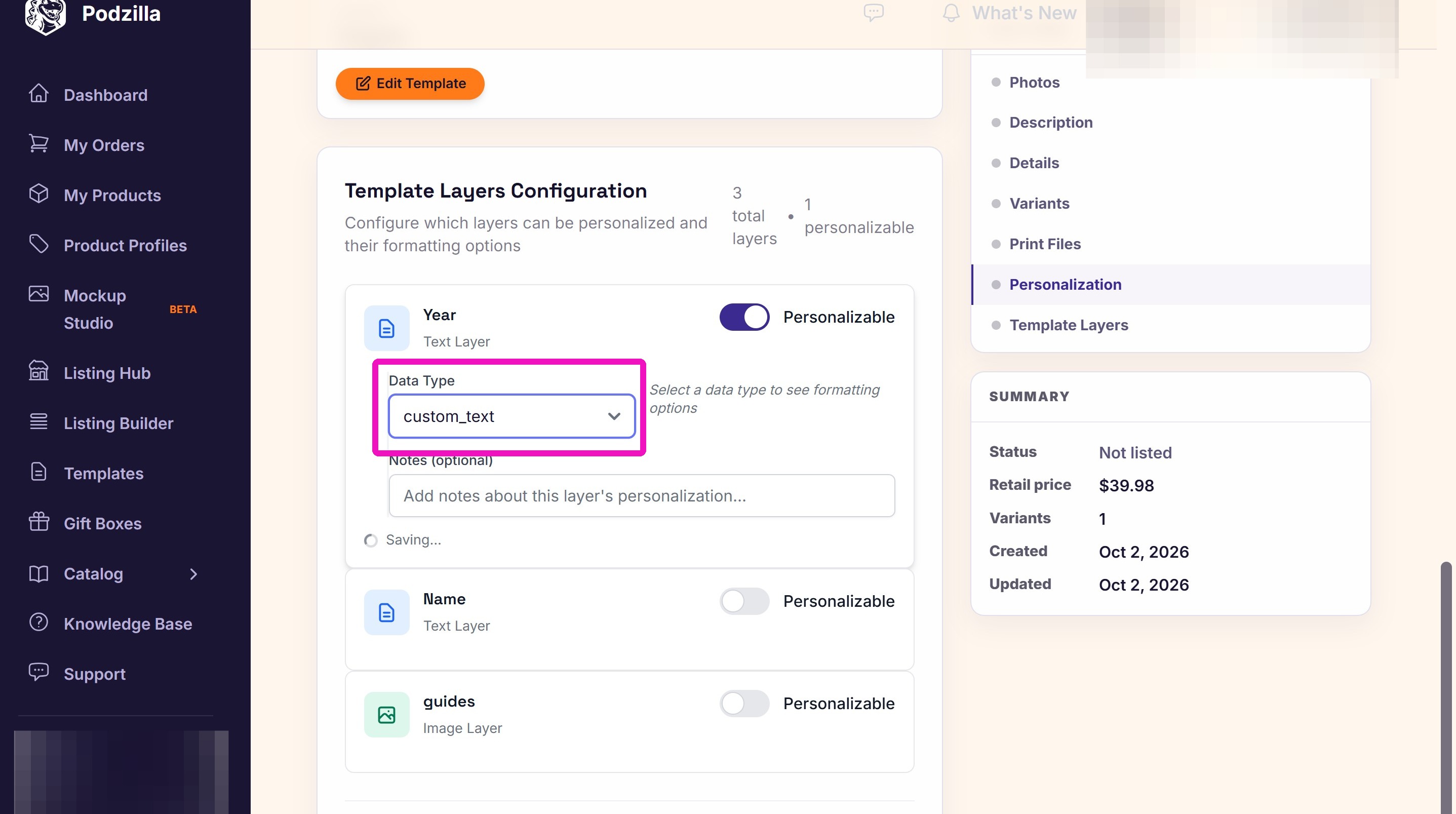
19. Choose a data type for each layer.
When You Get a Personalized Order
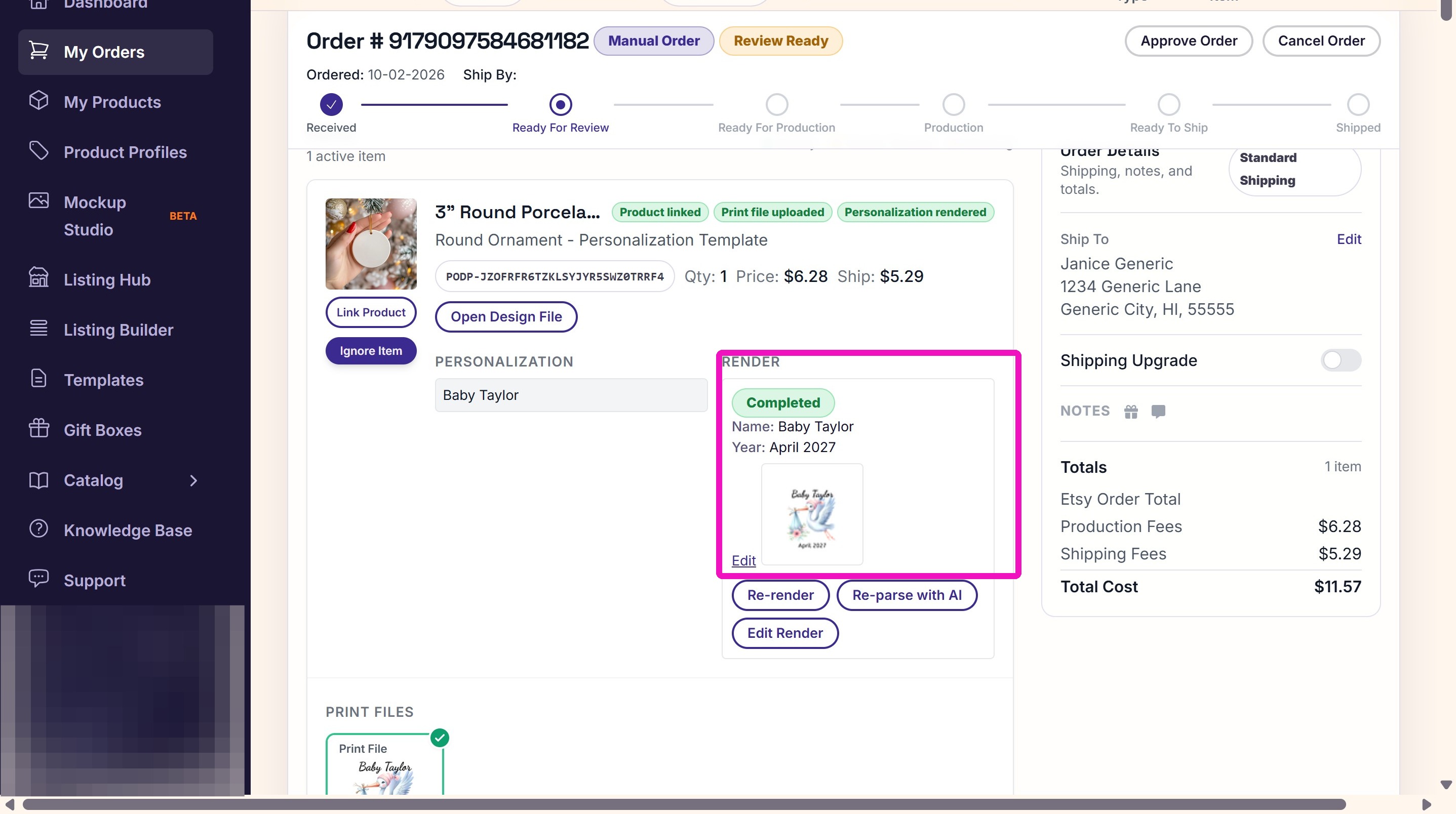
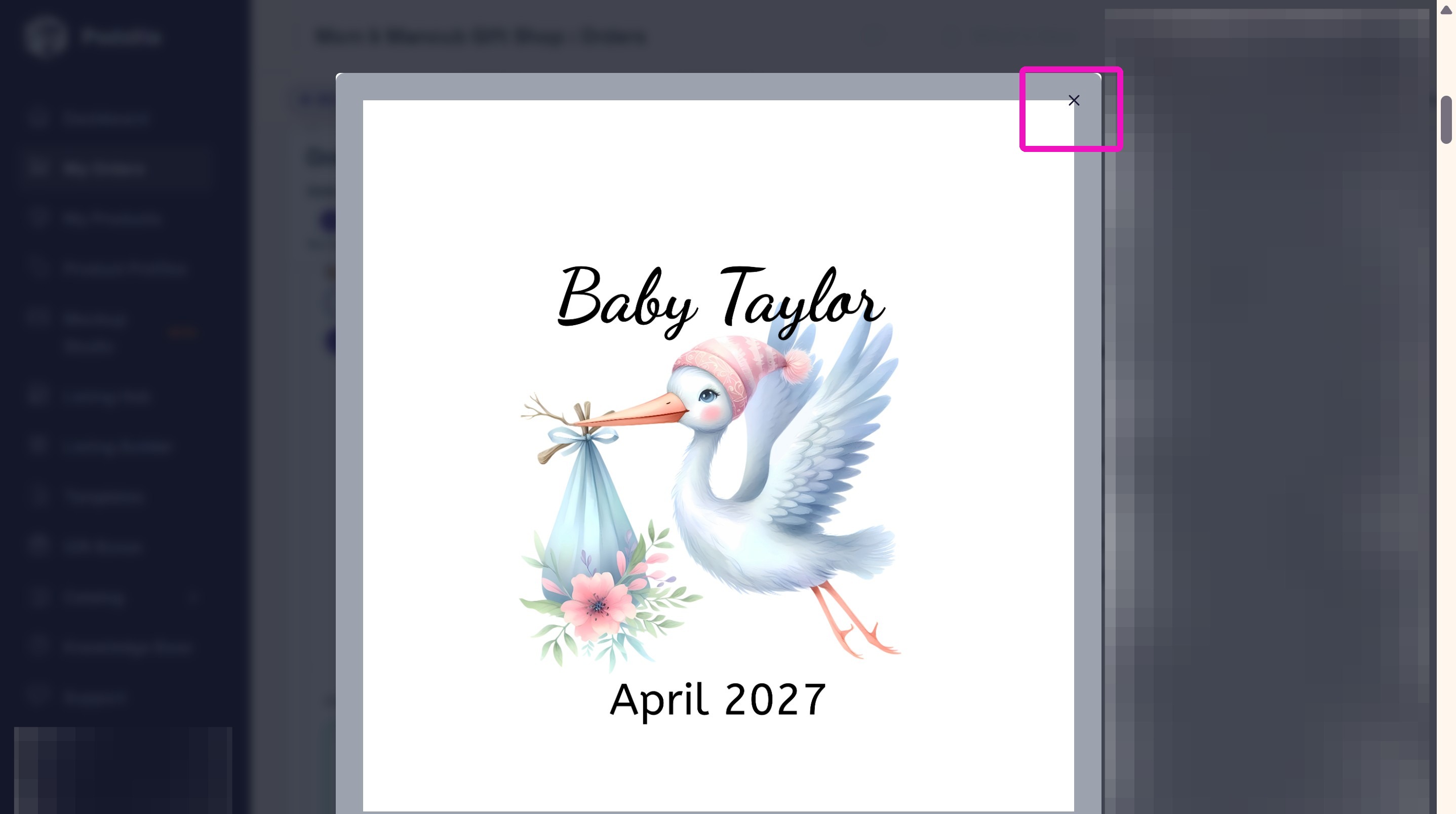
21. Click the Eyeball icon to expand the file and make sure the personalization looks correct.
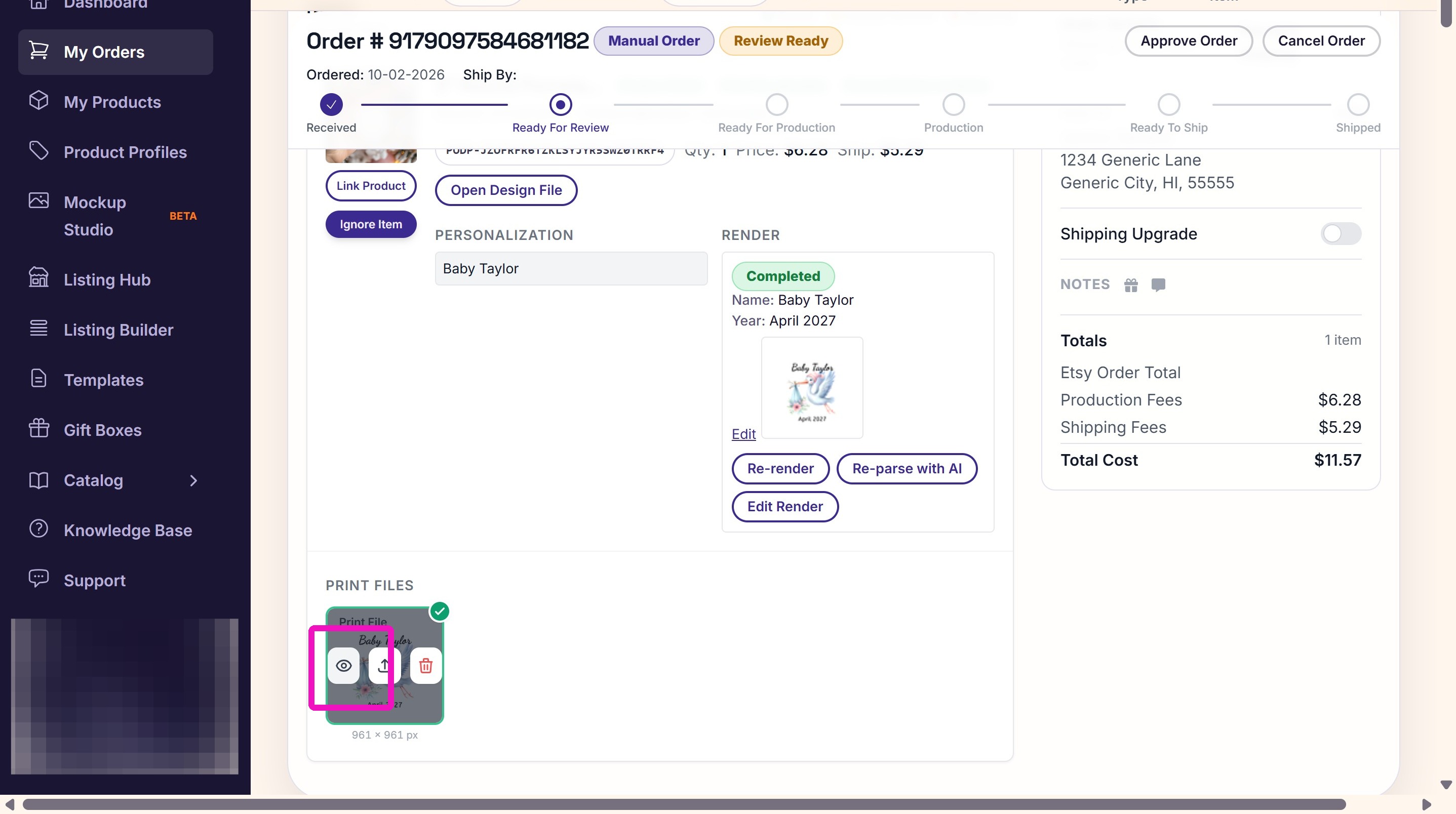
22. If everything looks correct, close the Print File window.
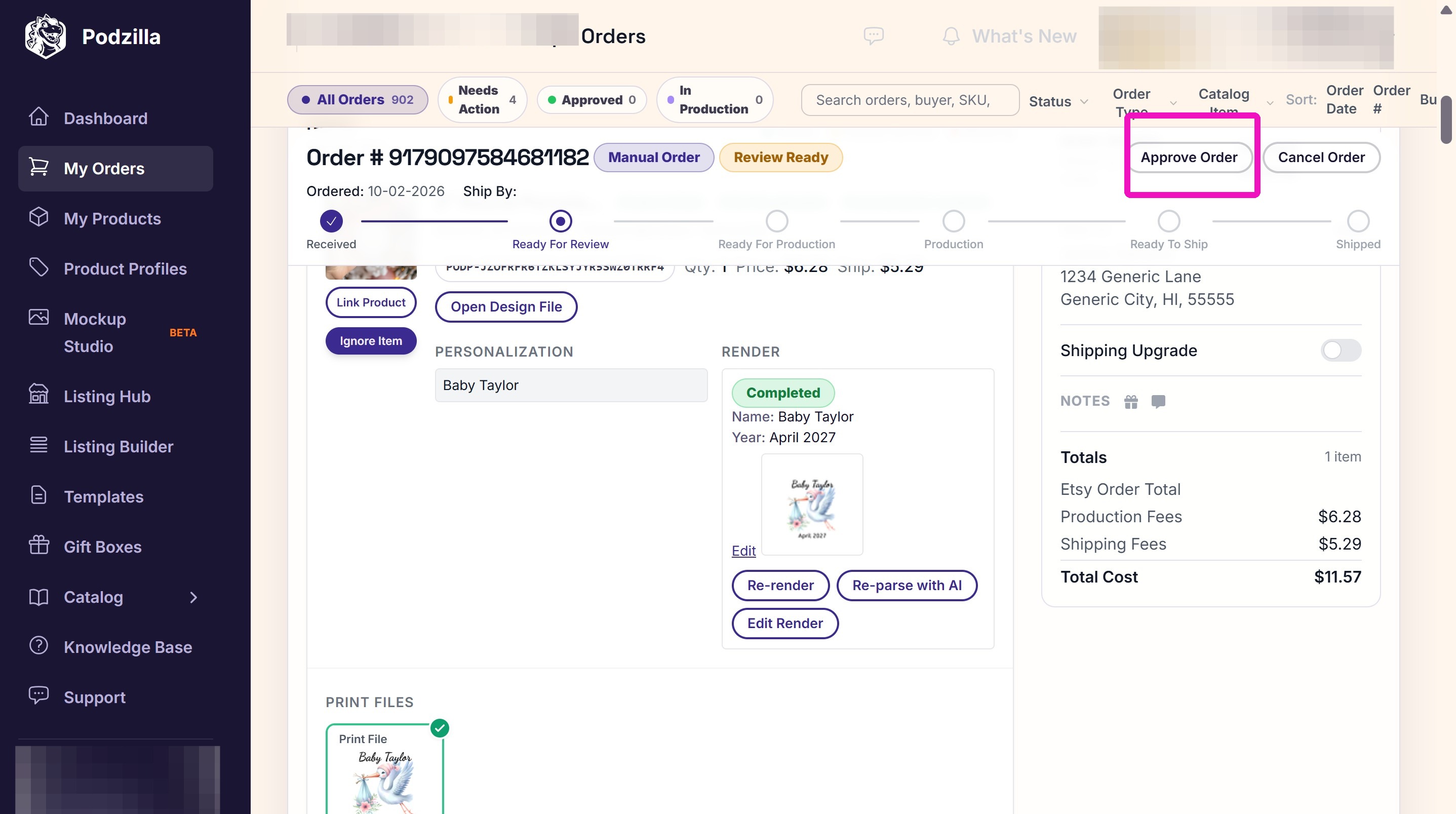
23. Approve the order to send it into production.
Editing Automatic Personalization
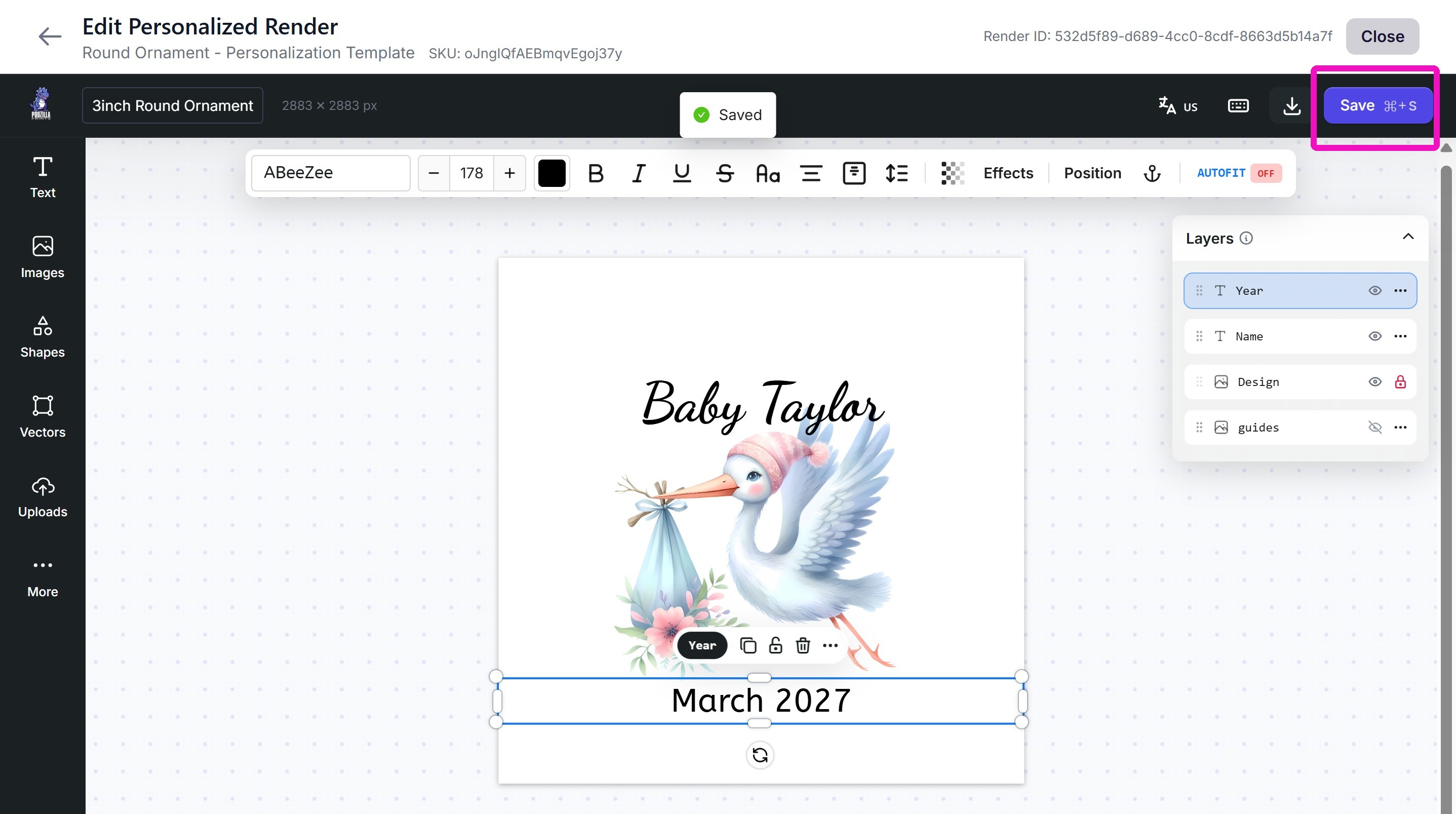
25. Make your updates and click Save.
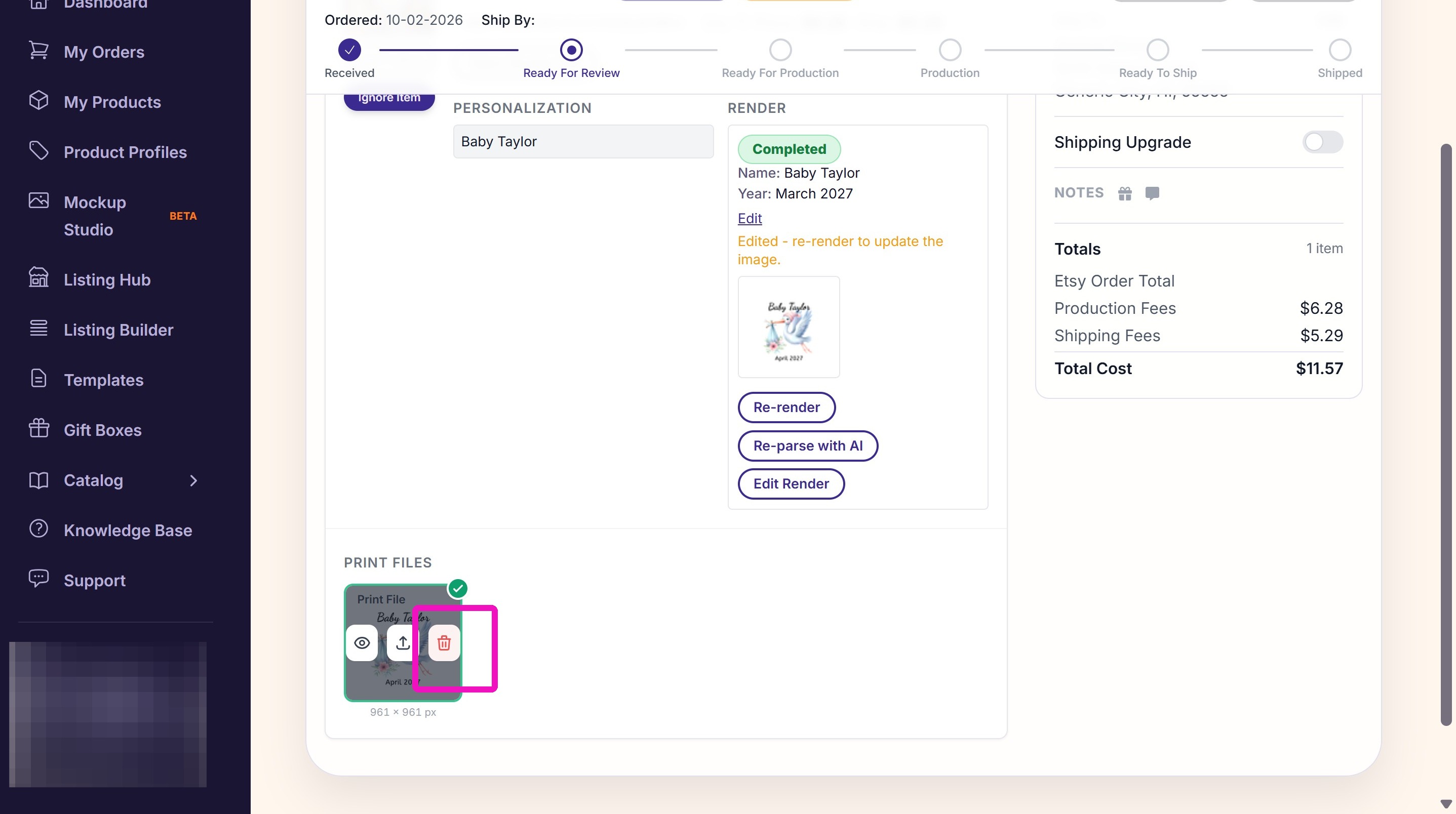
26. Delete the old print file.
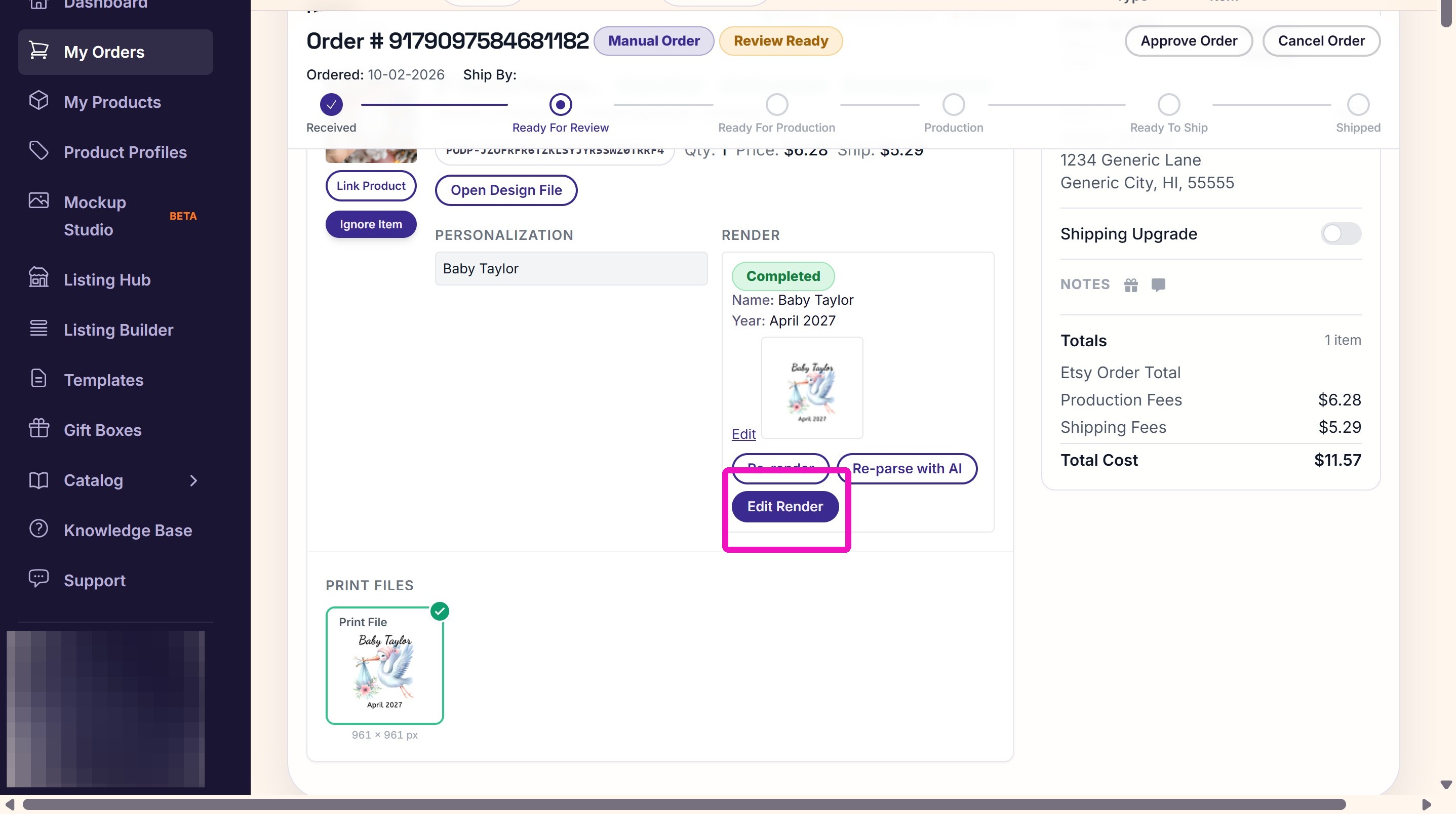
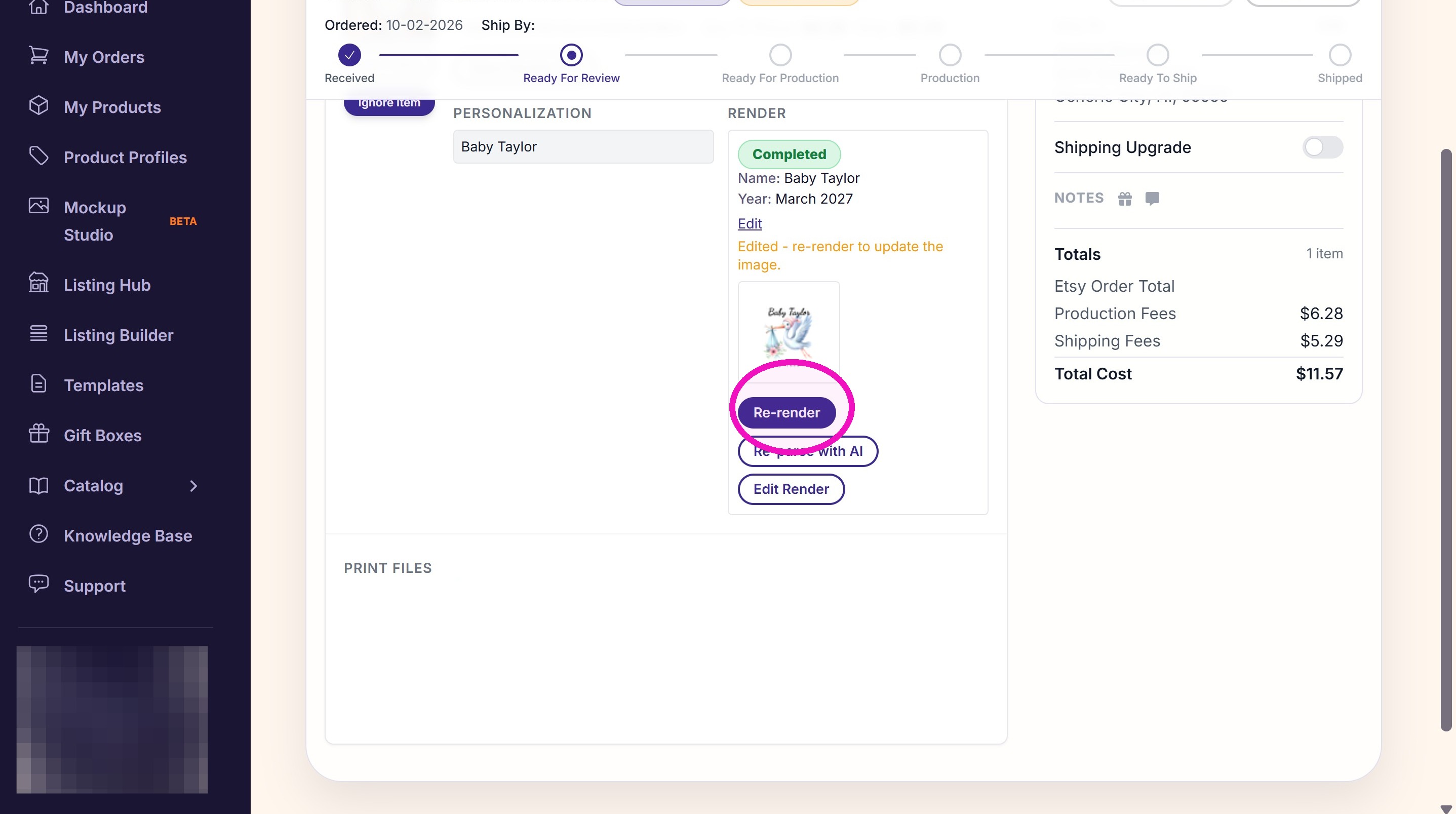
27. Click the Re-render button to regenerate the personalized image with the changes you made.
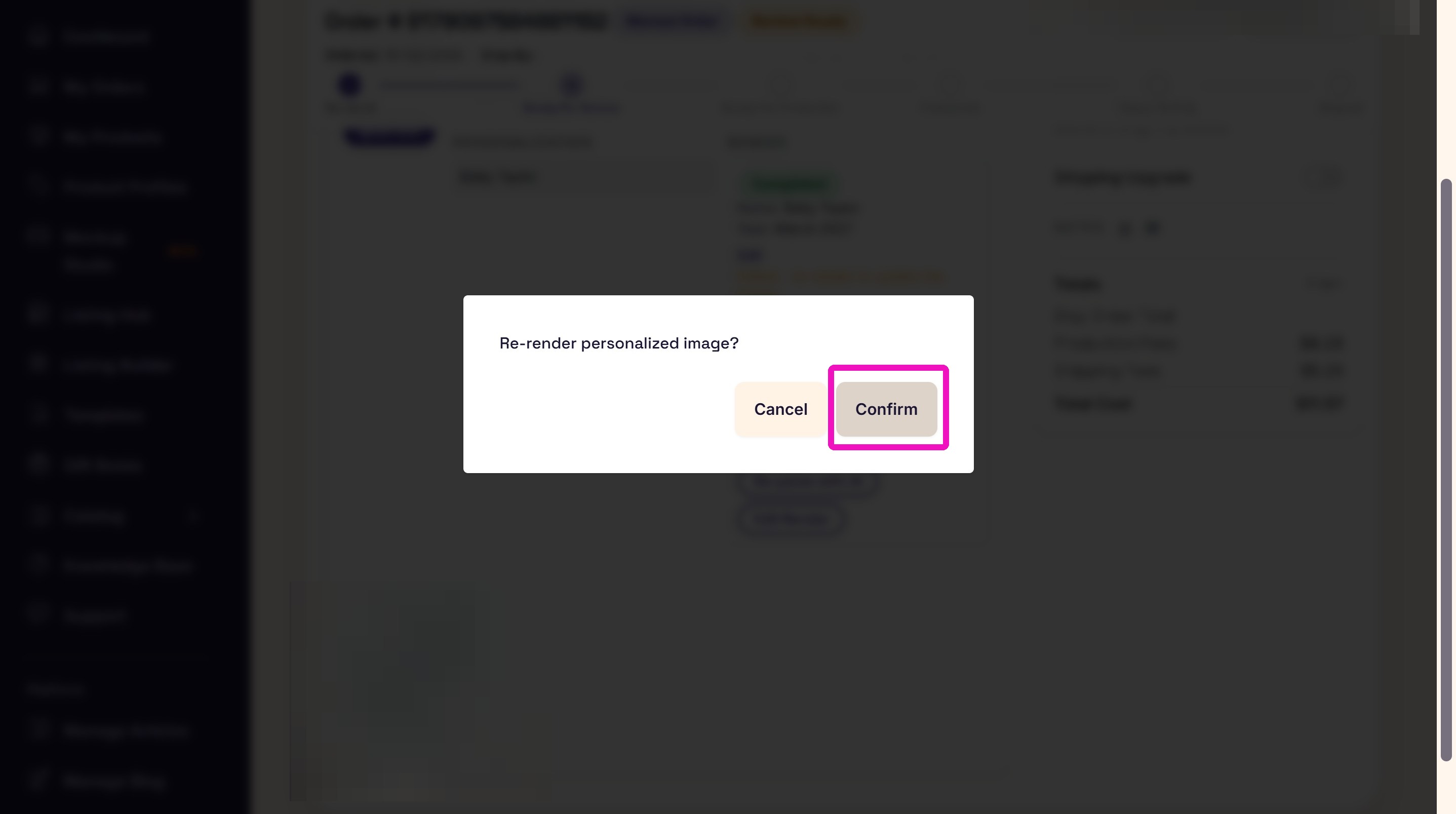
28. Click Confirm.
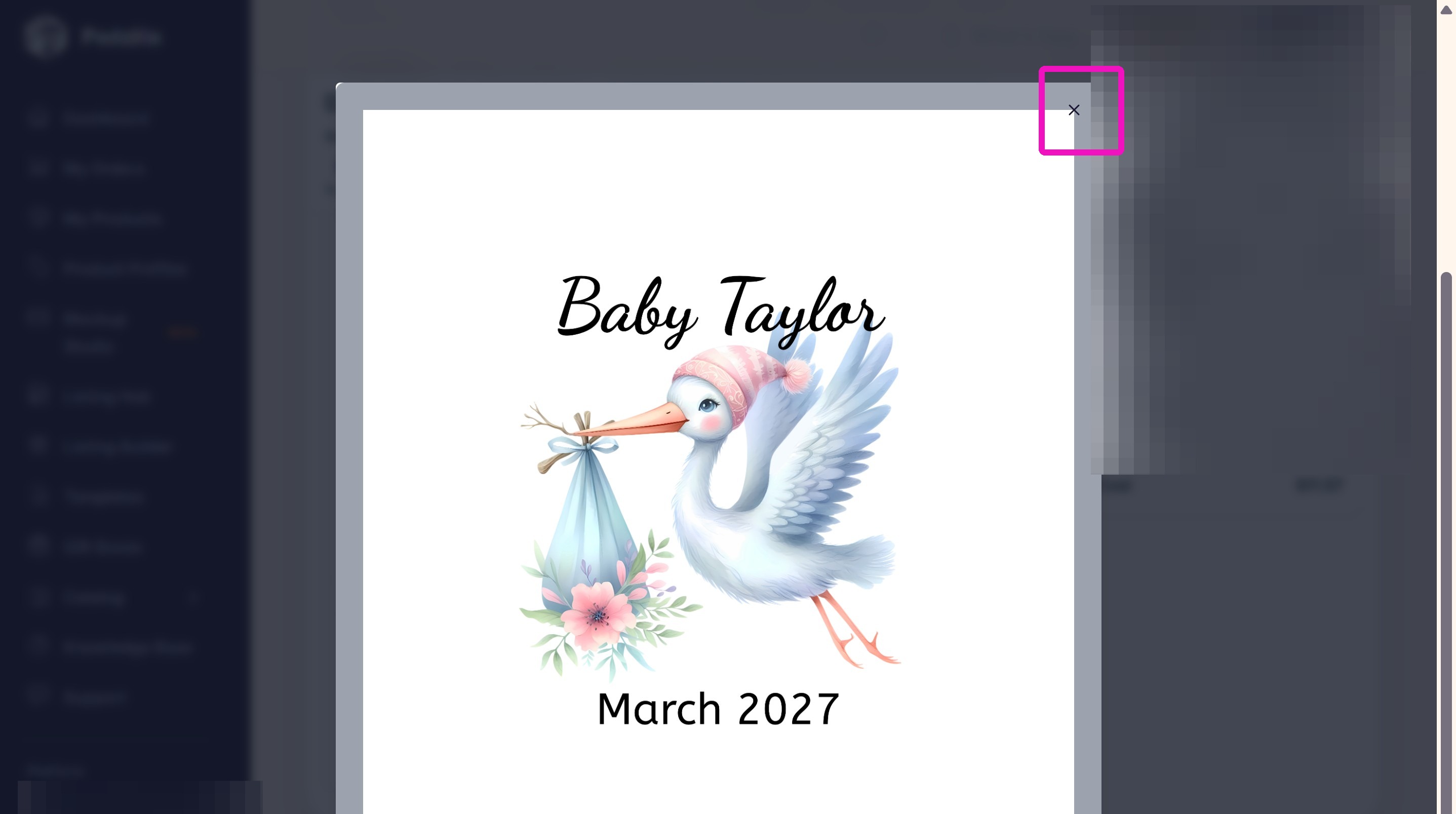
29. Click the Eyeball icon to expand the new file and make sure the personalization looks correct.
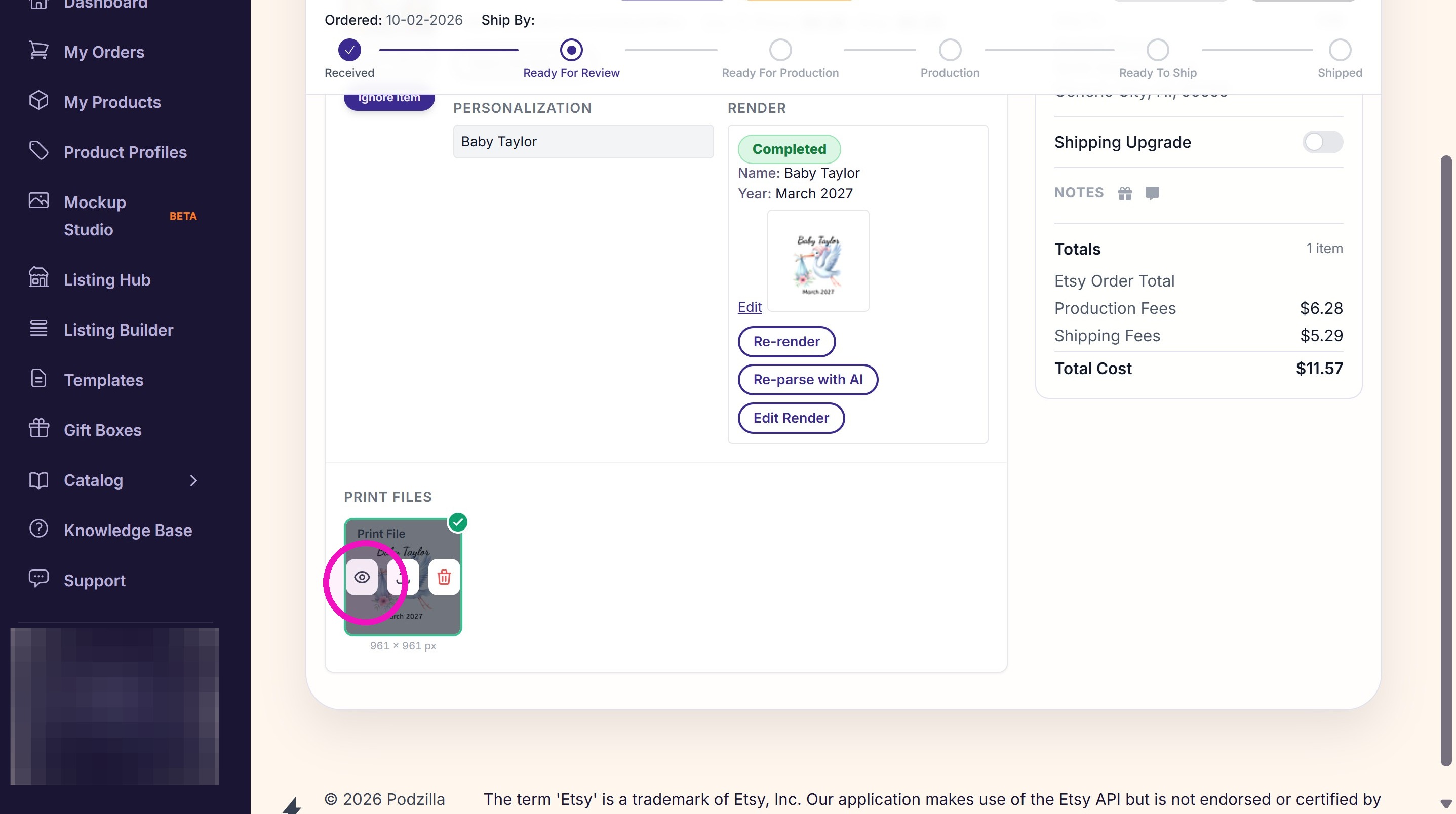
30. If everything looks correct, close the Print File window.
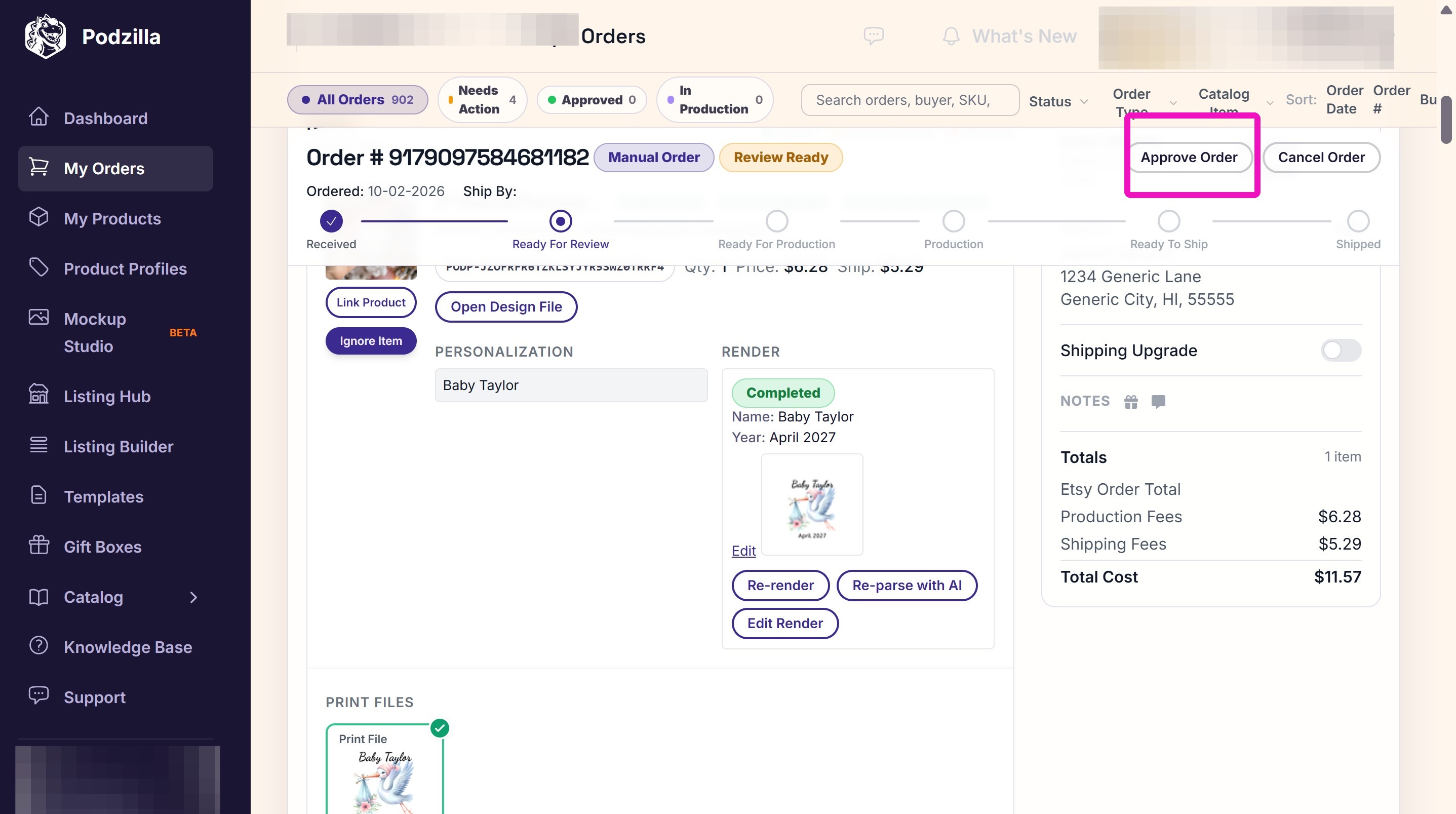
31. Approve the order to send it into production.
Related
More Articles
Getting Started
Welcome to Podzilla! The Podzilla website lets you manage products and orders associated with your shop(s). Let’s get you started.
Saving Sales with Canva Photo Cards
This customer service option has saved many of my sales! It only takes a few minutes, and is well worth it. I've included the instructional video and my script. Be sure you modify it for your brand and voice.
Shipping Profile Info
We use USPS Ground Advantage for all standard shipping. If your customers need their orders faster, Express upgrades are available. These use USPS Priority Mail, and pricing is as follows:
How to Use the Ornament Design Templates
TRANSCRIPTThis article explains how to use Podzilla’s ornament design templates, including safe...
Creating Products
This SOP outlines the steps to create both regular and variant products in the catalog system, focusing on the new product creation form and SKU generation.