Gift Boxes
•
Updated 27 days ago
Linking Different Product(s) to a Gift Box Order
Gift Boxes
Customer Service
Quick Guide
1. Open the card for the gift box order.
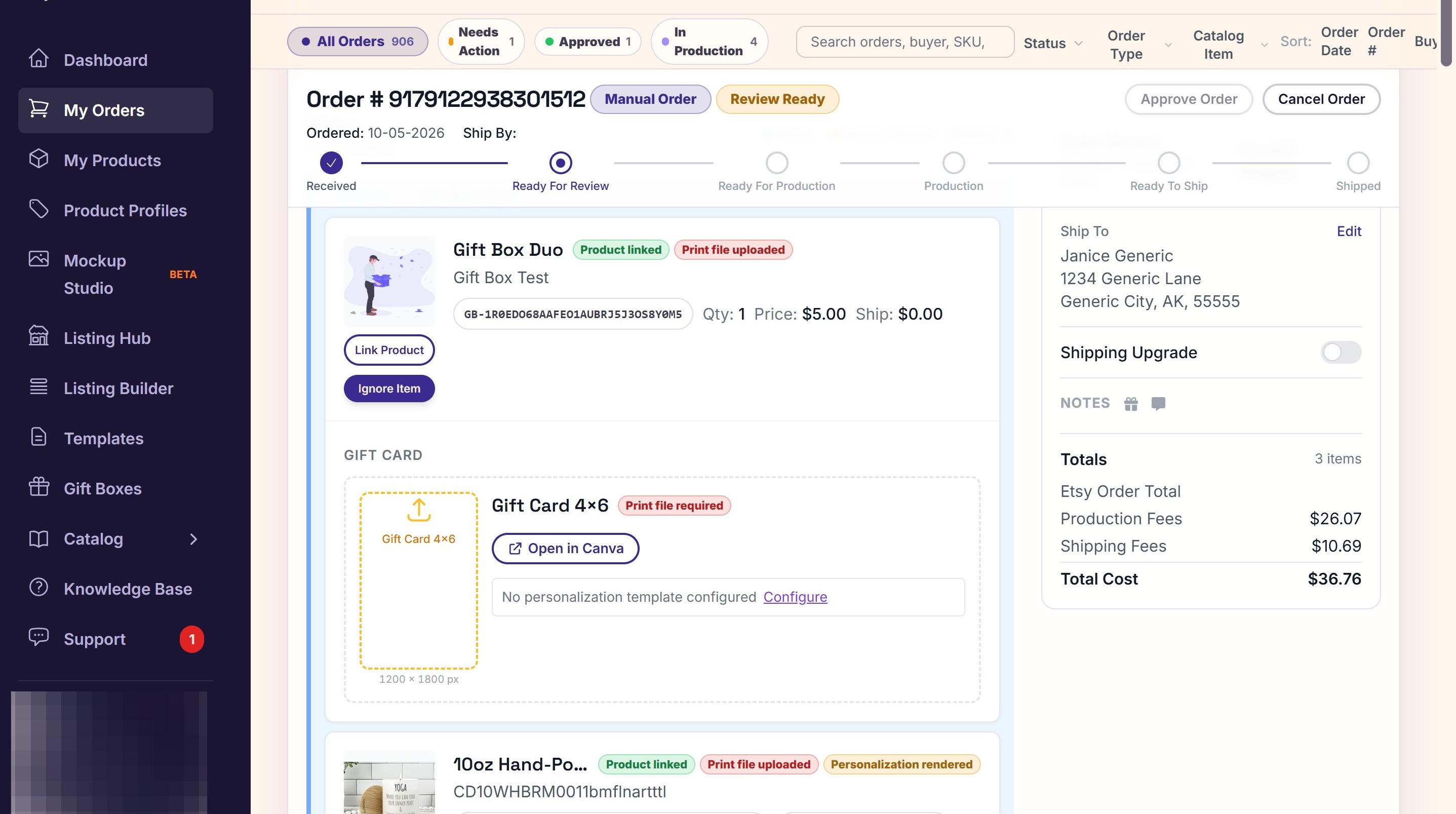
2. Go to the first product you are changing and click Link Product.
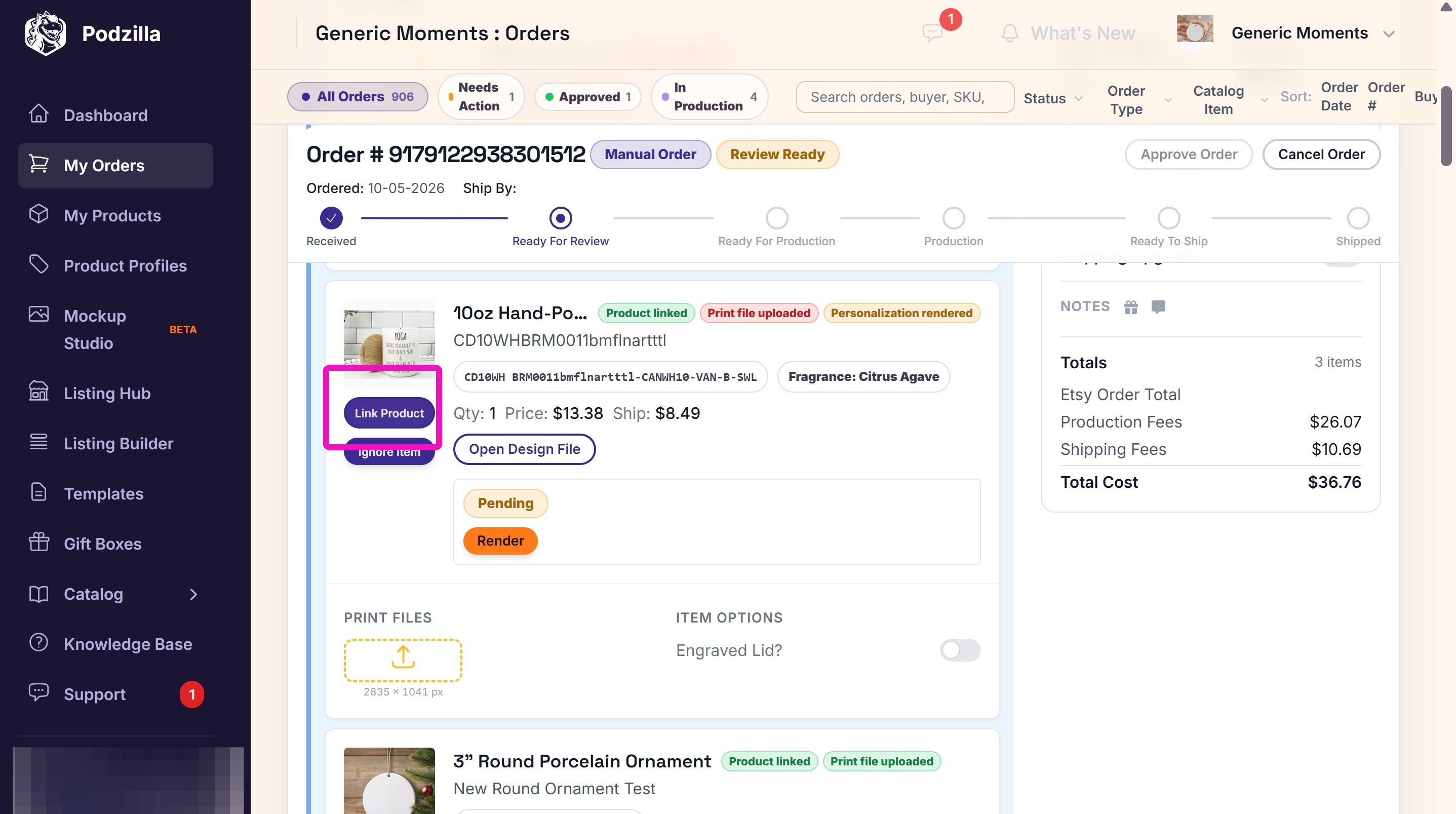
3. Enter the Title or SKU for the new product. If the product contains variants, expand the product’s variant selector.
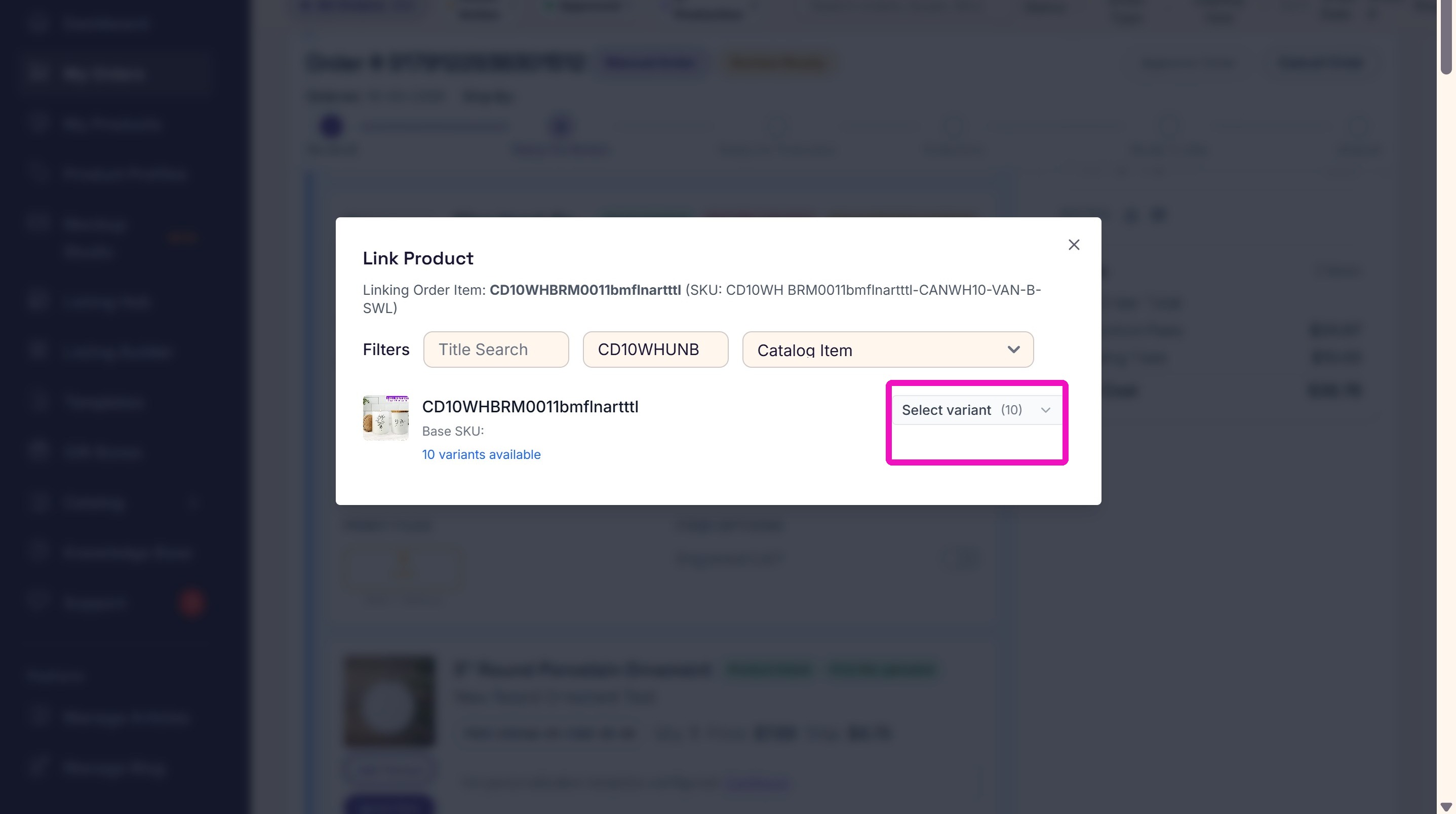
4. Find the correct variant and click the Link button to replace the current product on the order card with this one.
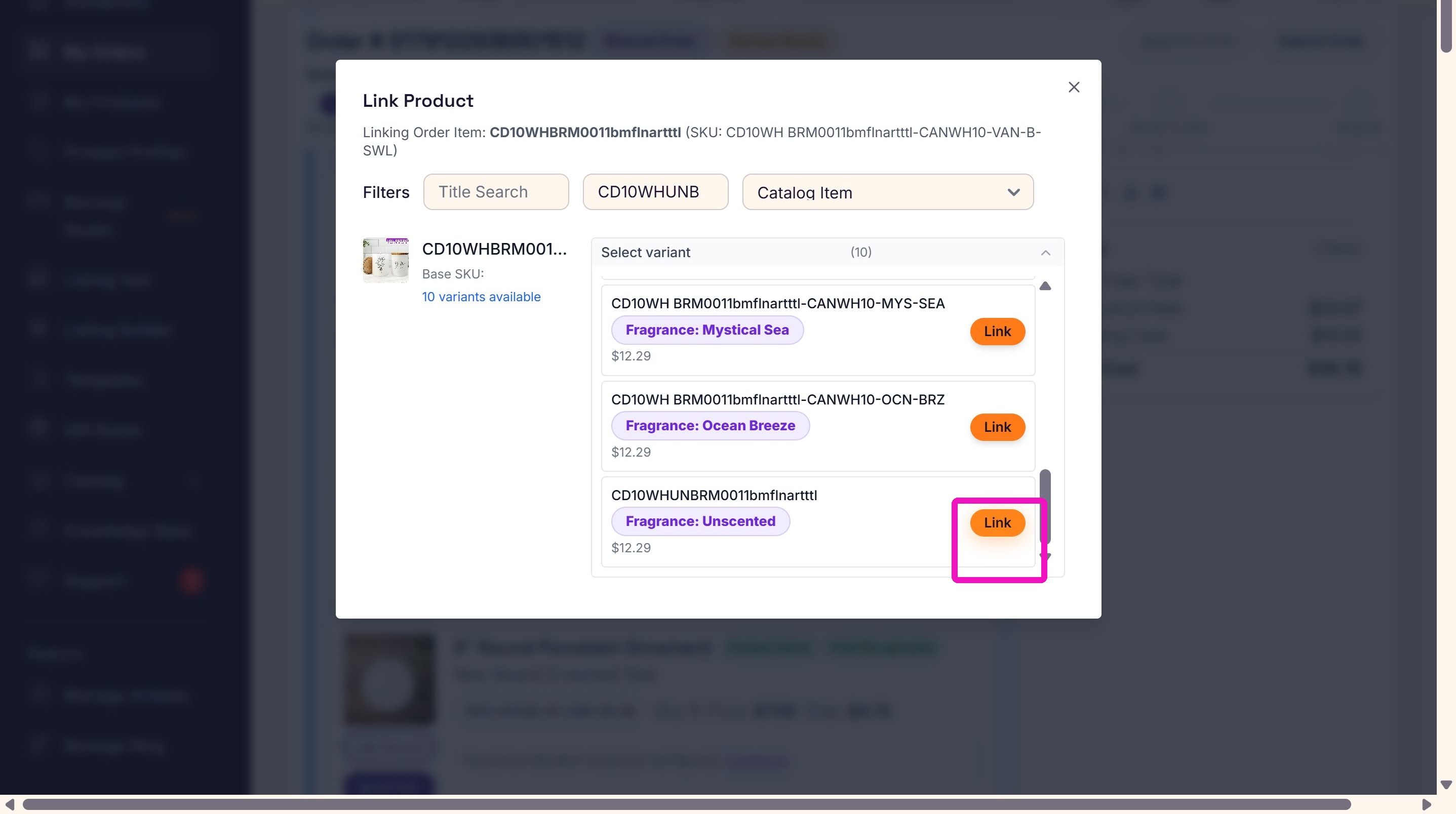
5. Go to the next product you are changing and click Link Product.
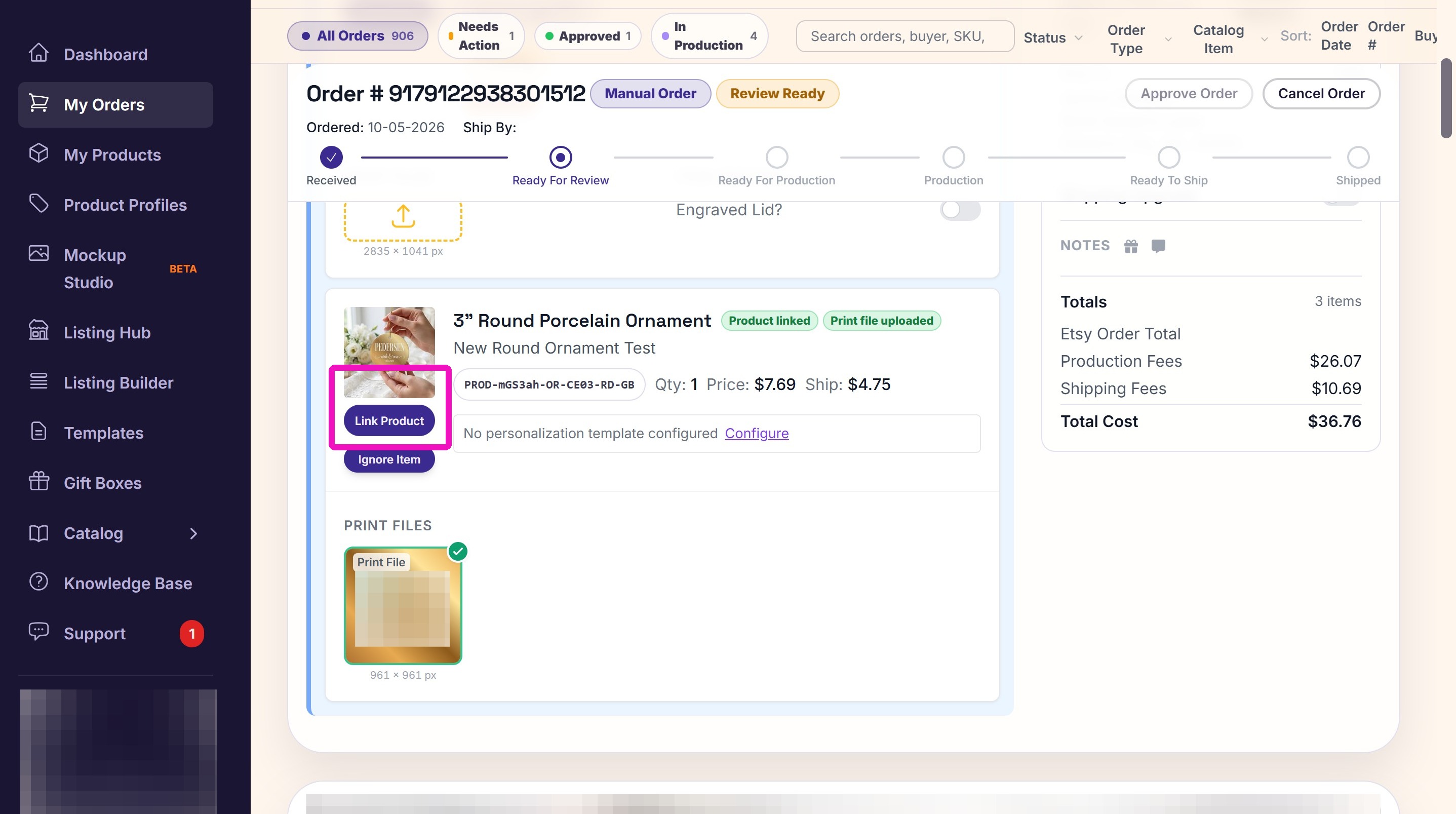
6. Again enter the Title or SKU for the new product. Click the Link button to replace the current product on the order card with this one.
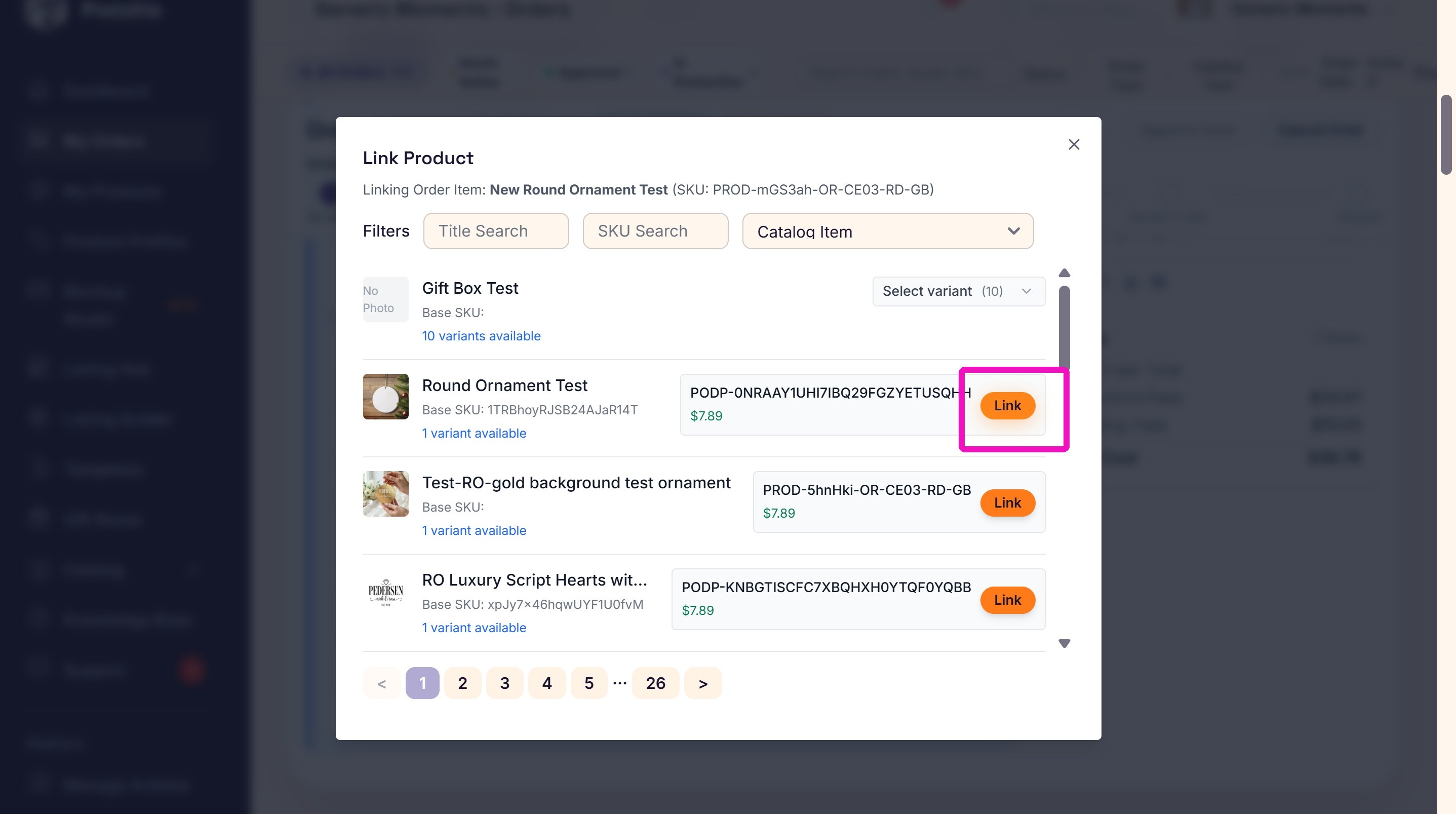
7. Repeat steps 5 and 6 if the gift box contains 3 items.
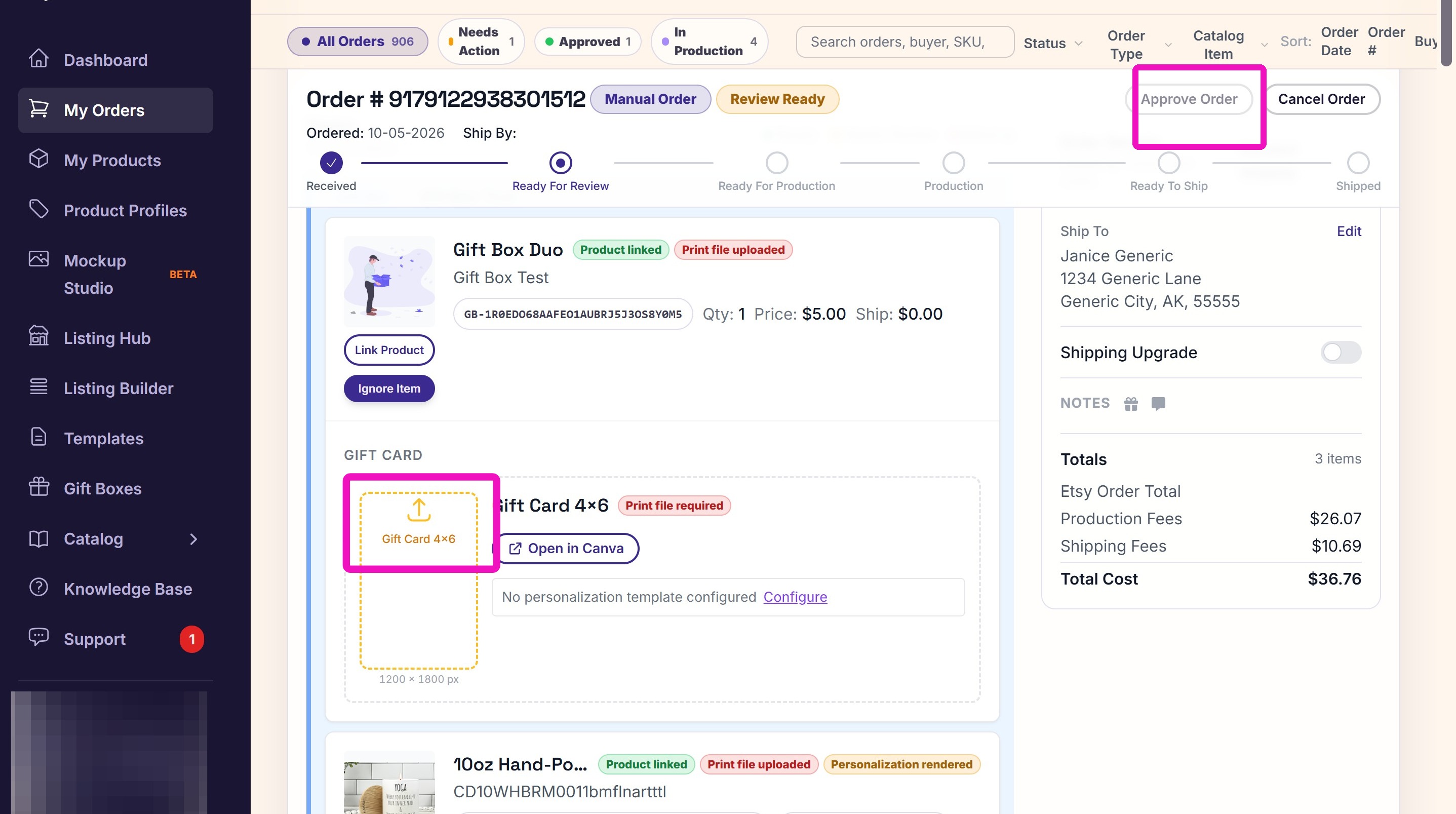
Finally, upload a new gift card (if necessary) and click Approve Order.
Related
More Articles
Saving Sales with Canva Photo Cards
This customer service option has saved many of my sales! It only takes a few minutes, and is well worth it. I've included the instructional video and my script. Be sure you modify it for your brand and voice.
How-To Videos
1,413 views
Creating Products
This SOP outlines the steps to create both regular and variant products in the catalog system, focusing on the new product creation form and SKU generation.
Products
753 views
Q4 Customer Service Guide🎄
Russ will send you an invitation to join the group but it does expire after a certain timeframe, so don’t forget to check back and see if you have the invitation.
Shop Prep: Q4 & Beyond
600 views
USPS Tracking | Delayed or Missing Packages
While PODZilla works hard to get every order out on time, once a package is in the hands of the carrier, delivery is out of our control. The good news is the majority of packages arrive safely.
Shipping
528 views
Requesting a Reprint
Quick Answer
How-To Videos
501 views